
Payments, refunds and cancelling
See every client payment, open invoices and receipts, refund a payment and cancel a subscription in Client Billing, plus the payment alerts you get.

Everything your clients pay through Client Billing shows up in two places: the 'Payments' and 'Clients' tabs in Account Settings, and the 'Billing' tile on each client's profile. Refunds and cancellations start from either one.
See your payments
The 'Payments' tab in Client Billing lists every payment, newest first, split into 'Subscription payments' and 'One-off payments'.
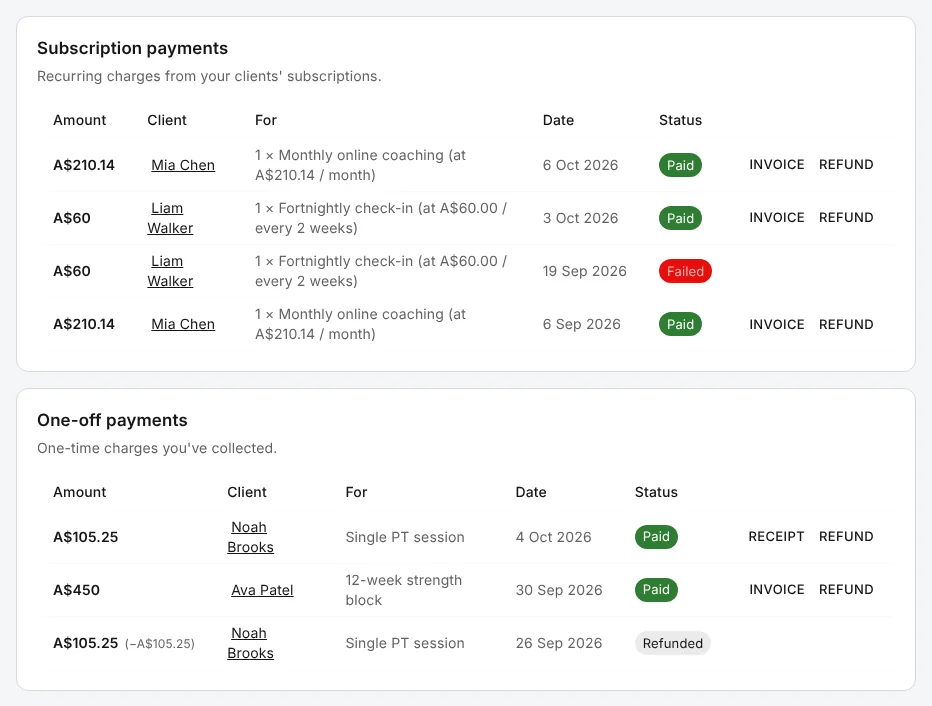
Each payment has a status: 'Paid', 'Pending', 'Failed', 'Refunded' or 'Part refunded'. A refunded amount appears in brackets after the original. Click a client's name to open their profile.
Invoices and receipts
Where Stripe has an invoice for a payment, the 'Invoice' button opens it; otherwise 'Receipt' opens Stripe's receipt. Both open in a new tab, where you can download or print them.
One client's payments
The 'Billing' tile on a client's profile has a 'History' tab with that client's subscriptions and payments, and the same buttons.
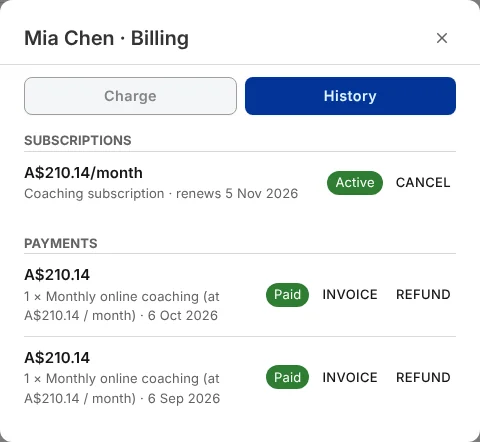
Subscriptions show here as "Coaching subscription", with the date they renew or end. Each payment underneath names the package.
Your clients at a glance
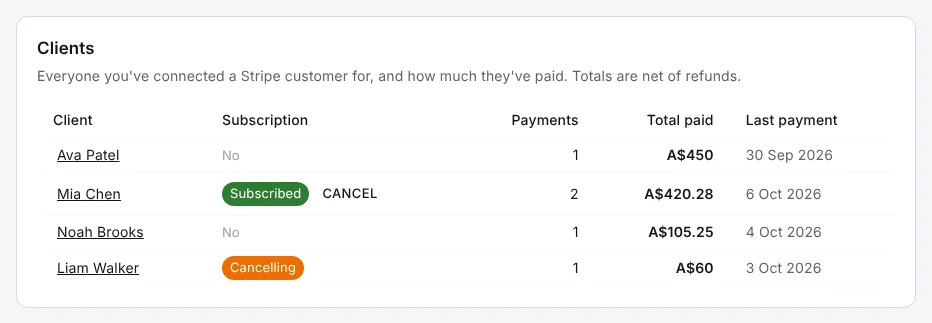
The 'Clients' tab lists everyone you've charged: whether they're subscribed, how many payments they've made, their total paid after refunds, and the date of their last payment.
Refund a payment
- Find the payment on the 'Payments' tab or on the client's 'History' tab, and click 'Refund'.
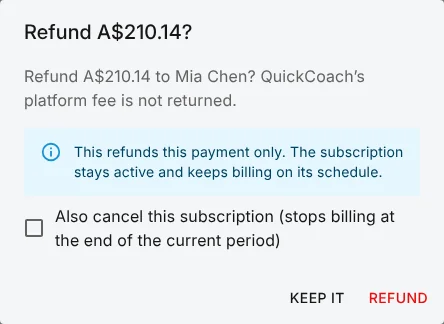
- Check the amount, then click 'Refund' to confirm.
Before you refund, it helps to know how refunds work.
- Refunds are for the whole payment. To refund part of one, do it from the payment in your Stripe Dashboard. It then shows here as 'Part refunded'.
- Fees aren't returned. QuickCoach keeps its platform fee, and Stripe doesn't return its processing fee either. The refund comes out of your Stripe balance.
- A refund doesn't cancel a subscription. The subscription keeps billing on its schedule. To stop it too, tick 'Also cancel this subscription' before you confirm.
Stripe sends the money back to your client's card. It usually reaches them within 5 to 10 business days.
Cancel a subscription
- On the 'Clients' tab, click 'Cancel' next to a subscribed client. Or open the client's 'Billing' tile, choose 'History', and click 'Cancel' next to the subscription.
- Confirm.
The subscription ends at the end of the period your client has already paid for, and no further payments are taken. Until then it shows as 'Cancelling'. The current period isn't refunded, so refund the last payment as well if you need to.
Cancelling only stops the payments. It doesn't change your client's access to their plans or their app, which stays in your hands as it always has. To end a subscription immediately rather than at the end of the period, cancel it in your Stripe Dashboard.
Payment alerts
Each time a client pays, QuickCoach emails you, with a subject such as "Mia Chen successfully paid A$210.14". On Pro, the payment also lands in your Notification Center and arrives as a push notification.
QuickCoach doesn't alert you about failed payments, refunds or disputes. Failed payments show on the 'Payments' tab. Disputes are handled in your Stripe Dashboard, and Stripe emails you about them.