
Client Groups: group clients and assign to all at once
Client Groups let you save a named selection of clients, like "Morning Crew", right inside your Clients page, then use it two ways: to filter your client list down to those people, and to assign a workout, plan or program to all of them in a single action. Client Groups is a QuickCoach Pro feature.

If you coach a squad, a class or a big online roster, you have probably sent the same plan to person after person, one at a time. Client Groups is the shortcut for that. This article covers creating a group, adding and removing clients, filtering your list, and assigning a plan to a whole group at once.
Note: QuickCoach's features and screen layouts may change over time, but the core workflow stays the same.
What a client group is
A client group is a saved selection of your own clients with a name on it, like "Tuesday 6am" or "Marathon Block". It lives inside your Clients page, so there is no separate groups section to manage.
A group is a shortcut, not a new kind of plan. Picking a group when you assign is the same as picking everyone in it by hand. Each client gets their own ordinary assignment, with the same notifications, scheduling and plan behaviour they always had. A group just saves you the selecting.
Create a group from the Clients page
- Open Clients.
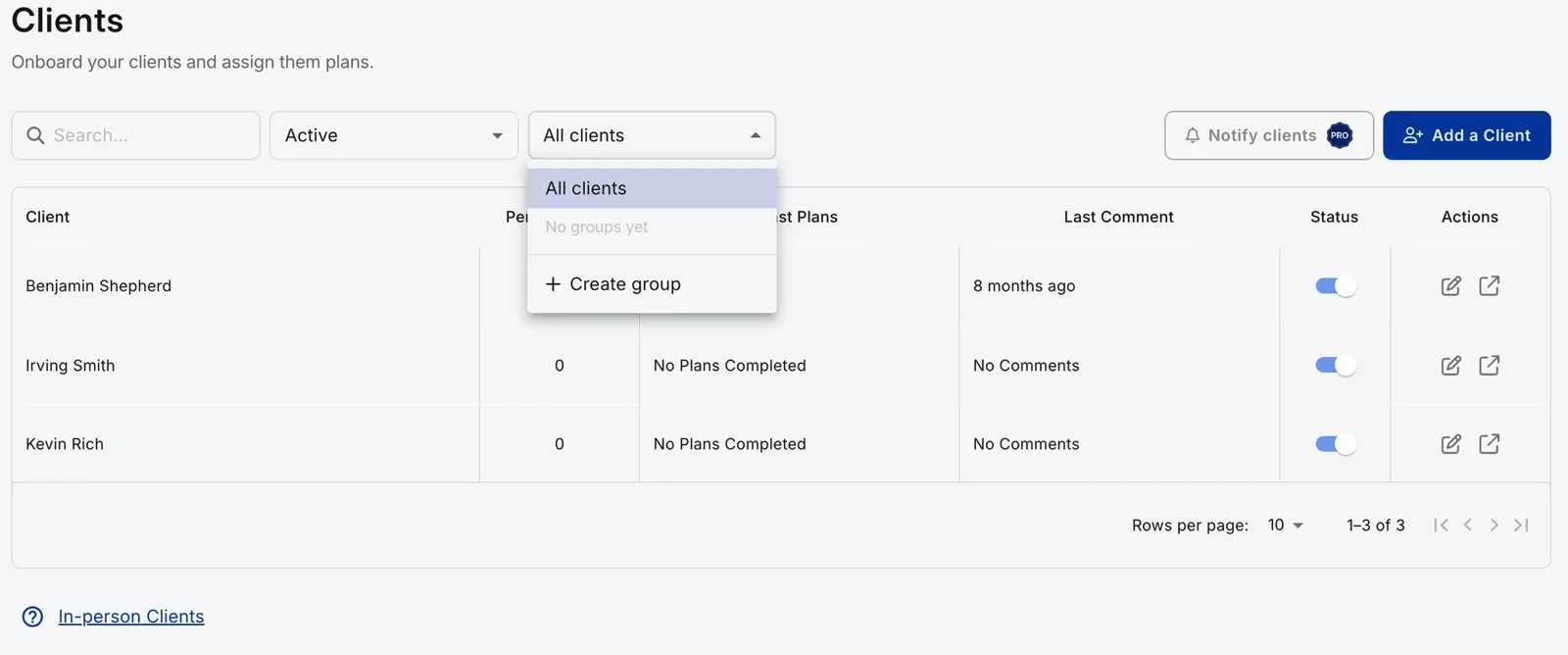
- Open the Client Groups filter in the toolbar, next to search and status.
- Choose Create group.
- Enter a name and pick the clients you want in it.
- Choose Create group to save.
Your client list filters straight to the new group so you can see who is in it. A group needs only a name, so you can create an empty group and add people later.
Add or remove clients, rename or delete a group
- Select the group in the Client Groups filter.
- Open the filter again and choose Edit <group name>.
- Add clients from the search box, or remove them with the × on their name.
- Choose Save group.
The same screen renames the group: change the name and save. It also deletes the group, with Delete group.
Deleting a group deletes only the group. Your clients, their plans and anything you have already assigned are untouched.
Filter your client list by group
Choose a group in the Client Groups filter and the client list you already use shows only that group's members. The filter shows the group's name while it is active. Choose All clients to clear it and get your full list back.
Search works alongside the filter: searching while a group is selected searches within that group.
A client can be in more than one group
Clients can belong to as many groups as you like. Someone can be in "Morning Crew" and "Marathon Block" at the same time. They appear when you filter by either one, and they are only ever assigned a plan once, even when both groups are selected together.
Assign a plan using a group
- Start the assignment you already use, the Assign action on a plan, a template plan, or a selection of plans.
- In the recipient picker, search for a group or a client. Groups appear above individual clients, with the number of clients in each.
- Select any mix of groups and individual clients.
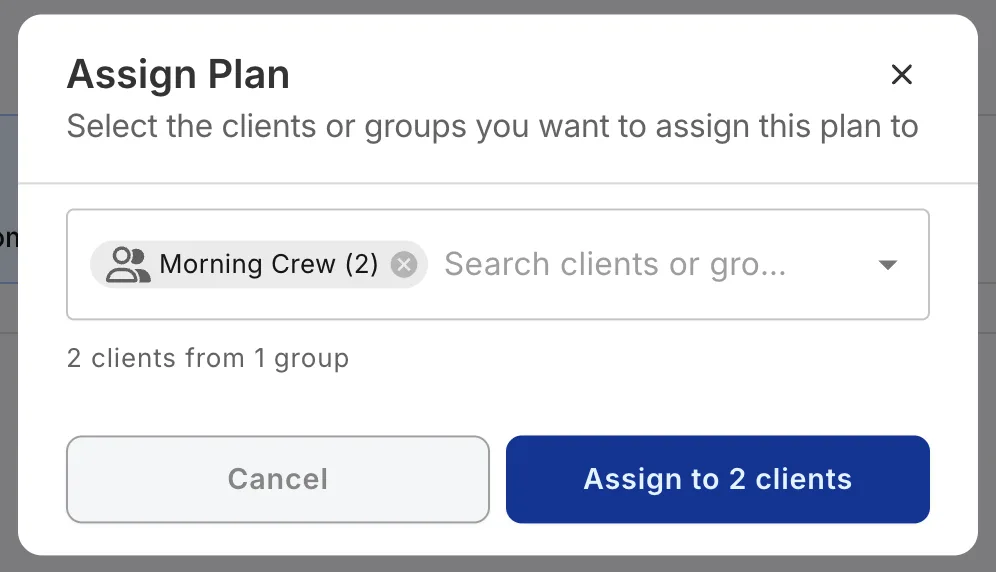
- The confirm button shows exactly how many clients will receive the plan, for example Assign to 87 clients.
- Confirm. QuickCoach assigns the plan to each client and tells you how many received it.
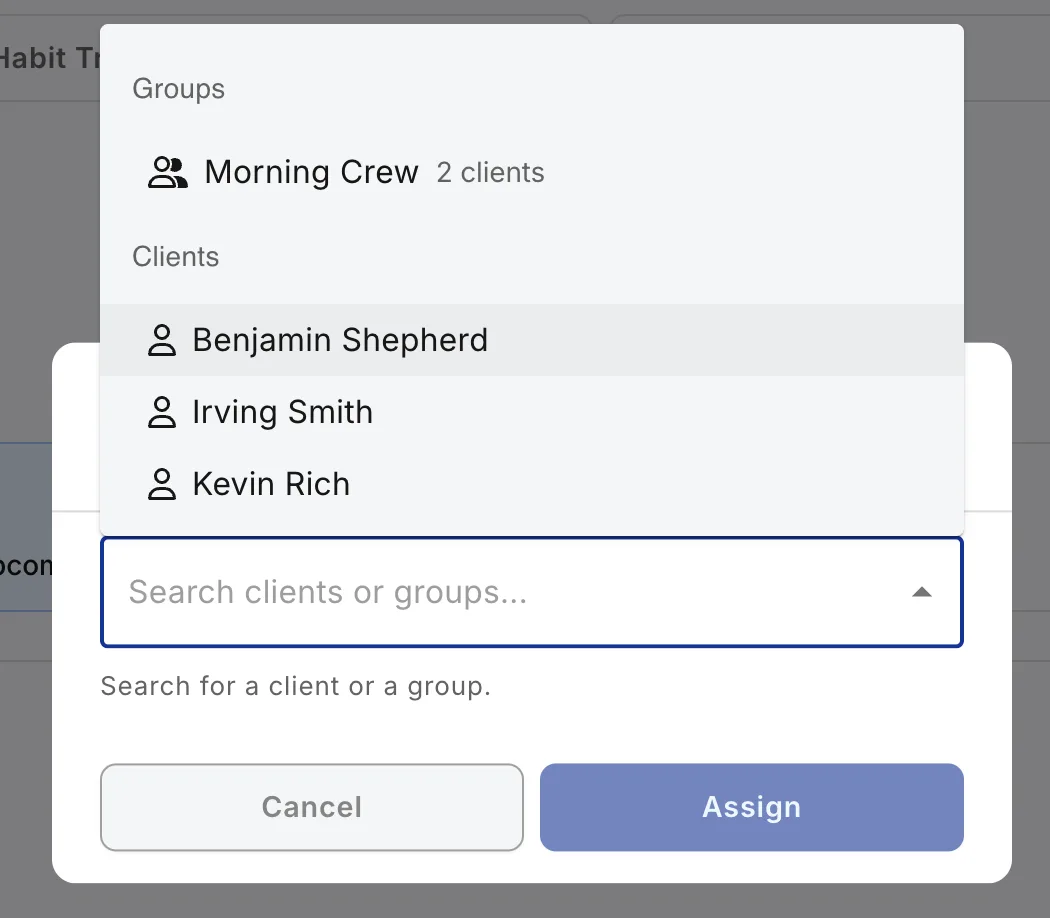
The recipient picker has always accepted more than one client. Search for a client, select them, and keep going; every client you select gets their own copy of the plan. Selecting several individual clients is available on every plan, Free or Pro. What Client Groups adds is the group as a single pick. For the full set of assign routes, see assigning plans to clients.
Duplicate recipients are handled for you
Nobody is ever assigned the same plan twice in one action. If a client is in two groups you selected, or you picked them individually and they are in a group you selected, they are counted and assigned once. The number on the confirm button is the real number of unique clients.
Assignments are a snapshot
Membership is read at the moment you assign, and then the group is out of the picture:
- Adding a client to the group later does not give them a plan you assigned before they joined.
- Removing a client from the group does not take back a plan they have already been given.
If you want new members to have an earlier plan, assign it to them.
Pro access
Client Groups requires QuickCoach Pro. On the Free plan the Client Groups filter shows a Pro badge and opens the upgrade options; groups cannot be created, edited or used to assign. Assigning to one client, or to several clients you select individually, works exactly as before on every plan. To see everything Pro unlocks, browse the branded and Pro tools section, or manage your plan from your billing settings.
Groups pair naturally with a tidy set of Program Templates: build the program once, then send it to a whole group in a single action. From there you can open any client's account and tailor their copy without touching anyone else's.