
How clients install your app
Your client app installs straight from the browser, no App Store needed. Here's how clients add it to an iPhone or Android home screen, step by step.

Clients don't need the App Store to get your app. It installs straight from the browser as a progressive web app, so it lands on their home screen and behaves like any other app. This is the walkthrough you can hand a client who's stuck.
Note: QuickCoach's features and screen layouts may change over time, but the core workflow stays the same.
Why it isn't in the App Store
Your client app is a progressive web app, built through the browser. Clients get the feel of an installed app with a few extra upsides: there's no wait for store approval, no extra cost for a custom app, and you can update it as often as you like. On QuickCoach Pro the same app installs with your logo, name and colours, set up through the custom-branded client app. Branded or not, the install steps below are identical.
Device requirements
The app works worldwide. Before installing, it's worth checking the device meets these:
- iPhone or iPad: Safari, running iOS 11.3 or later to install. Push notifications need iOS 16.4 or later.
- Android: Chrome, Samsung Internet or Brave, running Android 4.4+ with Play Services.
Installing on iPhone or iPad
There's a video version of these steps too. Watch the iPhone walkthrough.
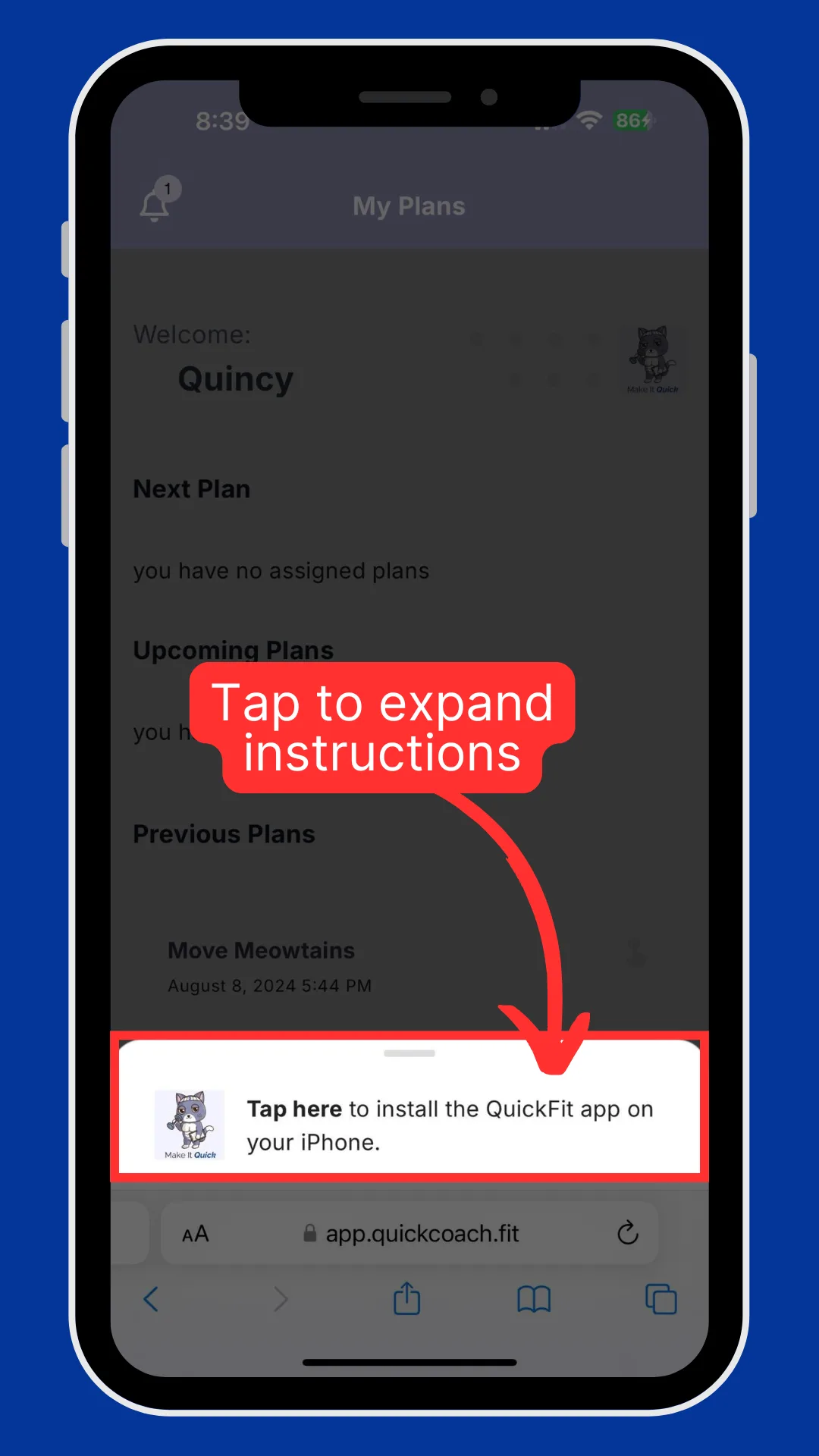
The client opens their account link in Safari. A prompt appears at the bottom of the screen. They tap it to expand the install instructions.
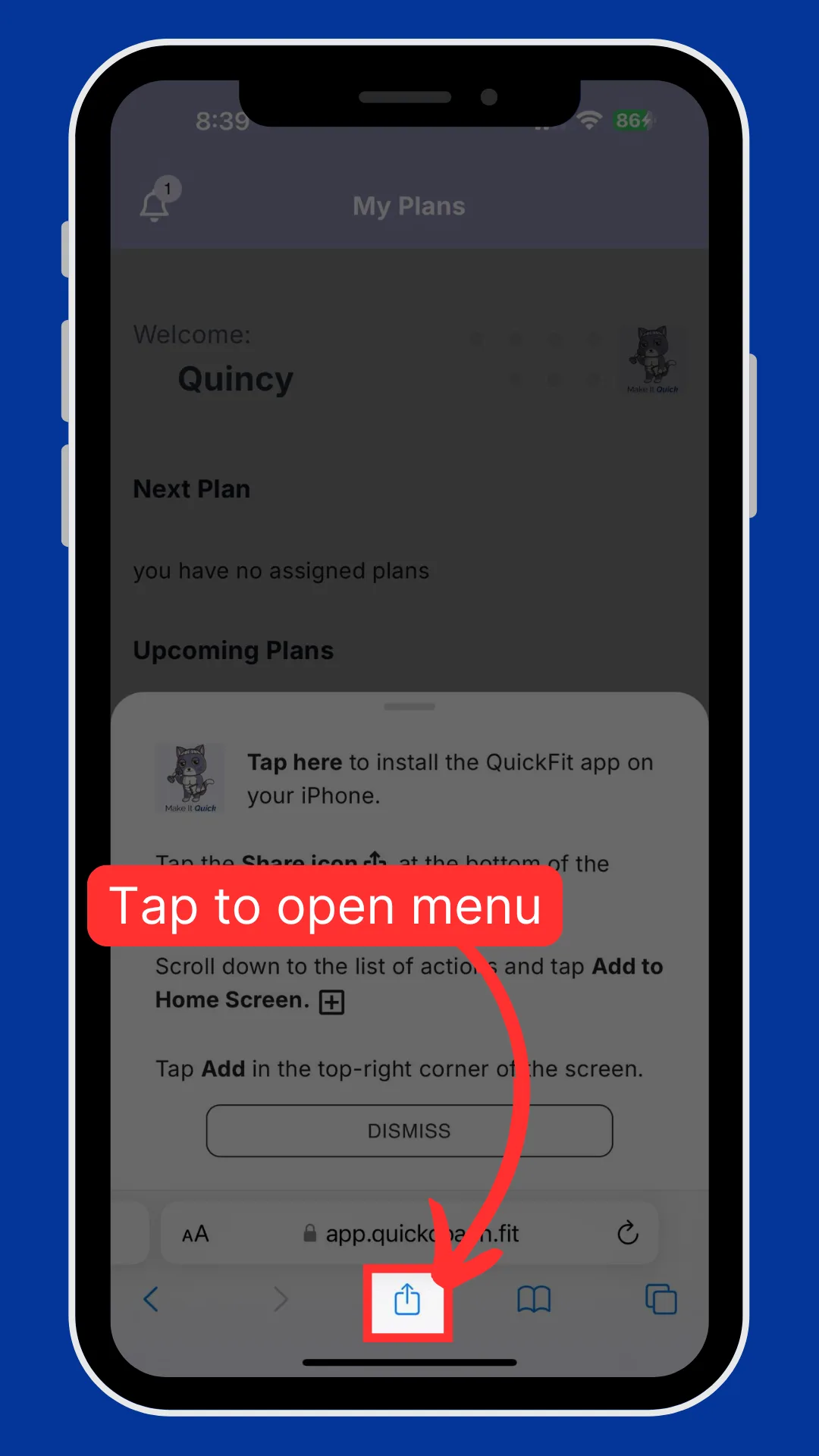
They tap the Share icon in Safari's bottom toolbar to open the menu.
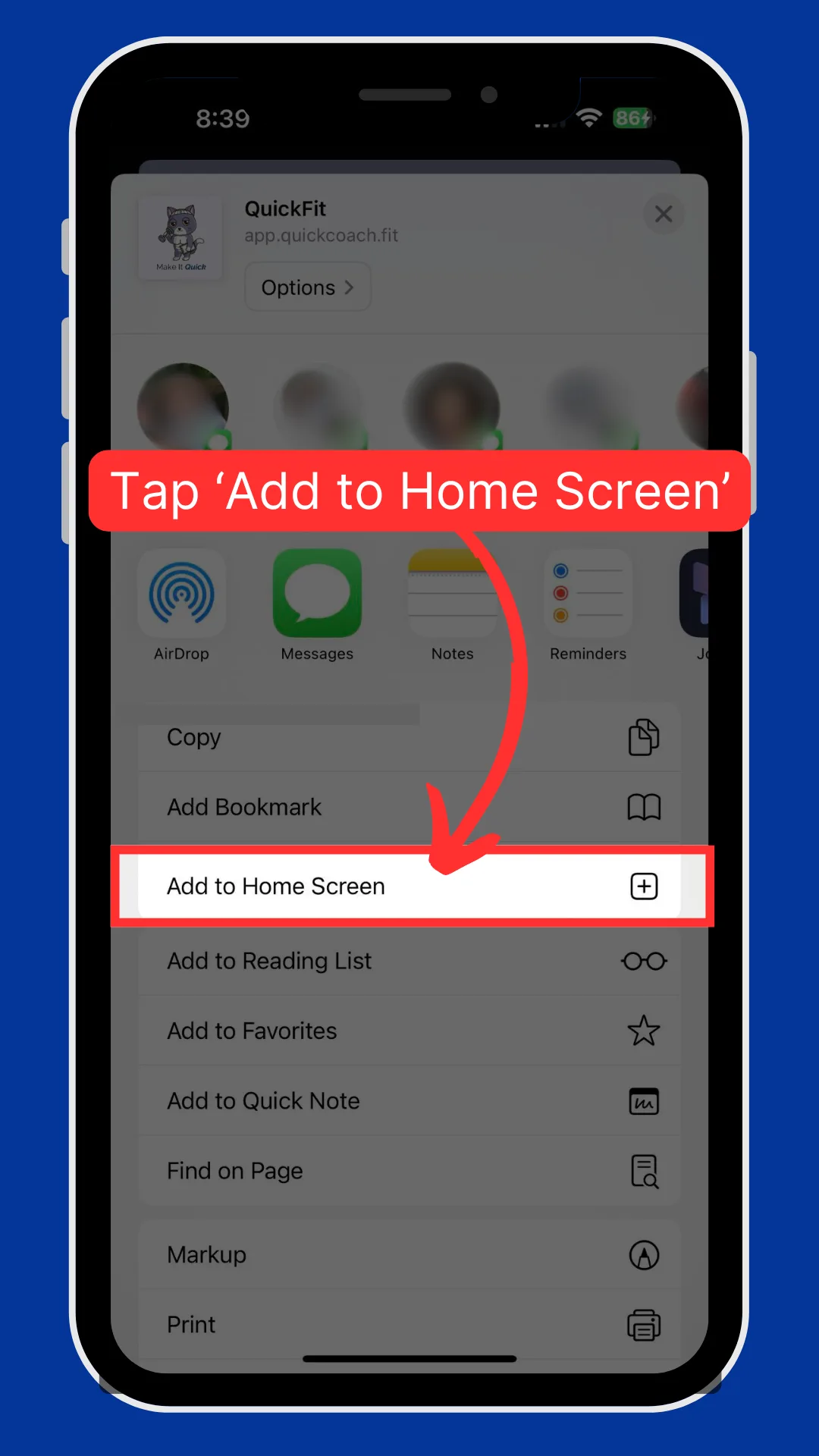
In the menu, they scroll down and tap Add to Home Screen.
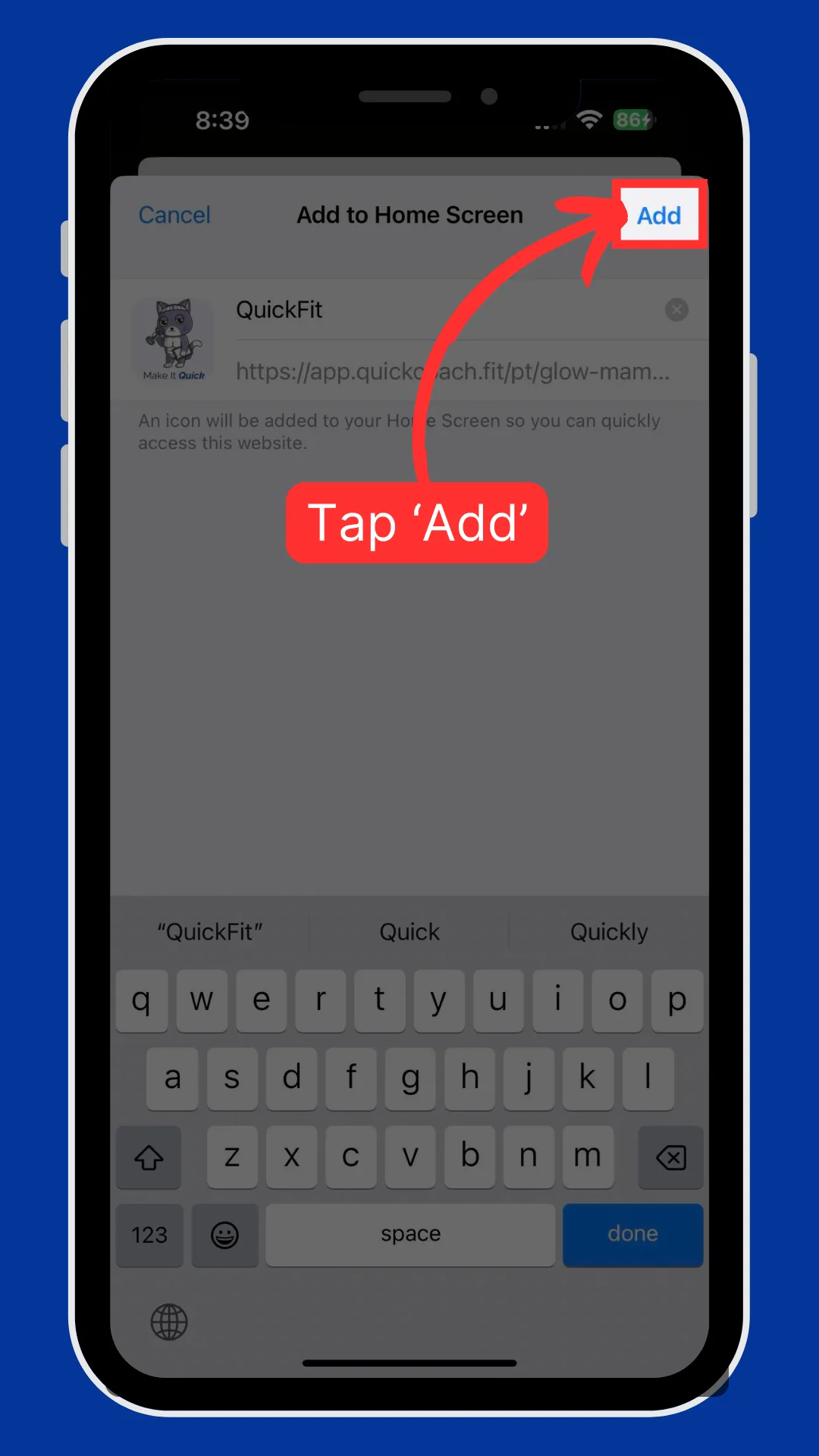
Then they tap Add in the top corner to confirm.
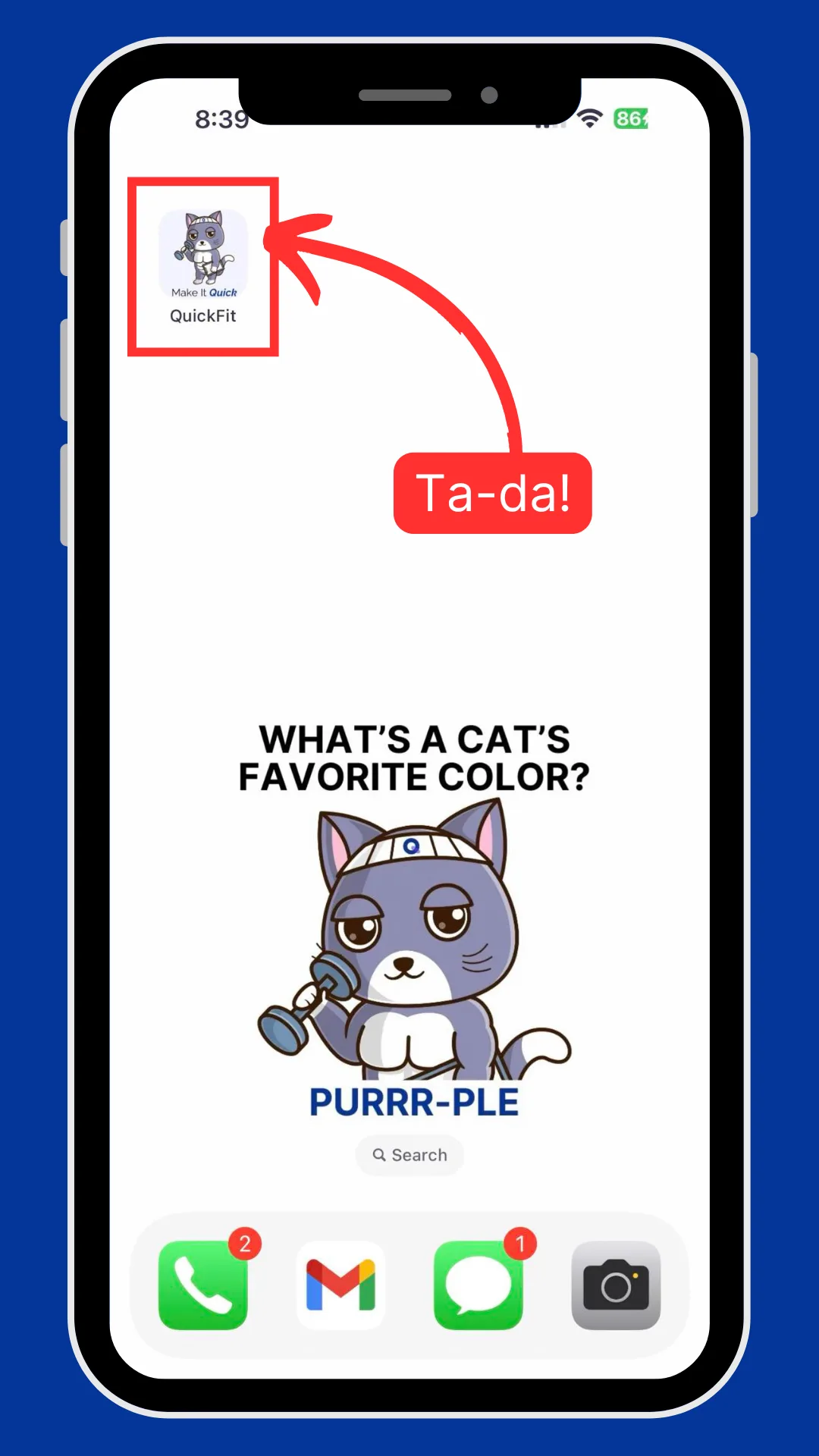
The app icon appears on their home screen, ready to open.
Installing on Android
Android has two ways to do this. Both start in Chrome, Brave or Samsung Internet. Watch the Android walkthrough, which covers both methods.
Option 1: install, then add to the home screen
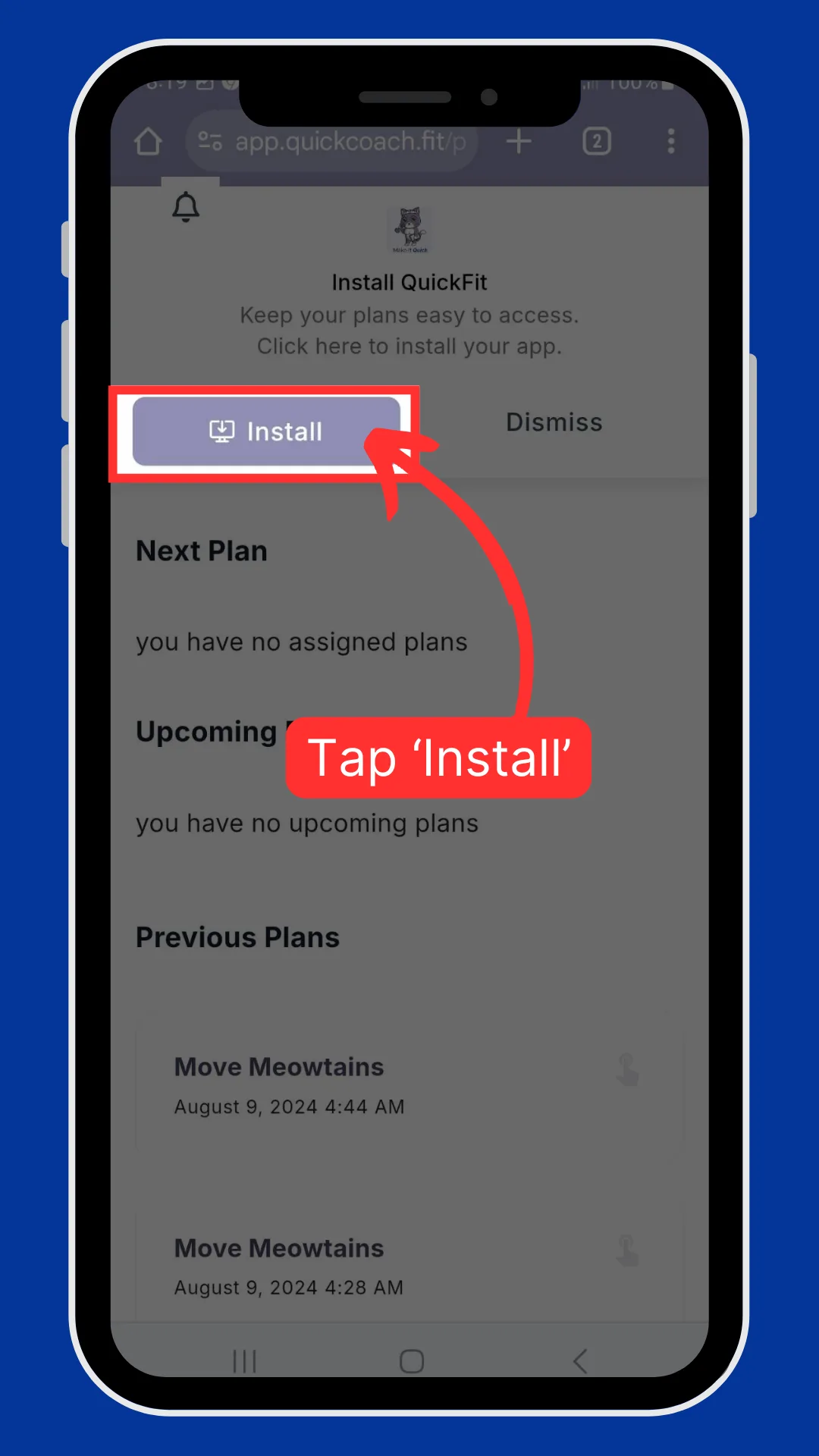
Opening the account link, the client taps Install on the prompt.
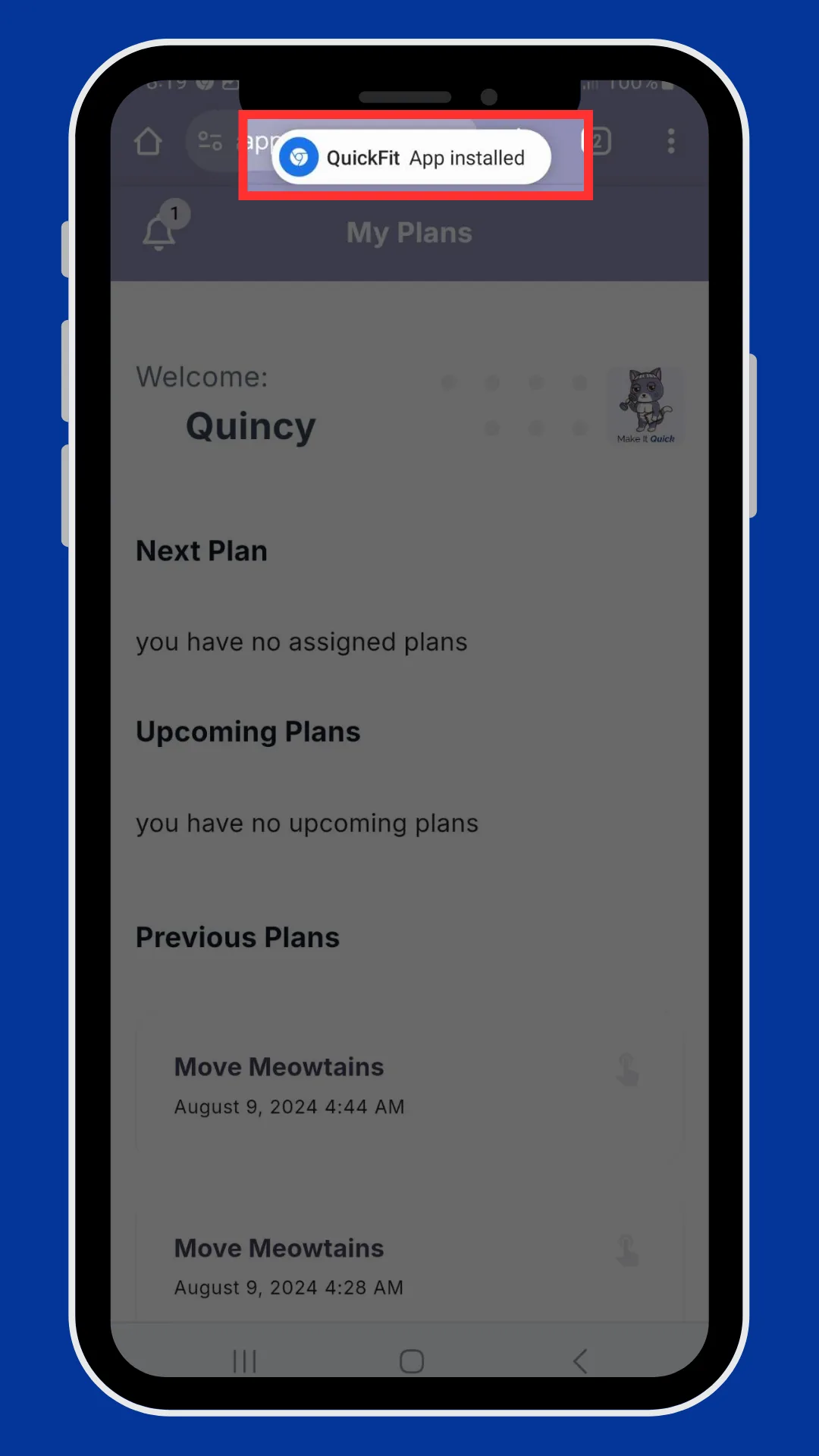
A confirmation appears to show the app has installed.
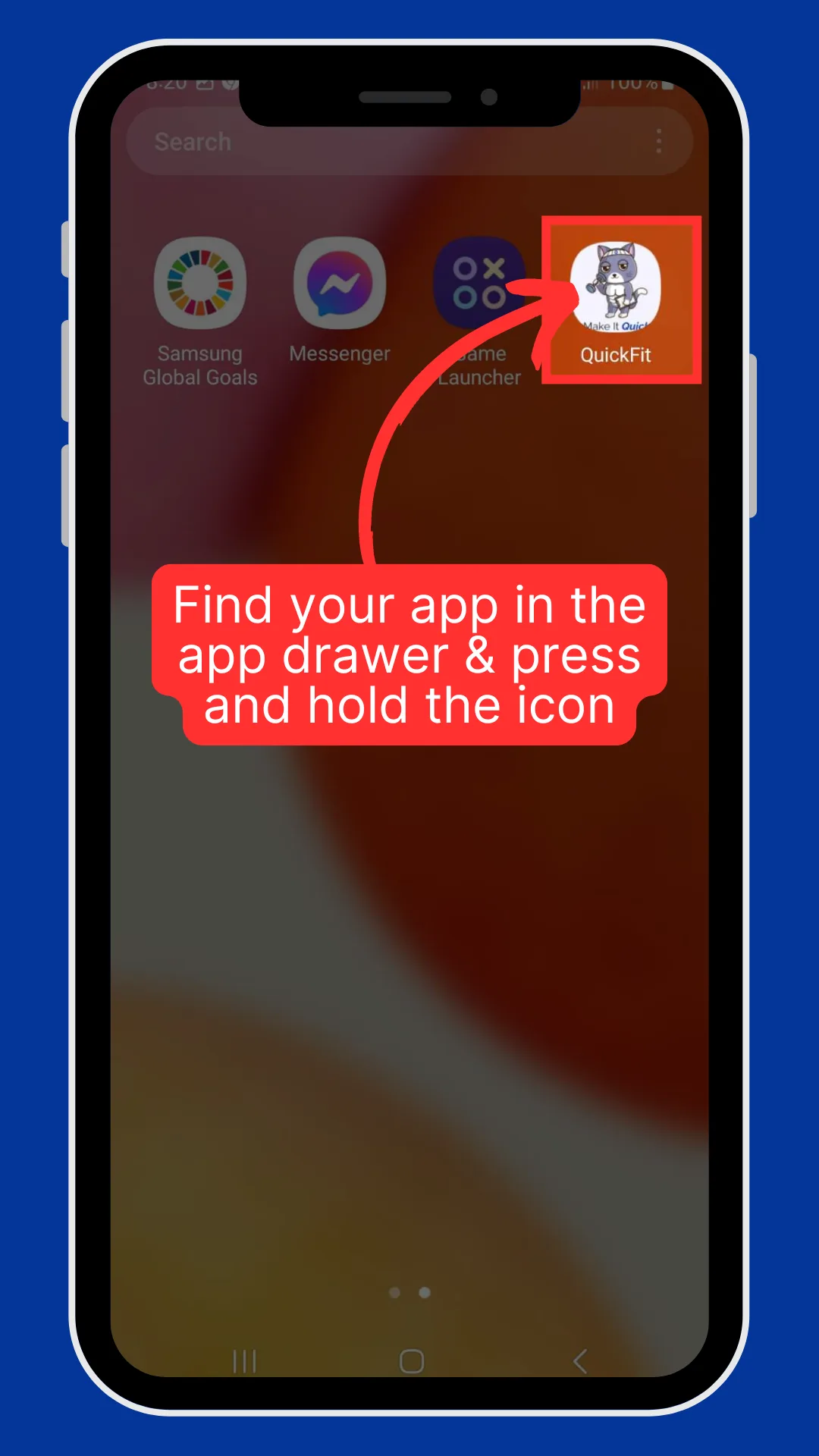
To put it on the home screen, they find the app in their app drawer, then press and hold its icon.
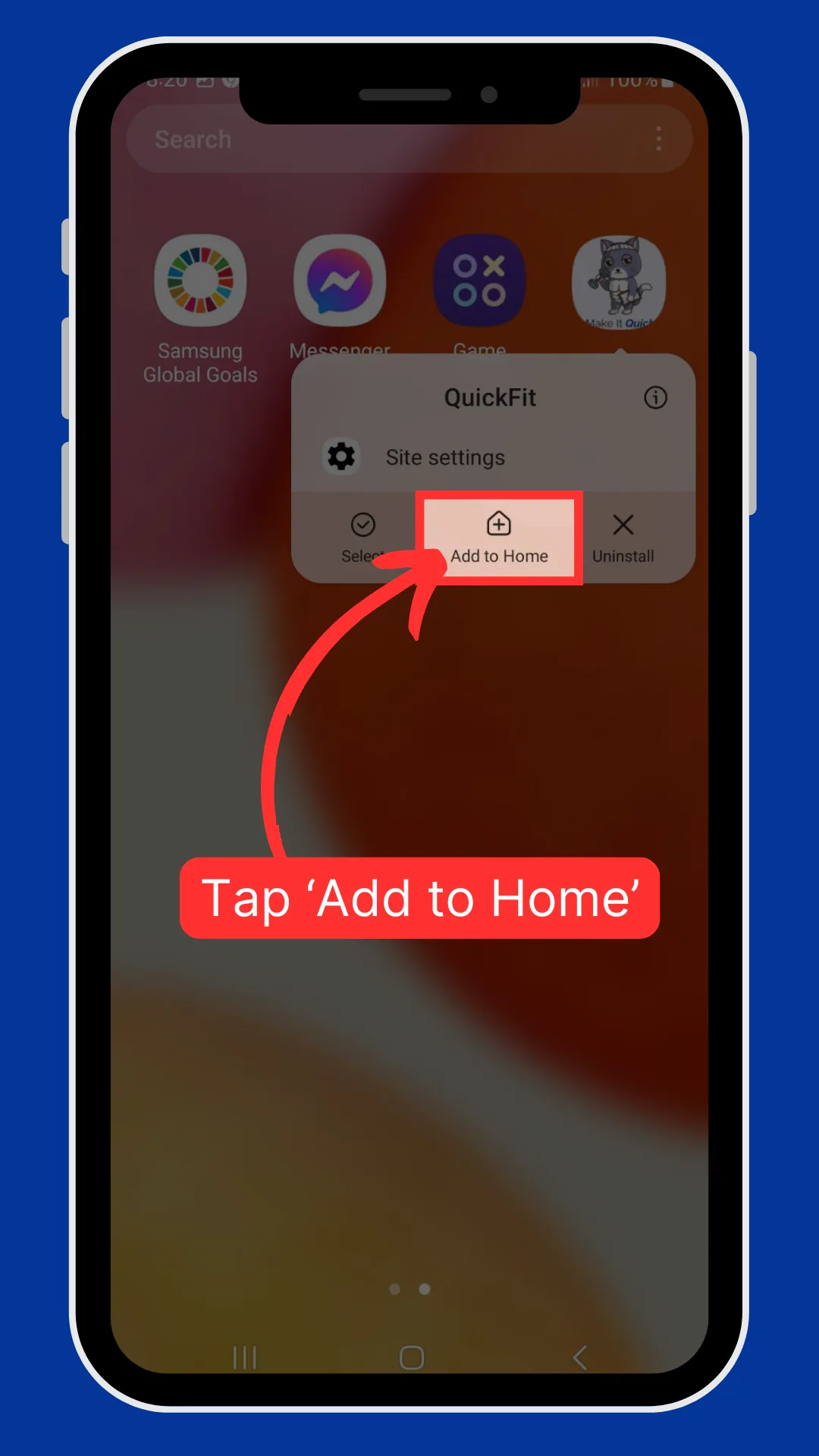
From the menu that pops up, they tap Add to Home.
Option 2: install straight to the home screen
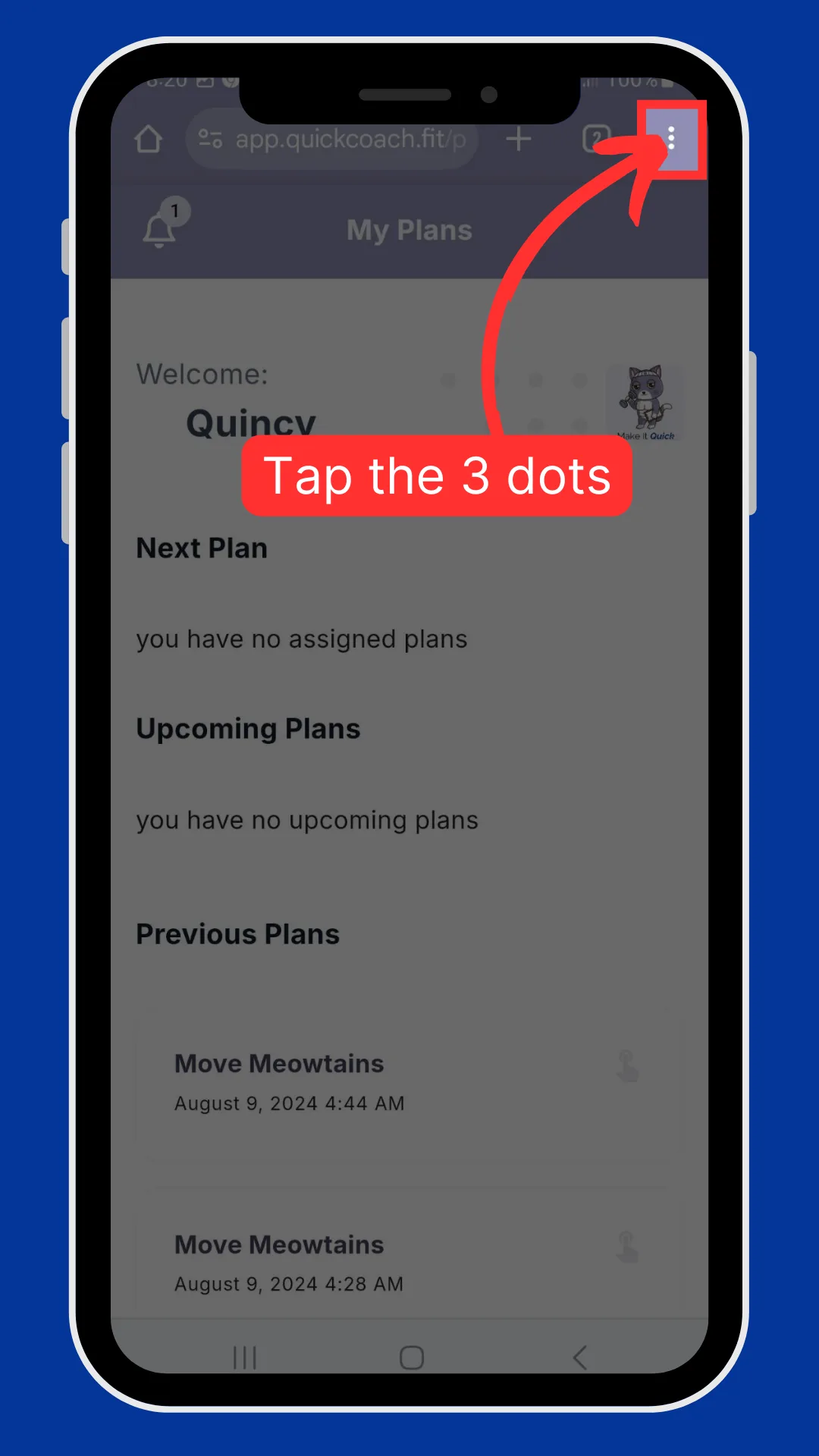
With the account open, the client taps the three dots in the browser's top corner.
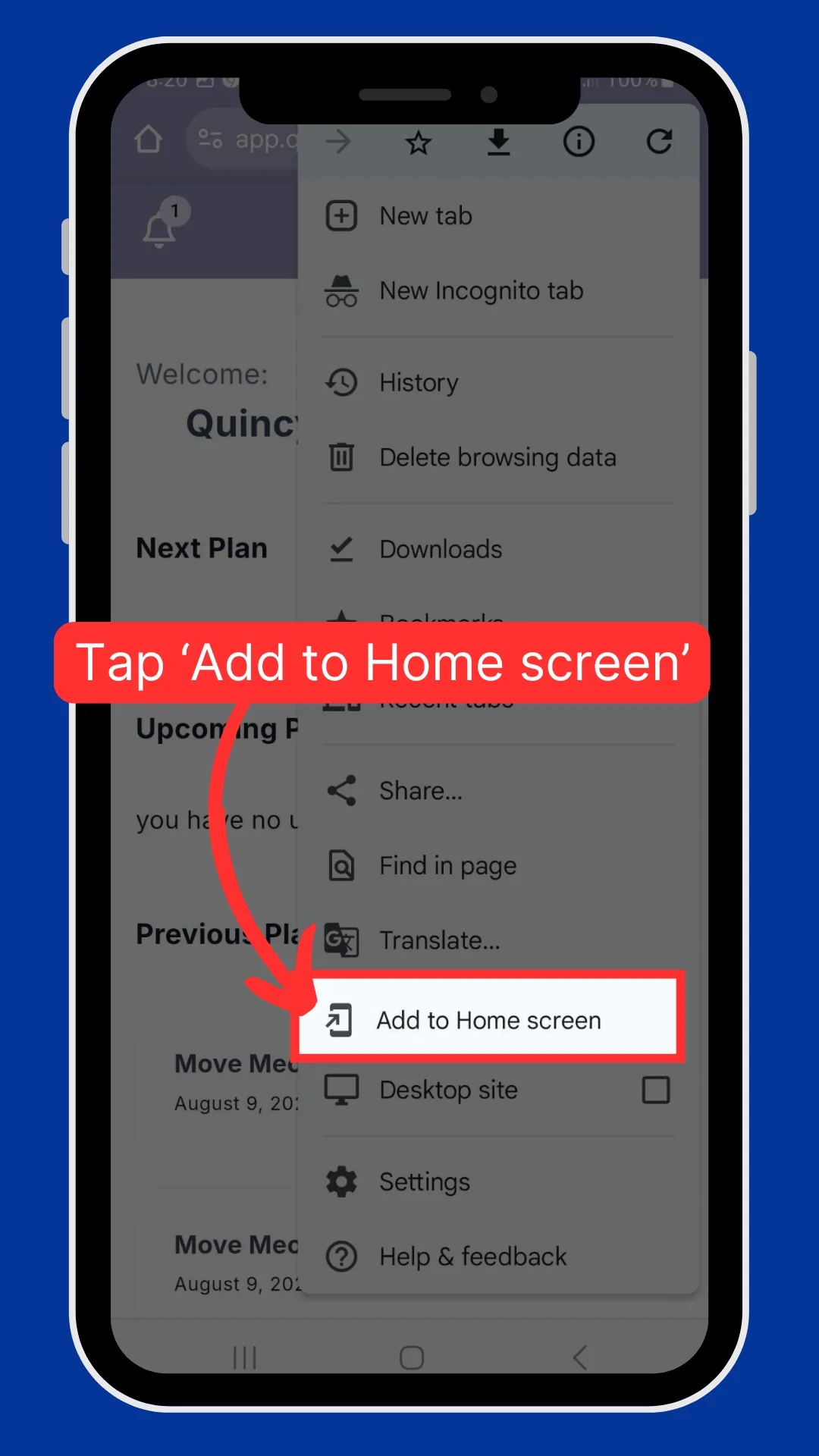
Then they tap Add to Home screen and follow the install prompts. The app lands on their home screen.
If the install prompt doesn't appear
A few things can hide the prompt, and none of them stops the app installing:
- The link opened in an in-app browser. Tapping the link inside another app (Gmail and Facebook Messenger are the usual culprits) opens it in that app's built-in browser, which can't install anything. Ask the client to copy the link and paste it into Safari on iPhone, or Chrome, Brave or Samsung Internet on Android.
- A pop-up blocker or extension hid the prompt. The pop-up only carries instructions. On iPhone, the client follows the usual Share steps above; on Android, the browser-menu method still works.
- On iPhone, 'Add to Home Screen' is missing from the share sheet. The client scrolls to the bottom of the sheet, taps Edit Actions, adds 'Add to Home Screen' to the list, then taps Done.
Not sure how the client got their link in the first place? See sending clients their account for the delivery options.
Do clients have to install it?
No. Clients can use everything straight from the browser without installing. The one difference is push alerts: without the app installed they won't get banner notifications, though they'll still see every message in their Notification Center. Once they're set up, point them to client notifications to switch push on, and you can start reaching them with push notifications from your side.