
Client notifications: push alerts and the Notification Center
Every message you send a client lands in their Notification Center, and push alerts put it on their lock screen too. Here's how both work on the client side.

Every notification you send a client lands in one place: their Notification Center. Push notifications are the optional layer on top, the banner alerts that pop up on their phone even when the app is closed. This article covers both, so you can answer the two questions clients actually ask: where did that message go, and why am I not getting alerts?
Opening the Notification Center
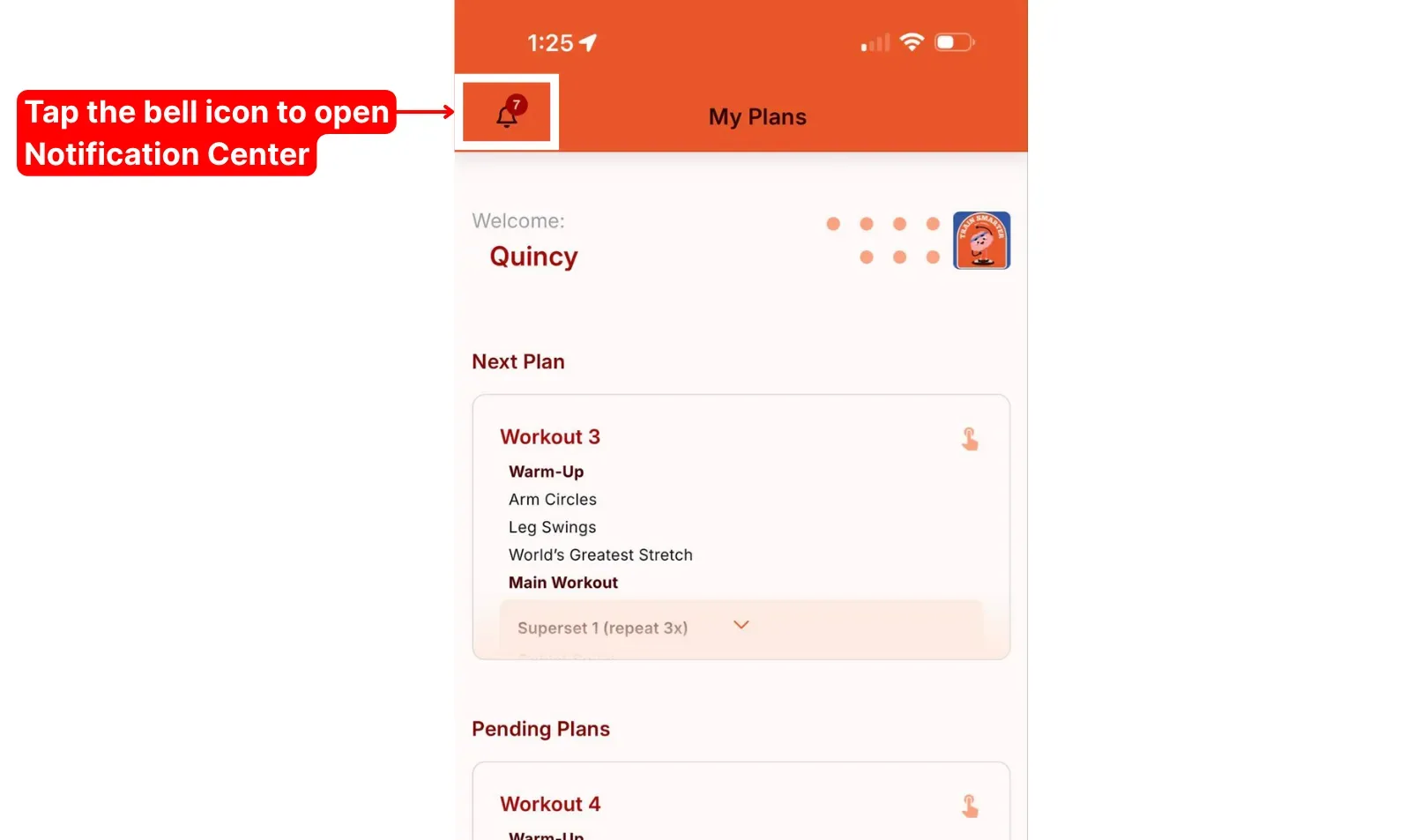
The client taps the bell icon in the top corner of their home page. The number on the bell shows how many unread messages are waiting. (Not sure where the bell sits? See how clients see their plans for the full home page layout.)
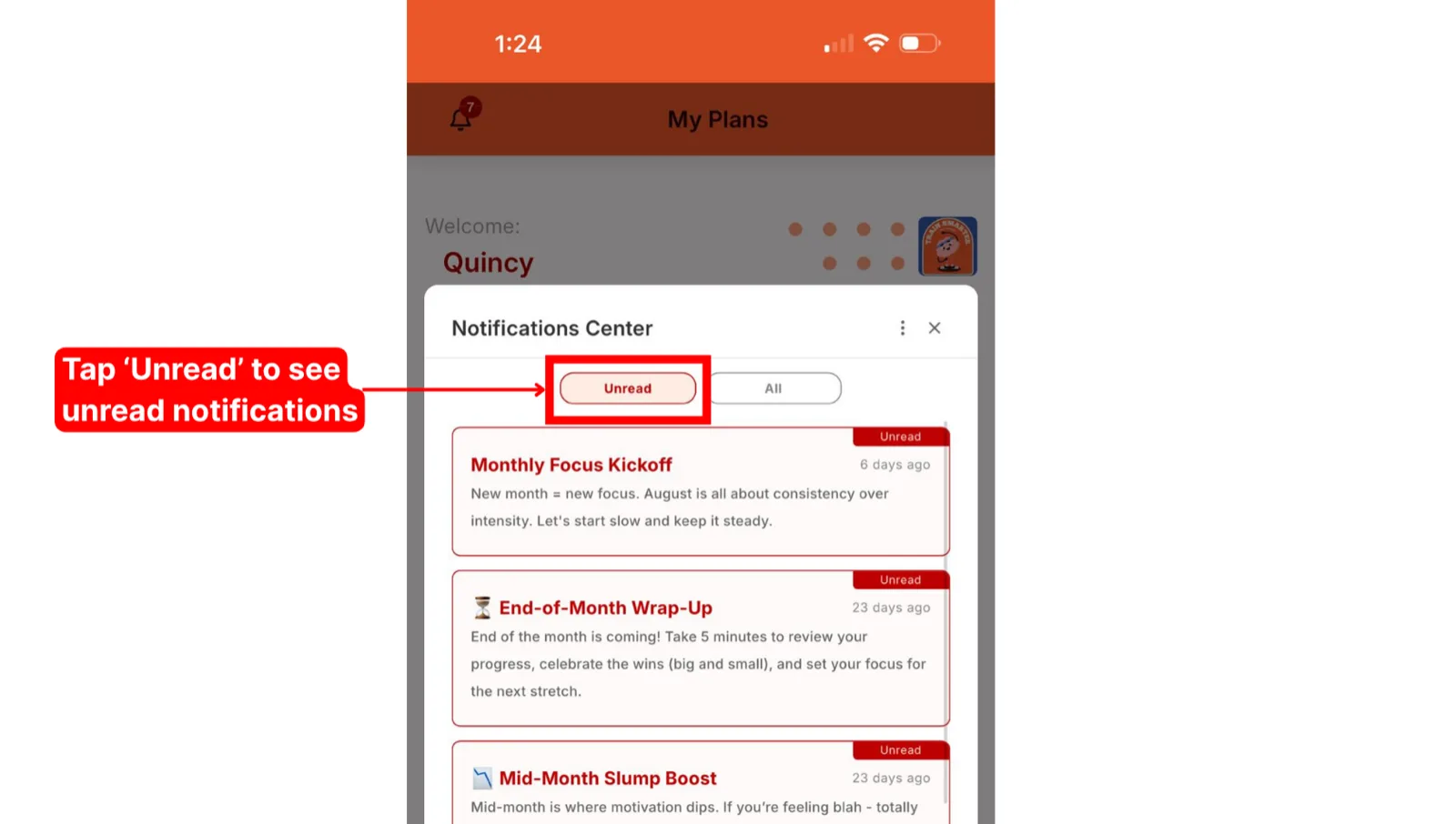
Unread and All tabs
The Notification Center opens on the Unread tab, so clients see anything they haven't read yet first.
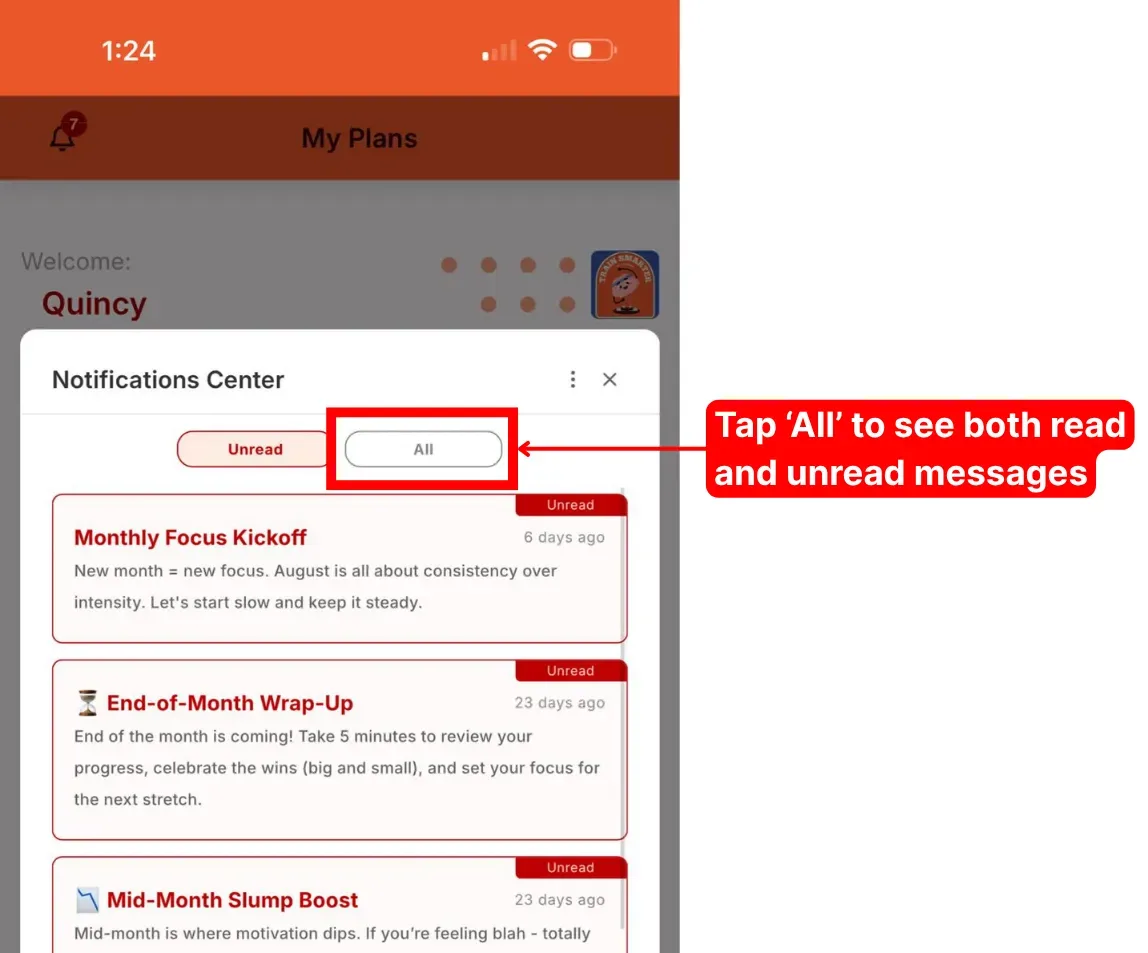
Tapping the All tab shows both read and unread messages together, which is handy for finding something they've already opened.
Marking messages read or unread
Each message carries an Unread or Read label. Tapping the Unread label on a message marks it as read and moves it into the All tab.
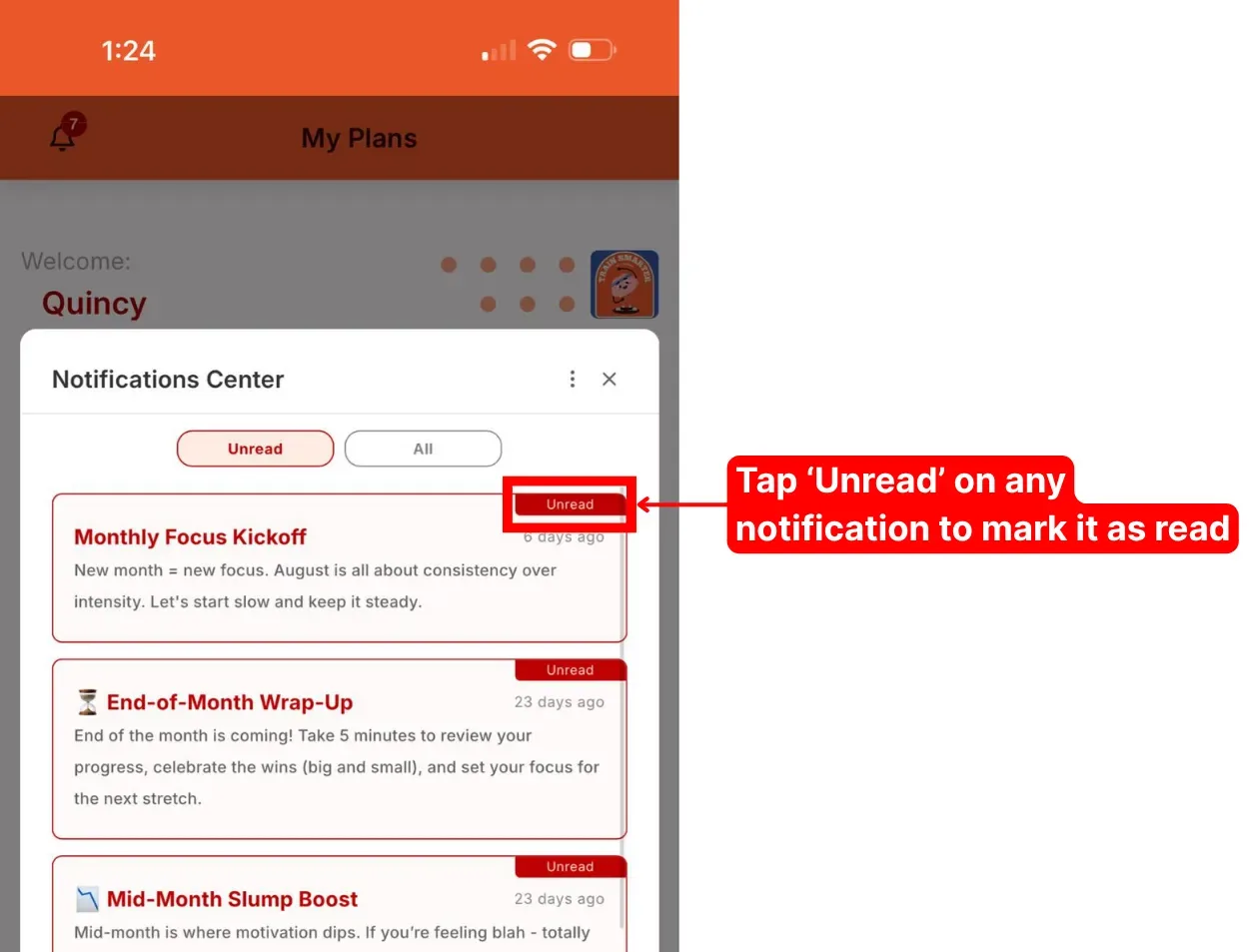
Tapping the Read label on a message does the reverse, putting it back in the Unread tab so it's easy to find again. Clients can't delete notifications, only mark them read, so nothing you send ever vanishes from their inbox.
The Notification Center menu
The three vertical dots at the top of the panel open the menu.
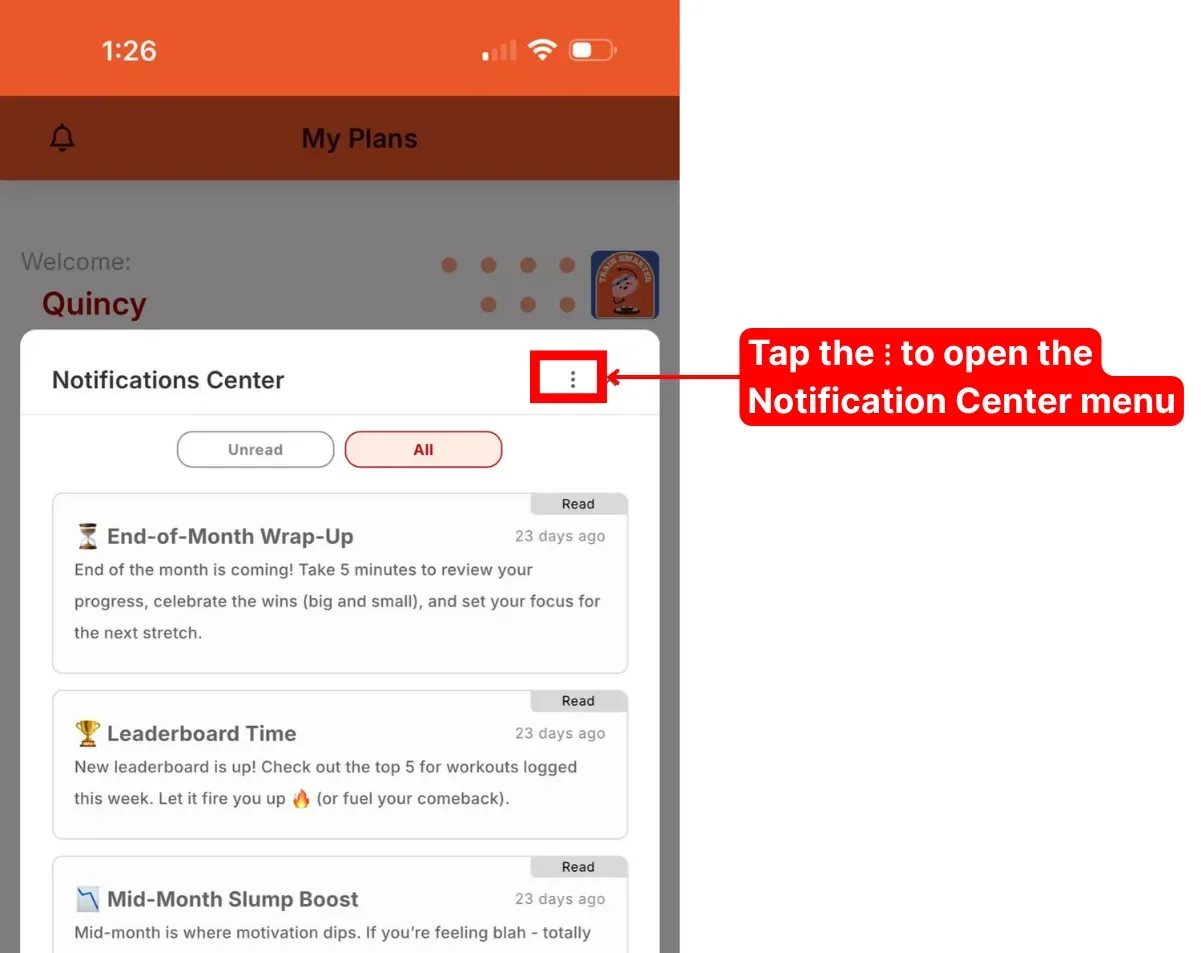
From there a client can Mark all as read, Mark all as unread, or use the Push Notifications toggle to switch banner alerts on or off at any time.
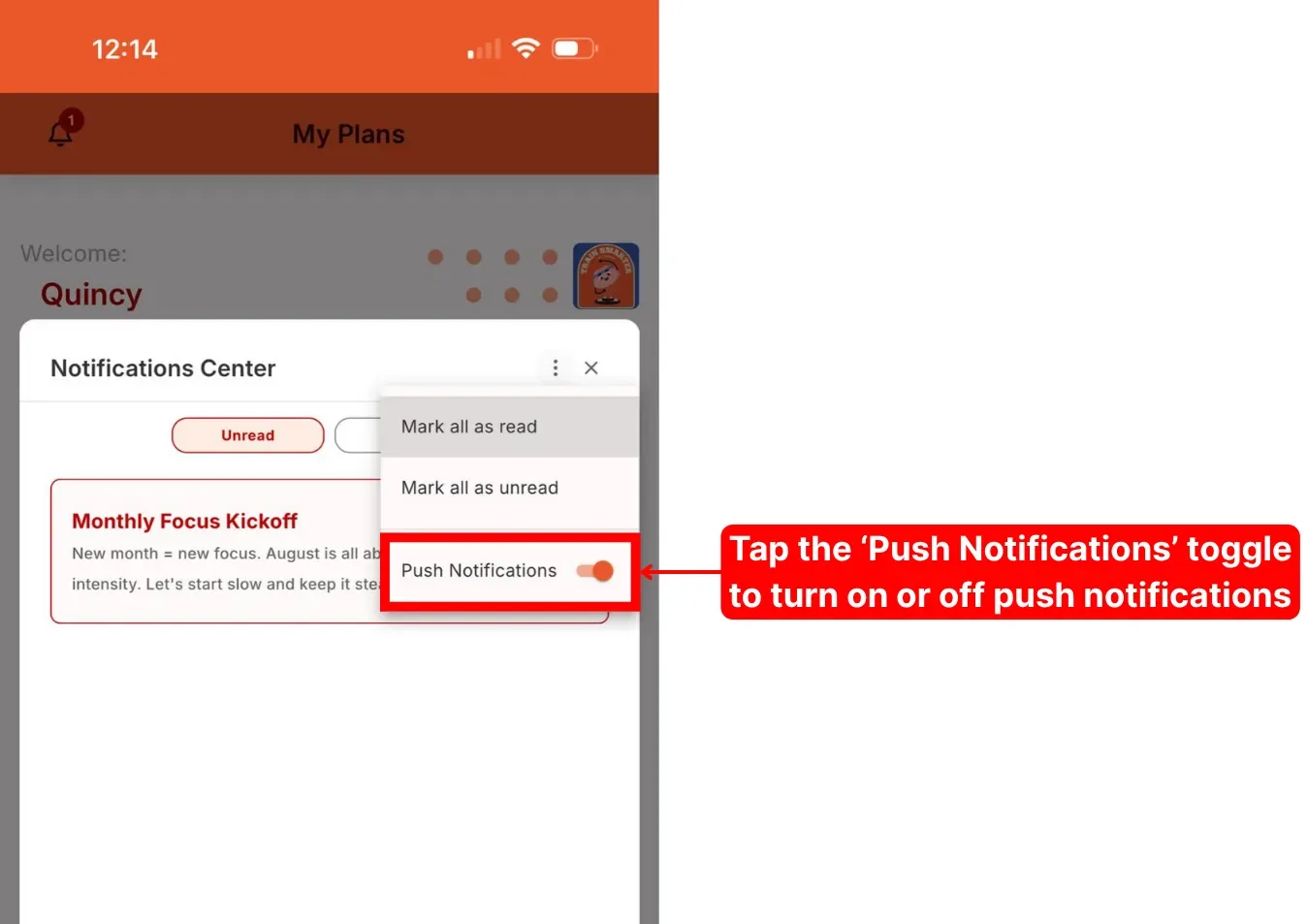
Note: Turning the push toggle off only stops the banner pop-ups. Every message still lands here in the Notification Center.
What push notifications are
A push notification is a pop-up banner, the same style a phone uses for texts and app alerts. When you send a message, clients who've opted in see it appear on their screen straight away. They're opt-in, so clients turn them on themselves.
Device requirements for push
- iPhone or iPad: Safari, running iOS 16.4 or later for push (installing the app itself only needs iOS 11.3+).
- Android: Chrome, Samsung Internet or Brave, running Android 4.4+ with Play Services.
Turning push on for the first time
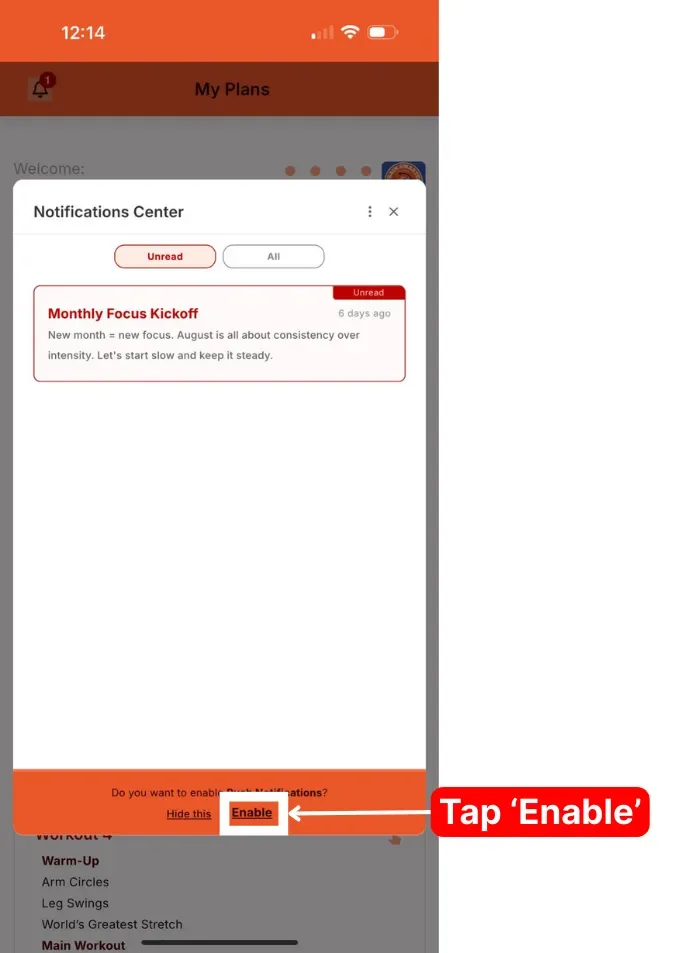
When a client opens the Notification Center for the first time, a prompt at the bottom asks whether they want push notifications. They tap Enable.
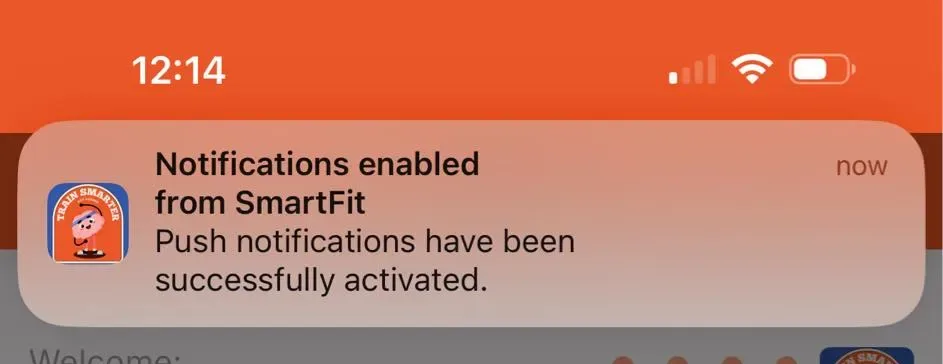
A confirmation notification appears to show it worked.
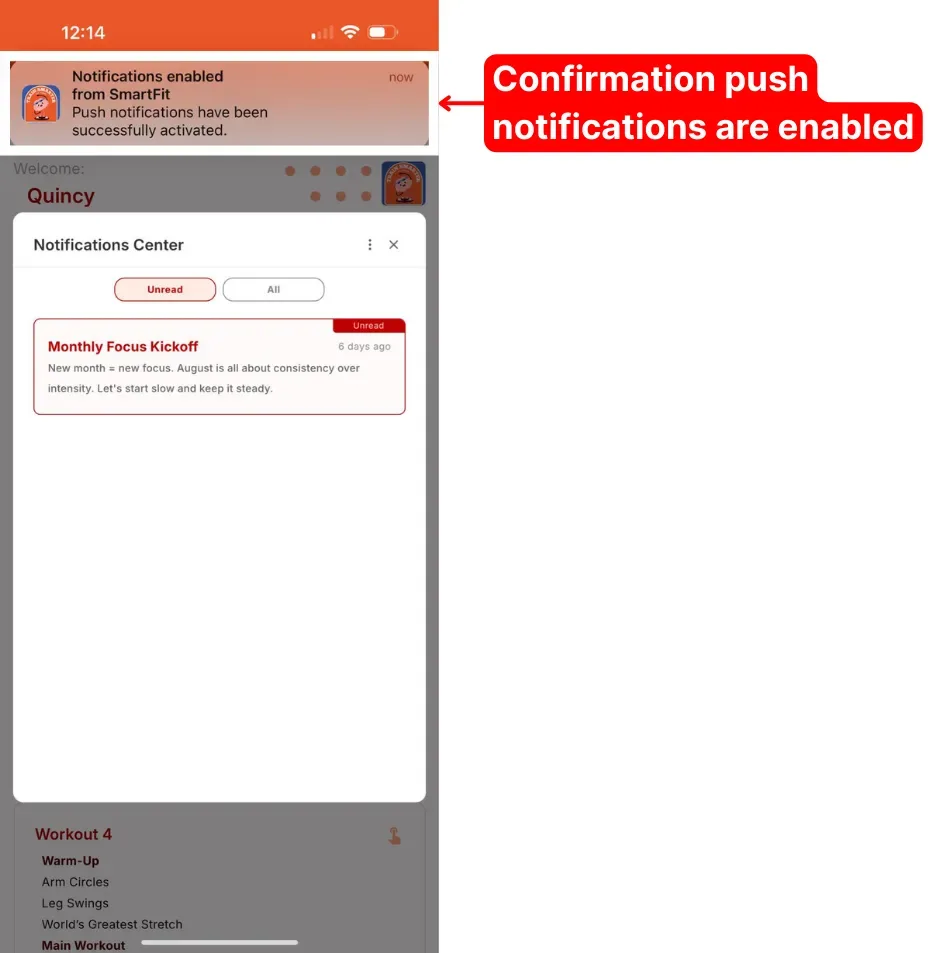
If they dismissed that prompt, or want to change their mind later, the Push Notifications toggle in the Notification Center menu above switches alerts on or off whenever they like.
If push notifications aren't arriving
First, check the client's device meets the requirements above and is up to date. If it does and alerts still don't come through, try this order:
- Uninstall the app.
- Clear the browser's cache.
- Reinstall the app (see installing the client app).
The full push checklist, including the settings toggles and permission checks worth walking through, lives in the troubleshooting guide. Still stuck? Email support with the client's device make and model, the OS version they're running, and their account link, and we'll dig in.
What clients can and can't do
Notifications are one-way messages. Clients can't reply to them, so any back-and-forth needs to happen through your usual channel outside QuickCoach. And a client who never enables push still sees every message in their Notification Center; they just won't get the banner. On your side, you send these alerts from the roster or an individual client's page, covered in sending push notifications.