
Installing the QuickCoach coach app
Put the QuickCoach coach app on your phone, tablet or computer. Step-by-step installs for iPhone, iPad, Android, Windows and Mac.

Install the coach app so you can manage clients on the go. The app installs from your device's browser rather than the App Store or Play Store, and it works worldwide. If you haven't signed in yet, create your account first.
Device requirements
iPhone and iPad: Safari, running iOS 11.3 or later. Push notifications need iOS 16.4 or later.
Android: Chrome, Samsung Internet or Brave, running Android 4.4 or later with Play Services.
iPhone and iPad
- Open your QuickCoach account in Safari.
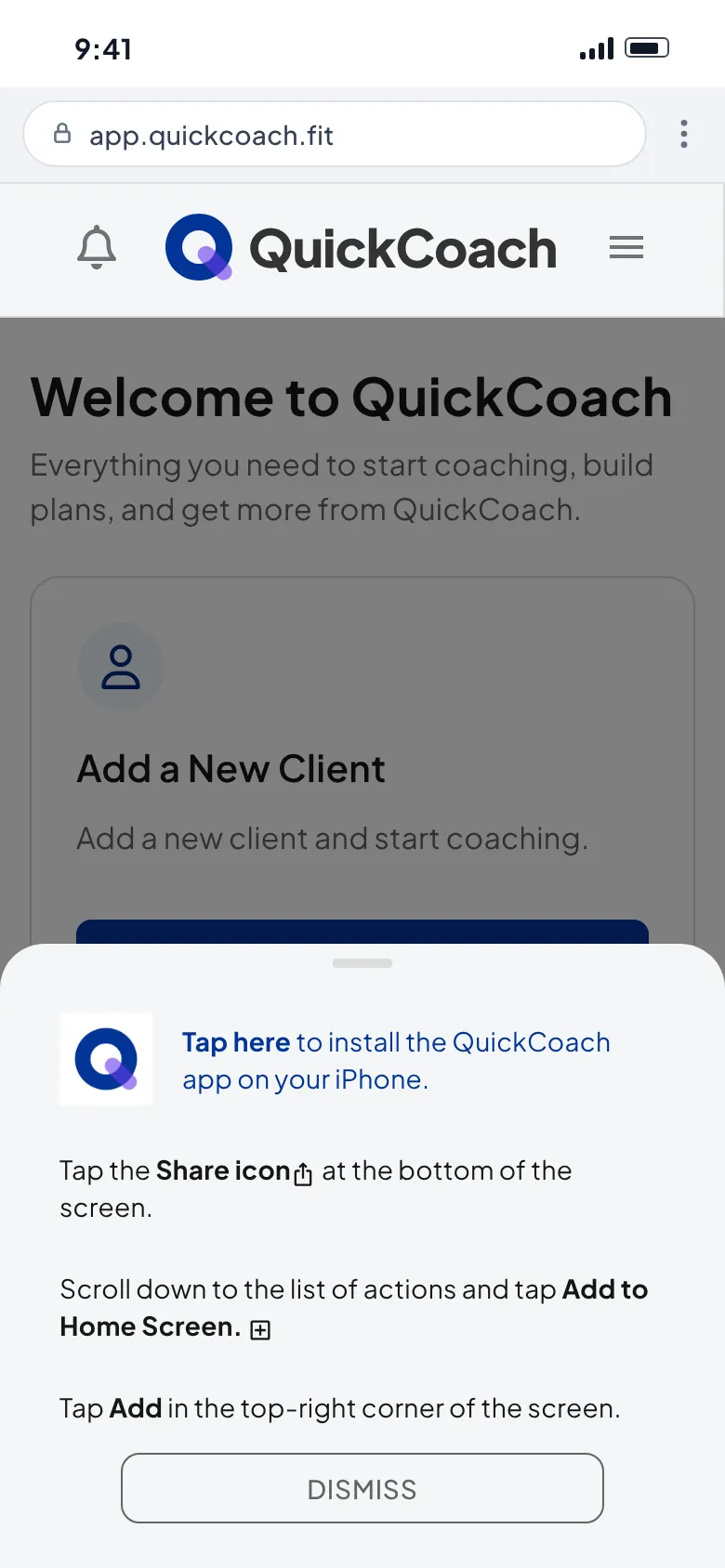
- You may see a pop-up offering install instructions. It's a shortcut, nothing more, so don't worry if it never appears.
- Tap the share icon (the square with an upward arrow) to open Safari's menu.
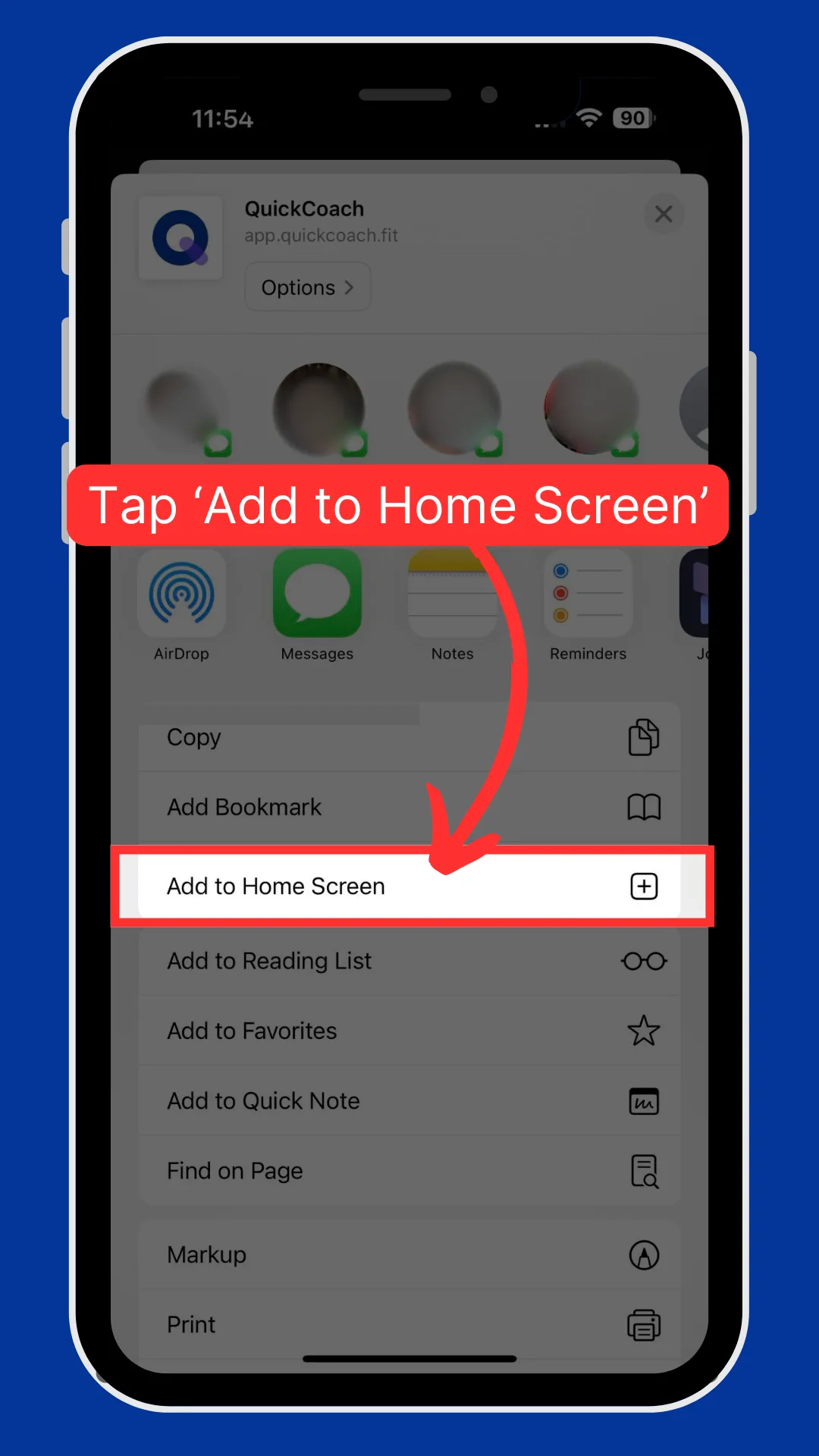
- Tap 'Add to Home Screen'.
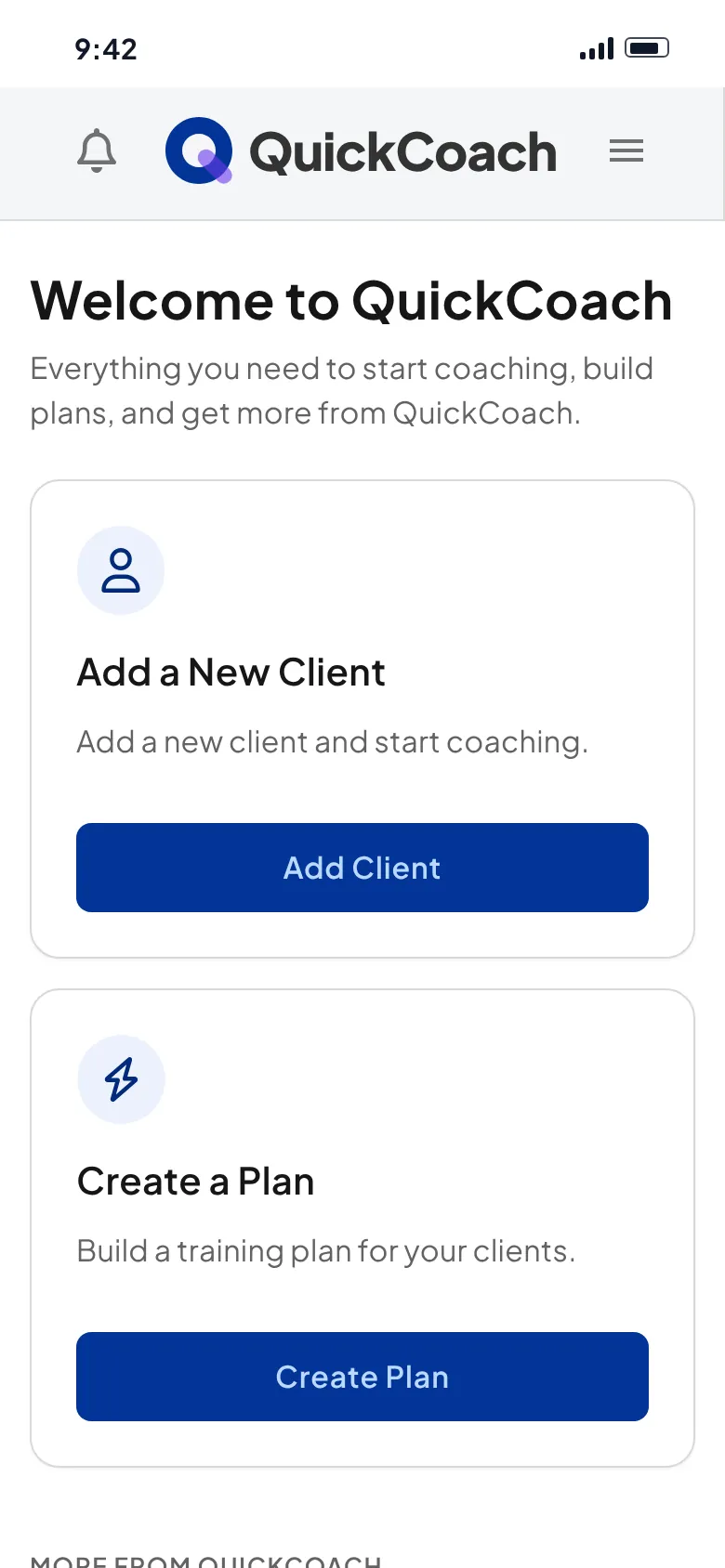
- Tap 'Add'. The app is now on your home screen.
Android
Android gives you two routes. The first installs the app to your app drawer, with the home screen as an optional extra step. The second puts it straight on your home screen.
Method one: install, then add to home screen
- Open your QuickCoach account in Chrome, Brave or Samsung Internet.
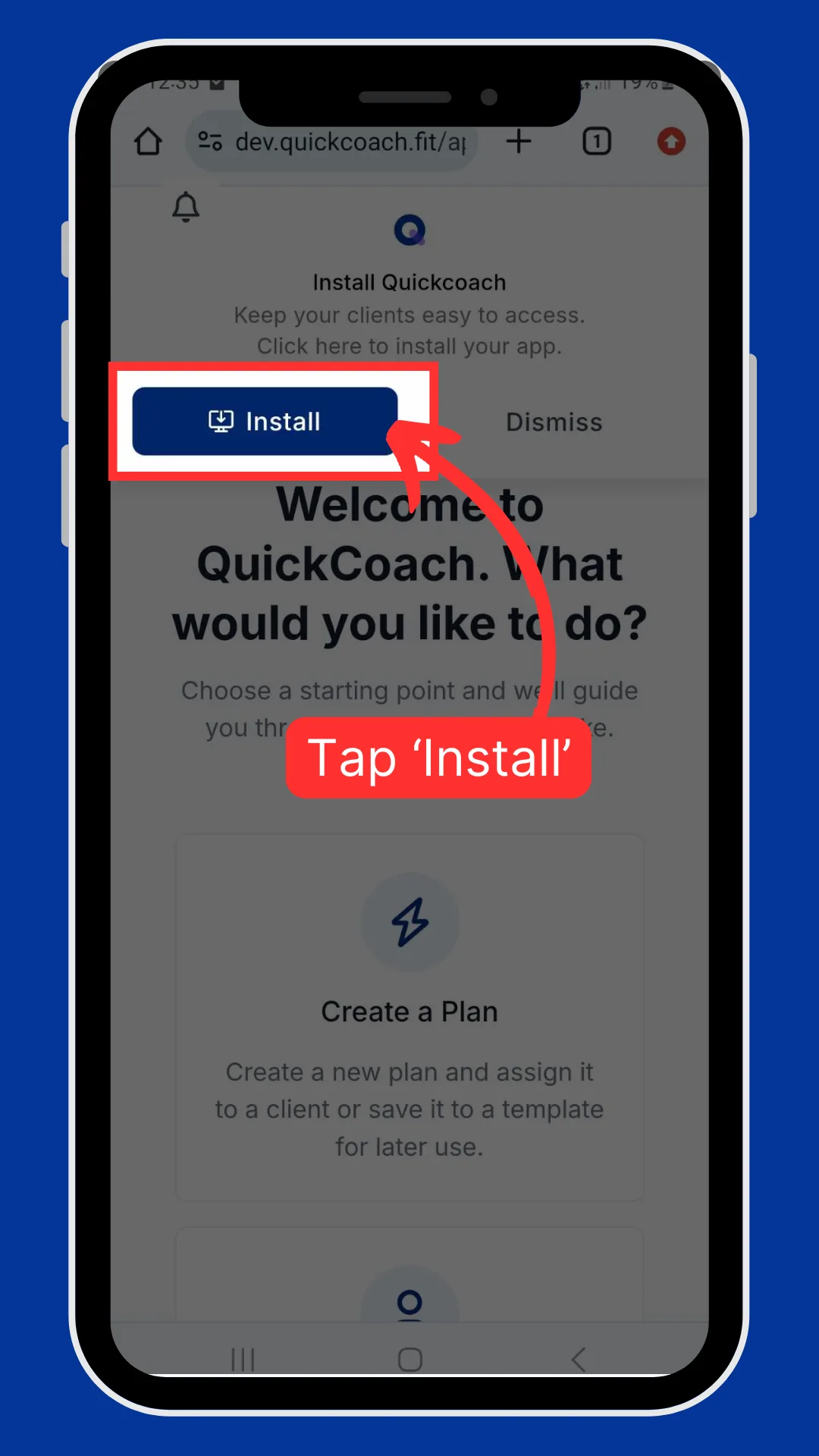
- Tap 'Install' on the banner that appears.
- Tap 'Install' again to confirm. You'll see confirmation that the coach app has been installed.
- Want it on your home screen? Find QuickCoach in your app drawer, press and hold the icon, then tap 'Add to Home'.
Method two: straight to the home screen
- Open your QuickCoach account in Chrome, Brave or Samsung Internet.
- Tap the three dots to open the browser menu.
- Tap 'Add to Home screen', then tap 'Install' on each prompt that follows.
Windows
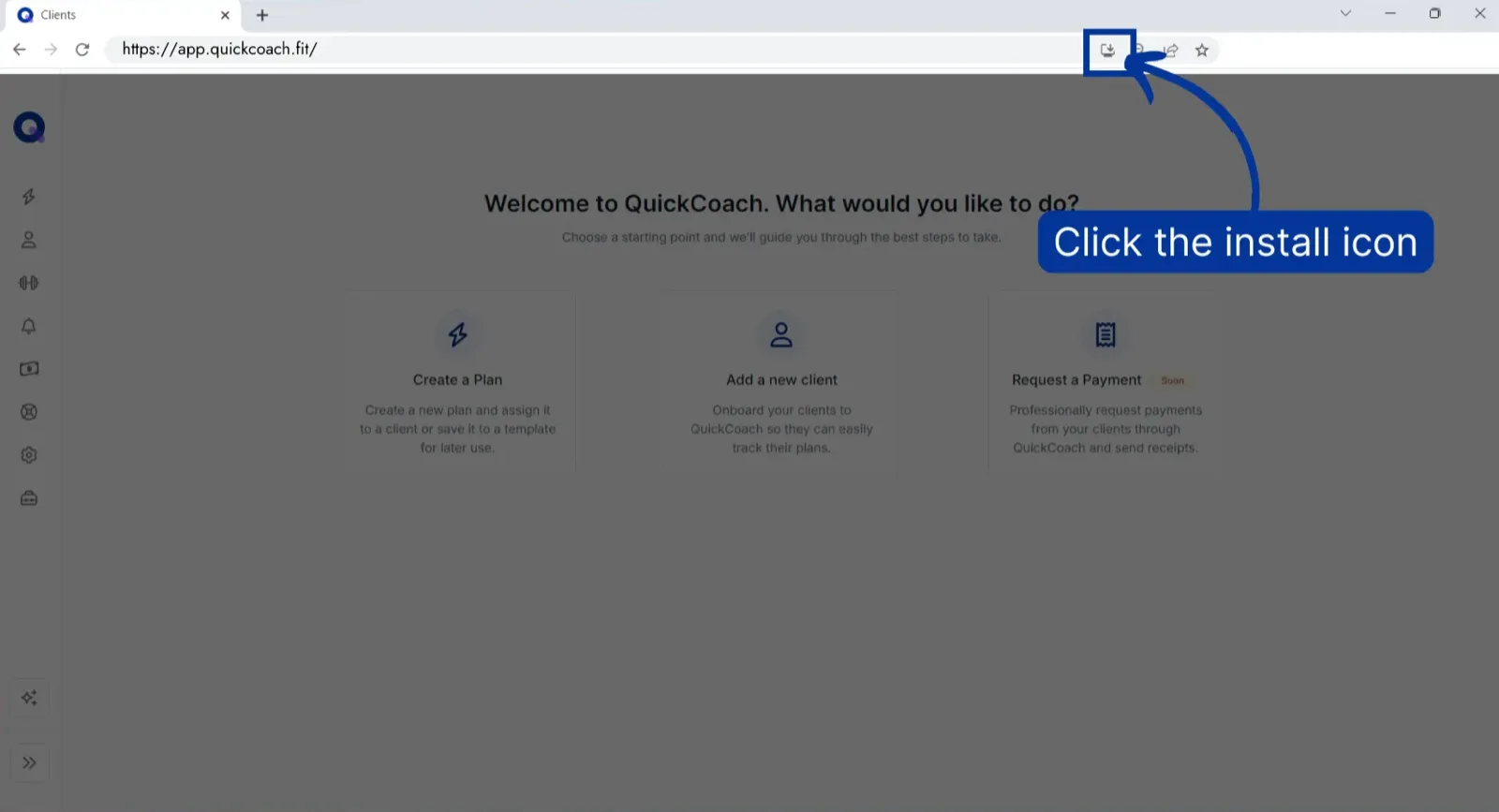
- Open QuickCoach in your browser and click the install icon at the right of the address bar.
- Click 'Install'. The app "pops out" of the browser into its own window.
- You may see an option to pin QuickCoach to your taskbar. The app also appears on your desktop.
Mac
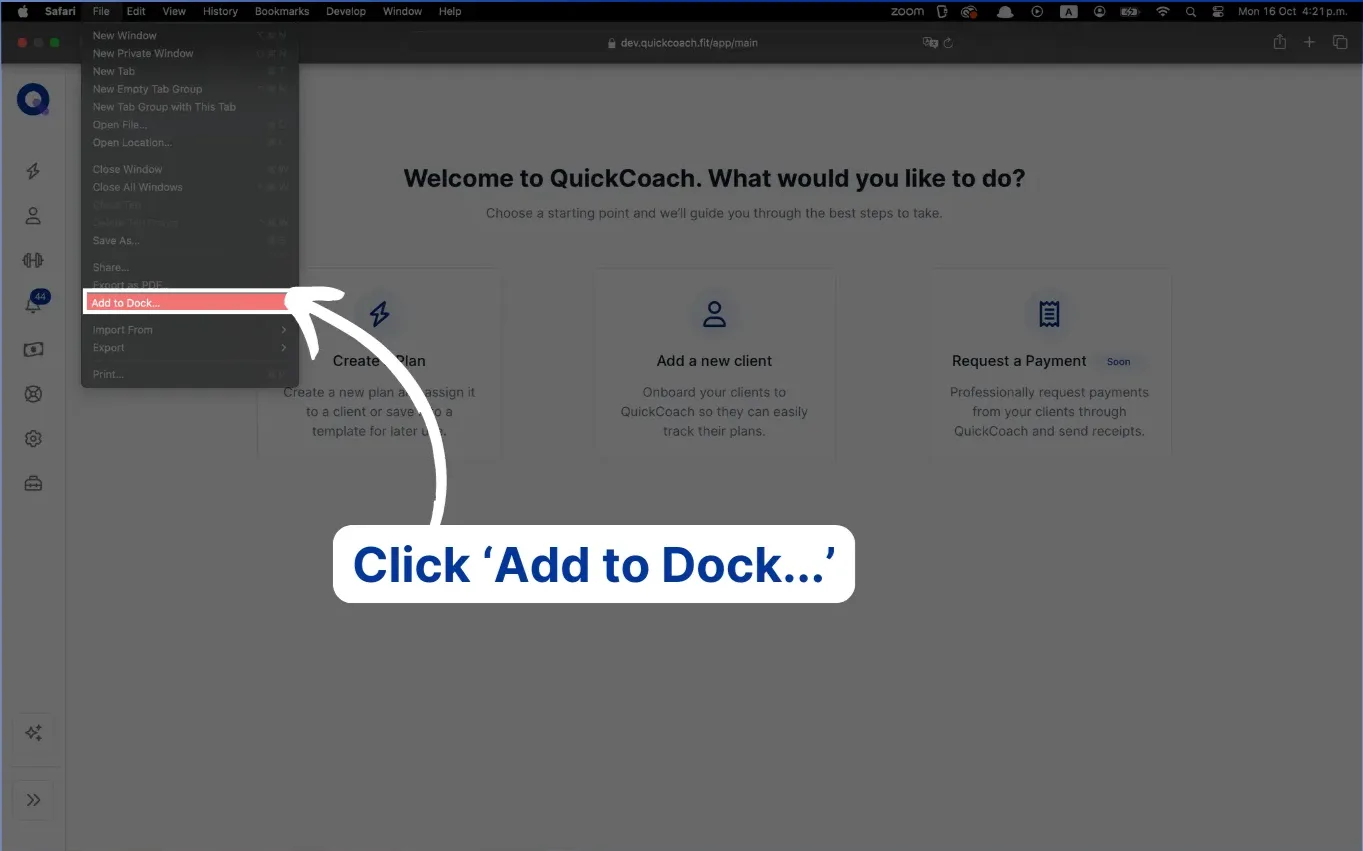
On a Mac, Safari can add QuickCoach to your Dock. Watch the video walkthrough (0:27).
Note: QuickCoach's features and screen layouts may change over time, but the core workflow stays the same.
- Open your QuickCoach home page in Safari.
- Click 'File' in the menu bar.
- Click 'Add to Dock...'.
- Click 'Add'. QuickCoach now sits in your Dock, one click away.
Frequently asked questions
Why can't I find the app in the App Store or Play Store?
We built the app to install through the browser on purpose. It keeps costs down for you and makes the app easier for your clients to use. It also means less downtime than store-distributed apps tend to have. Curious about the thinking? Listen to this short podcast episode about why the QuickCoach app is built this way.
Why doesn't my coach app show my branding?
Customisation applies to your client's app only. See the custom-branded client app for how that works.
I don't see 'Add To Home Screen' on my iPhone
The option may be hidden in your share menu. In Safari, tap the share icon, tap 'Edit Actions...', tap 'Add to Home Screen', then tap 'Done'. The option now appears in your list.
I don't see 'Add To Home Screen' on my Android
Your device may word it slightly differently, such as 'Install App'.
My device didn't show the pop-up
An extension or pop-up blocker may be suppressing it. The pop-up isn't needed to install the app. iPhone users can follow the standard steps above; Android users should use method two.
Opening my client's app opens my coach app instead. How do I fix it?
On Android, install order matters. Install your client apps before your coach app. If needed, uninstall the coach app, install the client apps, then reinstall the coach app. See how clients install their app for the client-side steps.
The installed app has extra text after its name. Why?
If you have more than one QuickCoach app on the device, the name gains extra text like App Name-Your Username-Client Name. If you installed multiple apps on purpose, rename it to whatever you want. Otherwise it means the app was already installed.
Why won't QuickCoach load on my Amazon device?
QuickCoach doesn't work in Amazon's Silk browser, and Amazon doesn't allow other browsers to be installed. Use QuickCoach from another device instead.