
Editing plans and tasks
Open a client's plan from their page, change the plan or any task inside it, and published edits reach the client in real time.

Plans stay editable after you've built them, so a tweak to a client's programming takes seconds, whether you're restructuring the whole session or swapping the video on one task. Both jobs start from the same place.
Watch the plan editing walkthrough (0:32).
Note: QuickCoach's features and screen layouts may change over time, but the core workflow stays the same.
Open the plan in the plan builder
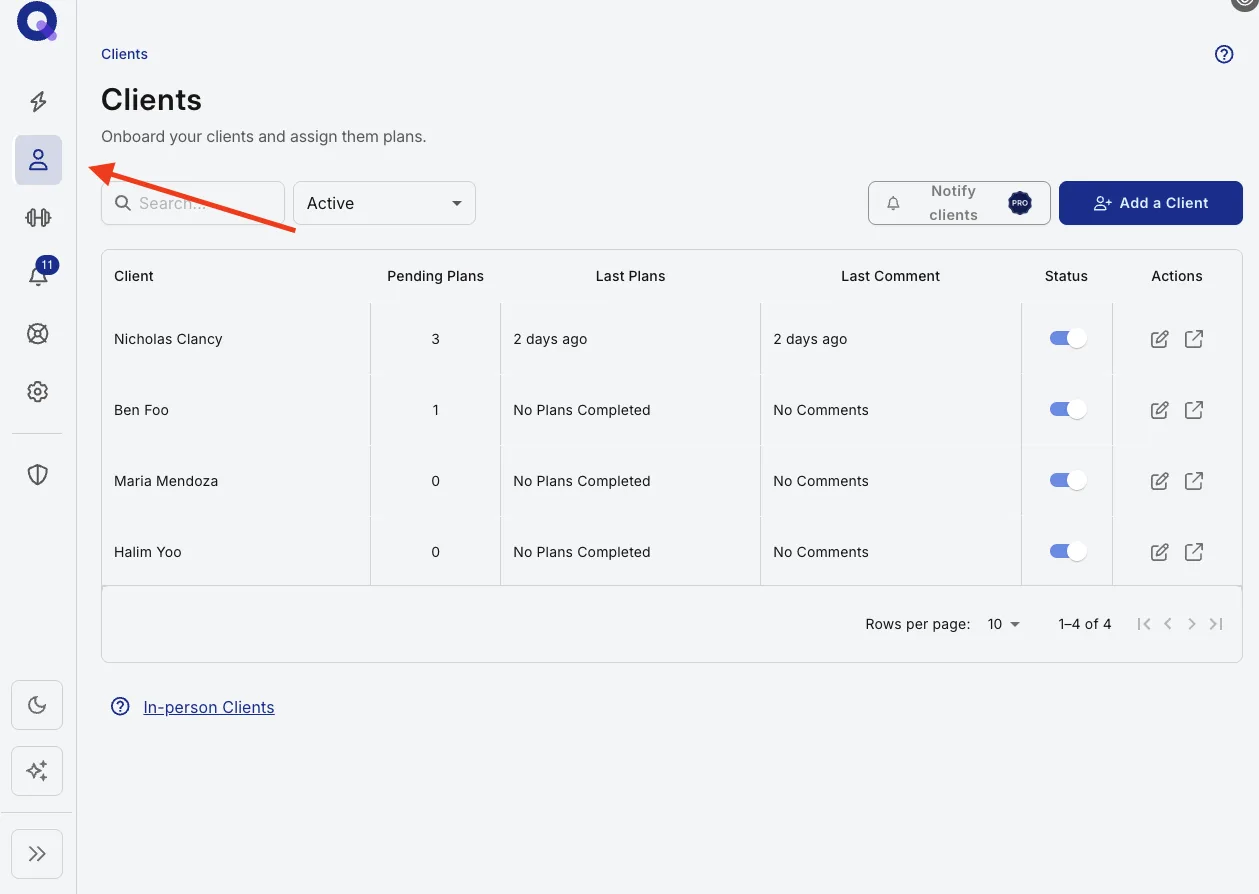
- Click the person icon in the left navigation to open your Clients page.
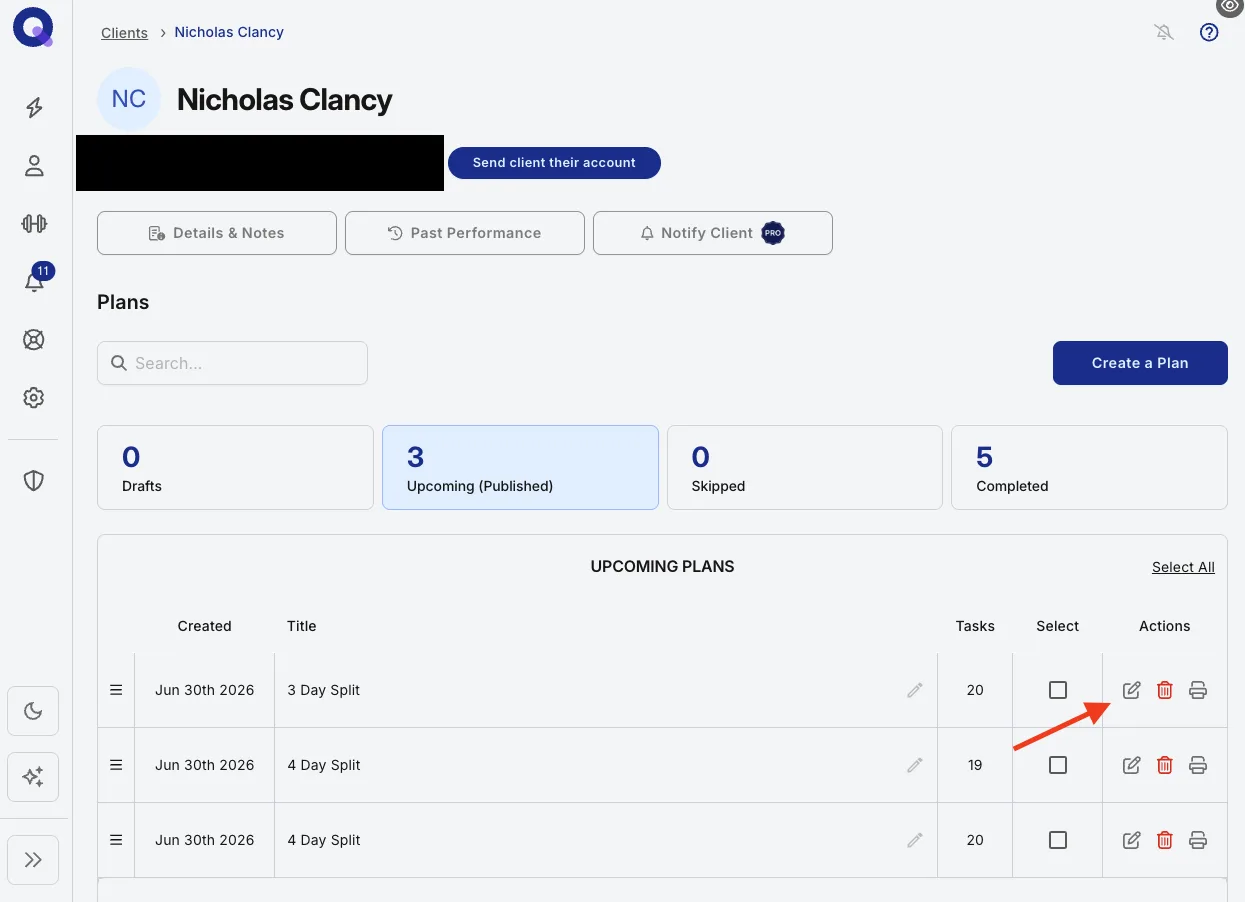
- Click the client whose plan you'd like to edit.
- Scroll down to the plan and click its pencil icon.
Change the plan itself
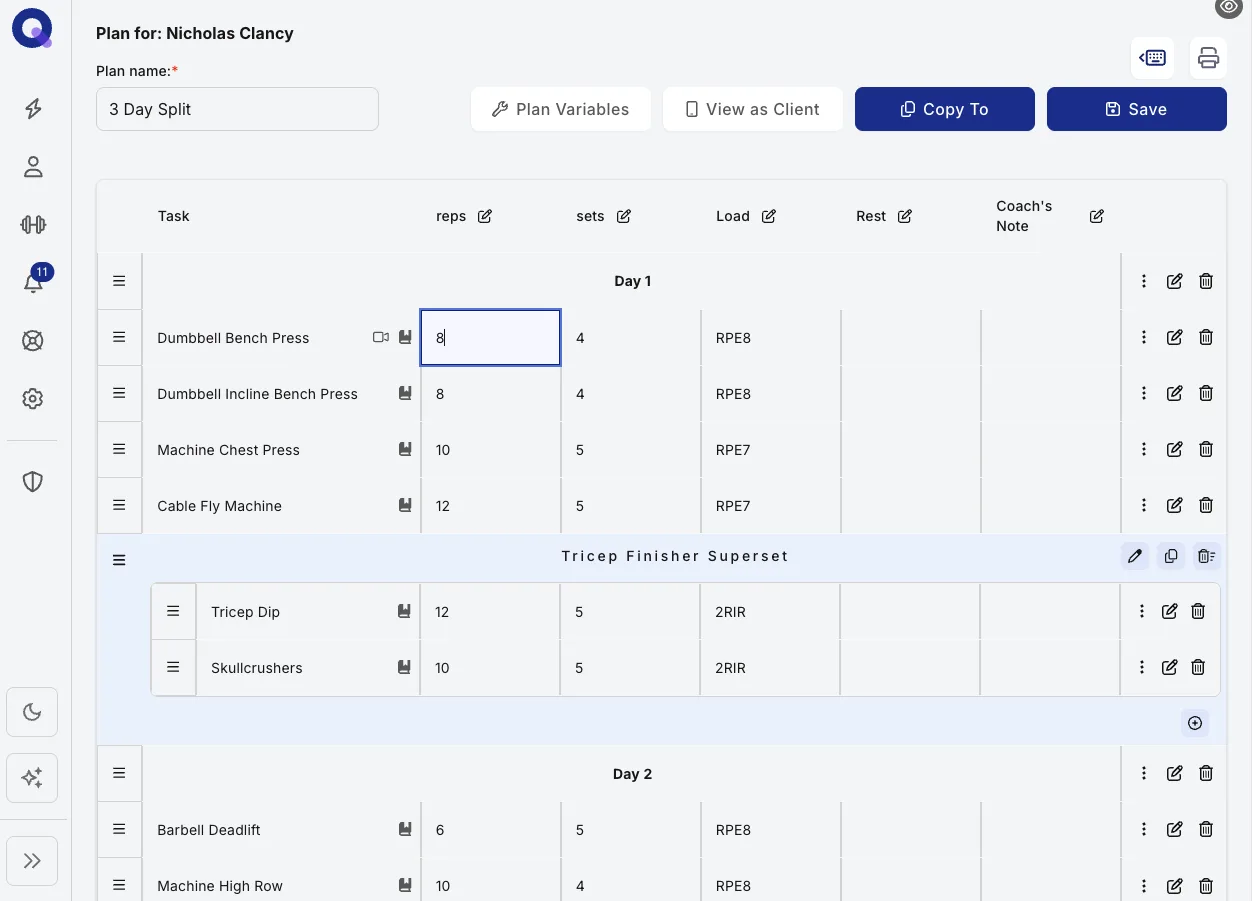
Once the plan builder opens, change whatever you need. Swap exercises, adjust sets and reps, rearrange rows, or rewrite instructions.
Note: If the plan is already published, your edits appear for the client in real time. There's no separate save-and-sync step.
Edit a task inside the plan
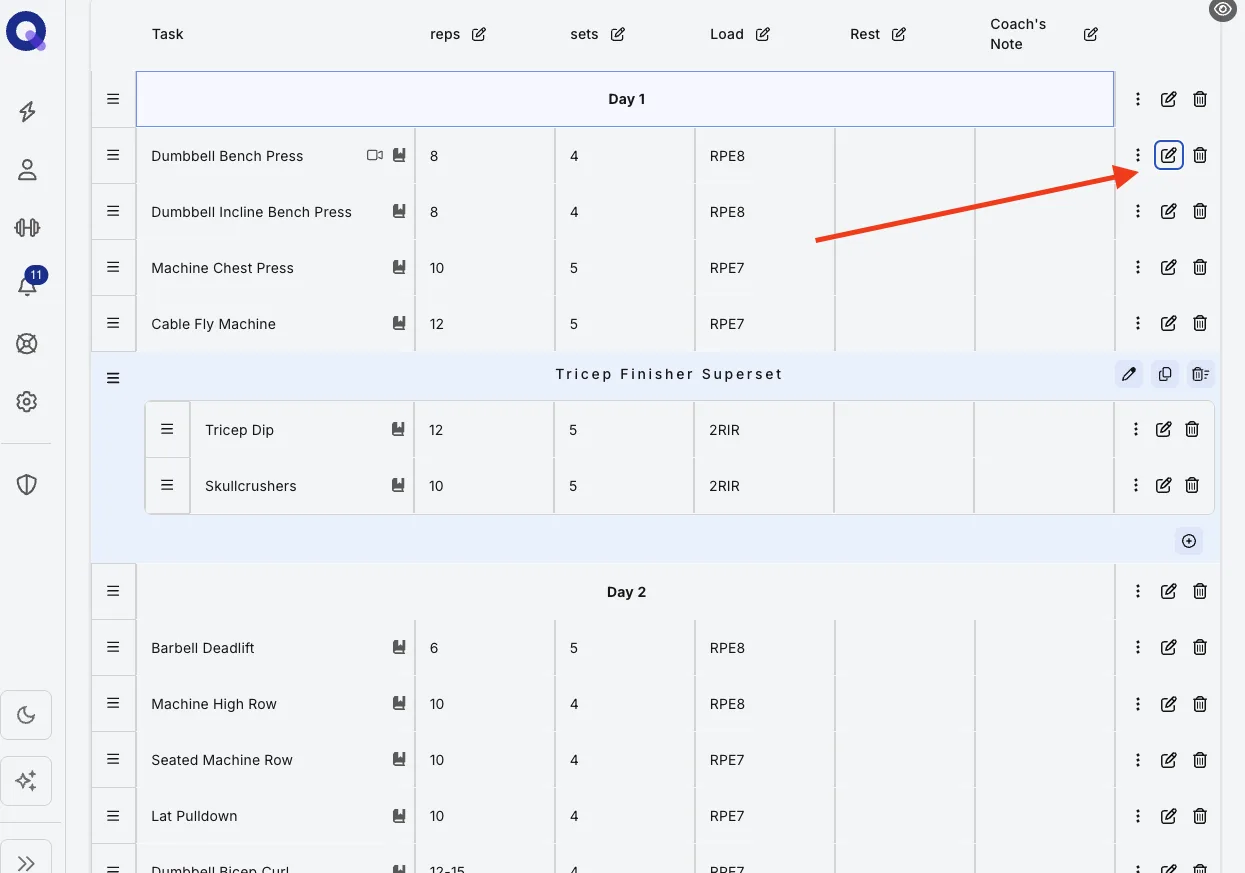
To change an individual task rather than the plan around it, click the edit button on the task you want to change.
Watch the task editing walkthrough (1:09).
The task editor opens. From here you can swap the video, record an audio note (a Pro feature), or rewrite the task notes.
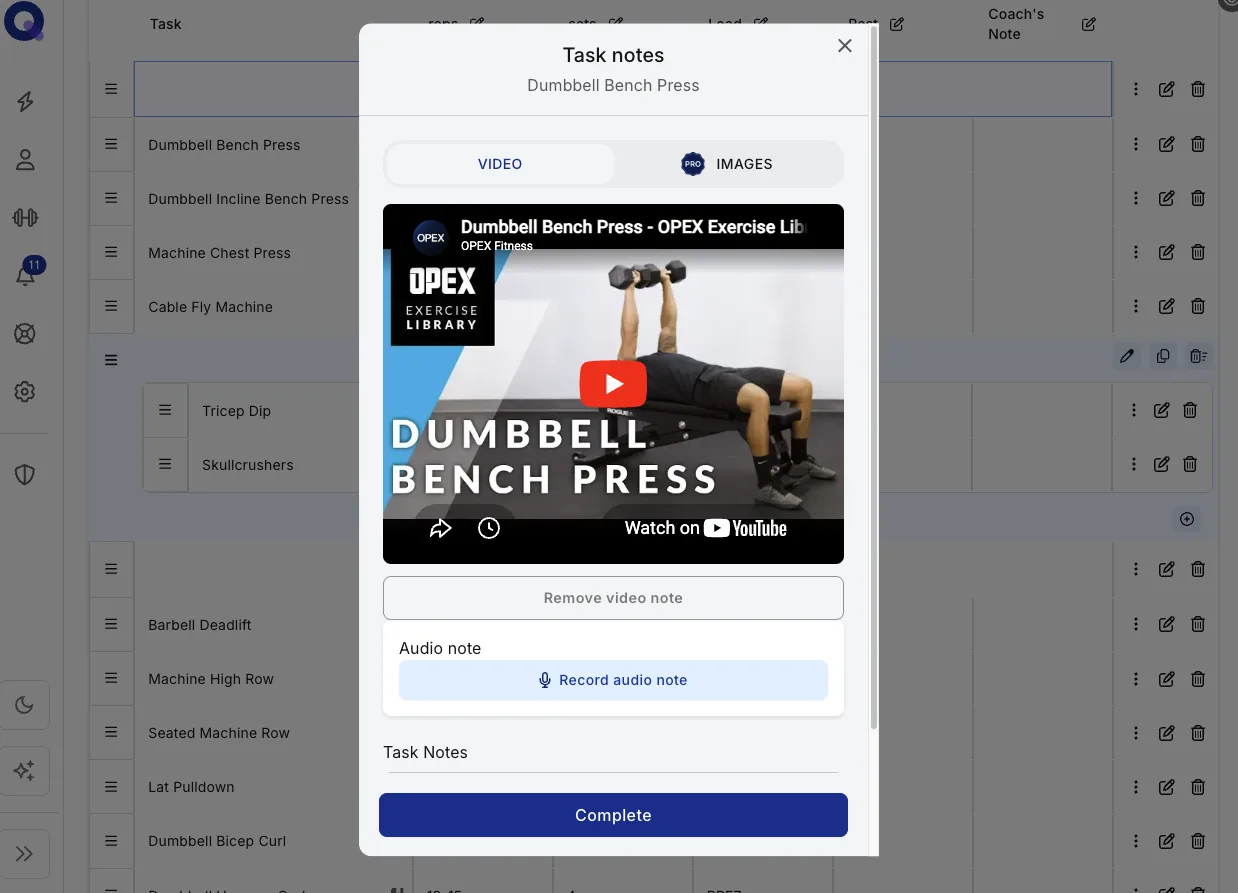
Task edits land in real time too. Your client could be mid-workout and need a variation, and the change appears on their screen seconds after you make it on yours.
What updates where
Editing follows three rules, and they explain almost every "why didn't this change?" moment:
- Video, images and task notes update the library. Changing a task's video, images or written notes also updates that task in your Task Library, so future plans pick up the new version automatically.
- Existing plans keep their version. Plans you assigned in the past keep the version of the task they were built with. Edit those plans directly if they need the change too.
- Audio notes stay with the plan. An audio note you record here belongs to this one plan and isn't saved to the library. A task in your Task Library can hold its own audio note, but that one isn't copied into plans, so record client messages on the plan itself.
The same logic applies one level up: template edits are not retroactive either, because assigning a plan creates a copy.
For everything you can attach to a task (videos, images, audio, written descriptions), see adding media to tasks. And if the plan should disappear rather than change, deleting plans and Program Templates covers that, permanence warning included.