
The Clients page: your client roster
A guide to the Clients page in QuickCoach: what each roster column tells you, why the status filter is Pro only, adding clients and managing every row.

The Clients page is your overview of everyone you coach. At a glance you can see who's running low on plans, who's gone quiet, and who has feedback waiting, then jump into any account or send a push notification without leaving the page.
Watch the video walkthrough if you'd prefer to see it in action first.
Note: QuickCoach's features and screen layouts may change over time, but the core workflow stays the same.
Getting to the Clients page
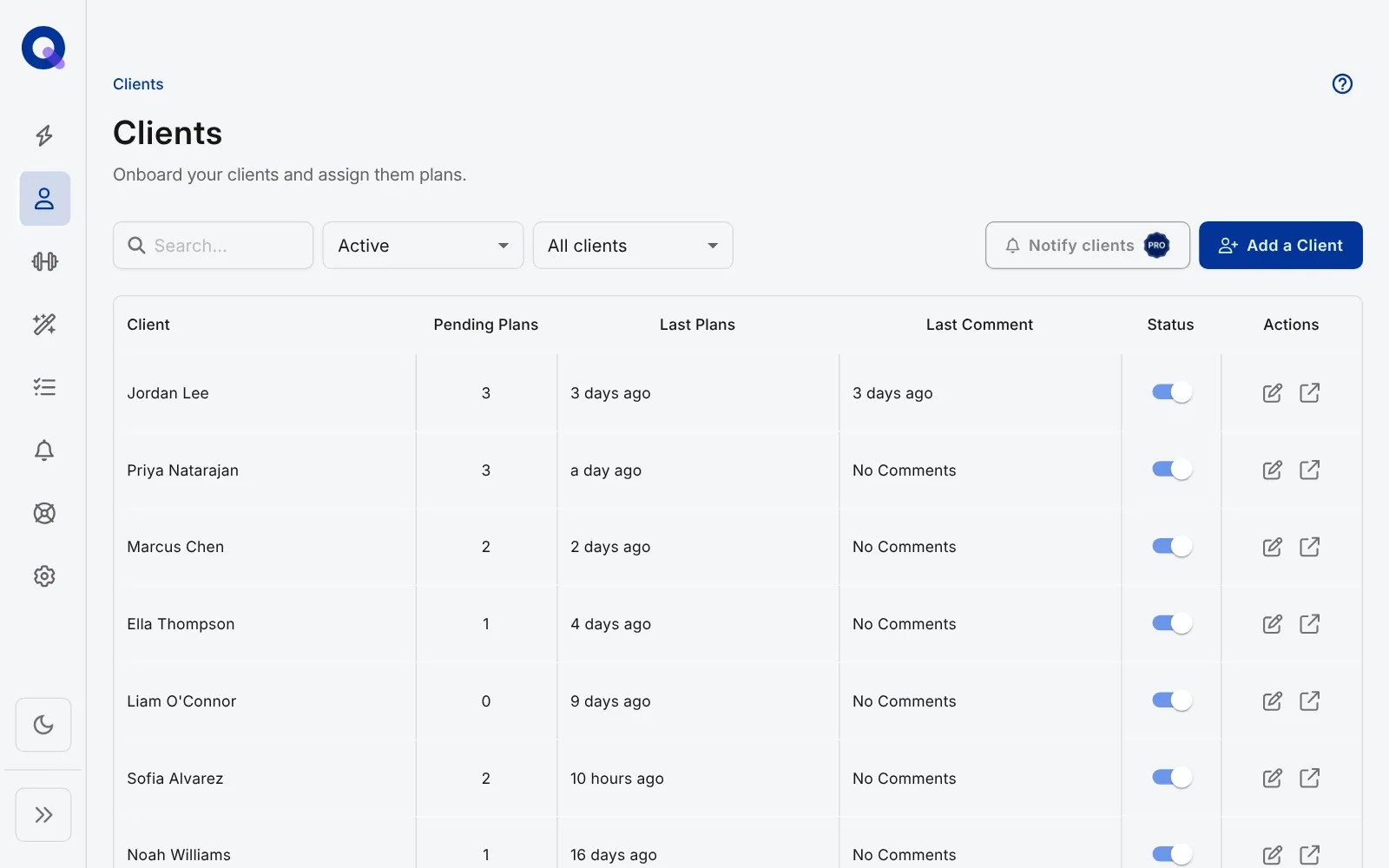
Click 'Clients' in the navigation. The page lists every client you've added, plus you as a client (we set that up for you, so you can experience the client side yourself).
Search and filter your clients
Type in the search bar to find a specific client by name. Search works on every plan.
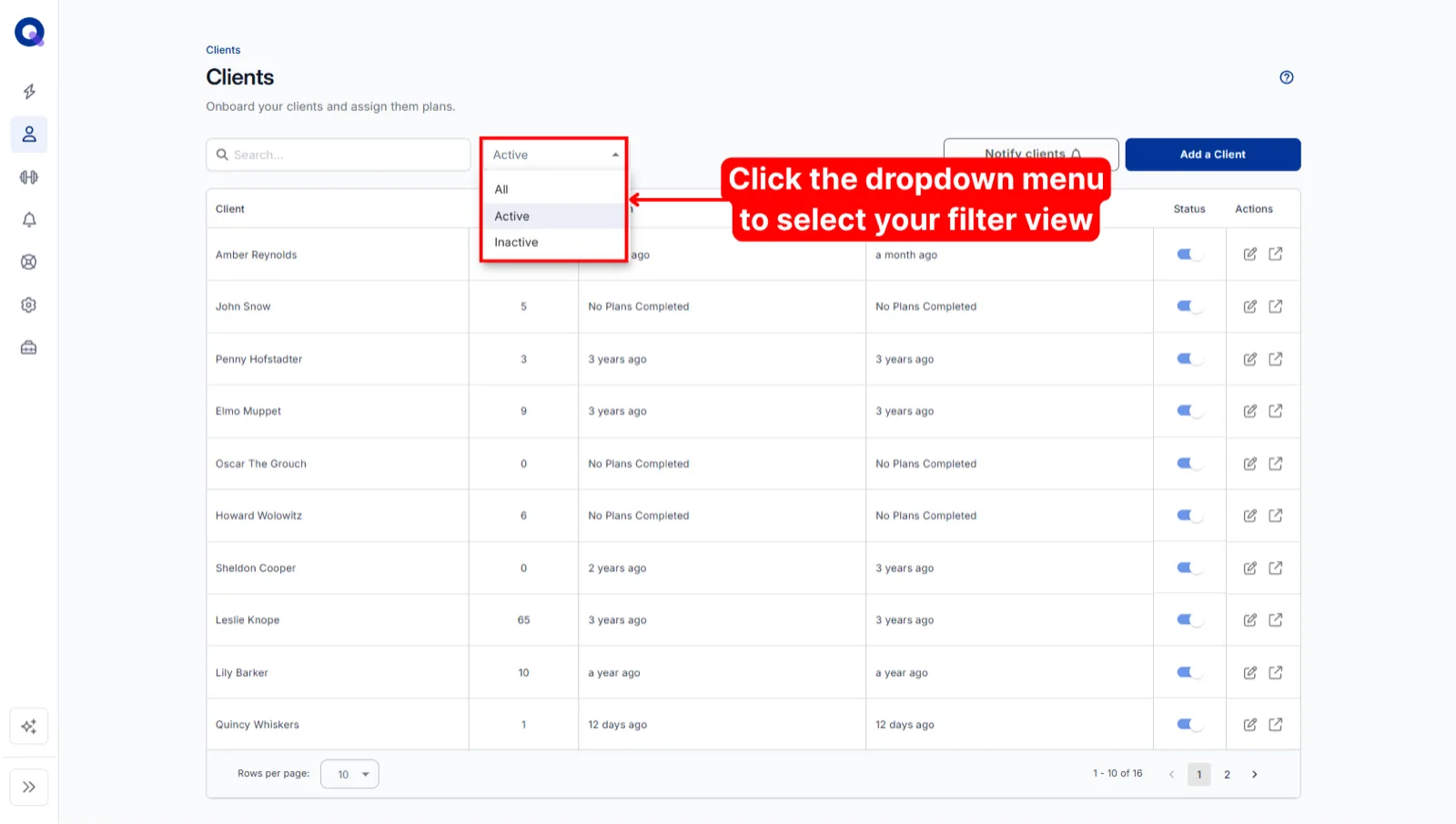
The status filter sits next to it. The view defaults to active clients only. Click the dropdown and choose 'All' to see active and inactive clients together, or 'Inactive' to see only the inactive ones.
Pro only: The status filter is a QuickCoach Pro feature and isn't available on the Free plan. A Free roster shows the search bar, 'Notify clients' and 'Add a Client', with no status dropdown beside the search box. That's expected, not a fault or a bug: Free is capped at 20 clients and doesn't keep inactive client history, so there's no Inactive or All view to switch to. Search still finds anyone on your roster by name. Upgrading adds the dropdown, the Inactive view and your full client history. See QuickCoach Free and Pro, explained and active and inactive clients, and the plan limits.
On Pro there's a second filter beside it, 'All clients', for Client Groups. Pick a group to show only its members, or use 'Create group' at the bottom of the same menu to save a new one. Search works inside whichever group is selected. Client Groups covers creating, editing and assigning plans to a group.
Send clients push notifications
Click 'Notify clients' to send a custom notification to one, a few, or all of your active clients at once. The push notifications guide walks through composing and sending them.
Add a new client
Click 'Add a Client' to add someone new to your roster. If it's your first time, inviting your first client covers the whole flow, from creating the account to sending them their link.
What the columns tell you
The roster works left to right as a quick health check on your coaching business.
Client shows the client's name. Clients are ordered by when they were created; other sort options aren't available yet.
Pending Plans counts the plans in a client's Upcoming (Published) tab. A low number here means the client is about to run out of programming and needs your attention.
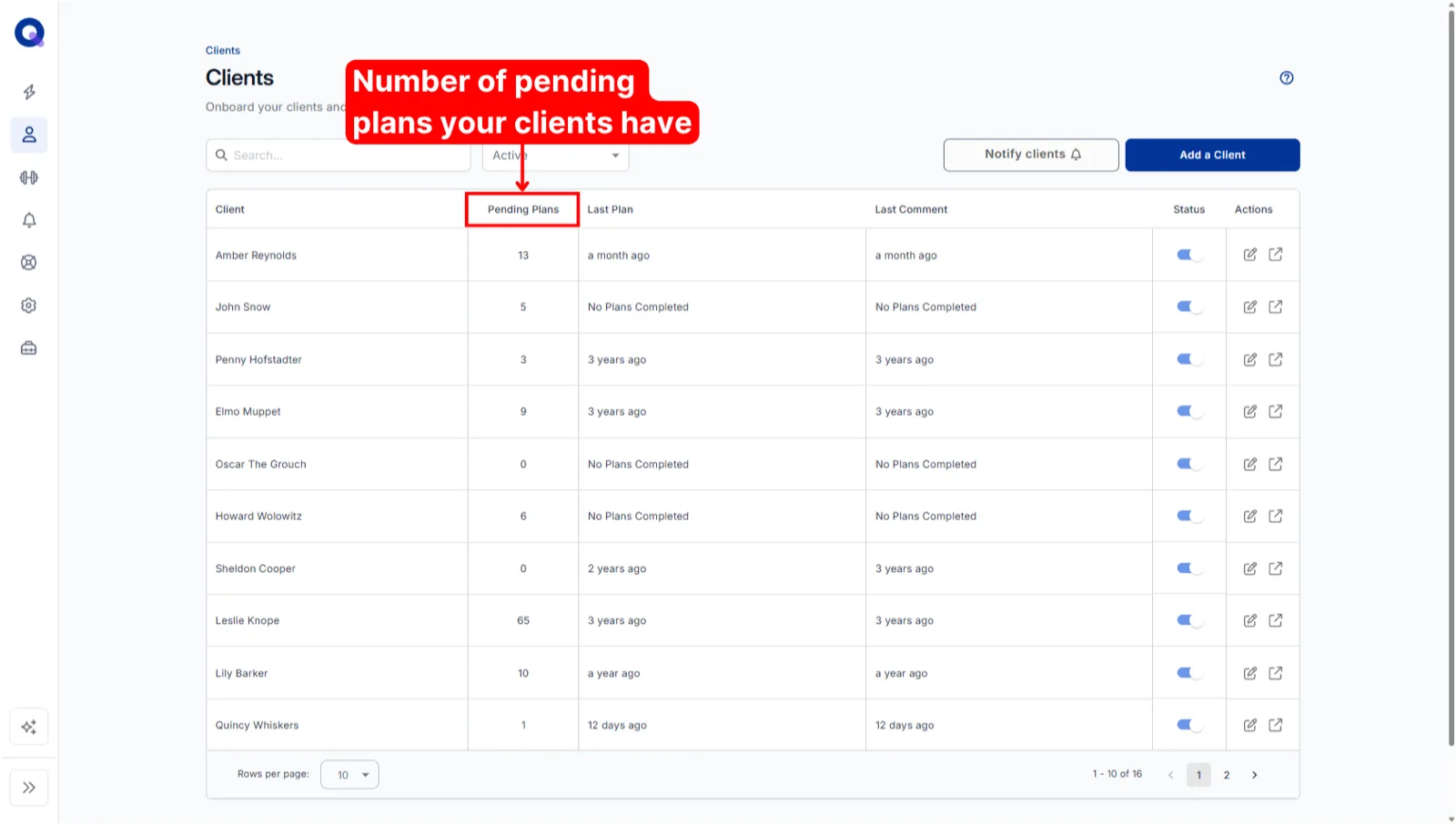
Last Plans shows how long ago each client completed a plan. It's the quickest way to spot someone who has fallen off and could use a check-in.
Last Comment shows how long ago the client left a comment after completing a plan, which helps you keep on top of feedback waiting for a review.
Status switches a client between active and inactive. Click the toggle to make an active client inactive, which also switches off that client's access to their account. In the 'Inactive' or 'All' views, Pro coaches can click the toggle again to bring them back to active and restore their access.
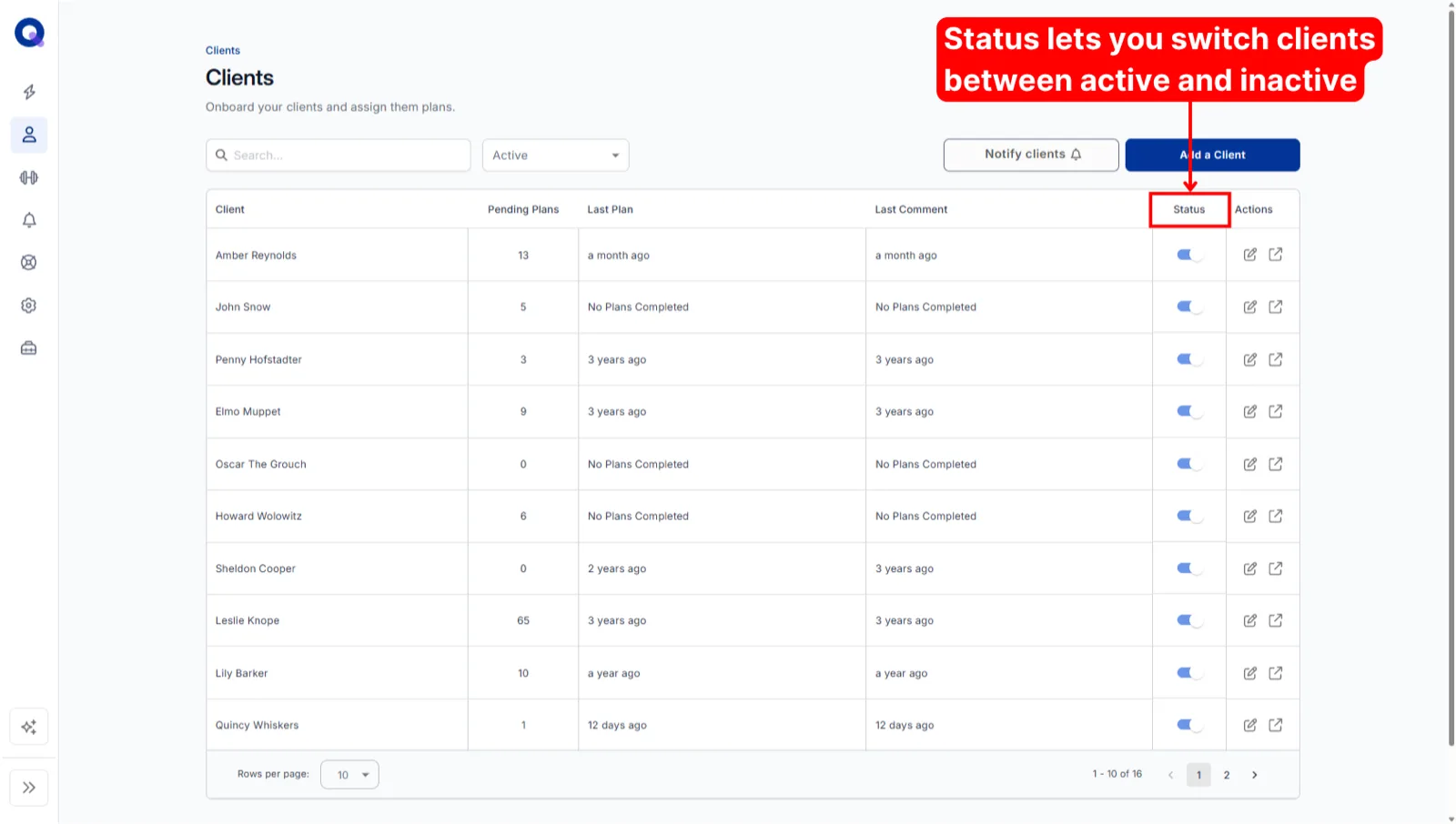
Important: Marking a client Inactive revokes their access on every plan. They'll see an "Account inactive" screen, and their client link stops working. On Pro the change is fully reversible, so switching them back to Active restores their access. On Free you also lose access to their history and can't reactivate them, though their data stays preserved. See active and inactive clients, and the plan limits for the full policy.
Actions on each client row
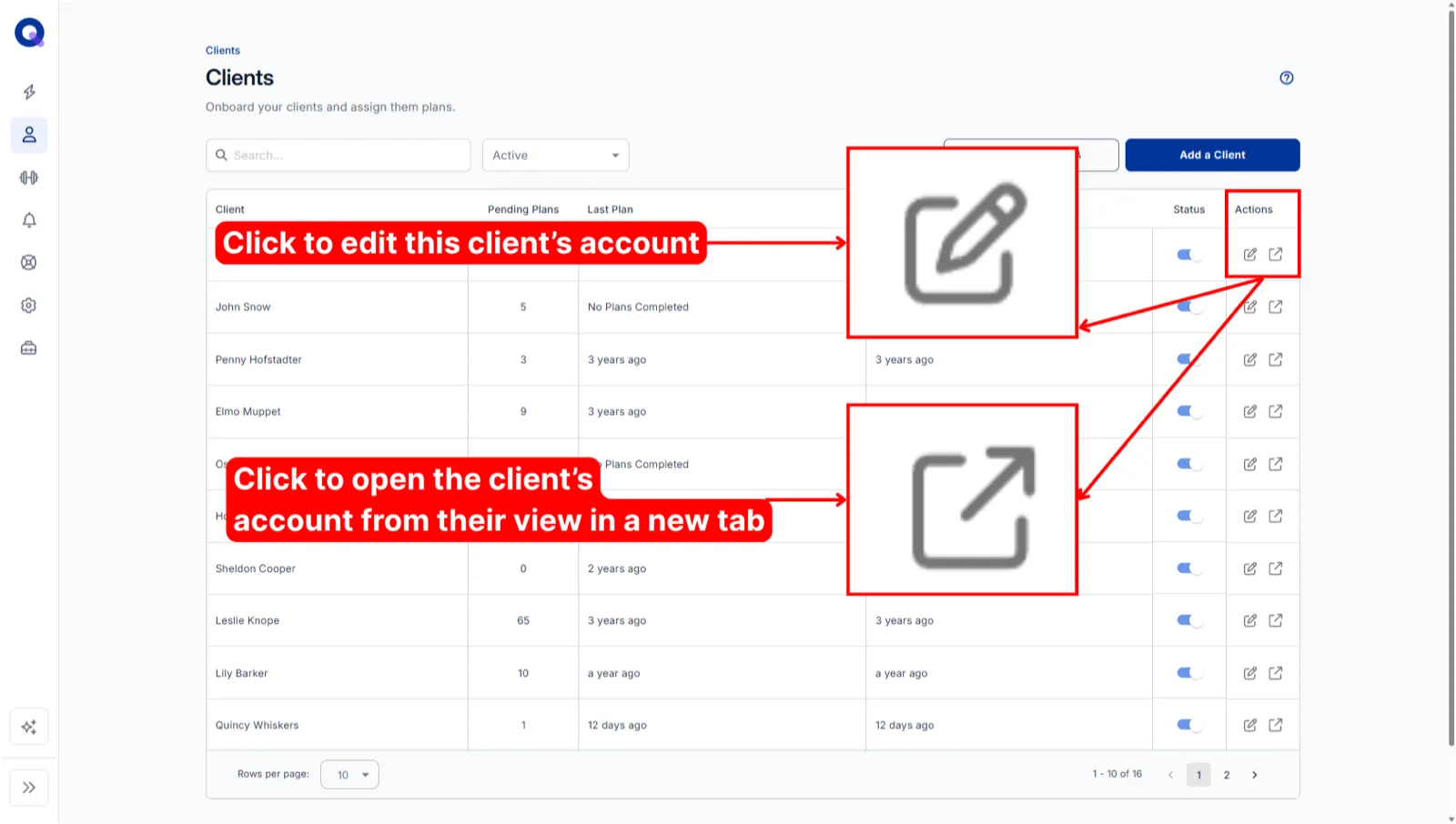
Under the 'Actions' column you can interact with a client in two ways.
- Click the edit icon to open and edit that client's account.
- Click the arrow icon to open the client's account exactly as they see it.
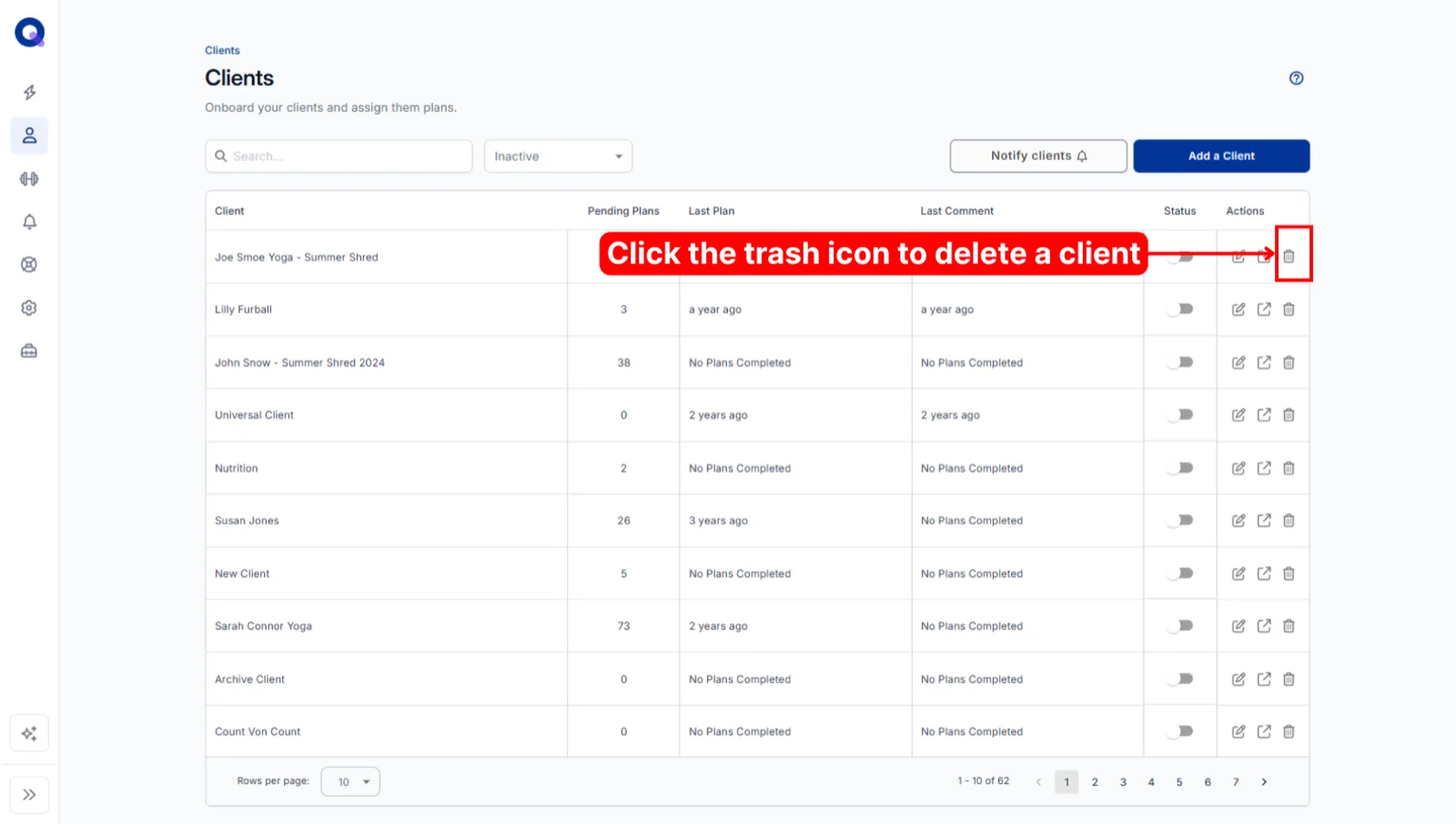
On Pro, switch the view to 'Inactive' and an extra button appears. The trash icon permanently deletes a client and everything in their account, so treat it with care. The deactivate or delete a client guide explains the difference between the two.
Rows and pages
'Rows per page:' controls how many clients you see at once. Pick a number from the dropdown and QuickCoach saves your preference for this page.
The counter next to it reads like '1 - 10 of 16': you're seeing clients 1 to 10 of 16 in the current view. Use the arrows to jump to the first or last page, or click a page number to go straight there.
Frequently asked questions
Why can't I filter my clients?
The status filter is a Pro feature, so on the Free plan it isn't on the page at all. A Free roster gives you the search bar, 'Notify clients' and 'Add a Client', and no dropdown for Active, Inactive and All. Nothing is broken and nothing needs fixing on your account. Free is capped at 20 clients and doesn't keep inactive client history, which is exactly what the filter is for. Search by name still works, and upgrading to Pro adds the dropdown, the Inactive view and your full history. QuickCoach Free and Pro, explained covers the rest of what Pro unlocks.
How can I block an inactive client from seeing their account?
It's already handled. Marking a client Inactive revokes their access on Free and on Pro, so they can't open their account at all: they get an "Account inactive" screen, and their old client link no longer works. If you'd rather leave a client with their account but stop new work reaching them, keep them Active and move any plans in their 'Upcoming' section to 'Drafts' instead: tick the plans and click the Change Status icon (the circling arrows). There's more on this in active and inactive clients, and the plan limits.
How many clients can I have?
The Free plan covers up to 20 active clients, with no time limit. Inactive clients don't count toward the limit, so deactivating a client opens a slot while you can still open your roster. Reach the limit, though, and QuickCoach locks the workspace until you upgrade to Pro. Pro removes the cap entirely. See active and inactive clients, and the plan limits and plans and pricing for the full breakdown.
My client has gone missing. Where did they go?
Data doesn't disappear, so they're there somewhere. Most likely they've been marked inactive. On Pro, switch the status filter to 'All' to check. On Free there's no status filter, so an inactive client's record stays preserved but out of view until you upgrade. With a larger roster, make sure they aren't sitting on another page. Still stuck? Email support with the client's name and we'll dig in.
Can I sort my clients alphabetically or in other ways?
Not at this time.
Can I add tags to my clients?
On Pro, use Client Groups instead of tags. Open the 'All clients' filter, choose 'Create group', and name it for whatever you'd have tagged, like "Back Injury" or "Online Only". A client can sit in several groups at once, and you can assign a plan to a whole group in one go. See Client Groups. On Free there are no groups, but clients never see their last name field, so you can append your own labels to it. For example: Whiskers | Muscle Gain | Back Injury | Online Only.
Once you're comfortable with the roster, take the individual client accounts tour to see what's inside each client's page.