
Active and inactive clients, and the plan limits
How the Free plan's 20-client limit works, why marking a client Inactive switches off their access on every plan, how deleting differs, and what happens to their data.

This is the central guide to how clients count against your plan and what the Active, Inactive and delete controls actually do. Marking a client Inactive tidies your roster and switches the client's access off. Deleting removes them for good. The plan you're on decides what you can undo, so it's worth knowing the difference before you click.
How many clients you can have
The QuickCoach Free plan supports up to 20 active clients, with no time limit and nothing that expires. Inactive clients don't count toward that number, so while you're still under the cap and can open your roster, deactivating a client opens a slot for someone new. What happens if your active roster goes over the limit is covered in the next section, because that's the part that catches people out.
QuickCoach Pro removes the limit completely. You can coach as many clients as you like on one flat price, with no slider and no per-client fee, so a growing roster never means a growing bill. Pro also adds the status filter and the Inactive view where clients are deleted (deletion is permanent). Weighing it up? QuickCoach Free and Pro, explained covers everything Pro adds, and plans and pricing has the current numbers.
What happens when you go over the 20-client limit
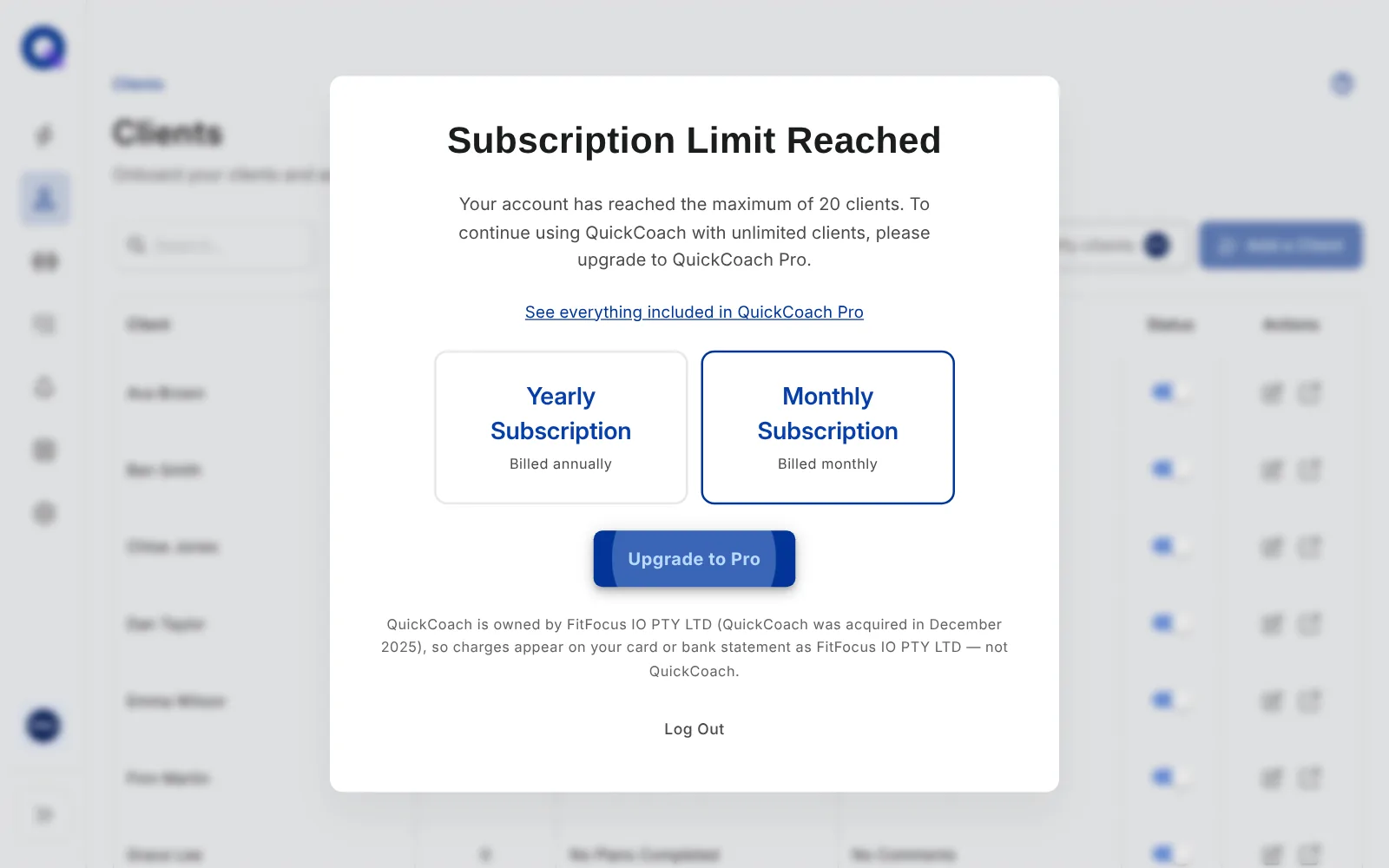
At 20 active clients, the Free plan stops you adding another one. Everything else keeps working. The lock comes if your active roster goes over 20, which usually happens when a coach moves from Pro back to Free with more than 20 active clients. QuickCoach then locks the workspace until you upgrade. The next time you sign in you land on an upgrade screen with Pro's plans on it, and apart from Log Out, that's the whole screen. There's no "Continue on Free" button, and no "Manage clients" link tucked underneath it, so you can't drop a client from there to get back under the cap. Upgrading to Pro is what lets you back into the app.
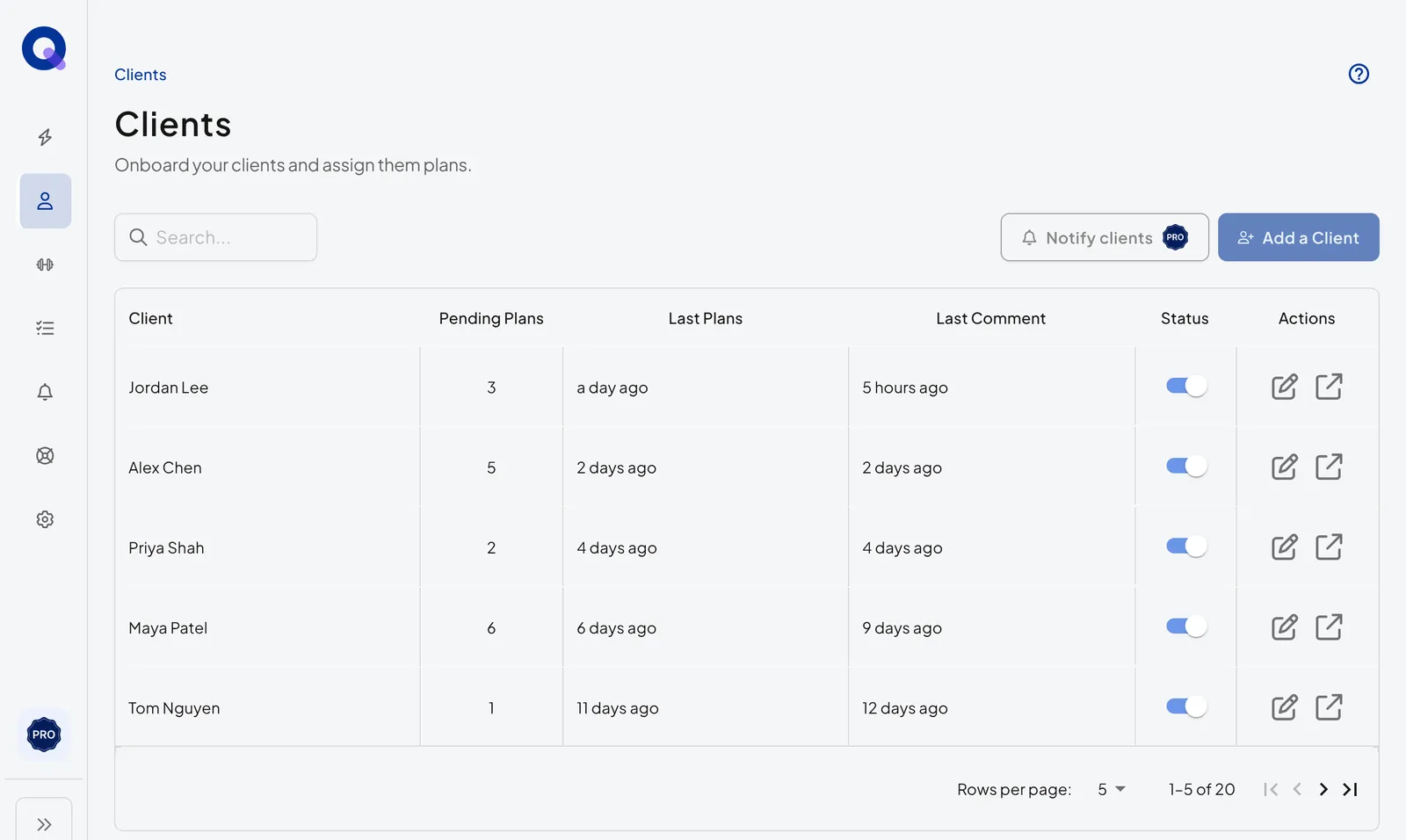
This is where the rule about inactive clients stops helping. It's true that deactivating a client opens a slot, but only while you can still open your roster. Once you're over the cap and the upgrade screen is all you can see, you can't reach the Clients page to deactivate anyone, so trimming your own roster is no longer an option and upgrading is the way through. If staying on Free matters to you, keep your active roster within the limit while you still have access, rather than waiting until you're locked out.
Important: There is no self-service way to carry on with Free once you're over the limit. If you have more than 20 active clients and only see upgrade options when you sign in, upgrading to Pro is what restores access. The 20-client cap applies to every Free account, and we can't lift it case by case.
What your clients see
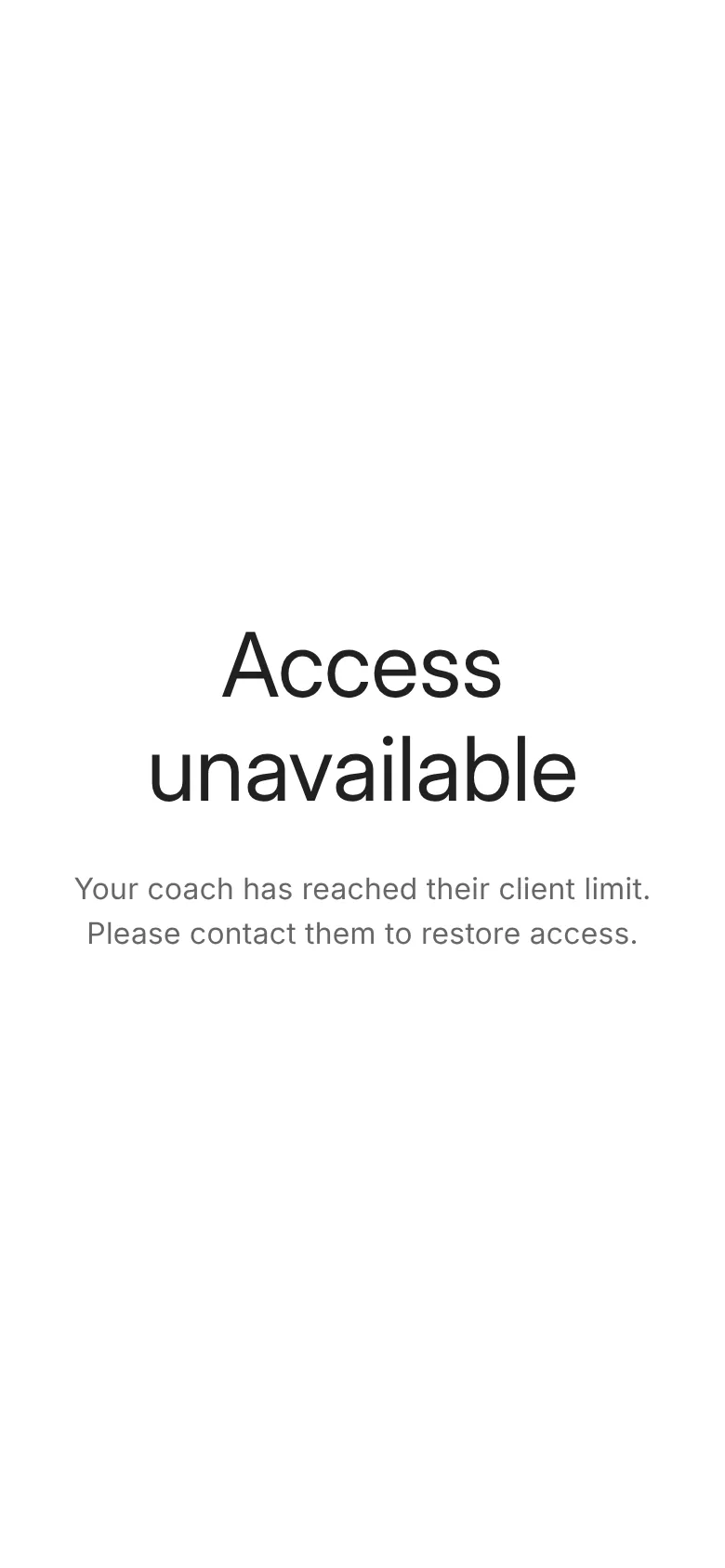
When your workspace is locked for being over the client limit, your clients are locked out too. Opening their app shows Access unavailable: "Your coach has reached their client limit. Please contact them to restore access." Their plans and results are kept, and everything comes back the moment you upgrade.
A client you've marked Inactive sees Account inactive instead: "This account is no longer active. Please contact your coach for assistance." Reactivating them restores their access.

On your side, the lock appears as Subscription Limit Reached, with the option to upgrade to Pro.
What marking a client Inactive does
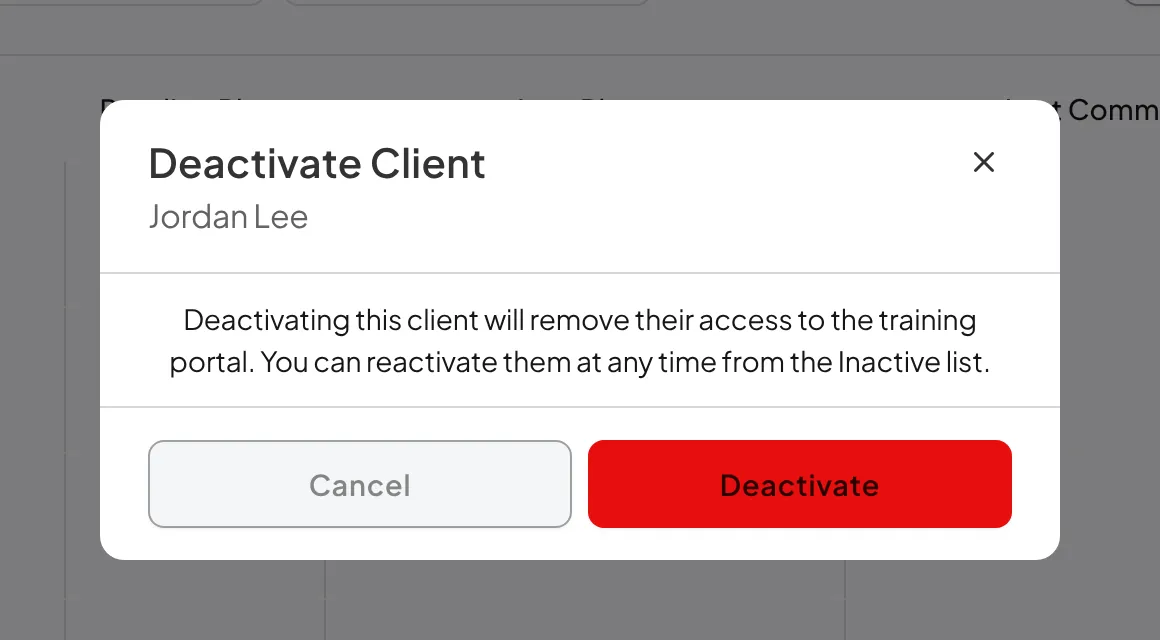
Marking a client Inactive does two things at once. It drops the client out of your roster's default Active view, and it cuts off the client's access to their account. This happens on Free and on Pro alike. Think of Inactive as deactivated rather than hidden.
From the client's side, an inactive account is closed. They see an Account inactive screen instead of their plans, and their client link stops working, so opening the same link they've always used won't get them back in. Anything you assigned them, upcoming or completed, is out of reach until you switch them back to Active.
Important: Deactivating a client is not a quiet admin change. The next time that client opens their app or their link, they'll know their account has been switched off, so give them a heads-up first if you're mid-programme.
What differs by plan is what happens on your side of the same switch.
| On Free | On Pro | |
|---|---|---|
| The client's access | Revoked. Account inactive screen, and the client link stops working. | Revoked in exactly the same way. |
| Your access to their history | You lose it too. The record is preserved, but you can't open it while you stay on Free. | You keep it. Their full history sits a click away under the Inactive view. |
| The status filter on your roster | Not available on Free. The Clients page has the search bar only, with no Active, Inactive or All dropdown. | Available. The dropdown next to the search box switches between Active, Inactive and All. |
| Switching them back to Active | Not available on Free. | Any time, and it restores the client's access straight away. |
So the control does different jobs depending on where you are. On Pro it's the clean way to end someone's access without losing anything: the client can't open their plans any more, and their record, history and results stay in front of you for as long as you want them. On Free it's a heavier decision, because the same click takes the client's access and your view of their history. Upgrading is what brings both back.
Pro only: The status filter on the Clients page is a QuickCoach Pro feature. On Free the roster shows the search bar, 'Notify clients' and 'Add a Client' and no status dropdown, so the Inactive and All views can't be opened. A missing filter means you're on the Free plan, not that something has gone wrong with your account. See QuickCoach Free and Pro, explained.
Important on the Free plan: The QuickCoach Free plan supports up to 20 active clients. If you mark a client as Inactive while using the Free plan, their access will be revoked and they will see an Account inactive screen. You will also lose access to that client's history and will not be able to reactivate them while remaining on the Free plan.
Your client data is not deleted. It remains safely preserved on your account. Upgrading to QuickCoach Pro restores access to inactive client records and allows you to reactivate clients, export information, and tidy older records.
The 20-client limit applies consistently to all Free accounts. We cannot provide individual exceptions, as this would be unfair to other coaches and would make it harder to keep QuickCoach sustainable and free.
What happens when you delete a client
Deleting a client removes them from your account completely. Their History and everything tied to the account goes with them. Both controls end the client's access, so the real difference is what survives: an inactive client's record is preserved and can be brought back on Pro, while a deleted one is gone for good on every plan.
Important: Deletion is permanent. Once a client is deleted, their data can't be recovered. If you might want them back later, mark them inactive instead.
Make a client inactive
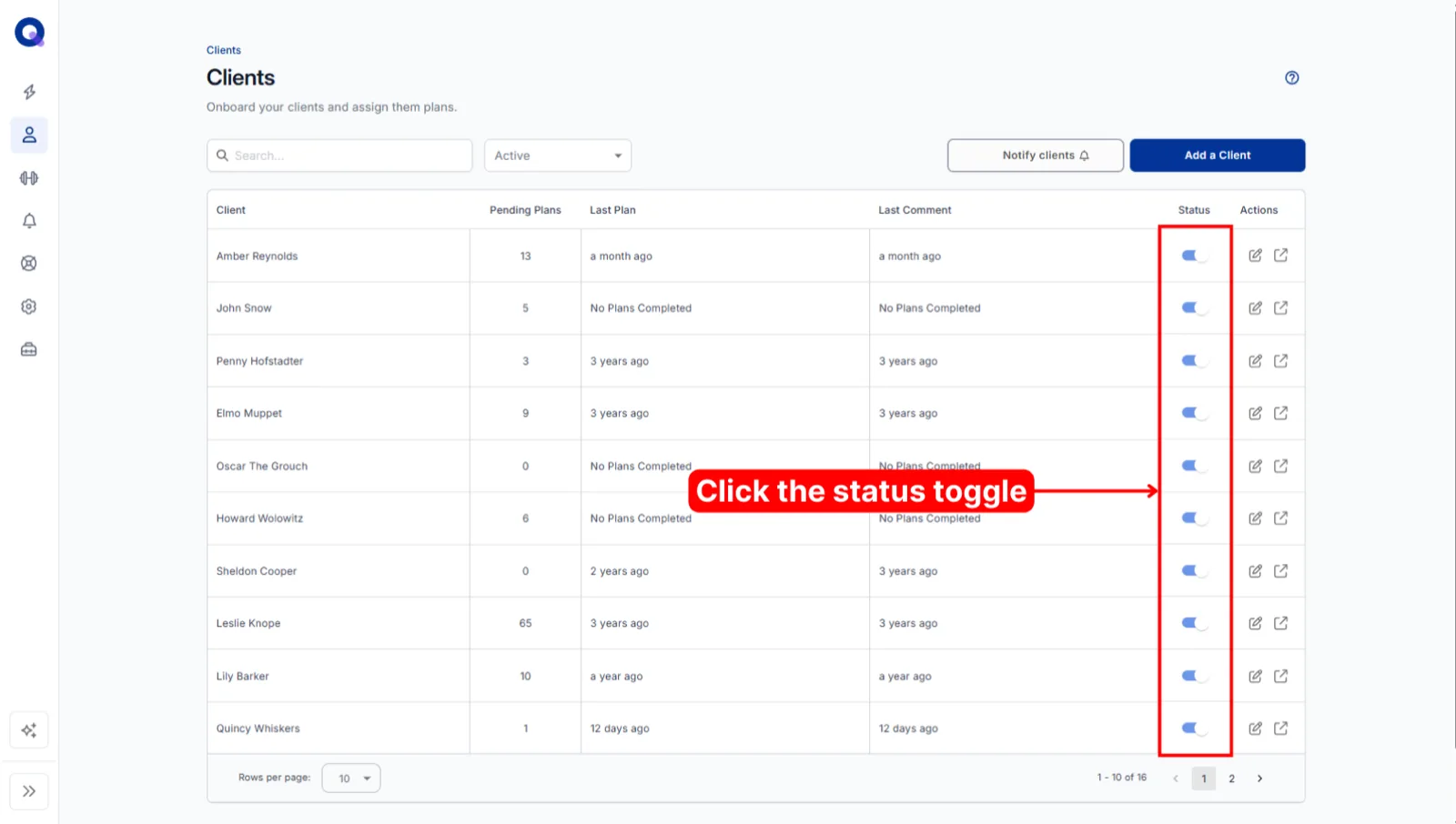
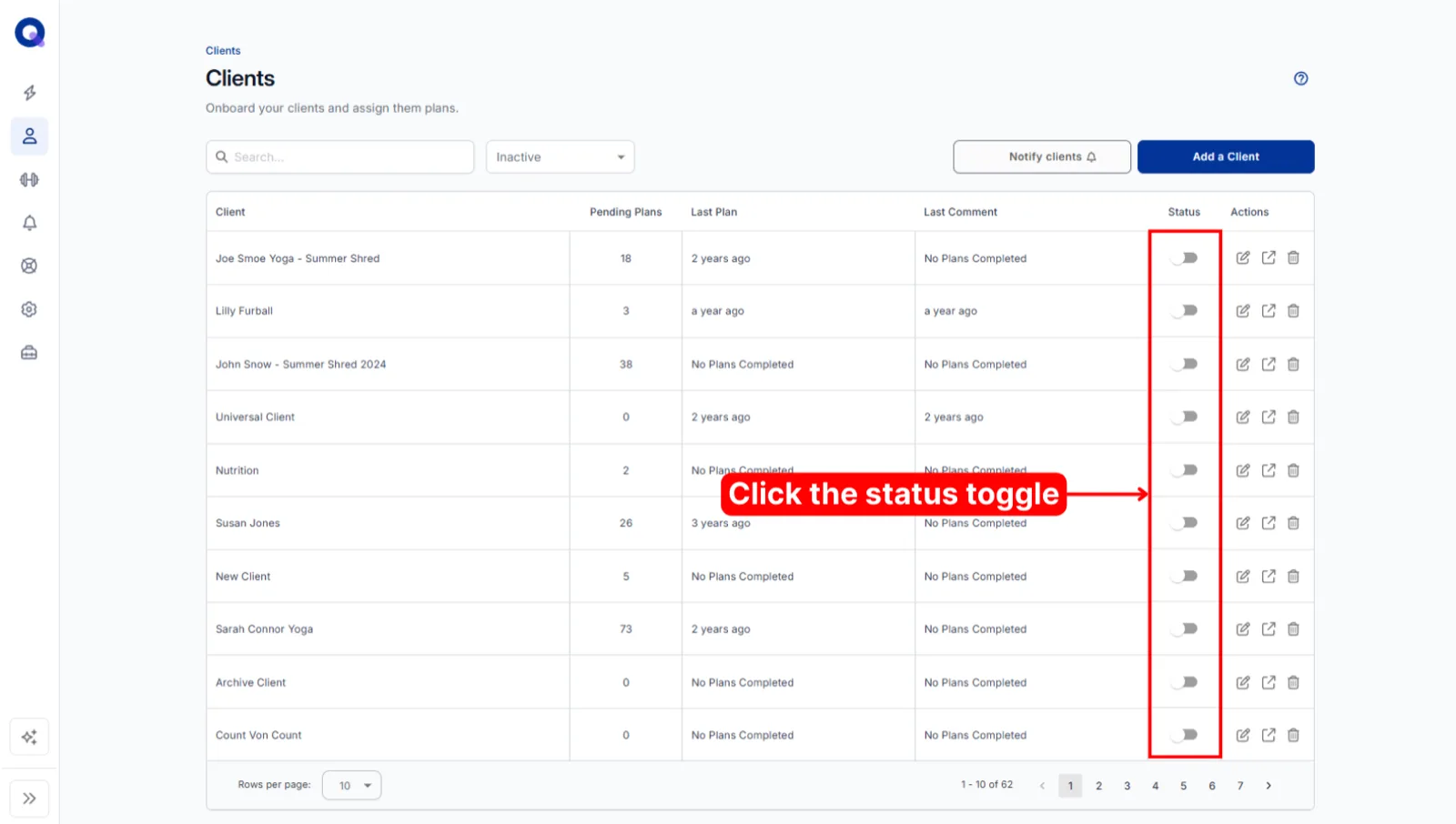
Open the Clients page from the side menu. In the Status column, click the toggle next to the client you want to deactivate. The switch takes effect straight away, so the client loses access from that moment.
Delete a client
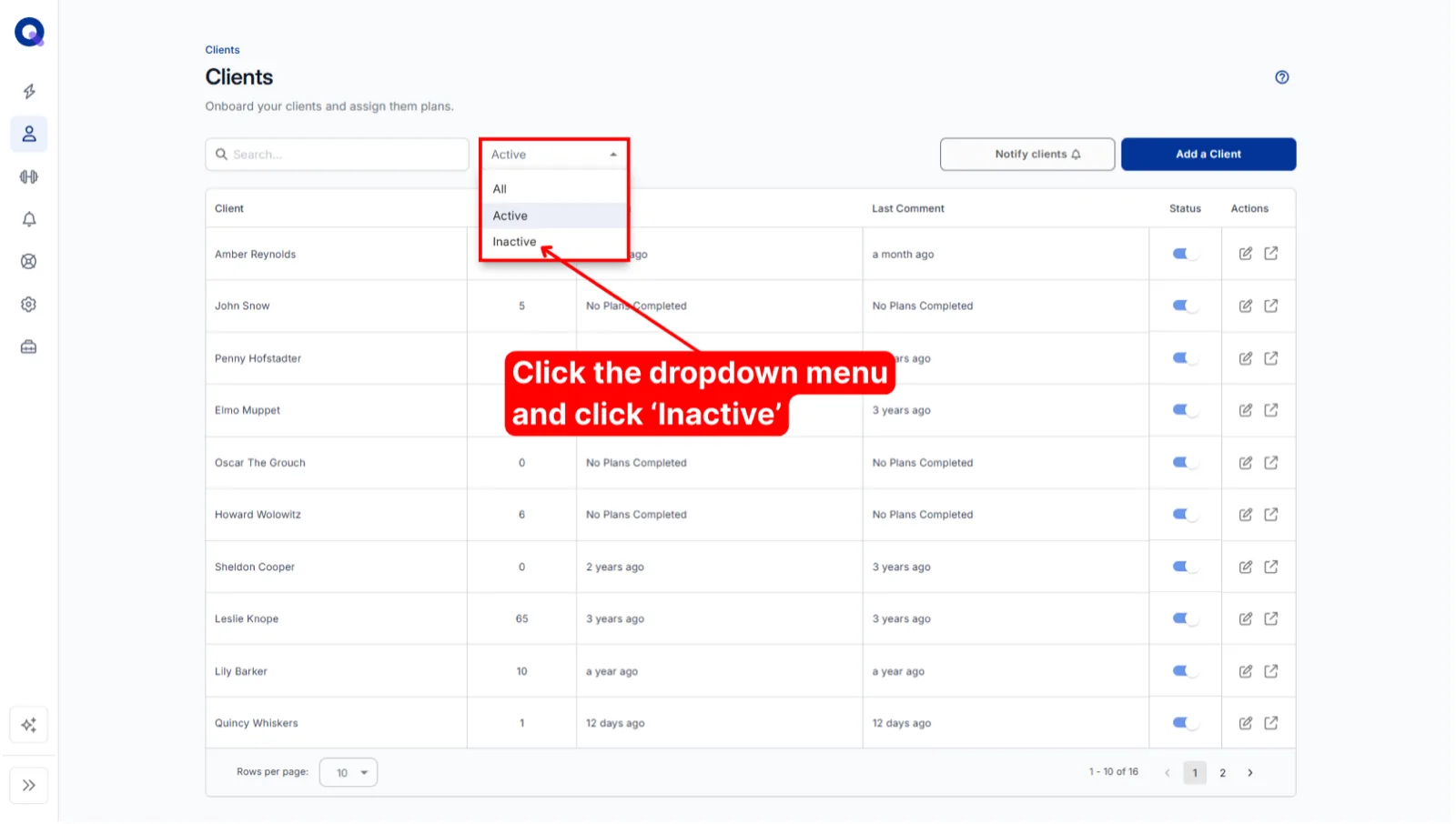
You delete a client from the Inactive view, so this one is Pro. The status dropdown that opens that view isn't on the Free plan. In your roster, open the status dropdown near the search box and choose Inactive.
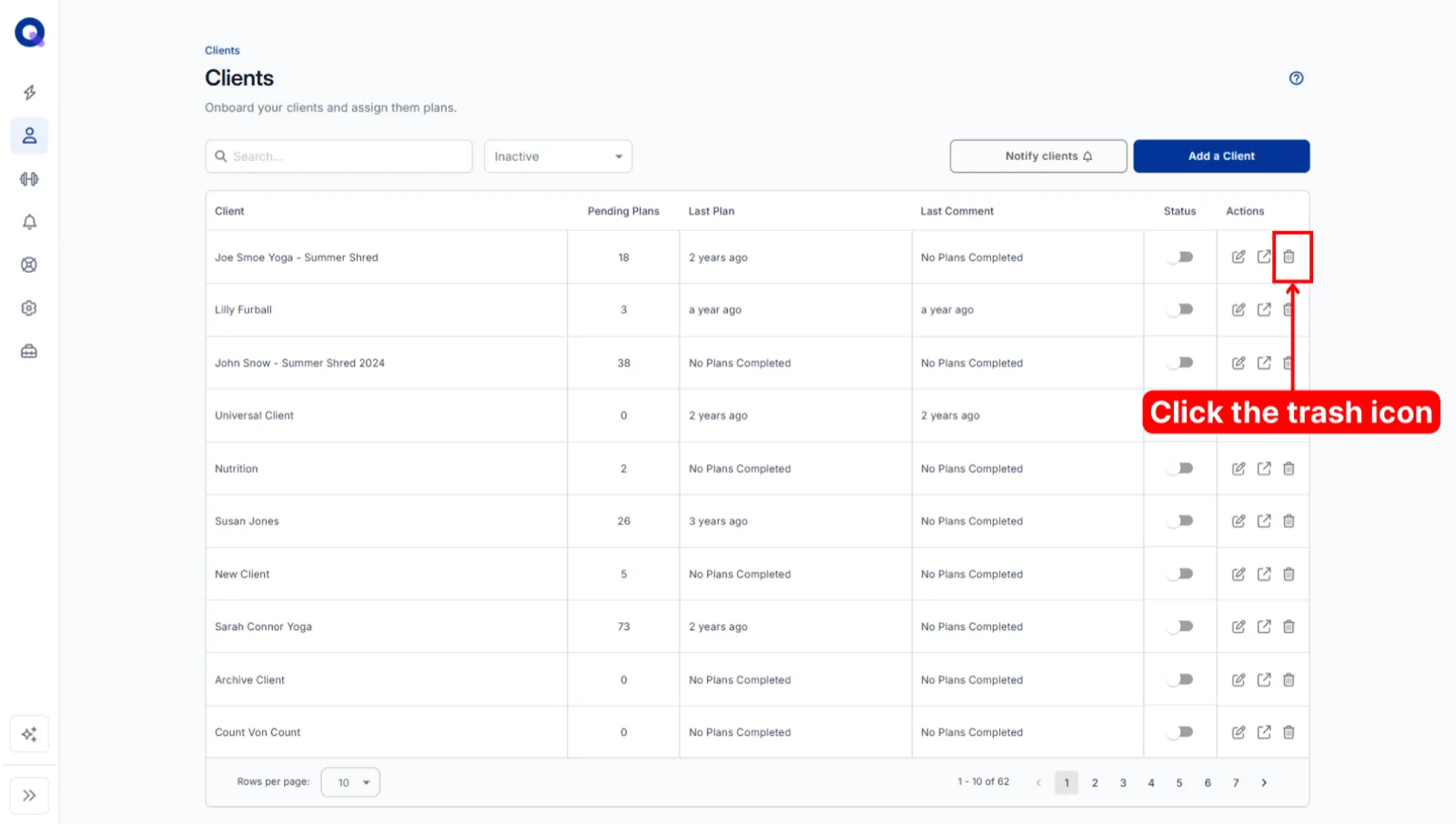
Find the client in the inactive list and click the trash icon in the Actions column.
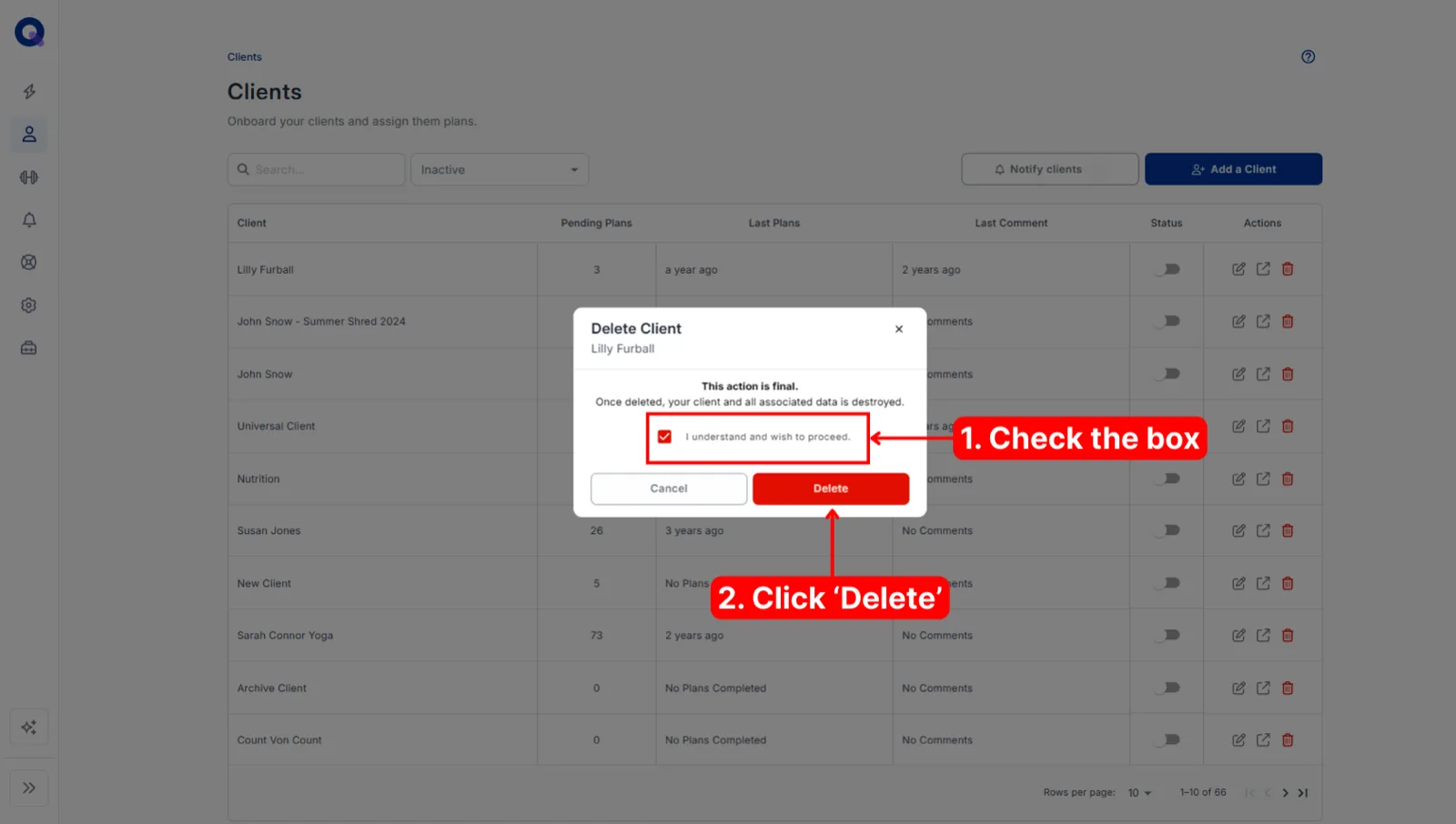
A confirmation box appears. Tick the box to confirm you understand the client and all their data will be removed, then click Delete.
Reactivate an inactive client
On Pro, switch the roster to the Inactive view, find the client, and click the Status toggle again to move them back to Active. They return to your working roster straight away, and their access comes back with them. The old client link works again, and their plans and history are exactly where they left them.
On the Free plan you can't reactivate an inactive client, and the status filter that opens the Inactive view isn't there either. The record and its history are preserved on your account, and upgrading to Pro restores access to them along with the filter and the ability to switch a client back to Active.
Pause a client's plans without locking them out
Deactivating is all or nothing, so it's the wrong tool when you want a client to keep their account while the work pauses. A client between programmes, or away for a month, is better left Active with their upcoming work moved aside.
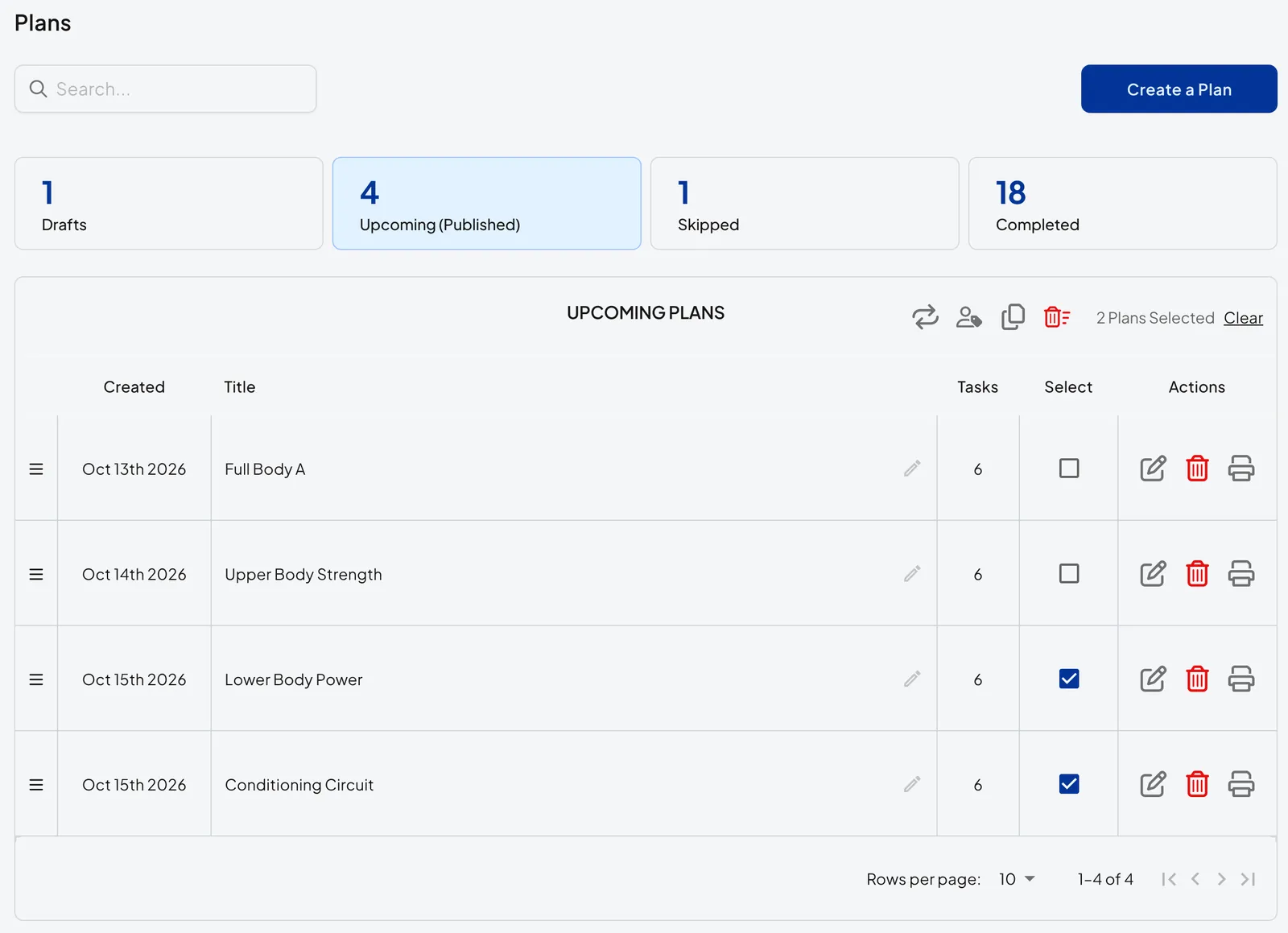
To do that, move any plans out of their Upcoming section and into Drafts. Select the plans you want to move on the Upcoming tab, then click the Change Status icon (the two circling arrows) to send them to Drafts. Their completed plans stay readable and their link keeps working, but they've got nothing new to work through until you move a plan back. The plans by status guide shows where each tab lives.
Downgrading from Pro to Free
If you move from Pro back to Free while you have more than 20 active clients, bring the roster down to 20 or fewer before you downgrade, while you still have the status filter and full access to deactivate clients. Downgrade while you're over the limit and Free will lock you into the upgrade screen, with upgrading to Pro again the only way back in. Any inactive client data stays preserved through the switch. As soon as Pro access resumes, you get back the status filter, the ability to see inactive client records and the ability to reactivate clients.