
Program Templates and Plan Drafts
How Program Templates and Plan Drafts work, from building and organising reusable programs to duplicating, deleting and finding plans that seem to have vanished.

This guide covers the two places your unassigned work lives: Program Templates, which hold reusable sets of plans, and Plan Drafts, a staging area for plans that don't have a home yet.
Watch the video walkthrough if you'd rather see it in motion.
Note: QuickCoach's features and screen layouts may change over time, but the core workflow stays the same.
Program Templates
Think of a Program Template as a folder that holds a series of plans you've created. Build a program once and assign it to as many clients as you like, whenever you like.
Coaches use templates for:
- Multi-week workout programs
- Body-part or goal-specific workout collections
- Meal plans and recipes
- Habit-based programs
Note: Keep a template to 100 plans or fewer. See the FAQ below for why.
Click Plans (the lightning bolt icon) in the navigation to get there. Check which tab you're on and switch if needed: the 'Program Templates' tab holds your templates, the 'Plan Drafts' tab holds loose plans.
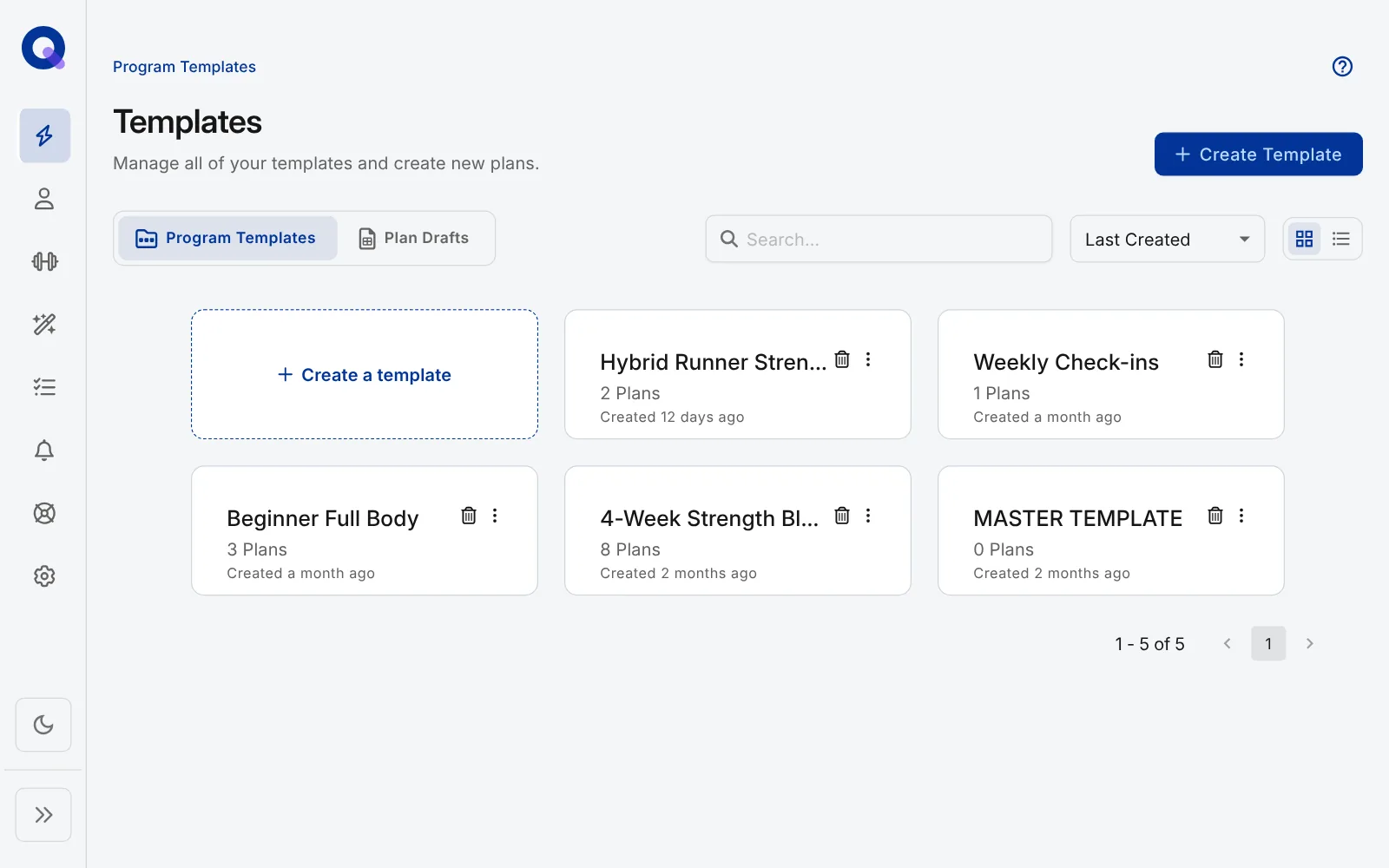
Search, sort, and change the view
Type in the search box to find a template by name. The dropdown next to it changes how templates are sorted.
Pick 'Custom' in the sorting dropdown and you can drag templates into whatever order suits you, so the ones you reach for most stay up top.
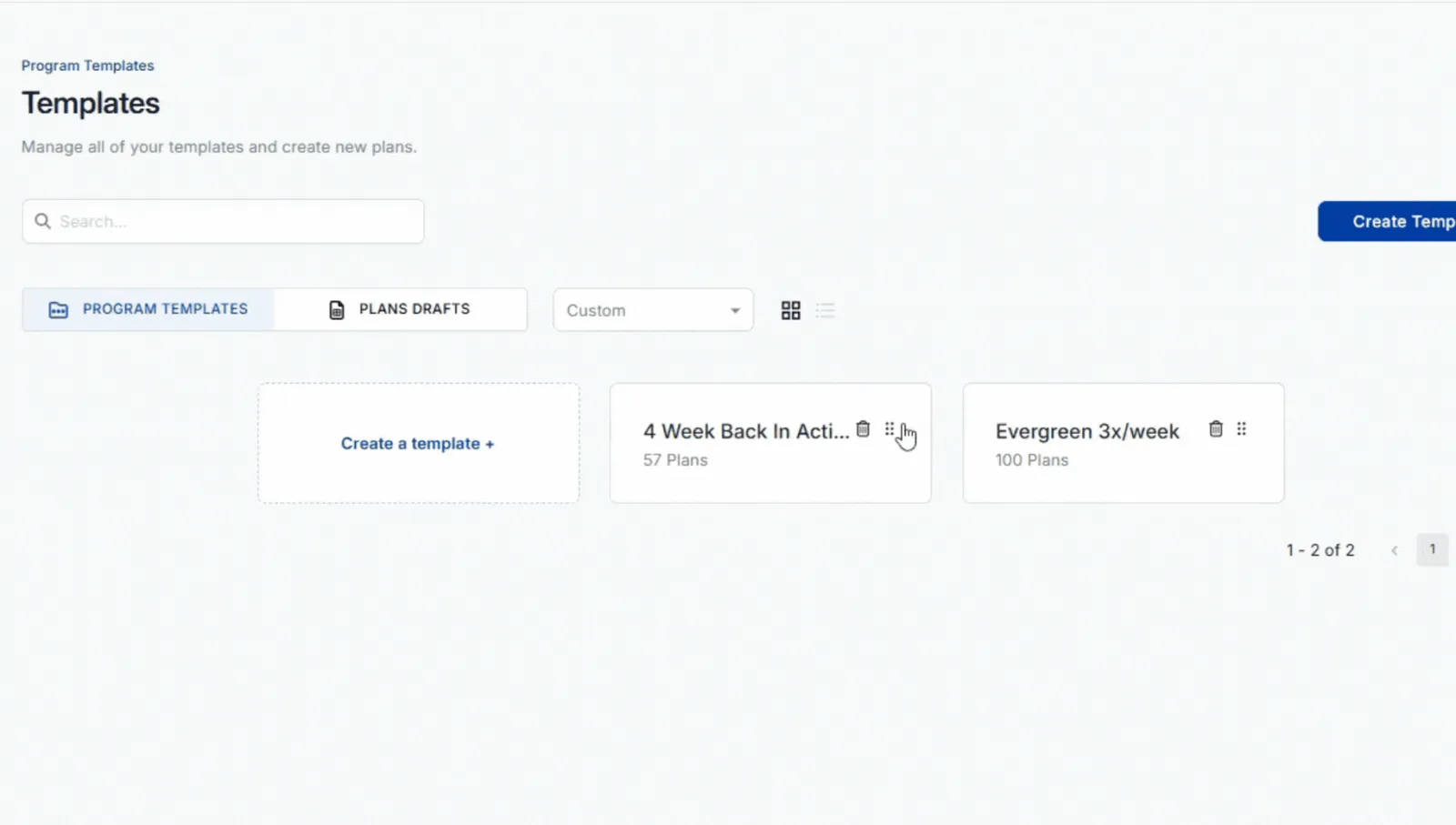
Once you have more than 15 templates, a 'Cards Per Page' dropdown appears so you can show more at once. You can also switch between the card view and list view icons, whichever you find easier to scan.
Ways to organise your templates
There's no single right way to structure a template library. Pick whatever helps you find plans quickly:
- By program length, like 4, 8 or 12-week blocks
- By training focus, such as upper body, lower body, push or pull
- By workout type, like HIIT, AMRAPs, resistance or cardio
- By equipment, such as dumbbells, bodyweight, suspension or barbell
- By diet type for recipes, or by macro and calorie focus for nutrition plans
- By difficulty for habit programs
Watch the organising walkthrough (3:01) for ideas in action.
The template menu
Switch to list view, then click the three vertical dots on a template's row to open its menu.
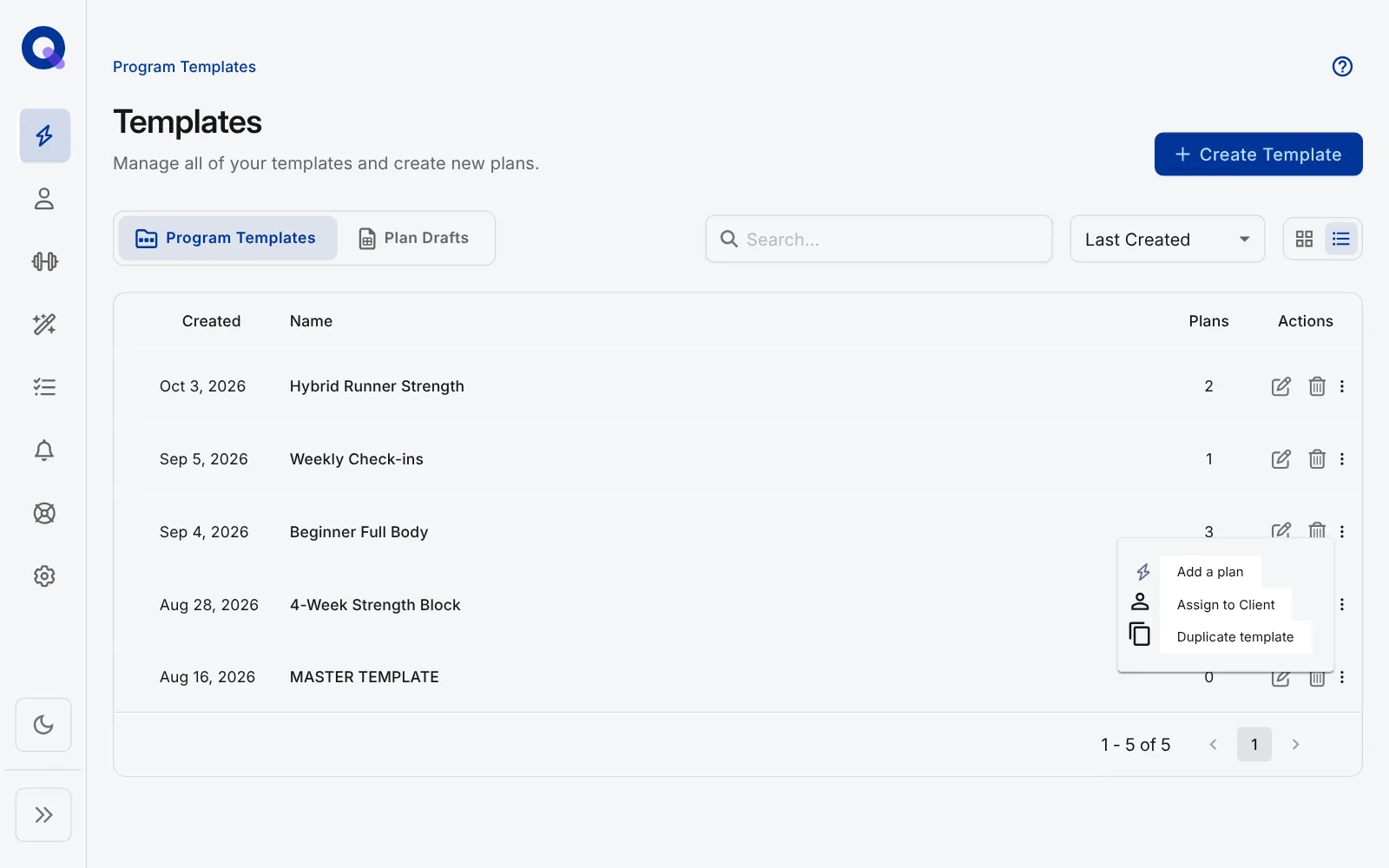
From here you can:
- Add a plan. Move plans from Plan Drafts into this template. Select the plan or plans, then click 'Add to template'.
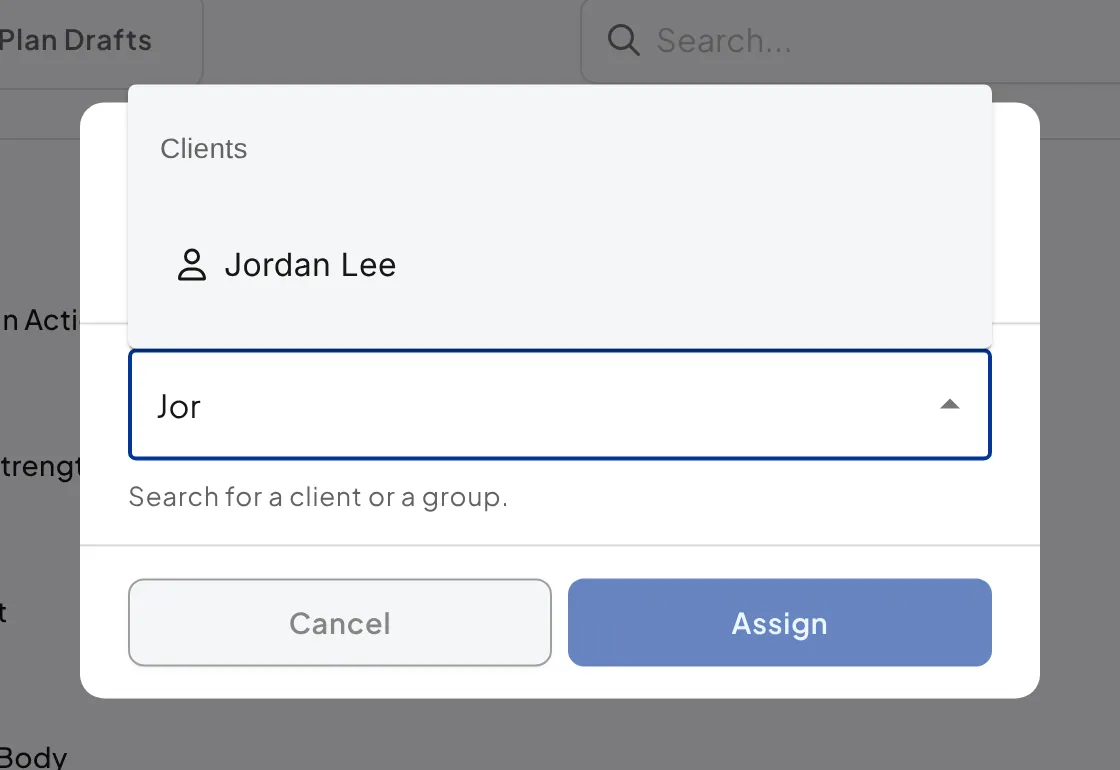
- Assign to Client. The 'Assign Template' window opens. Pick clients or a client group, then click 'Assign'. Assigning this way publishes the template's Ready Plans to each client's Upcoming (Published) plans.
- Duplicate template. The copy keeps the same name with ' - Copy' on the end. Rename it from inside the template.
Create a new template
- Click '+ Create Template', or the 'Create a template' card in grid view.
- Type in your template name and click 'Create template'.
- Click the new template to open it.
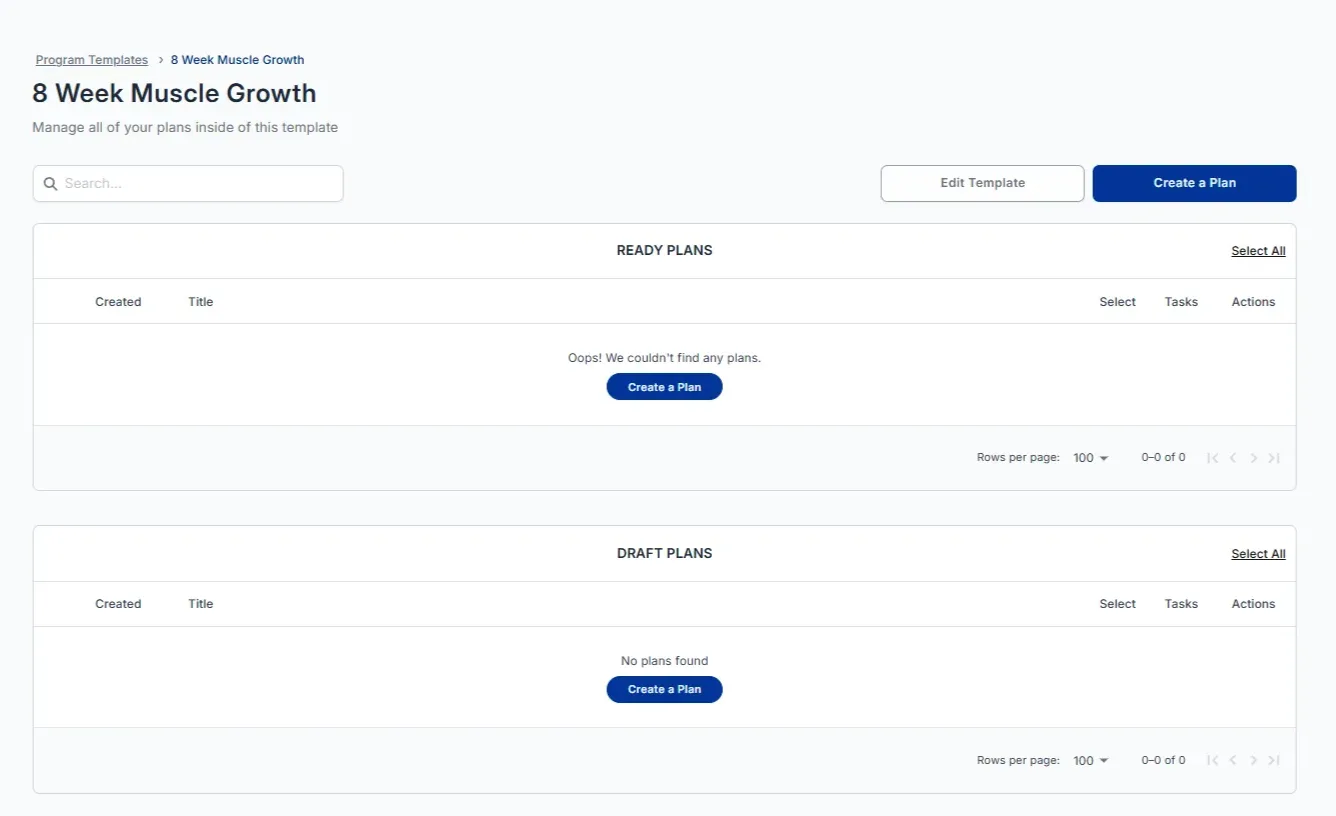
For a guided build of your first template, follow the build-along program template walkthrough.
Working with plans inside a template
The search box inside a template filters its plans by name. Click 'Edit Template' to rename the template, then 'Save'.
There are two ways to add plans:
- Build from scratch. Click a 'Create a Plan' button to start a fresh plan. The plan builder tour covers everything from there.
- Copy an existing plan in. Open any published plan, click 'Copy To', pick the template under 'Select templates:' in the 'Copy Plan To' window, then click 'Publish'. The copy arrives published, in the template's 'Ready Plans' section, and the original stays where it was. Copying, duplicating and repeating plans covers the whole flow.
Each plan row has its own controls. The pencil icon next to the name lets you rename the plan in place (click the save icon when done). The edit icon opens the plan for editing. The trash icon deletes it, after you confirm with 'Delete'.
Ordering, publishing and assigning
Tick plans, or click 'Select All', and icons for the whole selection appear above each list: Assign Selection, Copy Selection and Delete Selection on Ready Plans, and Publish Selection, Copy Selection and Delete Selection on Draft Plans. Draft Plans are left out when you assign the whole template, so publish them once they're finished. Putting plans in order, publishing drafts and sending a template or a single plan to clients are all covered in ordering and publishing plans in a Program Template.
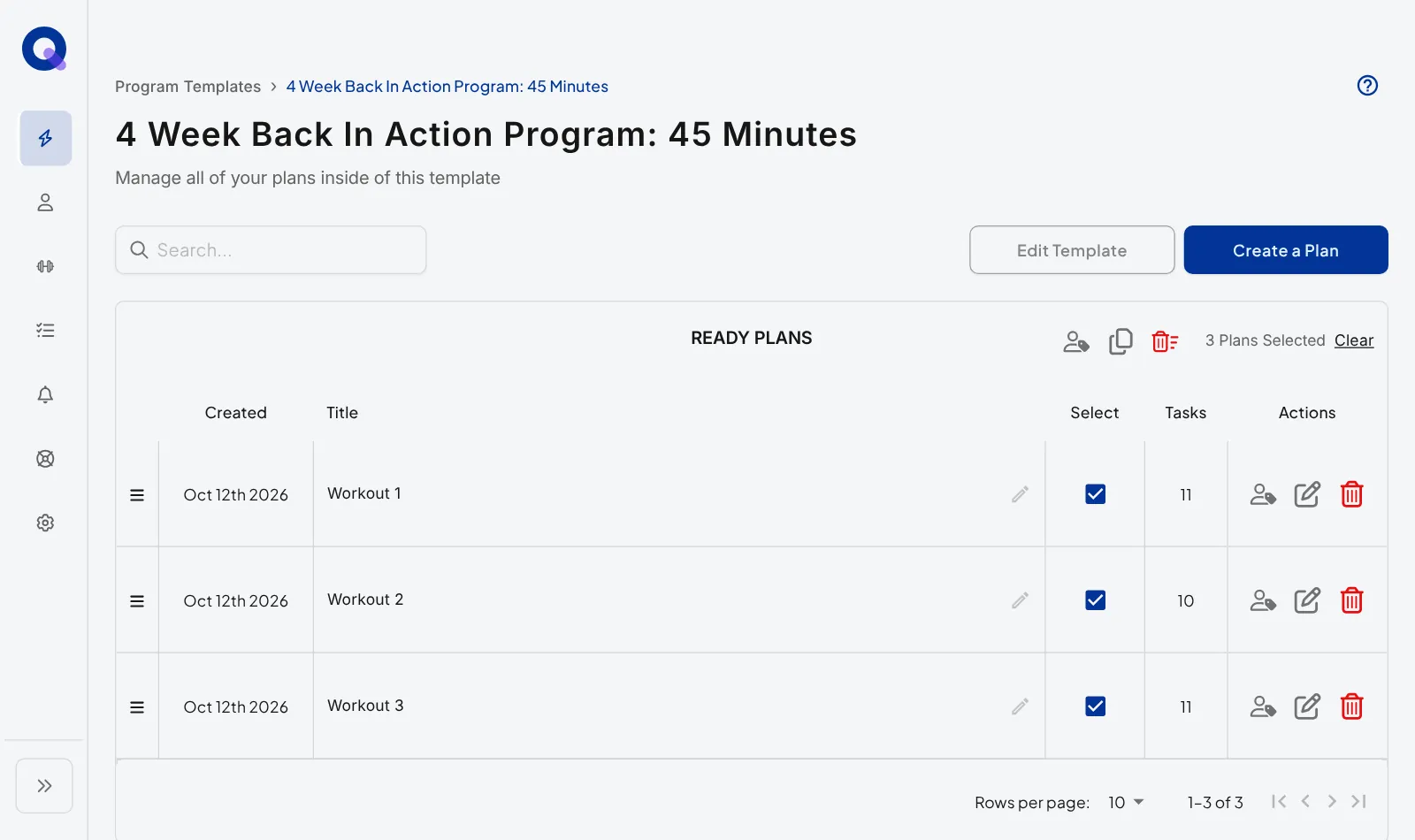
Assigning always creates a copy, so template edits are not retroactive. At the bottom, the 'Rows per page:' dropdown sets how many plans you see in both sections, and your choice saves automatically.
Plan Drafts
Plans in Plan Drafts don't have a home yet. Treat it as a staging area.
The sorting dropdown and the card and list view icons work the same as they do for templates, and 'Create Plan' starts a new plan right here.
Click the three vertical dots on a plan to open its menu.
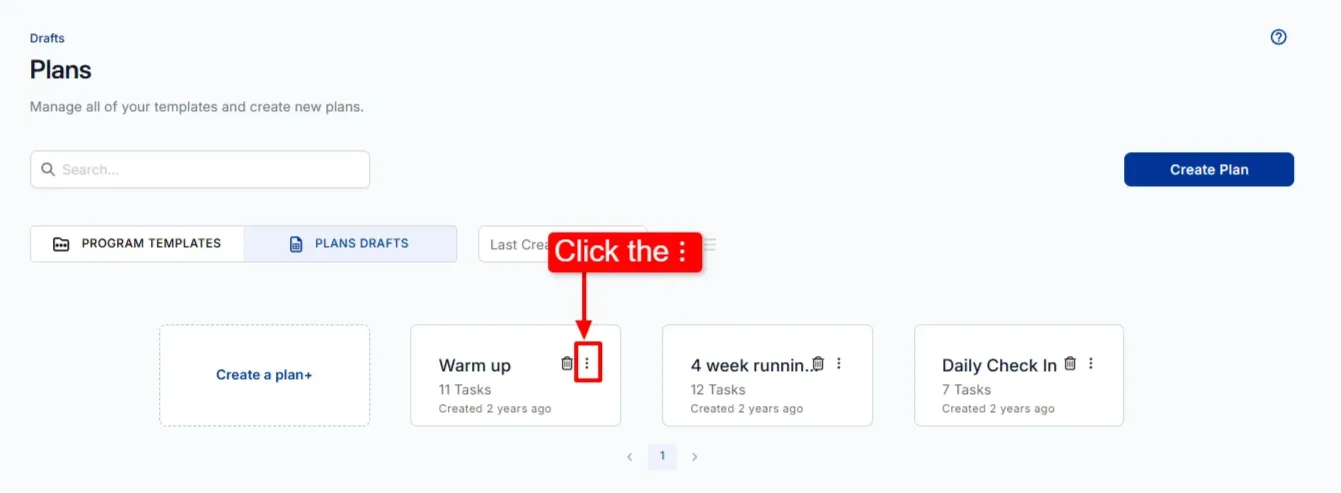
- Add to Template sends the plan to one of your existing templates. Search for the template, select it, and click 'Add to template'. A plan can only go to one template.
- Assign to Client(s) sends it to clients instead. Search for clients or a client group, select them, and click 'Assign'. Plans assigned from here always arrive in each client's Drafts tab, ready for you to tailor and publish.
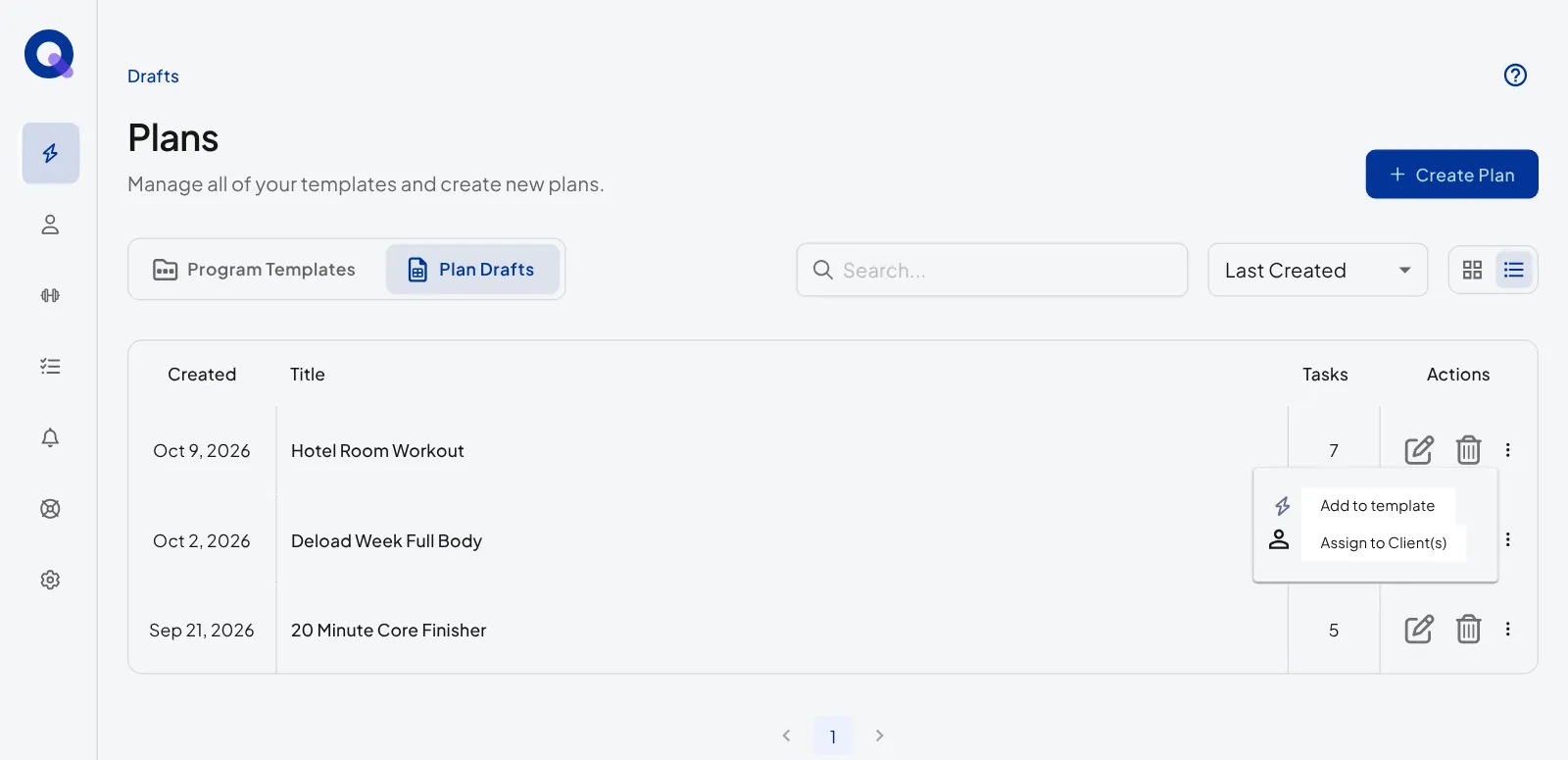
The trash icon deletes a draft plan once you confirm with 'Delete'.
Where plans are saved
Where a plan lives, and who can use it, depends on where you built it.
- Inside a client's account. The plan belongs to that client. It sits in their Drafts tab until you publish it, then in Upcoming (Published). It can't be assigned to anyone else directly.
- In Plan Drafts. The plan is yours and has no client yet. Assign it to clients or add it to a template whenever you're ready.
- Inside a Program Template. The plan is reusable. It sits in Draft Plans until you publish it, then in Ready Plans, and you can assign it as often as you like.
If a plan will be used with more than one client, build it in a template or in Plan Drafts from the start. Building inside a client's account is the right call when the plan is written for that one person.
Make a client's plan reusable
Copy it into a template. Open the plan from the client's page (it needs to be published), click 'Copy To', pick the template under 'Select templates:' and click 'Publish'. The copy lands in the template's Ready Plans, ready to assign to anyone. The client's original is untouched.
Publish a plan from Plan Drafts
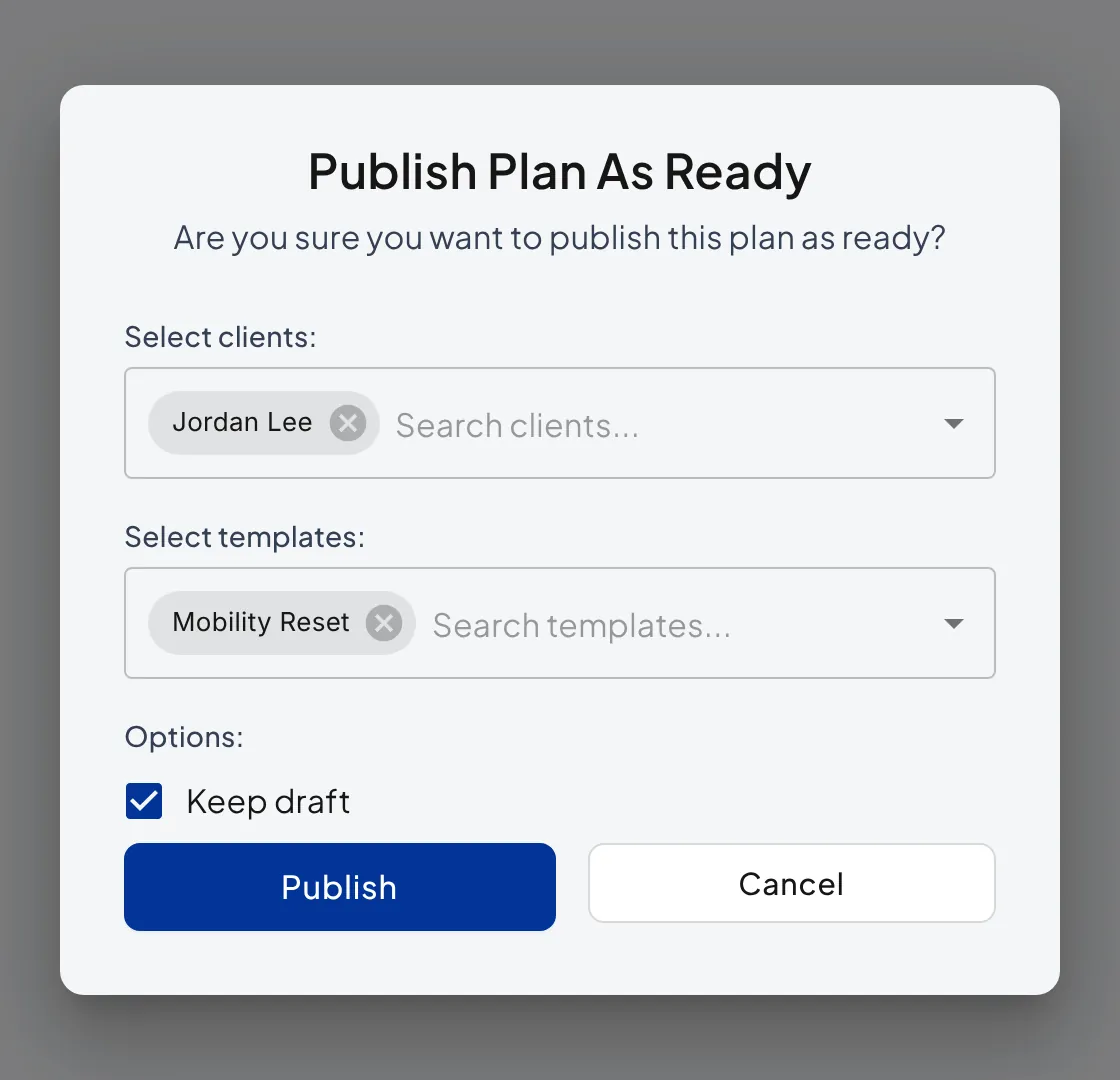
A plan built in Plan Drafts has no destination yet, so 'Publish plan' in the builder opens the 'Publish Plan As Ready' window. Pick clients, templates or both. Tick 'Keep draft' if you want a copy to stay in Plan Drafts, then click 'Publish'. Assigning plans to clients has the full steps.
Deleting plans and Program Templates
Old drafts and retired templates pile up. Clearing them out takes a few clicks.
Watch the deleting walkthrough (0:29).
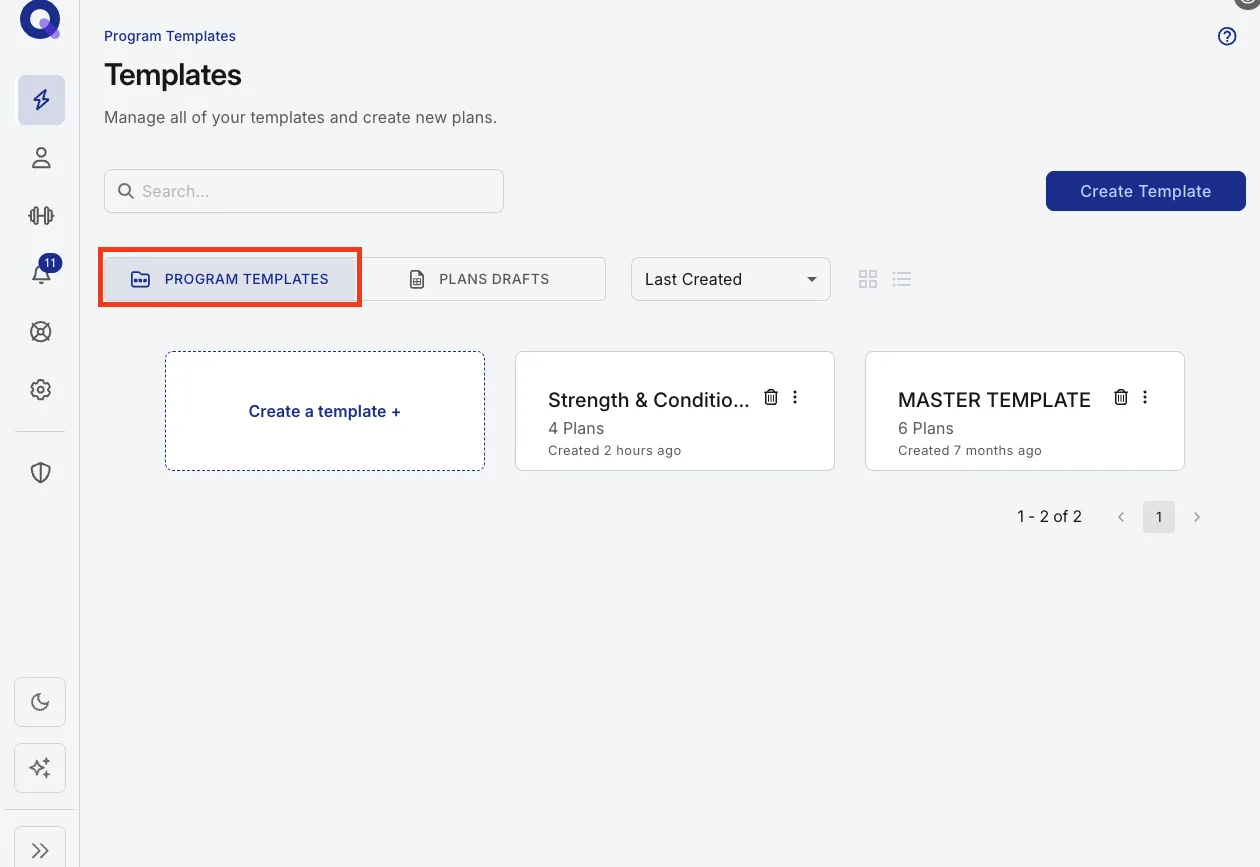
- Click Plans (the lightning bolt icon) to open the Templates page.
- Check which tab you're on and switch if needed: plans live in one tab, templates in the other.
- Click the trashcan icon next to the plan or template you want to remove.
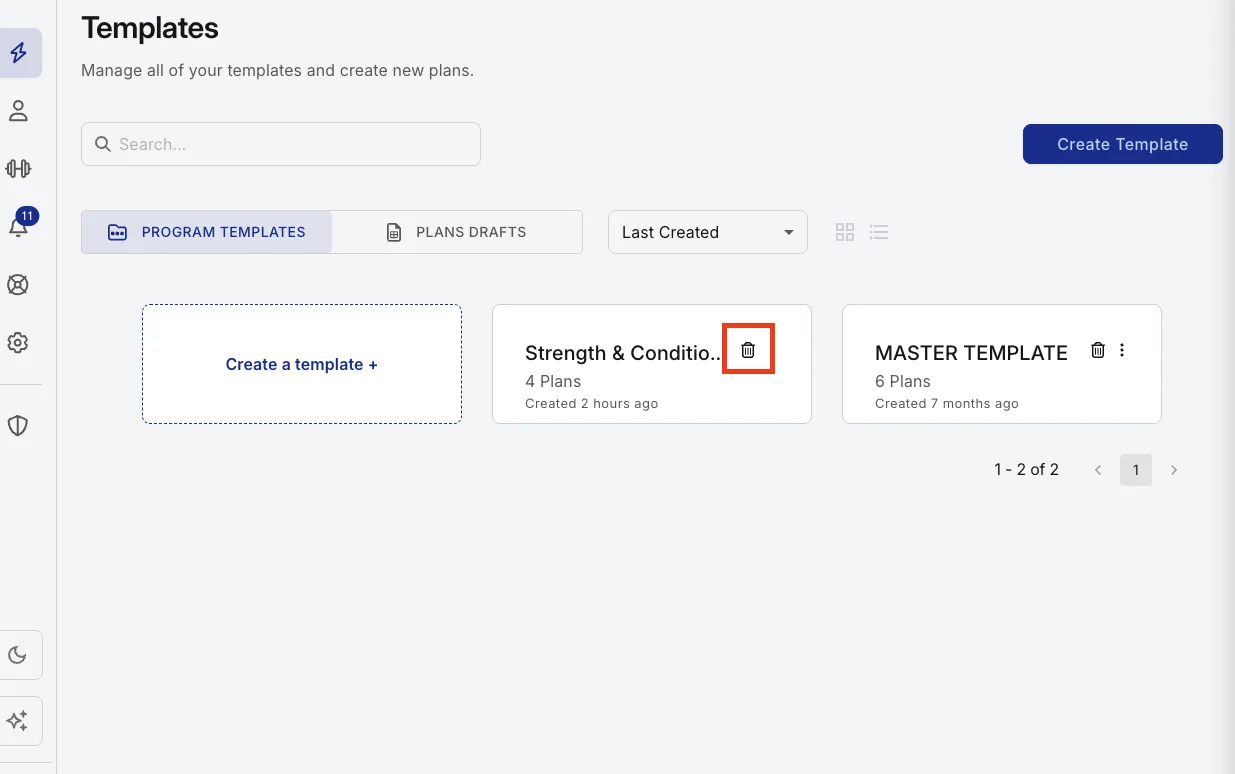
Important: Proceed with caution. Once you delete a plan or template, it is gone forever. There's no undo and no recycle bin.
If there's any chance you'll want a plan again, make a copy first and delete the original. A tidy library beats a crowded one, and sorting your templates using the schemes above often removes the need to delete anything at all.
Frequently asked questions
How many program templates can I make?
The maximum is 99 program templates.
How many plans can I have in a program template?
We recommend no more than 100 plans per template. You can technically add more, but a template only displays 100 plans per page, and you won't be able to move a plan to a different page. Split large collections across templates using the organising schemes above.
I can't find my plan. Where did it go?
Don't panic. Nothing disappears on its own; the trashcan is the only way to lose work, and that deletion is permanent, with no undo. As long as you had an internet connection, QuickCoach saved your work automatically. Three common explanations:
- You assigned it with the plan status set to Draft, so it's waiting in the client's Drafts tab.
- You're looking at the client's side of their account. Clients only see published plans, so a draft stays hidden until you publish it. Every published plan they haven't done yet shows on their home screen, and finished plans show six at a time under Completed Plans.
- You assigned it from Plan Drafts. Assigning a draft moves the plan to the client's account rather than leaving a copy behind.
Still stuck? Where plans are saved lists where to look for each way of building a plan.
What's the difference between a plan and a program template?
A plan is individual. It's most commonly a single workout, meal plan, recipe, or habit tracker. A program template is a reusable set of plans you can assign to any client at any time, either as an entire set or one plan at a time.
What can I use program templates for?
However you'd like. The most common uses are workout programs (a 12-week at-home muscle builder, say), organising plans by topic such as location or duration, keeping recipes and meal plans tidy, or holding an inspiration gallery you dip into when programming.
Why do plans go to my client's drafts when I assign them from inside a template?
When you assign individual plans from inside a template, the 'Assign Plan' window has a 'Plan status' choice that starts on 'Draft', because most coaches want to make edits first. Pick 'Published' to send them straight to the client's app. Assign the entire template from its menu instead and its Ready Plans go straight to the client's Upcoming plans.
A useful next step is learning to copy a client's plan into a Program Template, so your best work becomes reusable. Our main-site tips post, build repeating workout programs faster, shows how coaches combine templates and copies week to week.
For putting a template's plans in order and sending it out as drafts or published plans, see ordering and publishing plans in a Program Template.