
How clients see their plans
QuickCoach shows clients their plans on a what-comes-next basis, not a calendar. Here's their home page, how Next, Pending and Completed Plans work, and what skipping does.

Clients don't see a training calendar. QuickCoach shows their plans on a what-comes-next basis, so instead of picking a date they just do whatever is next. It's a deliberate choice to keep things simple for them, and it starts on their home page.
The client home page, top to bottom
When a client opens the link you sent them, their home page loads. It's titled 'My Plans', and everything they need sits on this one screen, working top to bottom.
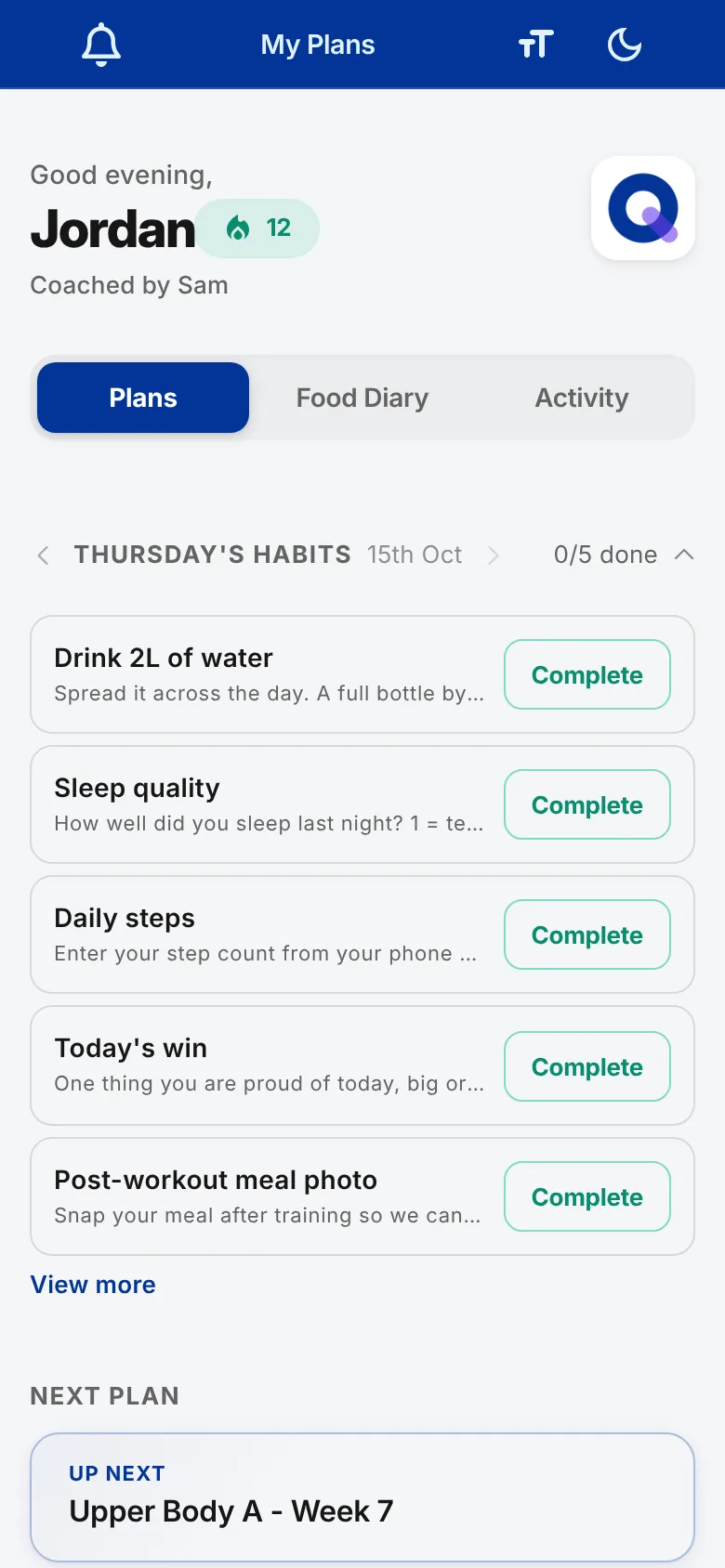
- The bell icon in the top corner opens the Notification Center, where every message you send shows up. See client notifications for how that works. The icons on the other side change the text size and switch dark mode on or off.
- The greeting shows the client's name, so they know they're in the right account. Once they've built a training streak, a streak badge with the day count sits next to it.
- The tabs ('Plans', 'Food Diary' and 'Activity') appear when you're on Pro. 'Food Diary' shows only if you've switched on food logging for that client, and the Activity tab holds their progress charts. On the Free plan there's only the plan view, so the tab strip is hidden.
- Today's habits appear as a strip at the top of the Plans tab if you've given the client habits for that day. See the client guide to logging habits.
- Next Plan is the single plan you want them to do next.
- Pending Plans lists every other plan coming up after that.
- Completed Plans keeps the plans they've already finished or skipped, so they can look back.
Note: These screenshots show the mobile view, but the home page works just as well on a tablet or computer. Clients aren't locked to their phone.
Next Plan
There's only ever one plan in the Next Plan section. It's your way of telling the client, plainly, do this one next.
The client taps anywhere on the plan to open it. What's inside is covered in what clients see inside a plan.
Pending Plans
Below that, Pending Plans lists every other published plan in the queue, in the order you've set. There's no cap on how many show. Finish one and the next queued plan moves up into Next Plan.
Pending doesn't mean locked. Clients can open and complete a Pending plan out of order whenever that suits them better.
Completed Plans
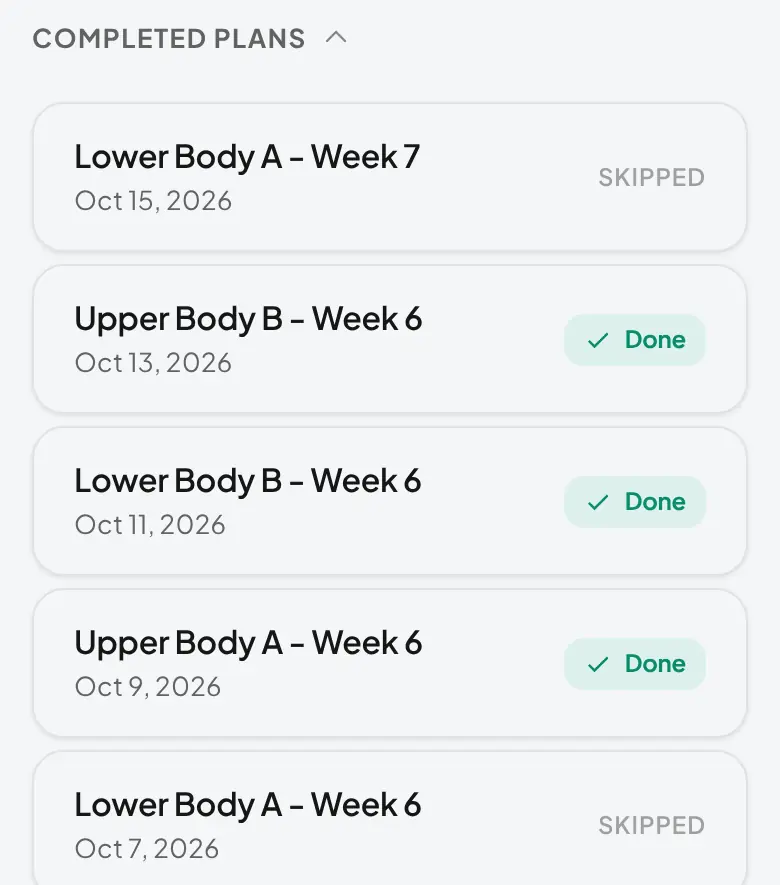
Plans a client has submitted drop into Completed Plans at the bottom of the home page, newest first, with the date they finished. The section starts collapsed, so the client taps the heading to open it. A completed plan can't be redone, but the client can open any of them to look back.
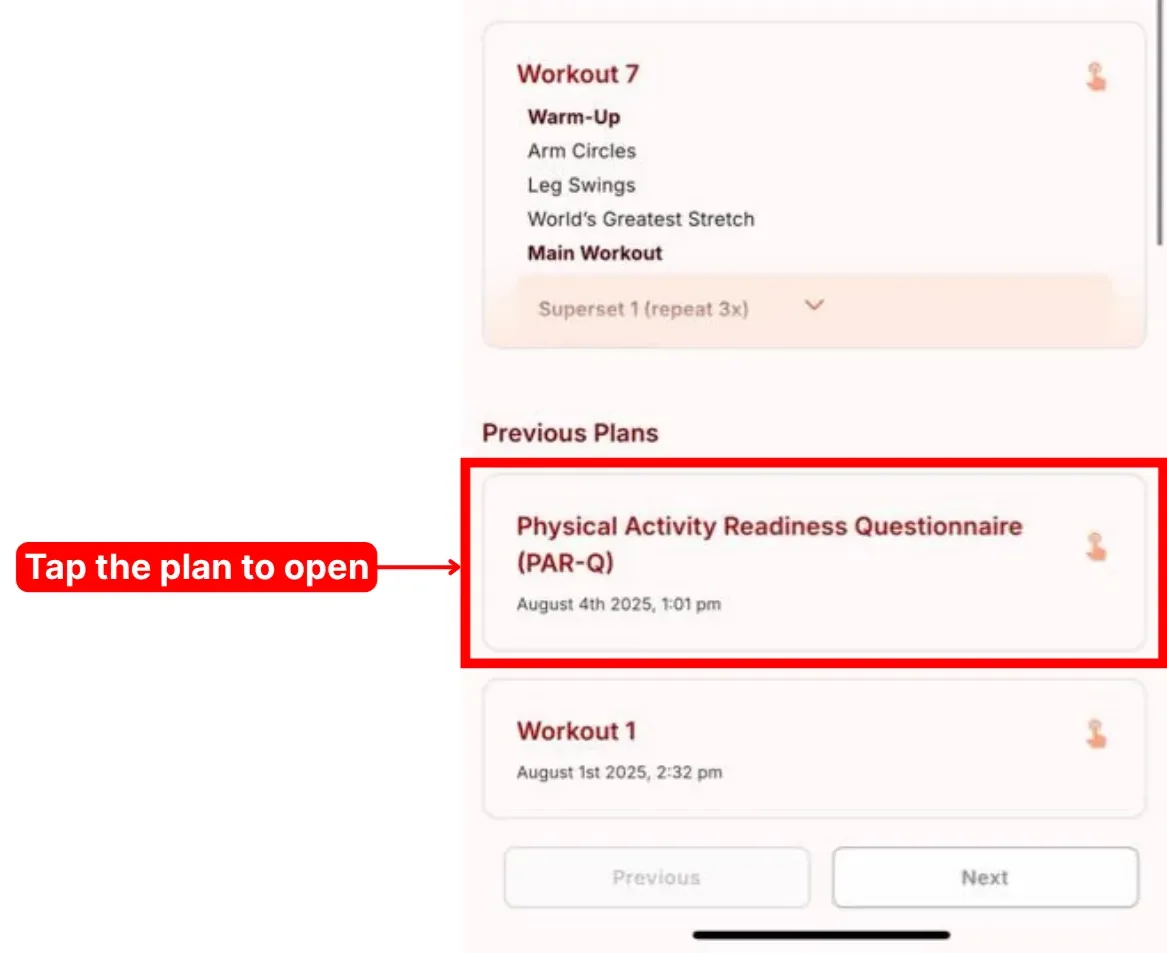
Completed Plans shows six plans at a time. The Previous and Next buttons under the list page through older ones.
Newer Free accounts: if you're on the Free plan under the current Free plan rules, plans older than 180 days are hidden from the client's list behind a "Your full history is saved" card. Nothing is deleted, and upgrading to Pro brings them back.
Skipping a plan
Sometimes a client can't do the plan in front of them and wants to move past it. To skip, they tap the plan to open it.
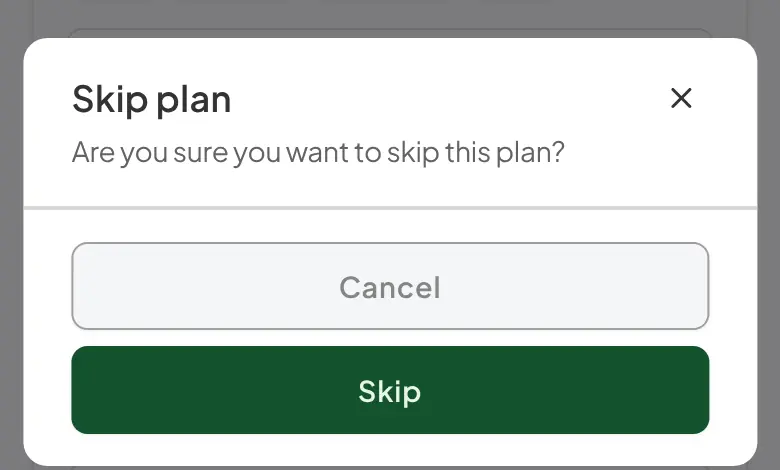
Inside the plan, they scroll to the bottom, tap Skip plan, then confirm with Skip. That takes them back to their home page.
What happens to a skipped plan
A skipped plan leaves the Next and Pending lists and moves into the client's Completed Plans, marked 'Skipped'. On your side it sits in your Skipped tab, and if you need the client to do it properly later you can reassign a copy (see assigning plans to clients).
A better option than skipping
If a client can't do the Next Plan right now but could do a different one, they don't have to skip. Since Pending plans open out of order, they can do one of those instead and leave the passed-over plan waiting. It helps to tell clients up front what you'd like them to do when a session doesn't suit, so they choose the right path.
How client sections map to your coach tabs
The names differ between the two sides of the app. This is how a client's home page lines up with the tabs you see on their account (covered in seeing client plans by status):
| Your coach tab | What the client sees |
|---|---|
| Drafts | Nothing. Draft plans stay invisible to the client until you publish them. |
| Upcoming | Next Plan (first in the queue) and Pending Plans (everything after it). |
| Skipped | Completed Plans, with a 'Skipped' label. You can reassign a copy if you want them to do it. |
| Completed | Completed Plans. |
Frequently asked questions
Why no calendar?
The what-comes-next format removes friction. When life gets in the way and a session slips, the client doesn't have to reschedule anything or message you about it. They just show up and do what's next.
Can a client repeat the same plan?
No. Plans are one and done. If you want a client to run the same session several times, make copies of it for each time you want them to do it. See making copies of plans.