
Use the text editor
Format task, plan and client notes with headings, lists, colours and links so they're clear and easy for clients to read.

The text editor makes your notes easier to read, so you can communicate more clearly with clients. It's available in three places: task notes, plan notes in the plan builder, and client notes.
Watch the video walkthrough (4:14).
Note: QuickCoach's features and screen layouts may change over time, but the core workflow stays the same.
What you can format
The editor gives you the essentials for clean, readable notes:
- Font size (small, normal, large, huge)
- Bold, italics and underline
- Font colour and background colour
- Alignment (left, right, centre, justified) and left or right text direction
- Numbered and bulleted lists, plus indenting
- Hyperlinks
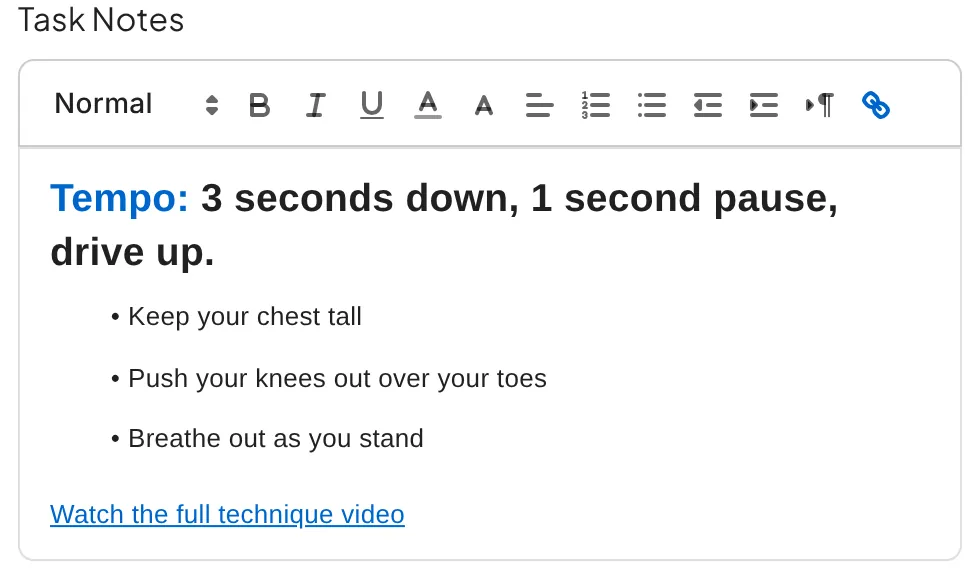
Add a hyperlink to a PDF or website
QuickCoach has no PDF upload, so a link in your notes is the way to hand clients a document.
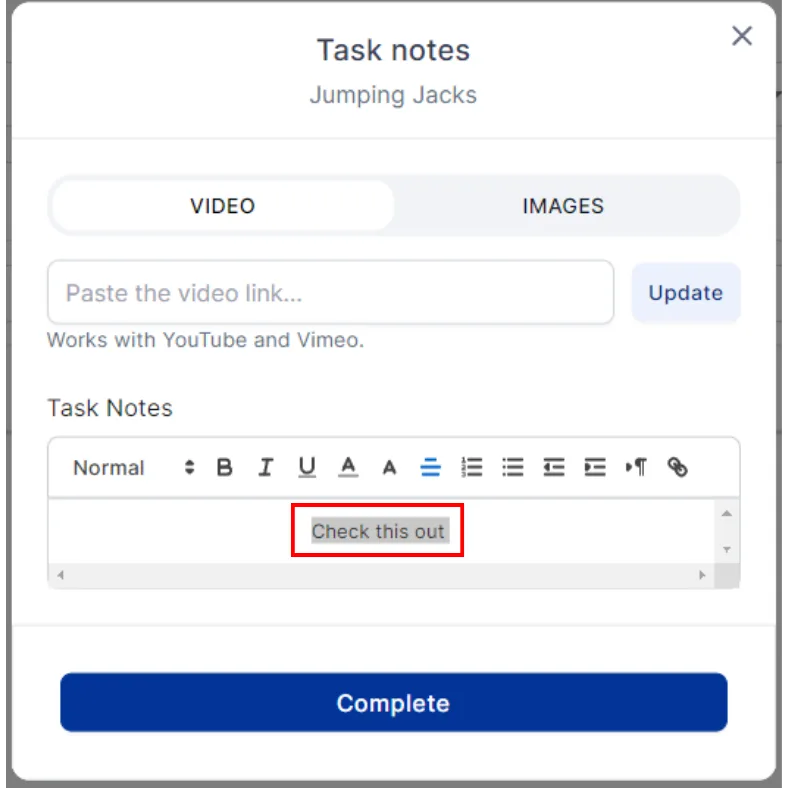
- Highlight the text you want to turn into a link.
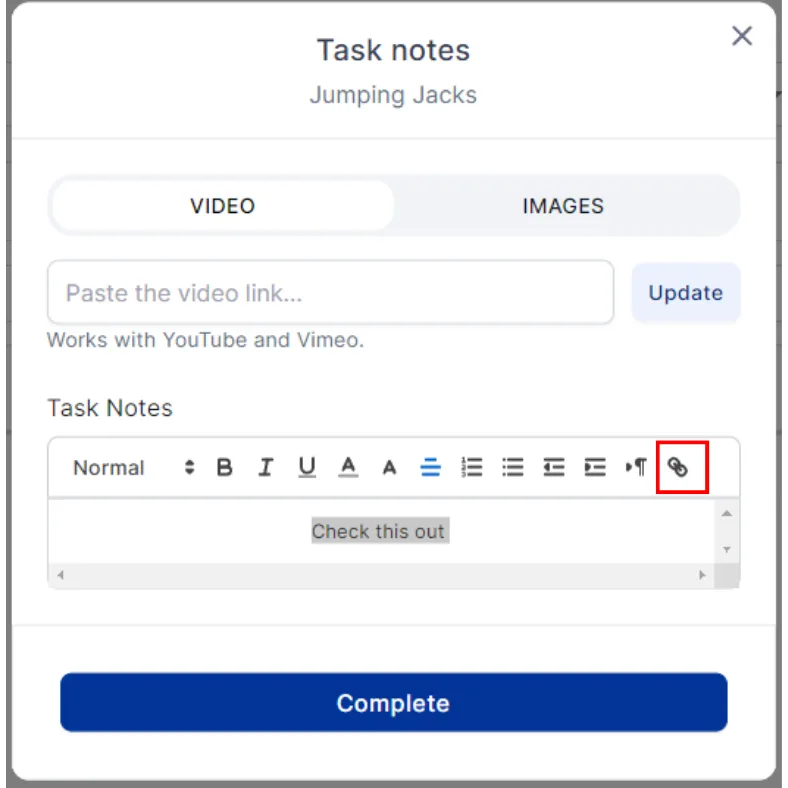
- Click the hyperlink button in the toolbar.
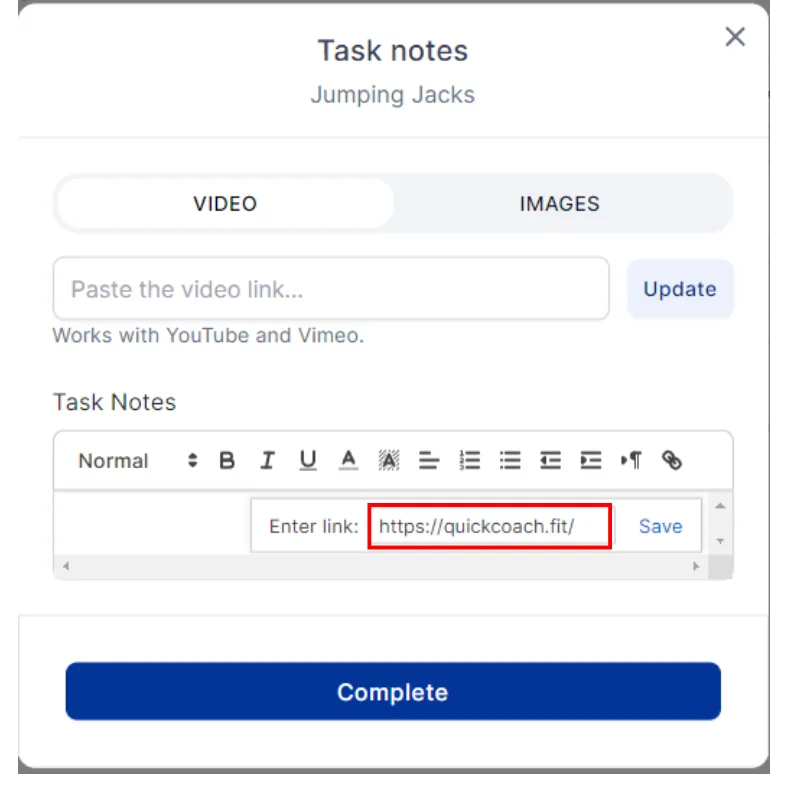
- Enter the link you want clients to visit and click Save.
Your clients can now tap the linked text to open the PDF or website you pointed it at.