
The custom-branded client app
On QuickCoach Pro, clients train in an app carrying your logo, name and colours. Set it up in minutes, with no setup fee and no per-client charge to pay.

On Pro, the app your clients open is branded as yours. Your logo, your colours, your business front and centre, every time they train.
What gets branded
Your branding reaches five things inside the app:
- Your app icon
- Your app name
- Your splash screen, using the same image and name as the icon on your background colour
- The colours inside the app: headings, supersets, buttons and links
- Your logo, shown at the top right inside the app
It doesn't stop at the app. Every email QuickCoach sends your clients, from the welcome invite onward, carries your branding on Pro, with nothing separate to configure per email; the welcome email also gets its own colour controls. Plan printouts come out branded too.
There's no one-time setup fee and no extra monthly charge. Branding is part of the core Pro price; the numbers live on the plans and pricing overview.
What a branded app looks like
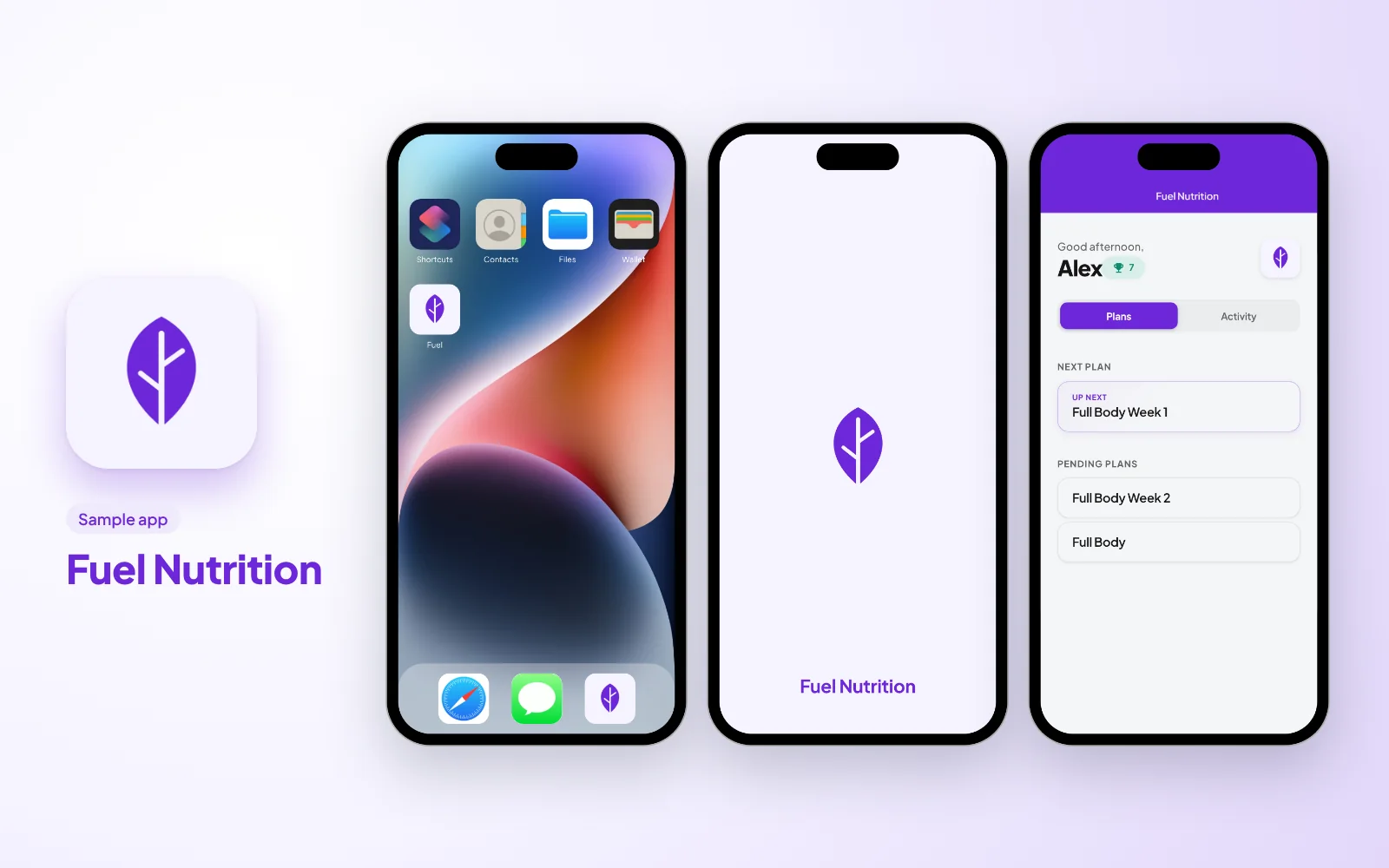
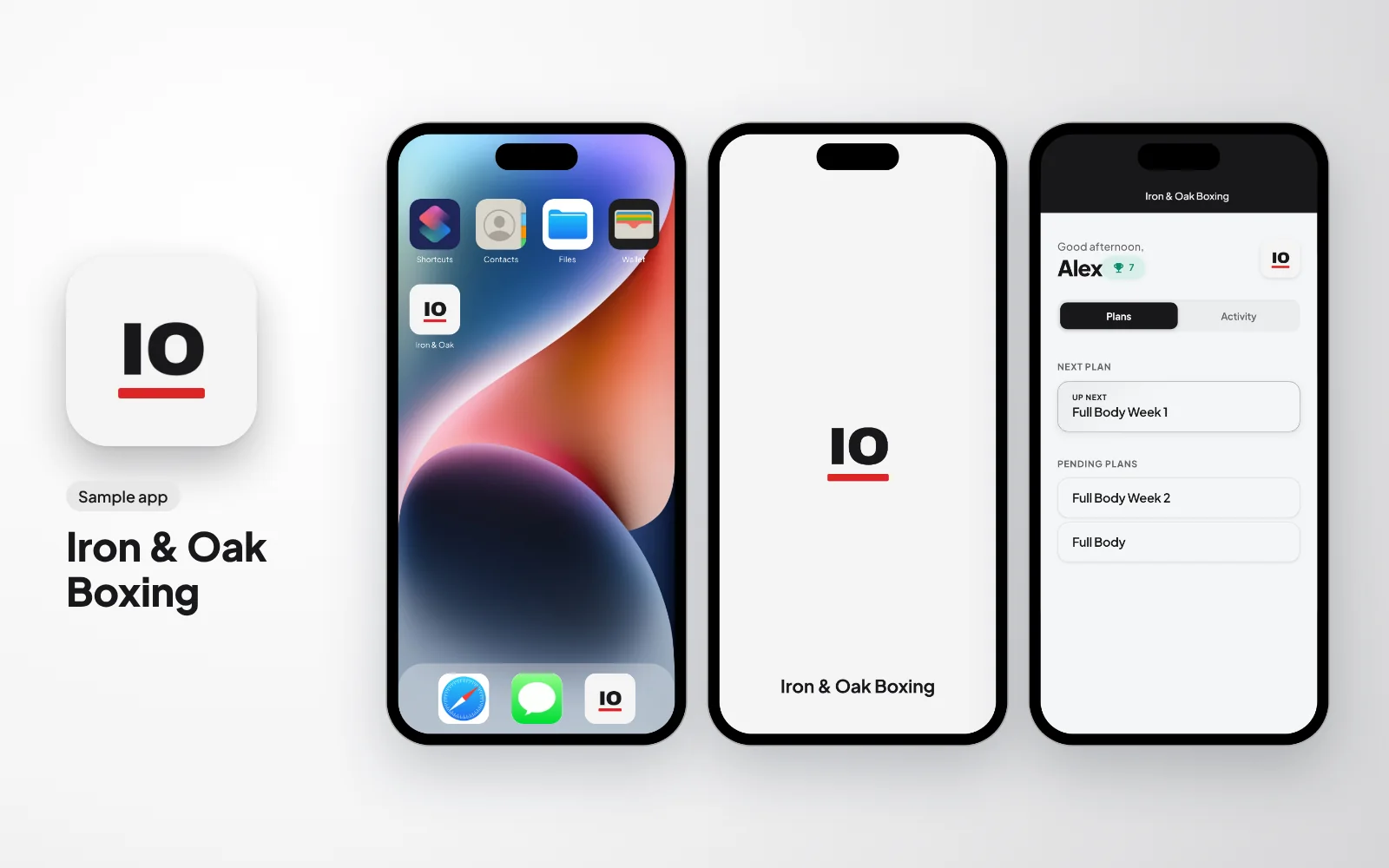
These six sample apps were made up for this guide. Each one shows the app icon on a client's home screen, the splash screen it opens on, and the client's plans in that coach's own colours.
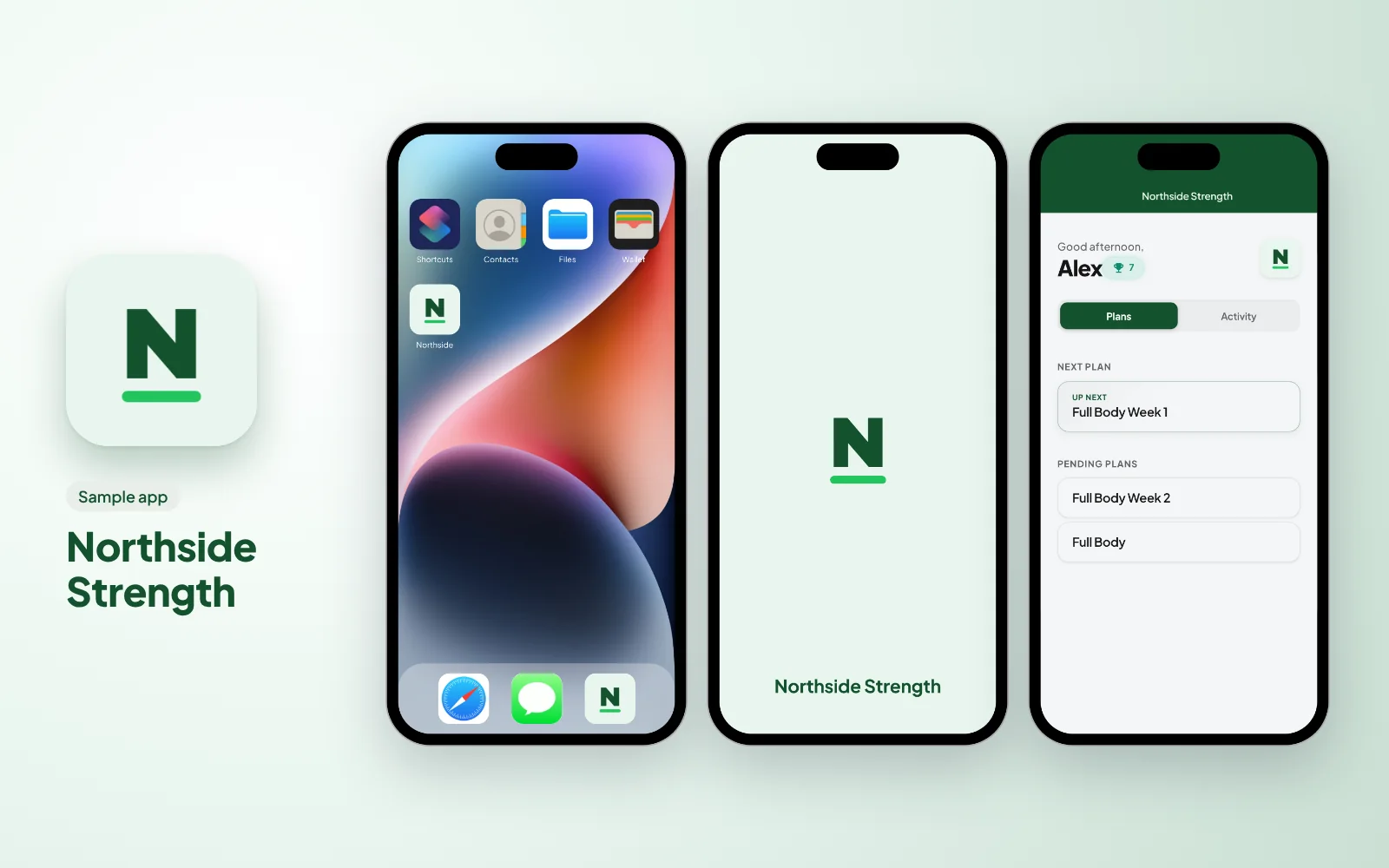
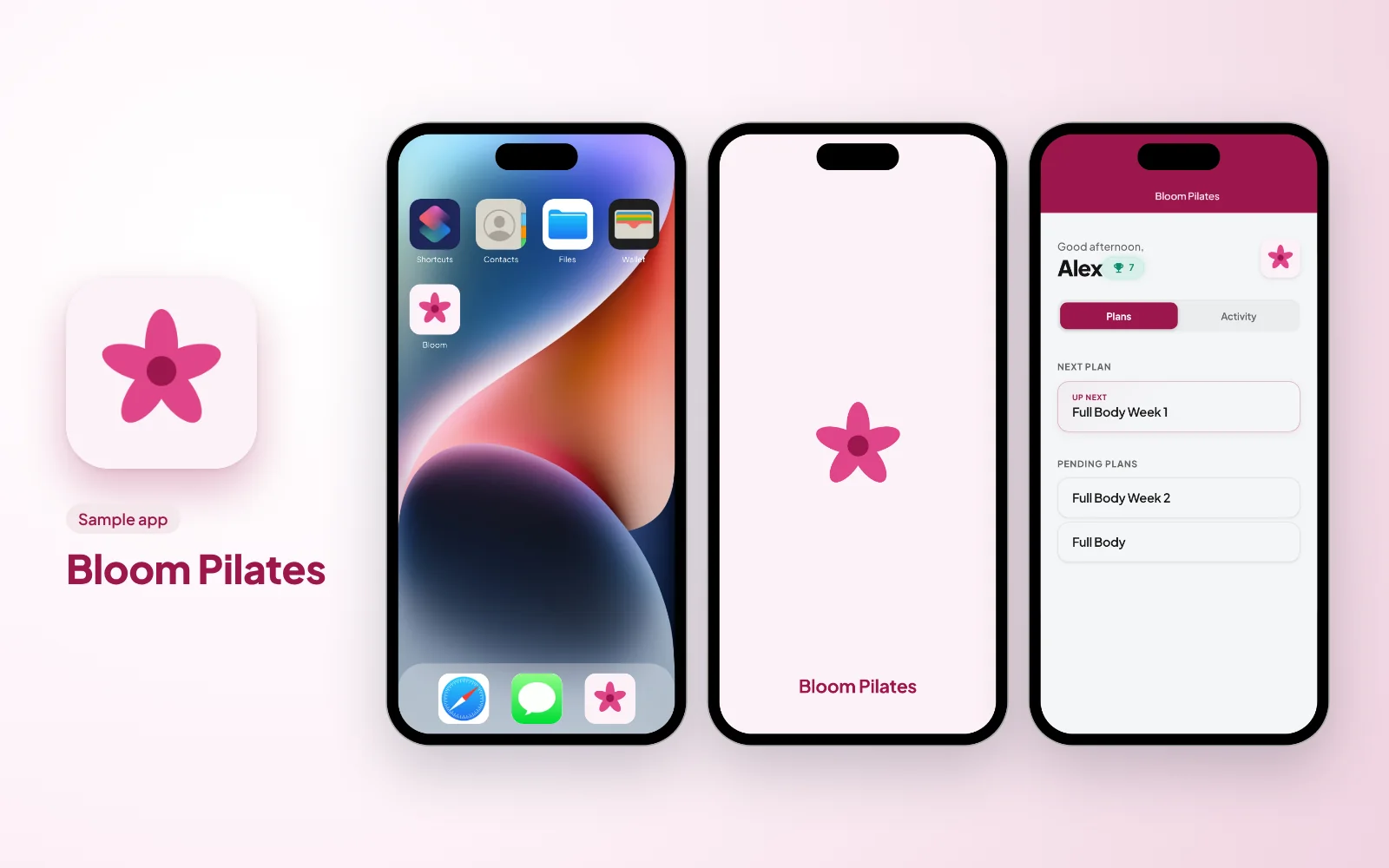
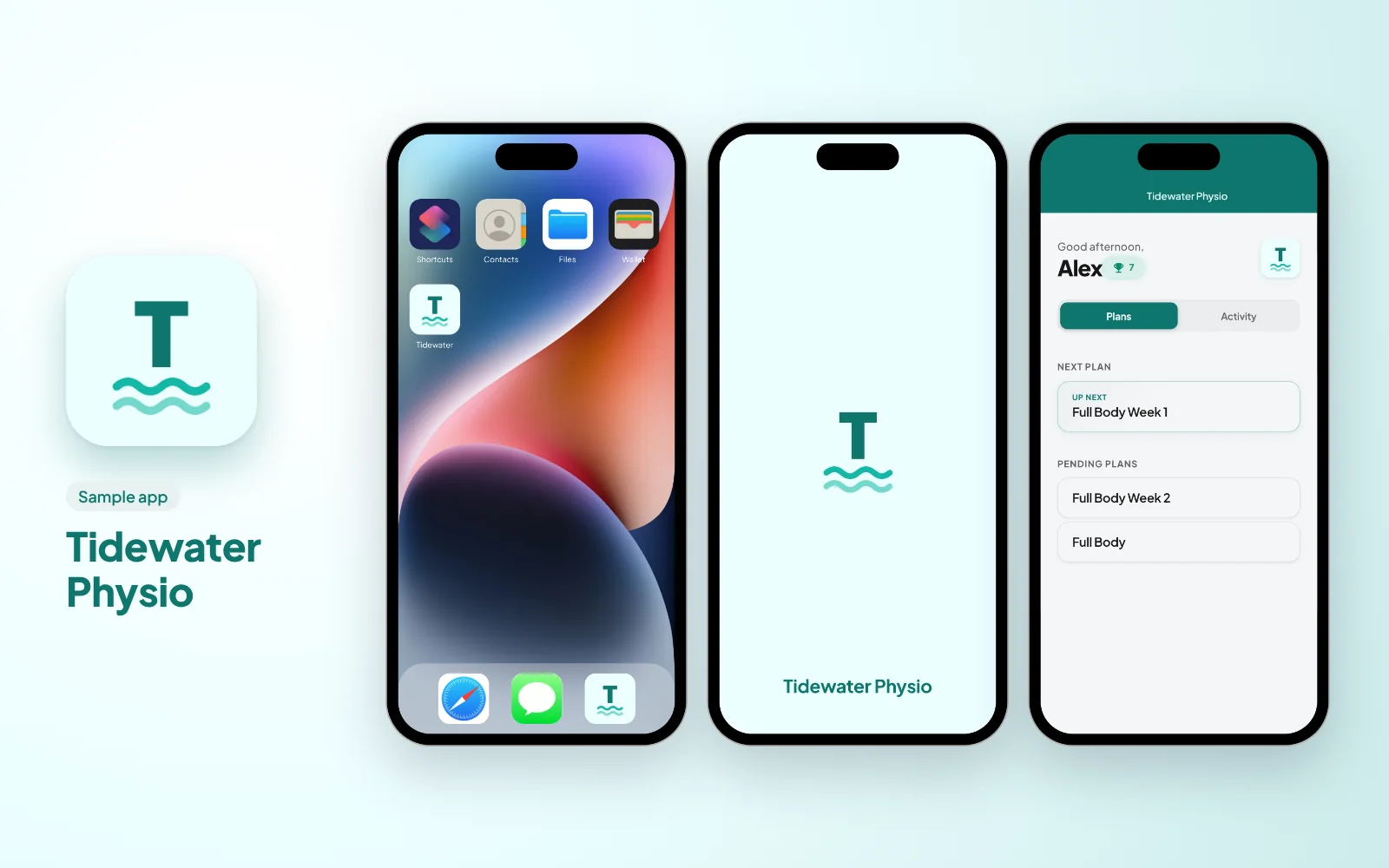
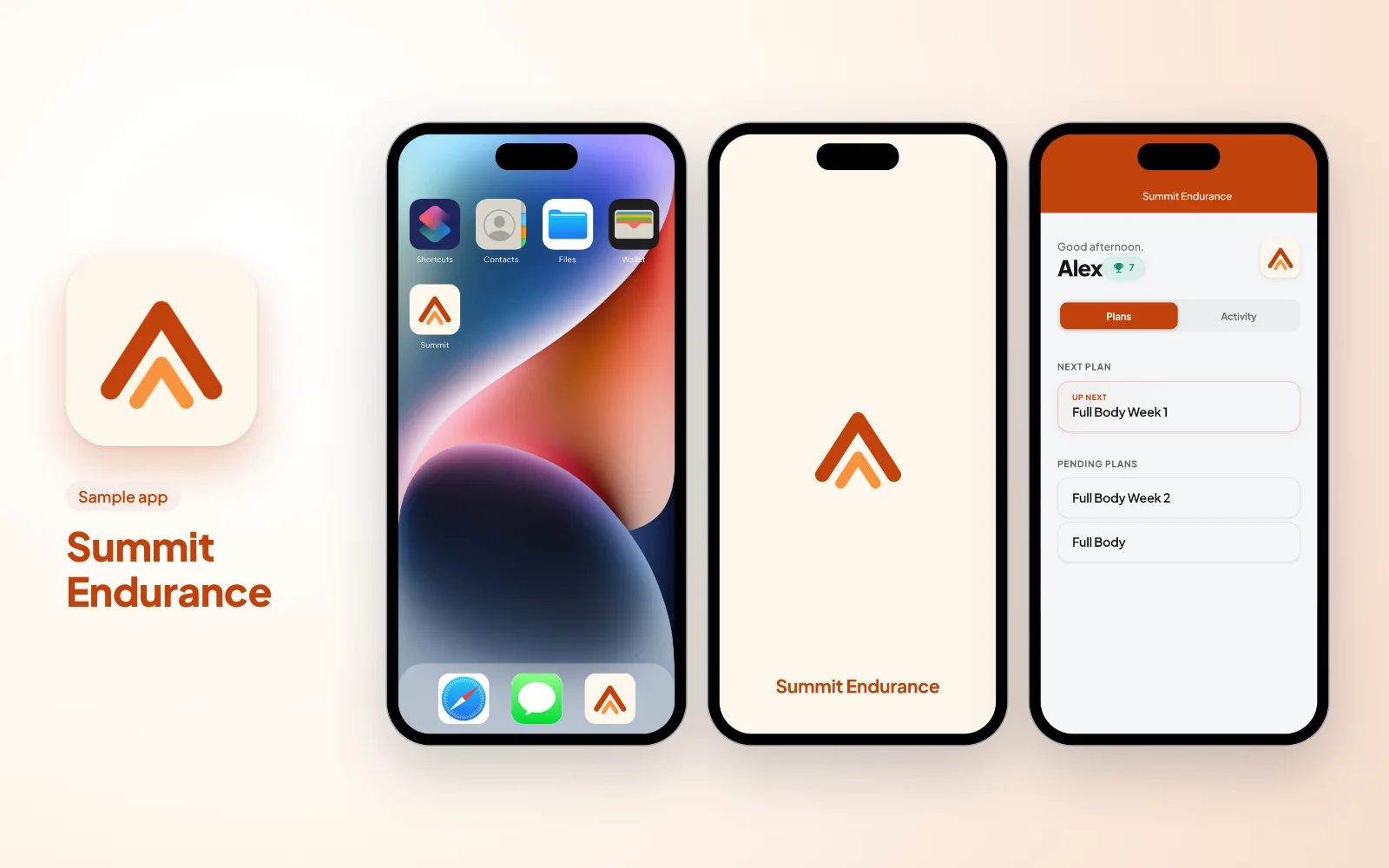
Note: QuickCoach's features and screen layouts may change over time, but the core workflow stays the same.
Step-by-step setup
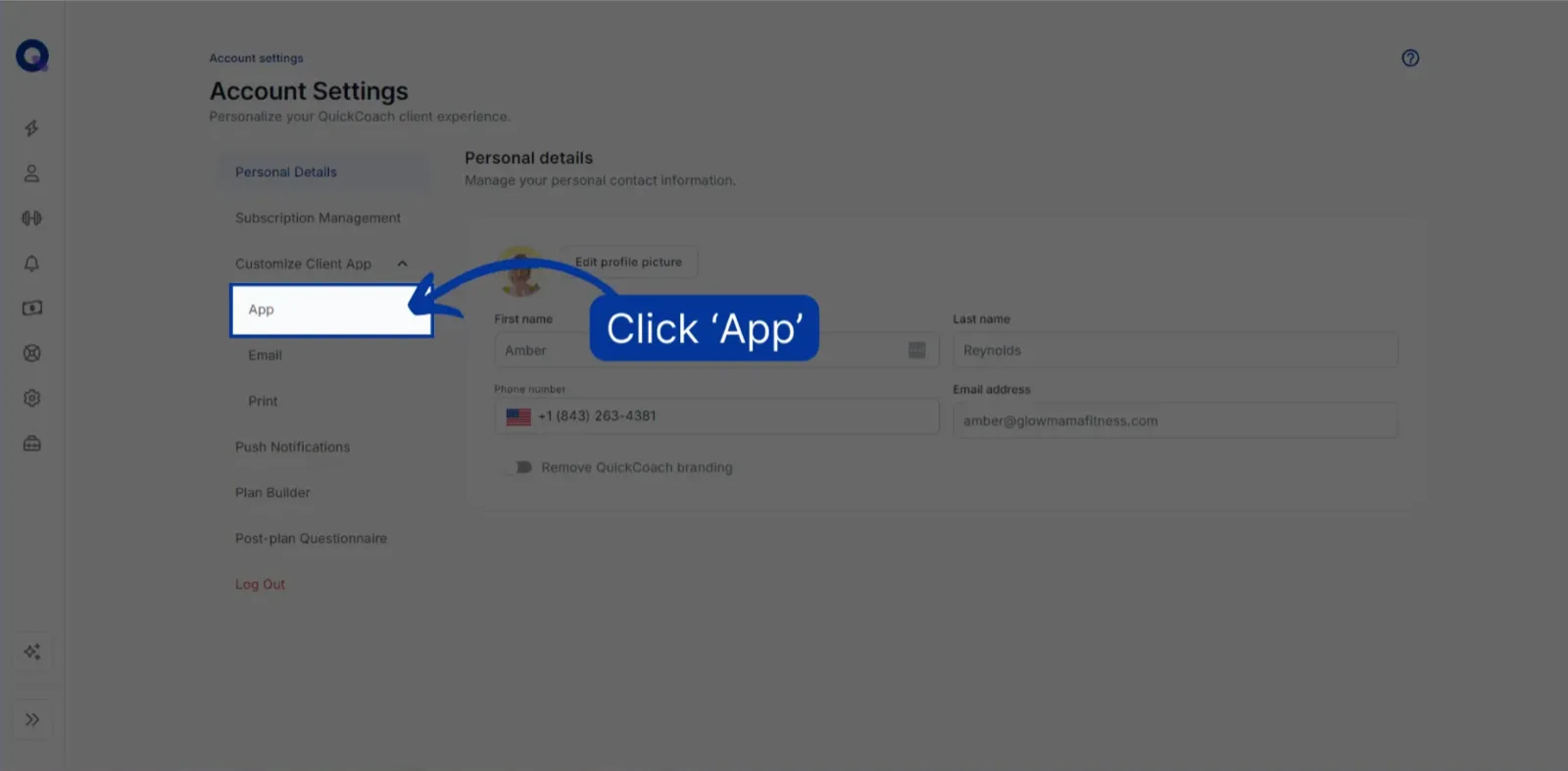
In the left navigation, click the settings icon, then 'Customize Client App', then 'App'.
Name your app, then upload your logo. Your logo becomes the app icon, the splash screen image and the icon on the client's home screen. A square image works best, and 512x512 pixels is ideal. If it's larger, you'll get to crop it.
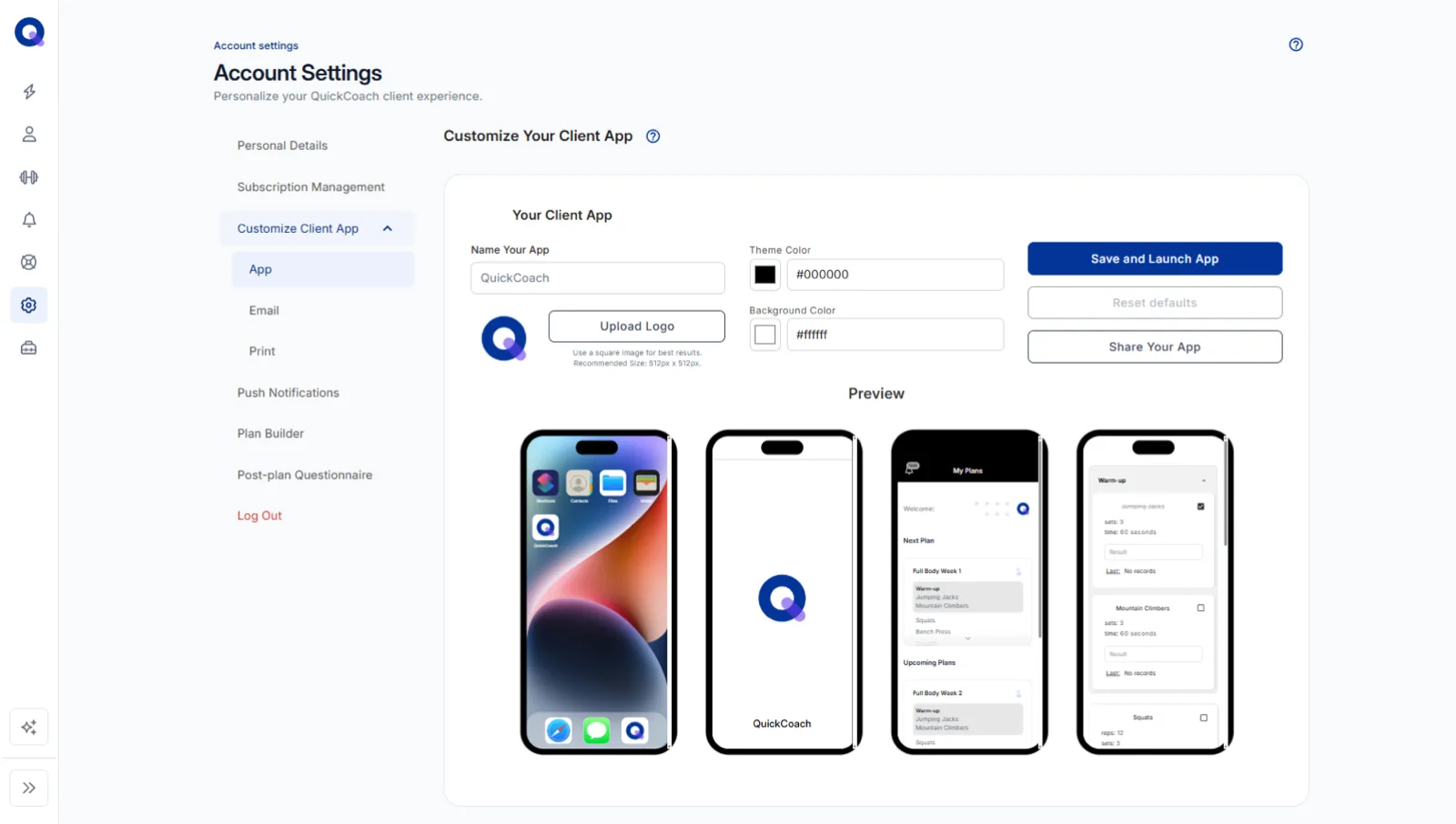
Choose your theme and background colours. The background colour is used only for the splash screen; the theme colour is used everywhere else. Enter a hex code, or click the colour box to use the sliders or the eyedropper. You can also switch between RGB, HSL and Hex with the double-arrow toggle.
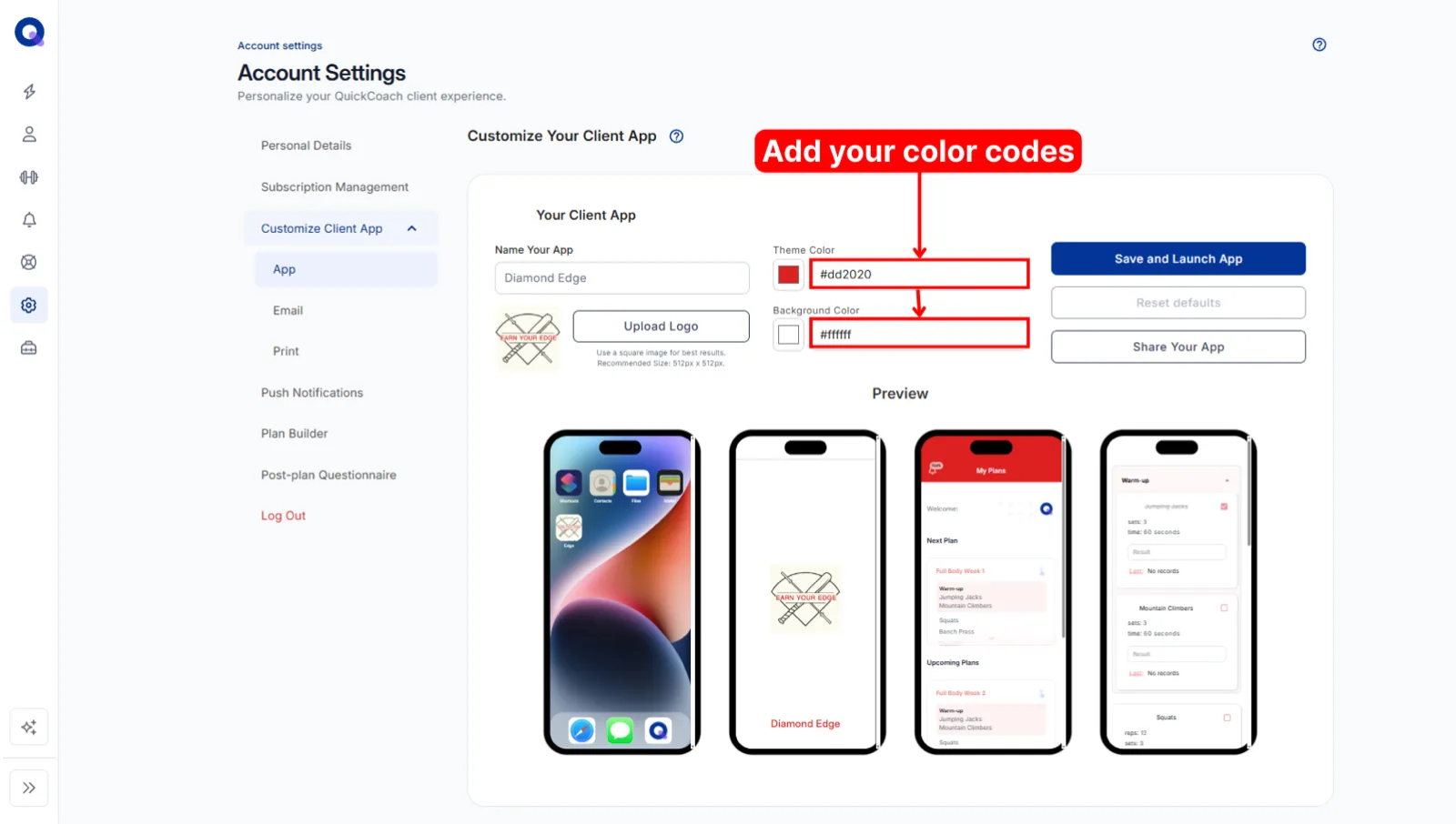
Check the previews, then click 'Save and Launch App'. Your custom app is available right away, with no waiting period. New invites arrive already branded.
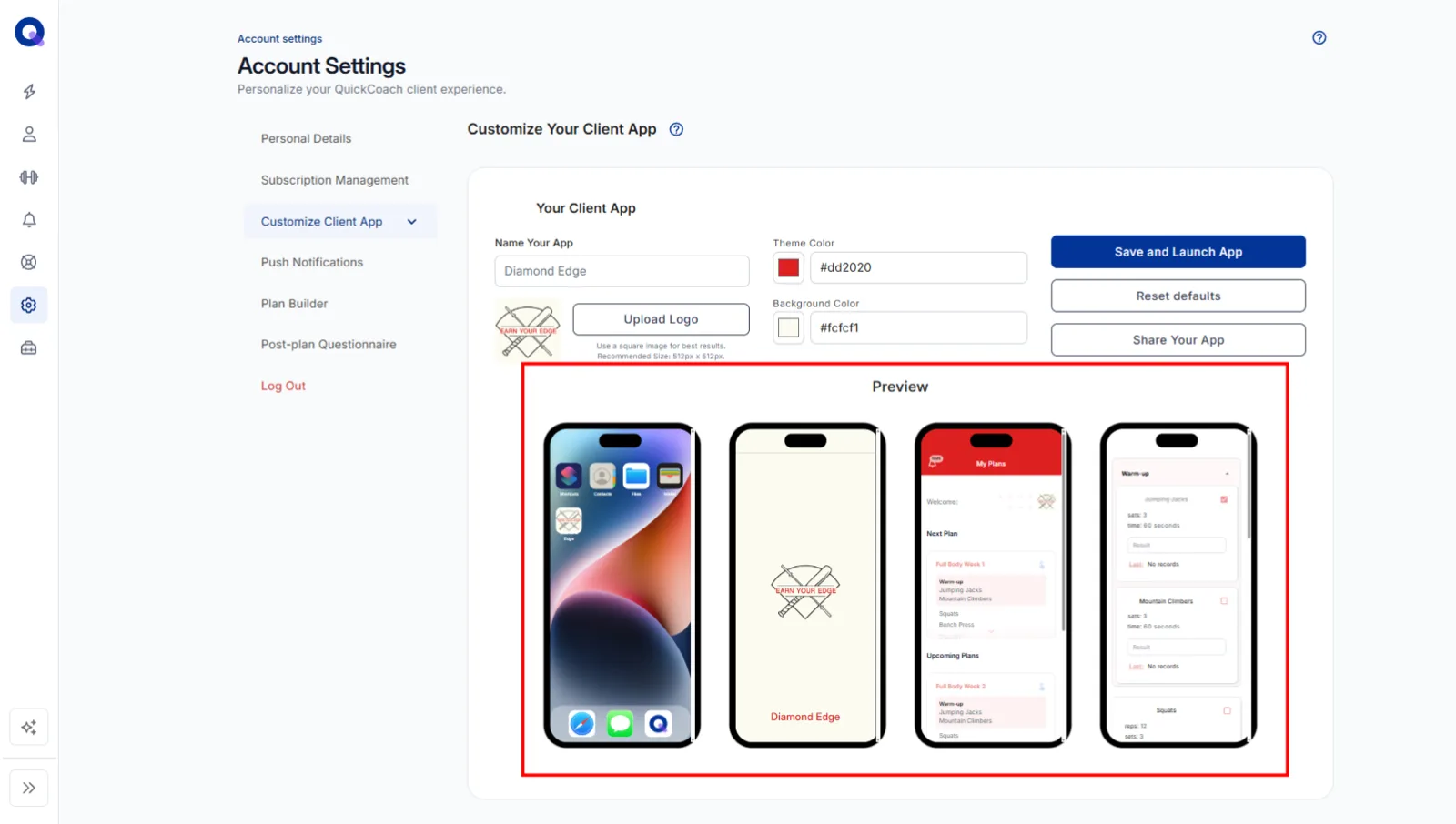
Tip: If a client already had the app installed when you change these settings, they'll need to uninstall and reinstall it for everything to update. Once it's live, clients install the app straight from their phone browser.
Fixing a square around your logo
If a square shows up around your logo on the splash screen, the logo's background doesn't match the background colour you chose. Either change the background colour in QuickCoach to match your logo, or give your logo a background that matches. In a tool like Canva, open a 512x512 canvas, add your logo, remove its background, set the canvas to your chosen background colour, then download and re-upload. A transparent background can also show as black on some devices, and the same fix applies.
Branded app vs white-label
One distinction worth knowing when you compare platforms: QuickCoach Pro gives you a custom-branded app, meaning your identity inside the client app. That's different from a full white-label product with your own separate App Store listing, which is a service some platforms sell for hundreds of dollars a month. Most coaches want the first thing, and that's what Pro includes.
Our main-site guide to creating a custom branded coaching app goes further into that comparison, including what the branding changes about how clients treat your business.