
Troubleshooting guide
Simple fixes that clear up most QuickCoach hiccups, the full push notification checklist, and how to get help if they don't work.

If QuickCoach is misbehaving, work through the steps below first. They clear up the large majority of issues. If none of them help, the last sections cover how to reach us and the details we'll ask for.
Try these fixes first
- Clear your browser's cache. Old cached data is a common culprit. Clear it for your browser (Chrome, Safari, Firefox, Edge, Brave, Opera or Samsung Internet all have short guides) and try again.
- Update your browser. Even if it should update itself, check. An out-of-date browser causes odd behaviour.
- Update your device. Same idea: confirm your phone, tablet or computer is on the latest version.
- Check your internet connection. A slow or unstable connection can look like an app problem. Try a different network.
- If you use a VPN, switch to a different one or turn it off briefly to rule it out.
- Try an incognito or private window. This tells us whether a browser extension is interfering. You may need to re-verify your browser when using a private window.
- Try a different browser. If it works in another browser, the issue is with the first one, not QuickCoach.
- Restart your device. It fixes more than you'd expect.
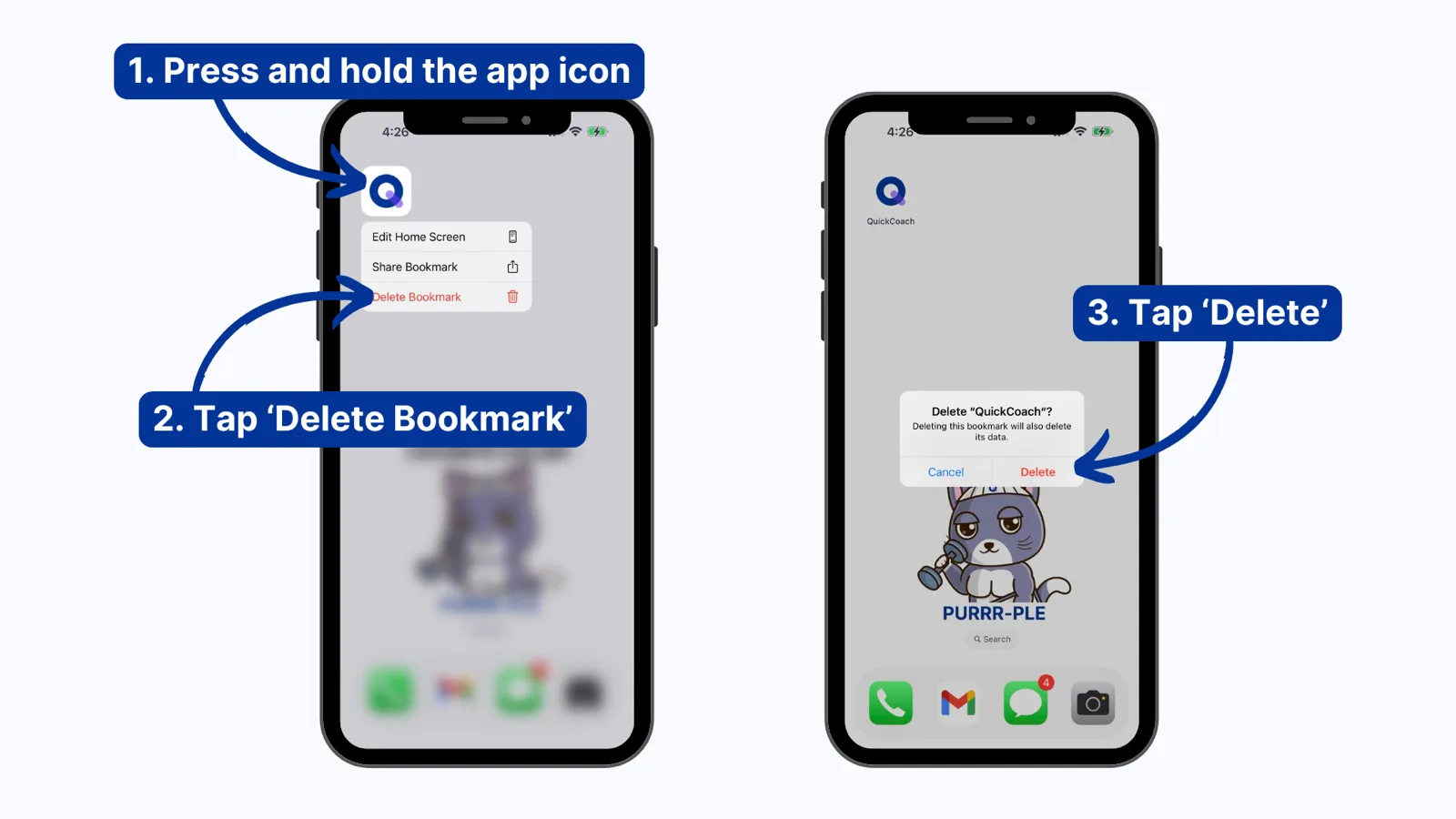
- Uninstall and reinstall the app. On iPhone or iPad, press and hold the QuickCoach icon, tap Delete Bookmark, then Delete, and reinstall from your browser. Install steps are in installing the coach app.
My login code hasn't arrived
QuickCoach doesn't use passwords. Each time you log in, we email you a verification code. If it doesn't turn up within a couple of minutes:
- Check your spam, junk and promotions folders, and search your inbox for "QuickCoach".
- Make sure you typed the same email address you signed up with. A typo or a second email address sends the code somewhere else.
- Request a new code. Codes work for 10 minutes, and asking for a new one cancels the old one, so always use the code from the latest email.
- Work email? Some company filters hold automated emails for a while. Ask your IT team to allow emails from quickcoach.fit, or log in with a personal address.
Still nothing after that? Email support@quickcoach.fit from the address you use for QuickCoach and we'll sort it out.
Push notification troubleshooting
This is the full checklist for push notifications that aren't coming through, whether it's your coach app or a client's app. Remember that push on iPhone and iPad needs iOS 16.4 or later. Work through the steps in order:
- Check the notification settings. The toggle for the notification you expect must be switched on (for example, completed-plan alerts). Your own toggles are covered in getting notified about client activity; the client side is in enabling client notifications.
- Open and close the app to trigger the automatic repair system.
- Toggle notifications off and back on with the switch.
- Check focus and do-not-disturb modes. A silenced device swallows notifications that were delivered perfectly well.
- Look for an incompatibility or denied-permission alert. If one appears, that's the cause. Note it down to include when you contact us.
- If there's no such alert, uninstall the app, clear the browser cache, then reinstall and re-enable notifications.
- Still nothing? A screenshot of the debug screen helps us pinpoint the problem. The steps to reach it are at the bottom of this page.
Sending notifications rather than receiving them? The compose limits and steps are in sending push notifications to clients.
Still stuck? Get help
If the fixes above didn't work, work down this list. Each step is usually faster than the next.
- Use live chat. In the QuickCoach coach app, click the chat button in the bottom corner of the screen and tell us what's happening. It's on every coach screen, including the login page, so you can use it even if you can't get in. Your clients' app doesn't show it.
- Search the Help Center. Type a few words about the problem into the search box at the top of this page. Most questions already have an answer here.
- Email support@quickcoach.fit once you've tried both. Include the email on your account, a clear description of the problem, the device make and model, your operating system and version, your QuickCoach version, and what you've already tried. Screenshots or a short screen recording help a lot.
Please note: emails can take 3 to 5 business days to answer. Live chat is the quickest way to reach us.
Find the info we ask for
The Help menu in the left navigation also shows some technical details about your account and device. We might ask for it when you contact us about a technical problem, so it's handy to know where it lives.
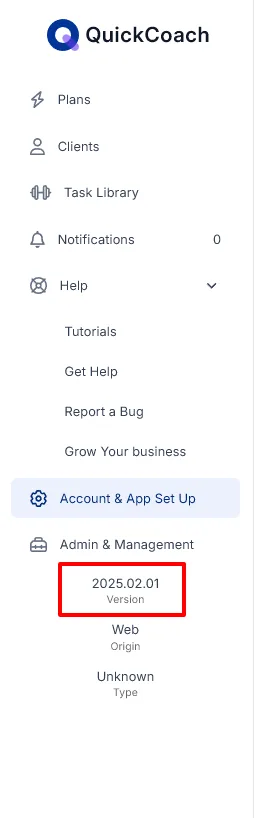
To find your QuickCoach version, open the menu and look at the bottom. The number under "Version" is what we need.
On mobile there's also a hidden debug screen that gathers your device details for us:
- Tap the bell icon at the top left of QuickCoach.
- Tap the three vertical dots at the top of the Notification Center.
- Tap "Mark all as read".
- Tap "Yay!" four times (it's in the centre of the Notification Center).
- The Notifications Debug screen appears. Take a screenshot and send it to us.