
How clients see and complete tasks
How tasks work on the client side: marking them complete, recording results, checking history, and opening your videos and audio notes.

Everything you assign reaches your client as a task, whether it's an exercise, a check-in question or a reminder. Every task behaves the same way, so once a client understands one, they understand the whole plan.
How tasks look
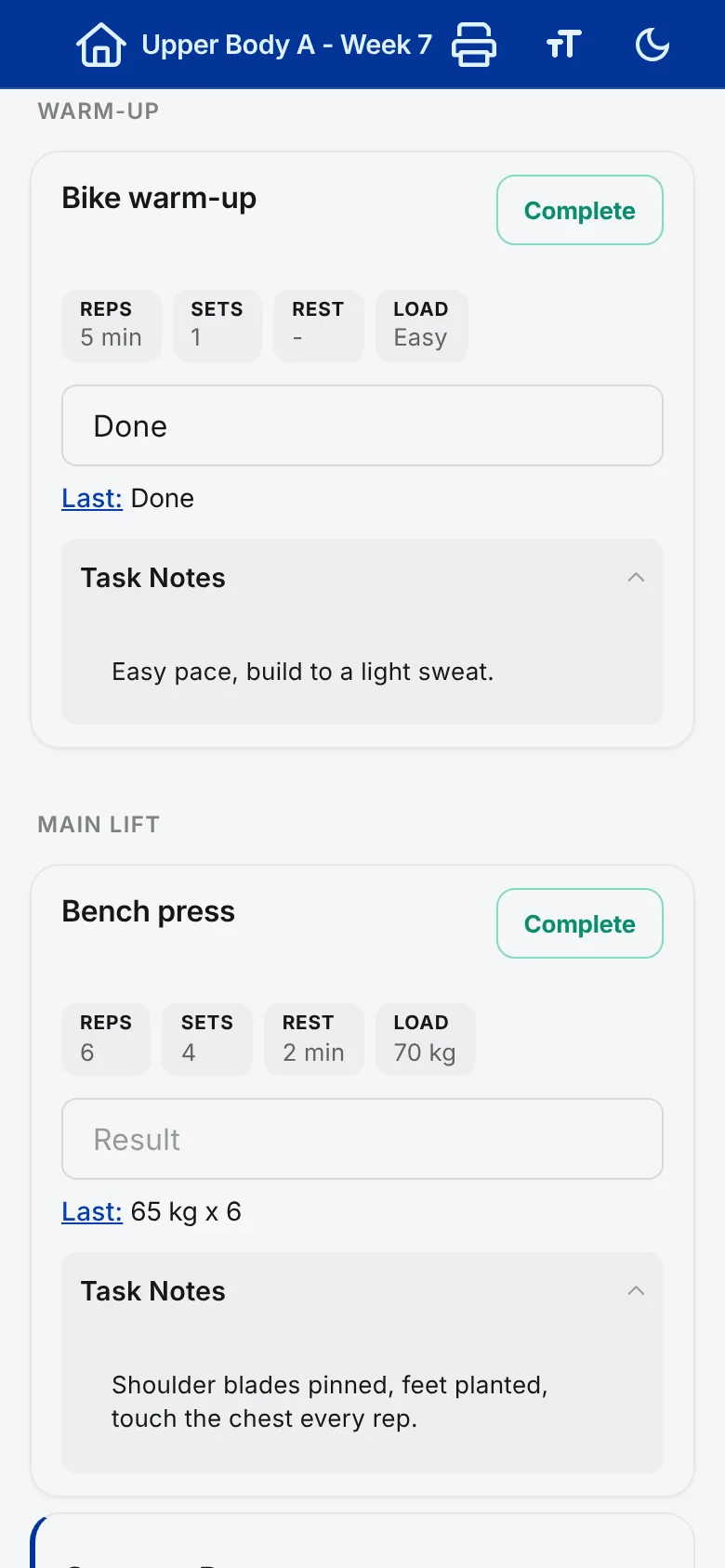
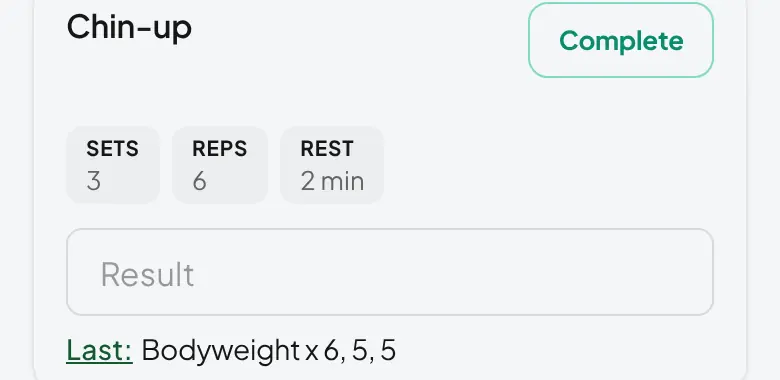
Each task sits in its own white box.
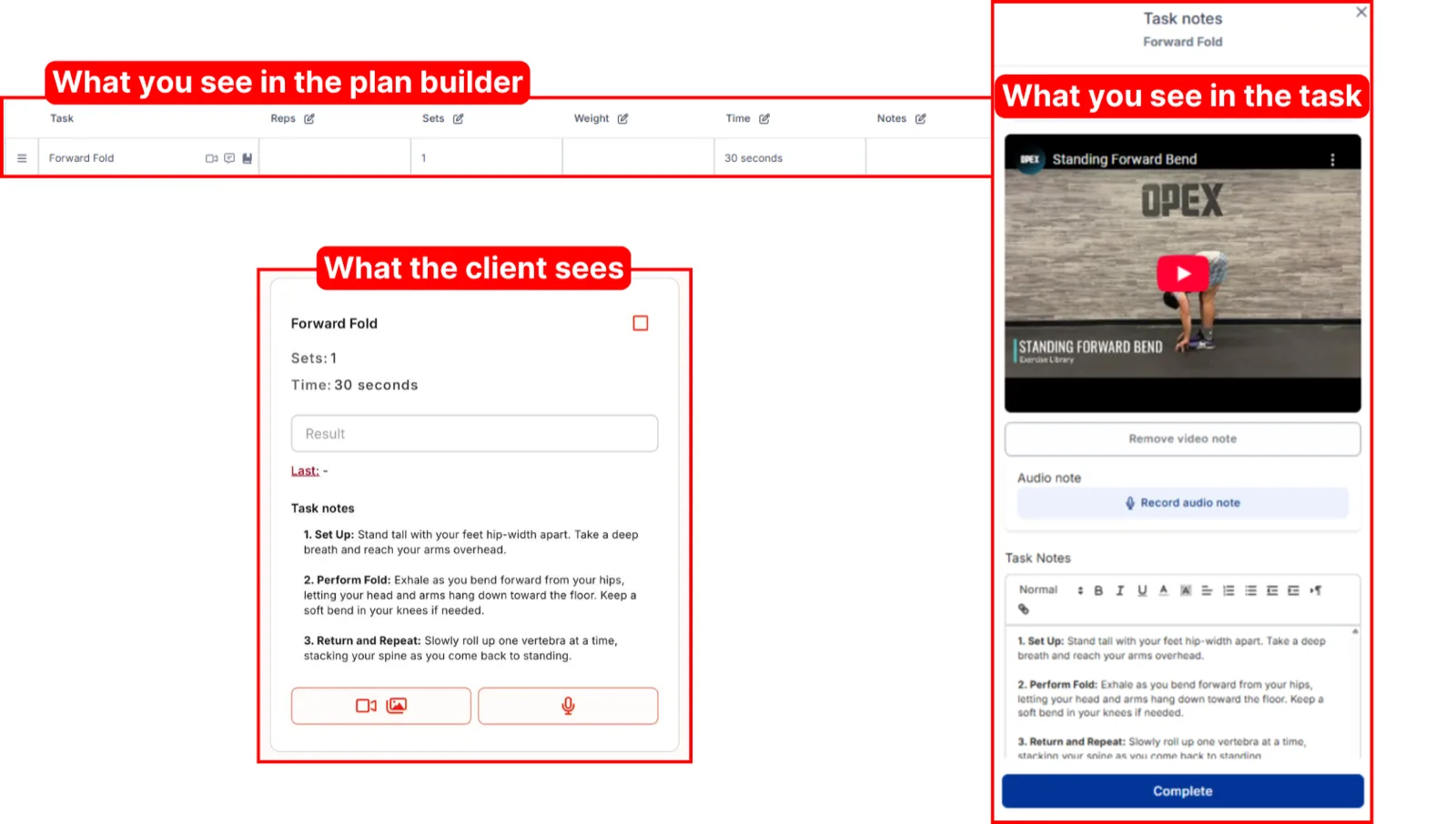
The client view lines up closely with what you build, but not identically. Here's the same task on your side and theirs.
The Complete button and collapsing a task
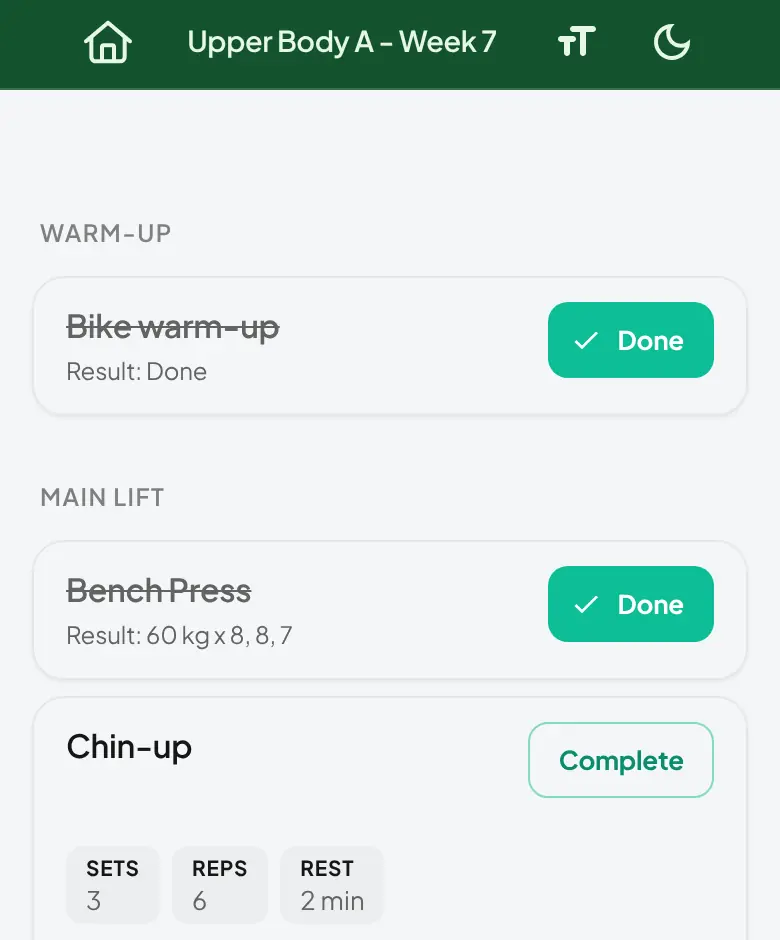
Each task has a Complete button. Tapping it marks the task done: the button turns green, reads "Done", and the task collapses. Tapping "Done" marks it incomplete and opens it up again. Clients use this to fold away what they've finished and keep the current task in view. Tapping a task's name also opens or closes it without changing whether it's done.
The results box
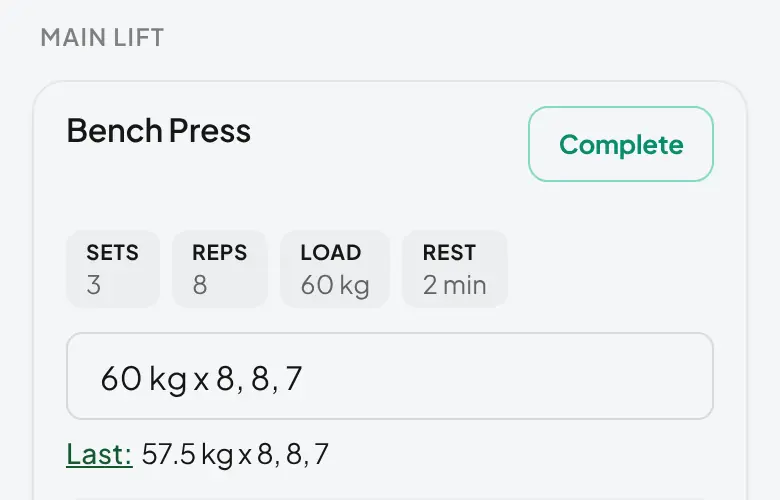
Clients type into the results box to record how the task went. QuickCoach saves automatically as long as they're connected to the internet, so if they leave the page and come back later, their entry is still there.
Note: Results boxes are limited to 50 characters. That's deliberate, and there's more on why below.
History and the "Last:" line
Under the results box there's a line that reads "Last:". Clients will see one of three things there.
- Their most recent result for that task.
- A dash, meaning there are no previous entries for that task yet.
- "Untracked", meaning the task isn't in your task library, so history isn't being tracked for it.
Viewing the full history
Tapping "Last:" opens a pop-up with the client's entire history for that task. It lists the workout name, the date it was completed, the result and the status. Ticking the "Hide empty" checkbox hides entries with no result; unticking it brings them back.
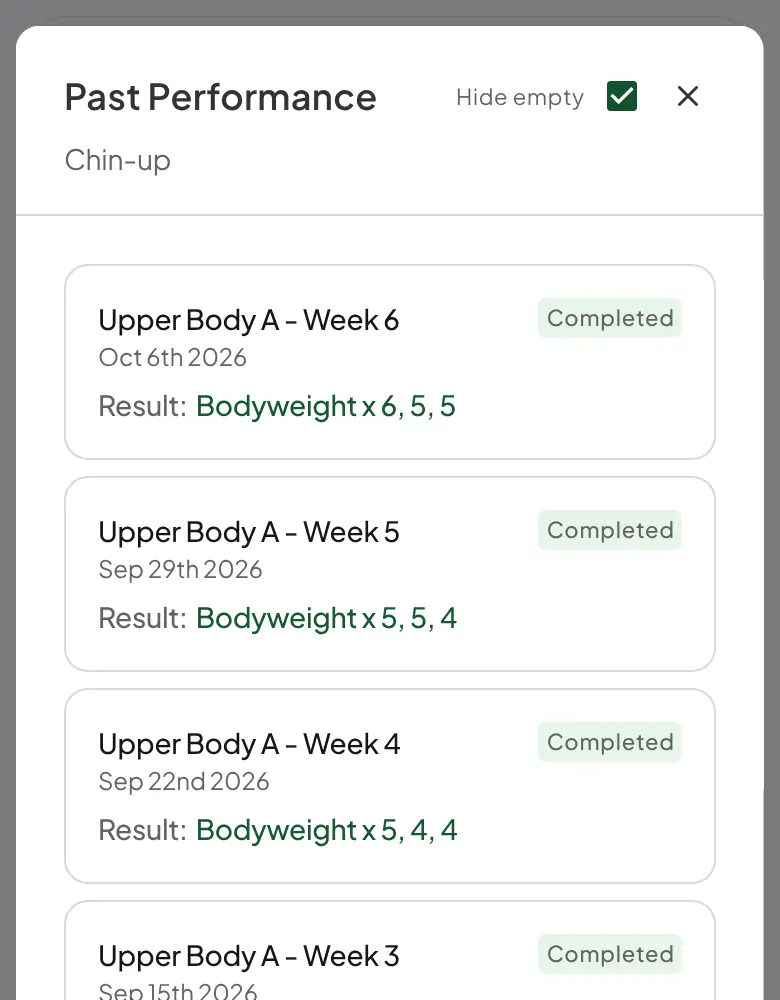
Note: History entries carry one of two statuses. "Completed" means the plan that task was in has been submitted. "Unfinished" means the client hasn't submitted that plan yet.
You can review the same history from your side. See how to see your client's history.
Viewing videos and images
Tasks with media attached show icons the client can tap. The video camera icon opens the video and the picture icon opens the photos.
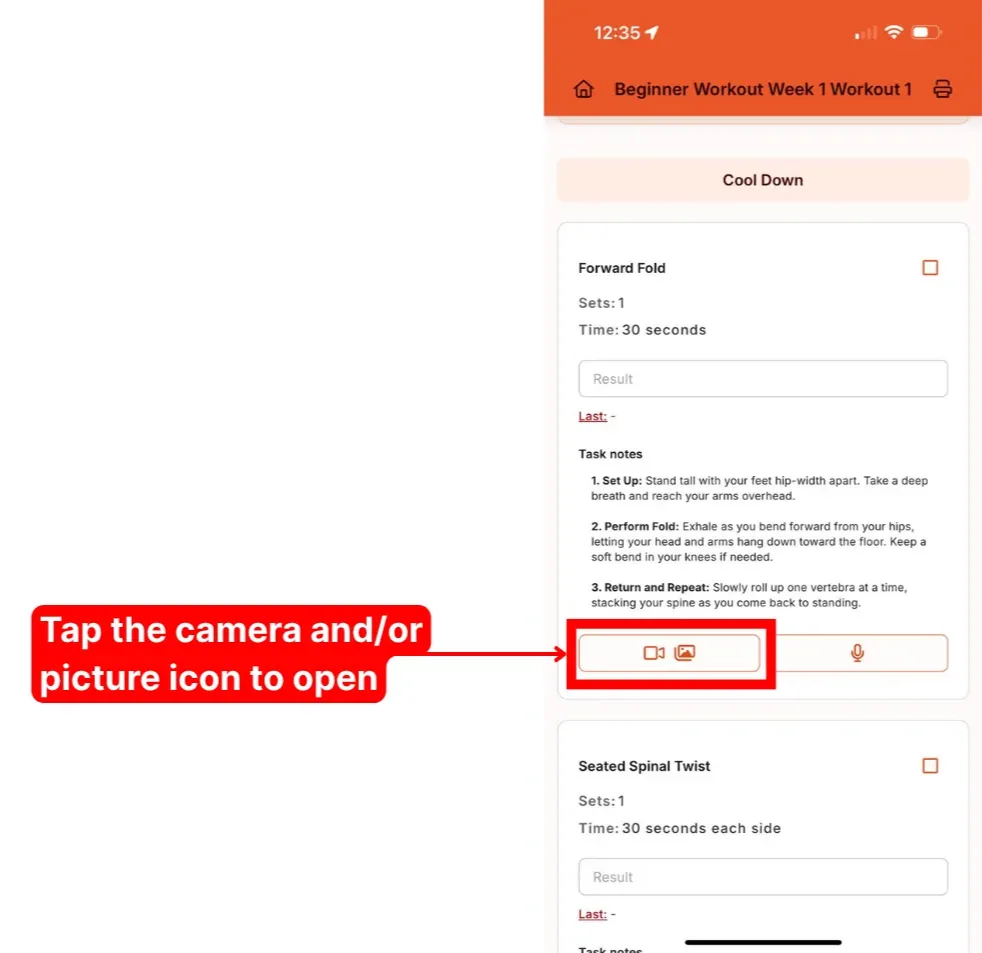
Inside the viewer, the play button starts the video, the small squares flip between the available video and images, and the X closes it. To attach videos or images on your side, see adding media to tasks.
Listening to audio notes
The microphone icon opens any audio note you've recorded on the task.
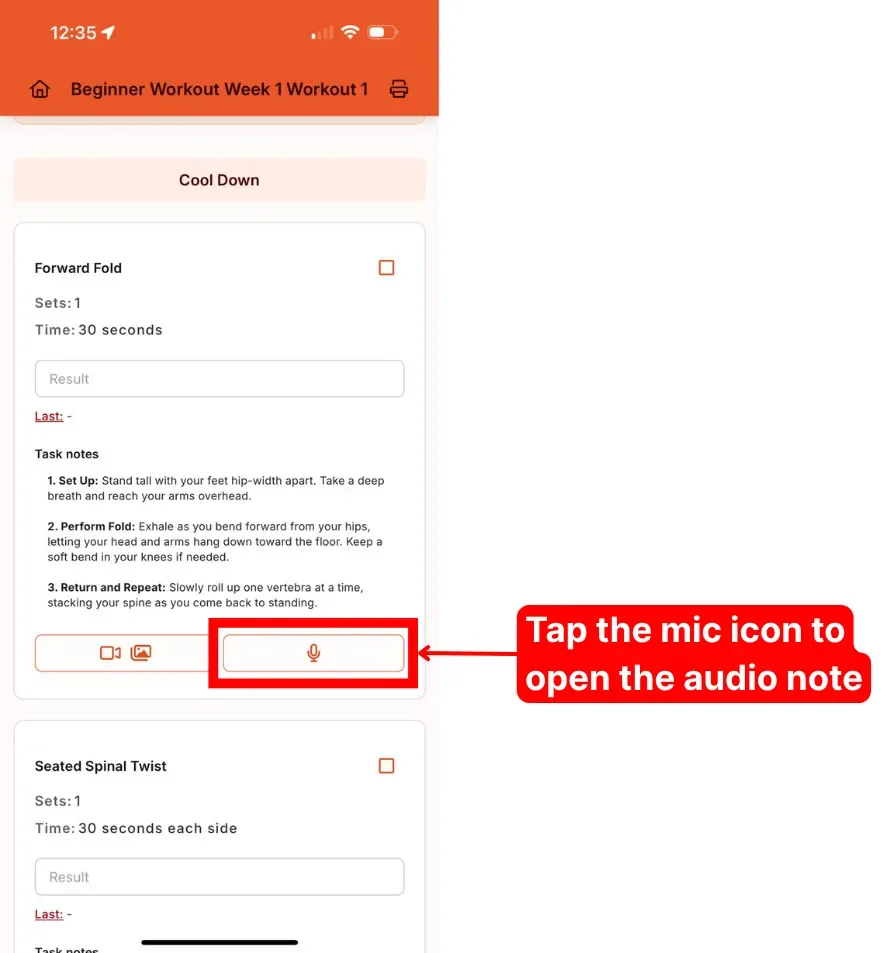
The player works like any other: play to listen, the speaker icon to change volume or mute, the cast icon to send it to a compatible device, and a speed control to change playback speed. Recording these on your side is covered in the audio section of adding media to tasks.
To-do lists and non-training tasks
Coaching is more than sets and reps, and a task doesn't have to be an exercise. You can put anything on a client's plan: hit a step count, prep meals on Sunday, book a mobility session, read an article you've sent. Add these in the plan builder like any exercise. The client taps Complete on each one as they go, so accountability doesn't depend on them remembering to message you.
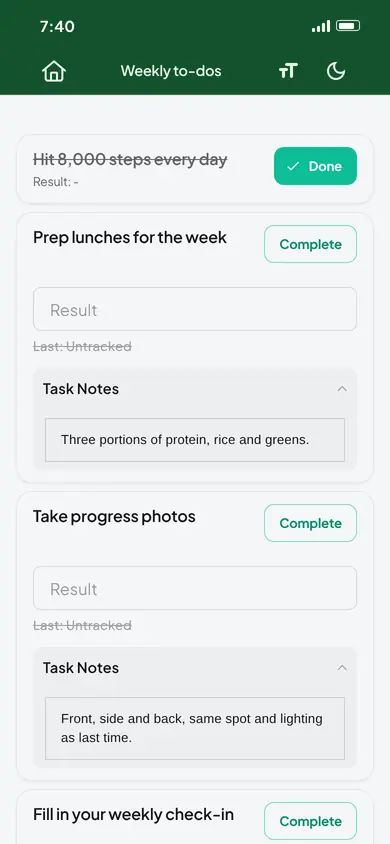
Ideas that work well:
- Daily targets: water, steps, sleep
- Weekly admin: measurements, progress photos, meal prep
- One-off actions: fill in a check-in form, watch a technique video
Tasks are unlimited on every plan. For behaviours you want tracked every day, habit tracking is the better fit. Free coaches get one active done/not-done habit per client, and Pro adds more habits, richer check-ins and history.
Looking for your own to-do list? Coaches get a private one, separate from anything clients see. It lives in your Notification Center, next to your client activity feed. See the Notification Center and to-do list, and the QuickCoach to-do list guide on our main site for how coaches use it to run a tighter week.
Frequently asked questions
Can clients share images or videos back with me?
Not through the task itself. You can give them instructions instead, for example a link where they can upload any videos or photos they'd like you to review.
Why is the results box capped at 50 characters?
It's a constraint we added on purpose. Limiting the space pushes clients to share what matters most rather than leaving you drowning in information. Anything longer can go in as text or audio feedback when they submit, covered in submitting a plan and leaving feedback.
I changed a task's notes, video or images. Why didn't it update for my client?
Changes to a task only apply going forward; past uses of the task keep the old version. To update a task a client already has, open each plan and reselect the task. See editing a plan for the full rules on what updates where.
Grouped tasks look slightly different on the client side. See the client view section of headings and supersets.