
Order and publish plans in a Program Template
Order the plans in a Program Template, publish drafts when they are ready, and send the whole template or a single plan to clients.

A Program Template holds a whole program in order, ready to hand to any client. Inside it, every plan is either ready to send or still a draft, and the order of the ready plans is the order your client will do them. This guide covers getting that order right and sending the template out.
Open a template
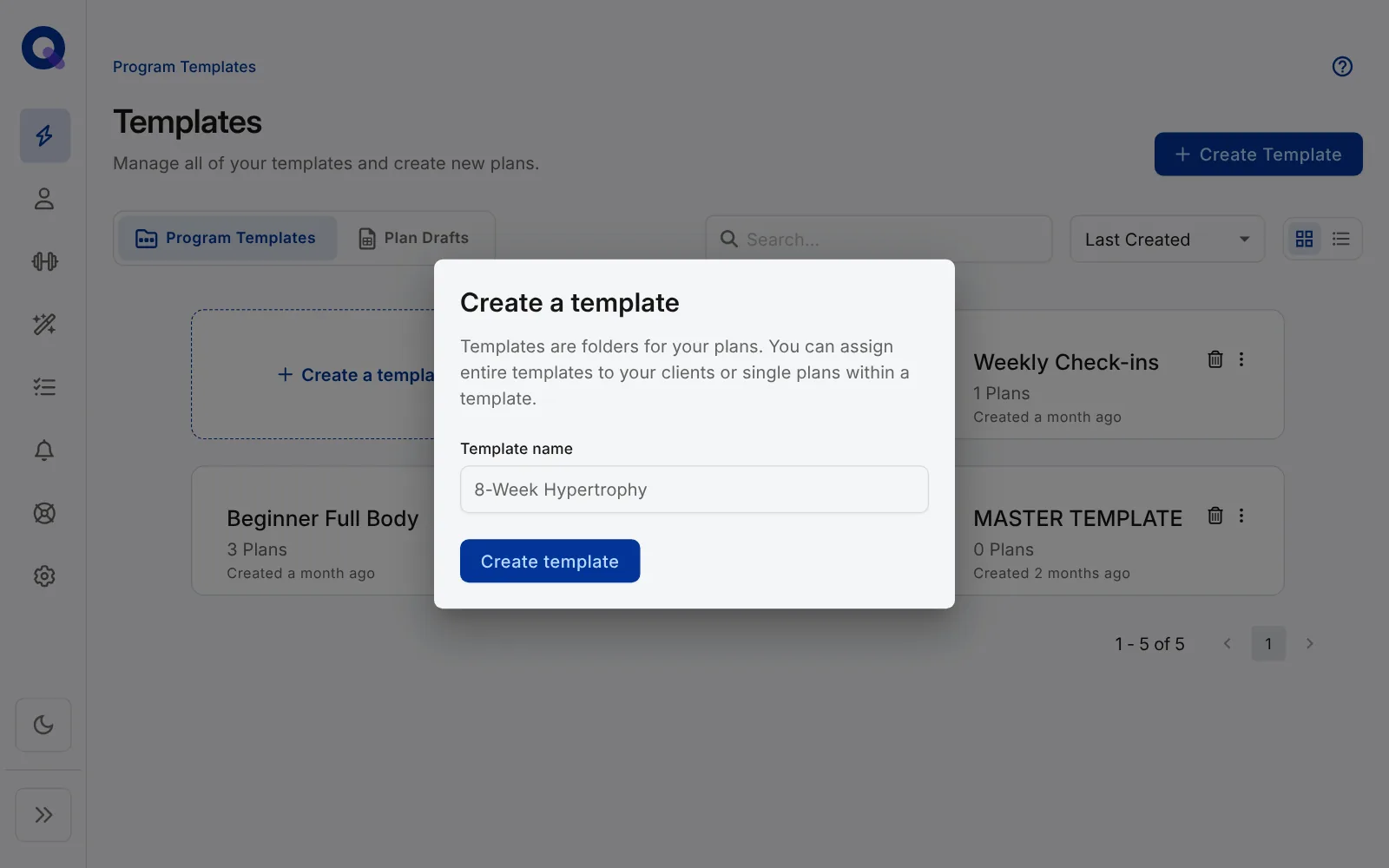
Click Plans in the side menu. The Templates page opens on the Program Templates tab. To start a new one, click Create Template, give it a name and click Create template.
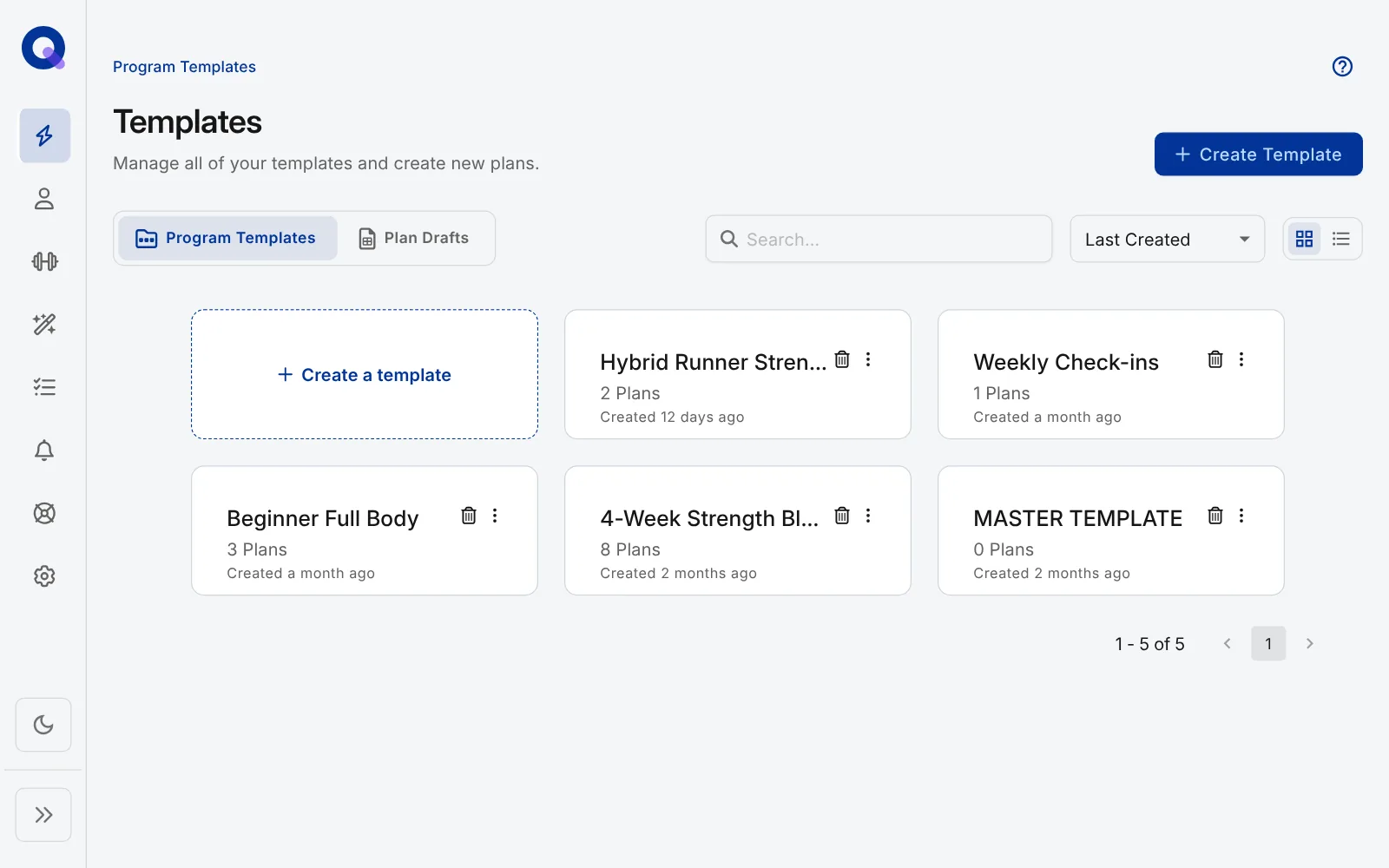
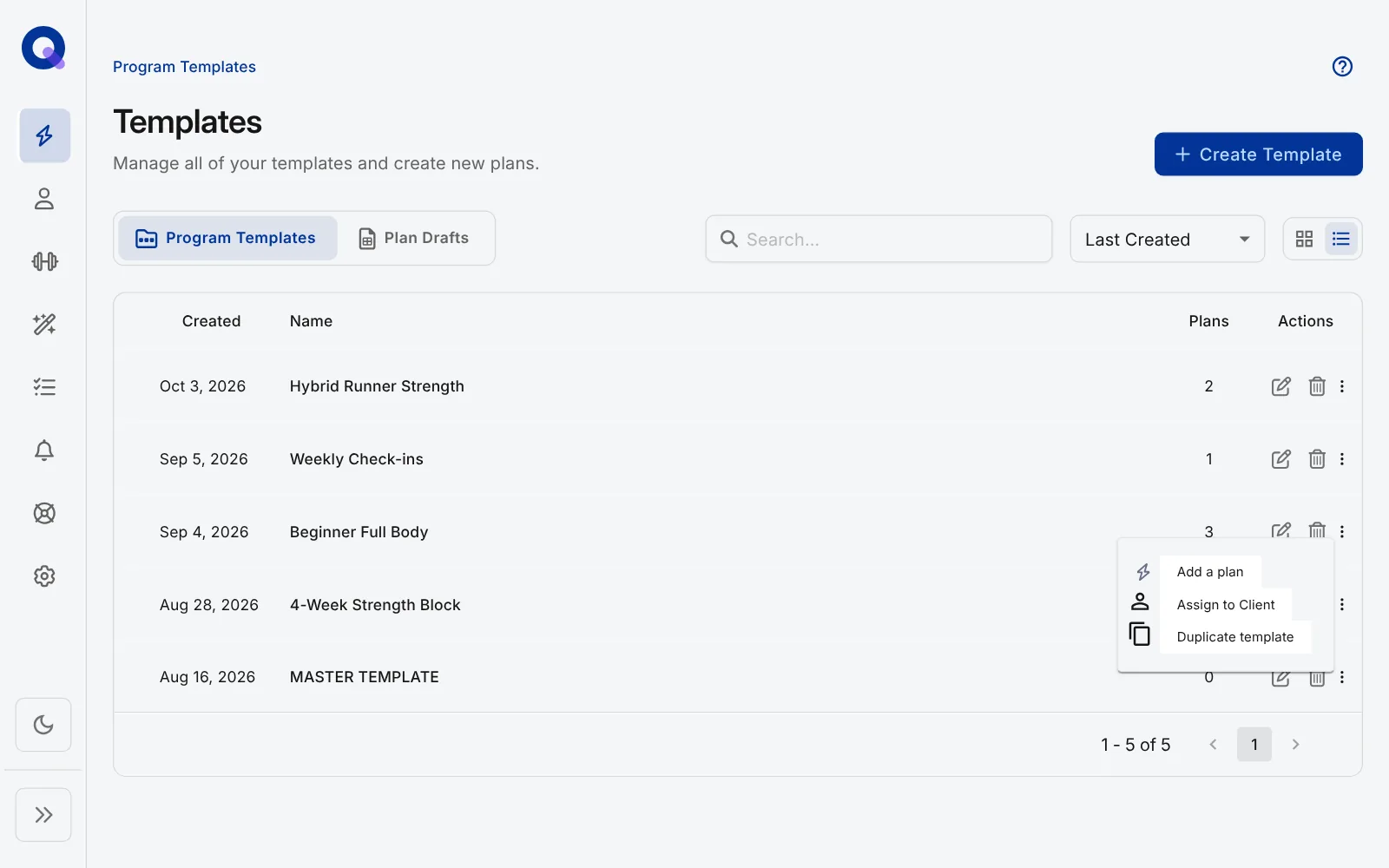
Each template card has a bin icon and a menu (the three dots) with Add a plan, Assign to Client and Duplicate template. The view toggle next to the sort menu switches the page to a list, which has the same menu on each row. Deleting a template deletes every plan inside it, so duplicate it first if you might want it back.
Ready plans and draft plans
Open a template to see two tables:
- Ready Plans go out when you assign the template, in the order shown.
- Draft Plans are work in progress and stay behind until you publish them.
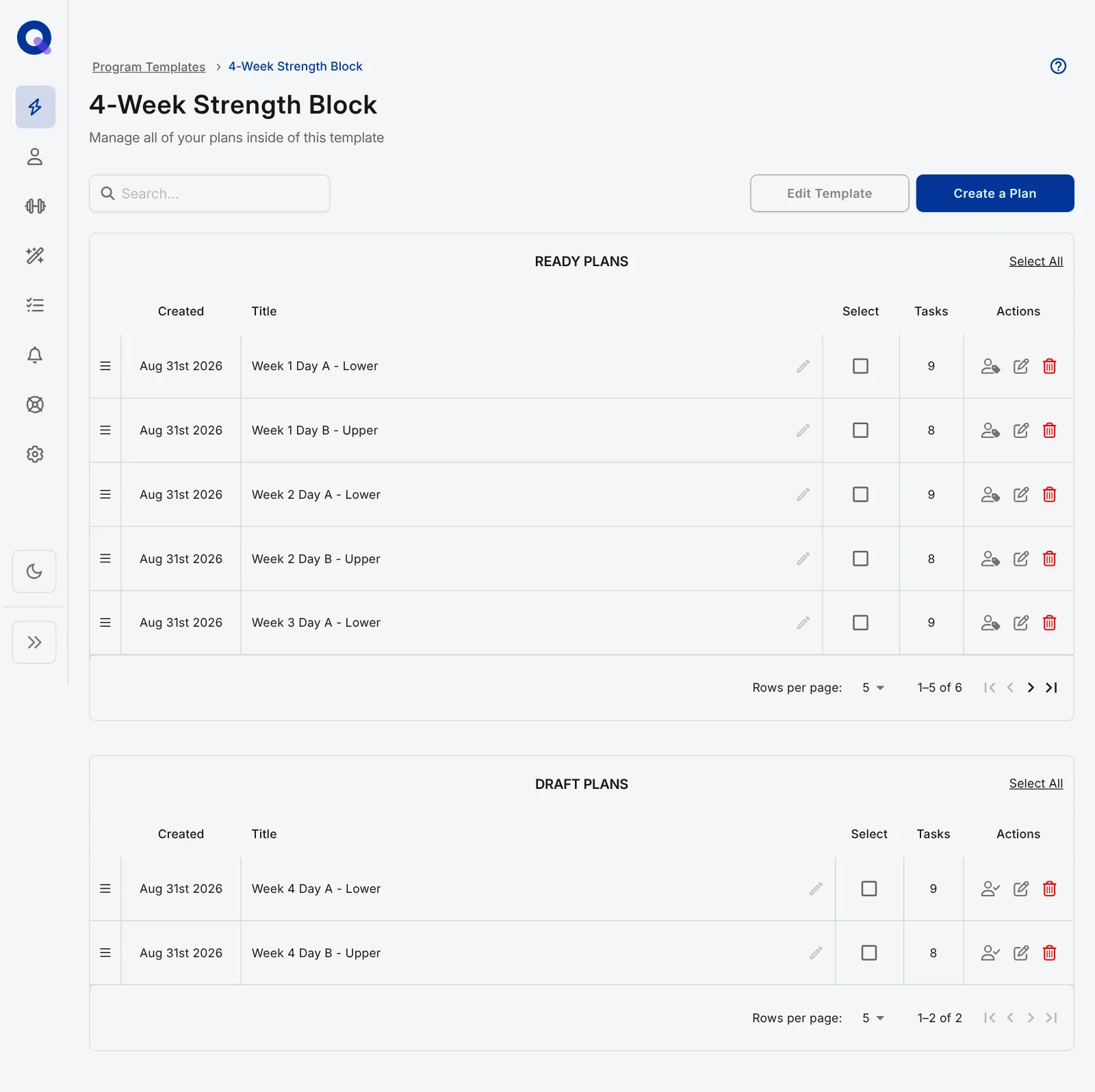
Each row's actions are separate icons. Hover over one to see its name. A ready plan has Assign to client, Edit and Delete. A draft has Publish, Edit and Delete.
Click Publish on a draft to move it into Ready Plans. To publish several, tick them in the Draft Plans table and click the Publish Selection icon. Both tables also have Copy Selection and Delete Selection, the same way a client's page does.
Put the plans in the right order
Drag plans by their handle (the three lines at the left of each row) to reorder them. QuickCoach keeps the positions tidy behind the scenes, so there's nothing to clean up after lots of moves and copies.
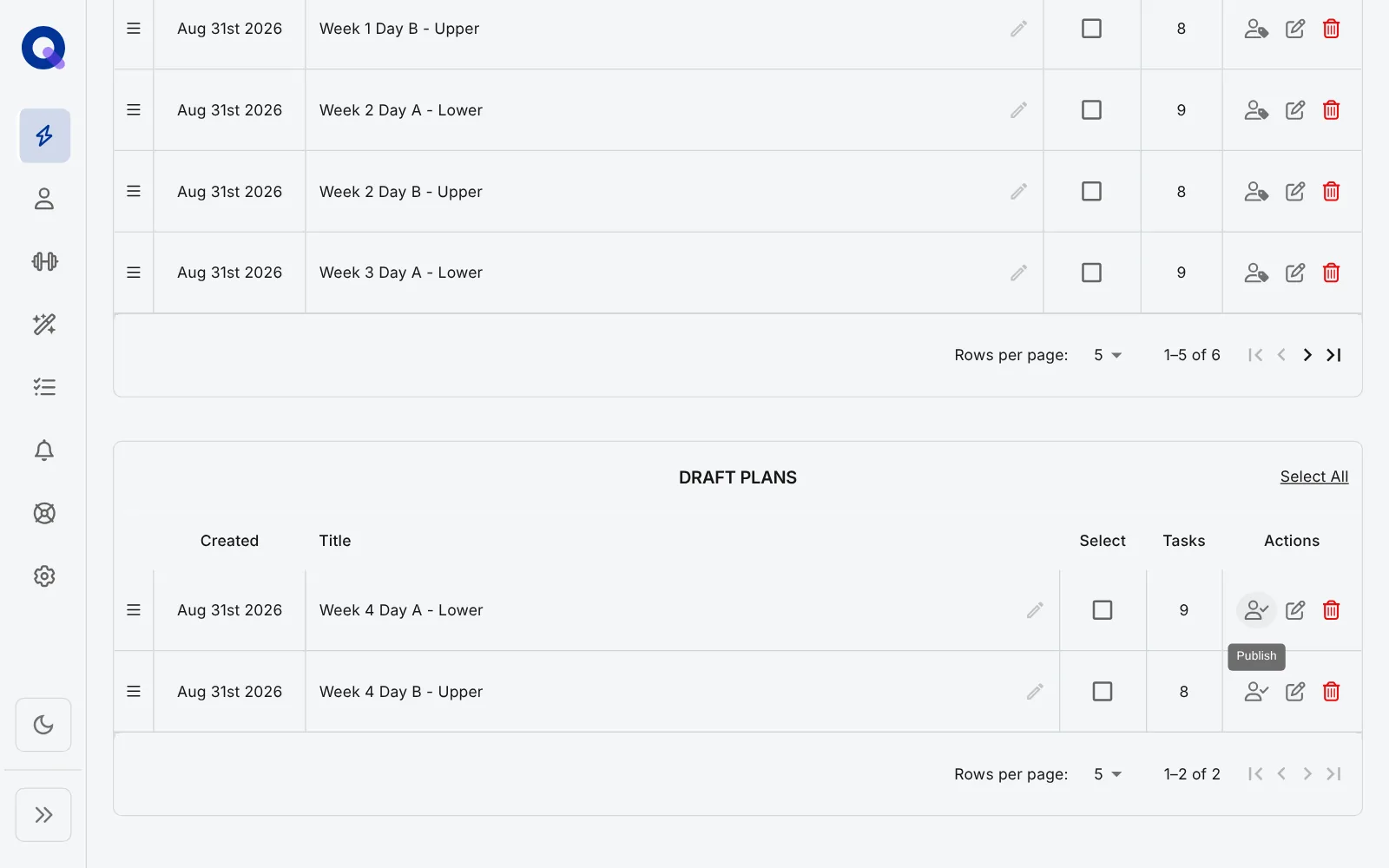
Tip: name plans with the week and day ("W1 D1", "W1 D2") so the right order is obvious at a glance, both to you and to your client.
Send the template to clients
Choose Assign to Client from the template's menu. The Assign Template window opens. Search for clients, or pick a Client Group to send it to everyone in the group (Pro), then click Assign.
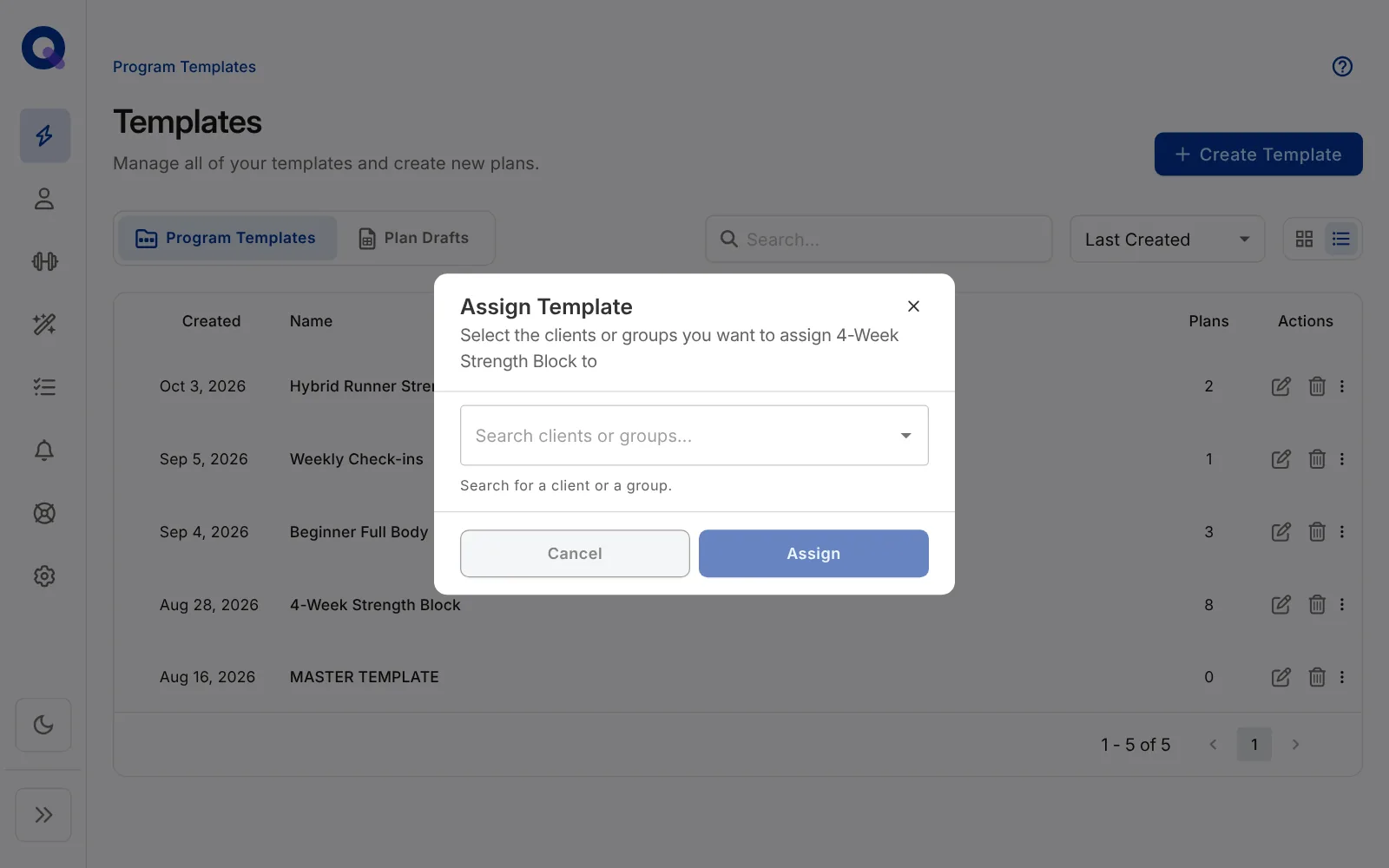
There's no draft or published choice for a whole template. Assigning it publishes the template's Ready Plans straight to each client's Upcoming plans. Its Draft Plans aren't sent. If you want to personalise a program before a client sees it, edit the template first, or move a client's new plans back to Drafts with Change Status on their page.
Once you've picked someone, the button shows how many clients you're sending to, such as "Assign to 3 clients", so you know exactly what's about to happen. Each client gets their own copy: editing one client's plans never changes the template or anyone else's.
To send a single plan instead, click Assign to client on its row in Ready Plans. The Assign Plan window has the same client and group search, plus a Plan status choice. Draft puts the plan in each client's Drafts so you can personalise it first. Published sends it straight to their app.
For the full build of a four-week template, follow the build along tutorial. Building a multi-week program covers repeating weeks efficiently, and Program Templates and Plans Drafts covers sorting and finding templates.