
Where to see your client's feedback, and how to reply
Where client comments and survey responses appear, plus how to reply without a message inbox: through the next plan, an audio note, or a push notification.

Everything a client sends back is collected on their dashboard for easy review. You'll also see it in a couple of other places as you move around the app. Once you've read it, replying happens where the work happens: inside their next plan.
Watch the video walkthrough (1:10).
Note: QuickCoach's features and screen layouts may change over time, but the core workflow stays the same.
The client dashboard
- Click the Clients icon, then click the client you want to review.
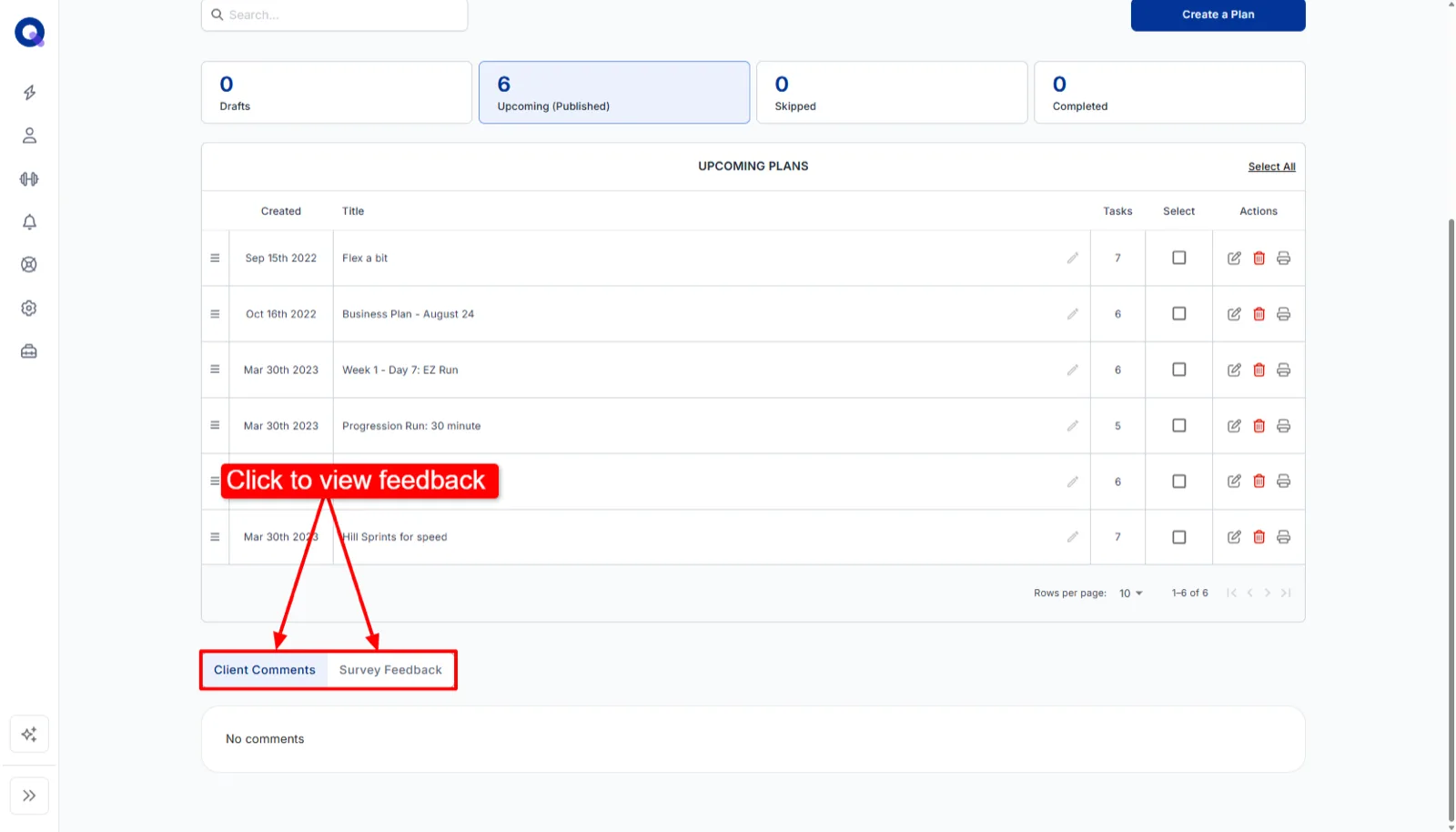
- Scroll down their dashboard until you reach the 'Client Comments' and 'Survey Feedback' tabs.
- 'Client Comments' shows by default. Click 'Survey Feedback' to read their answers to your post-plan survey.
The Notification Center
Click the bell icon to open the Notification Center. Any text feedback a client leaves shows up here as it arrives.
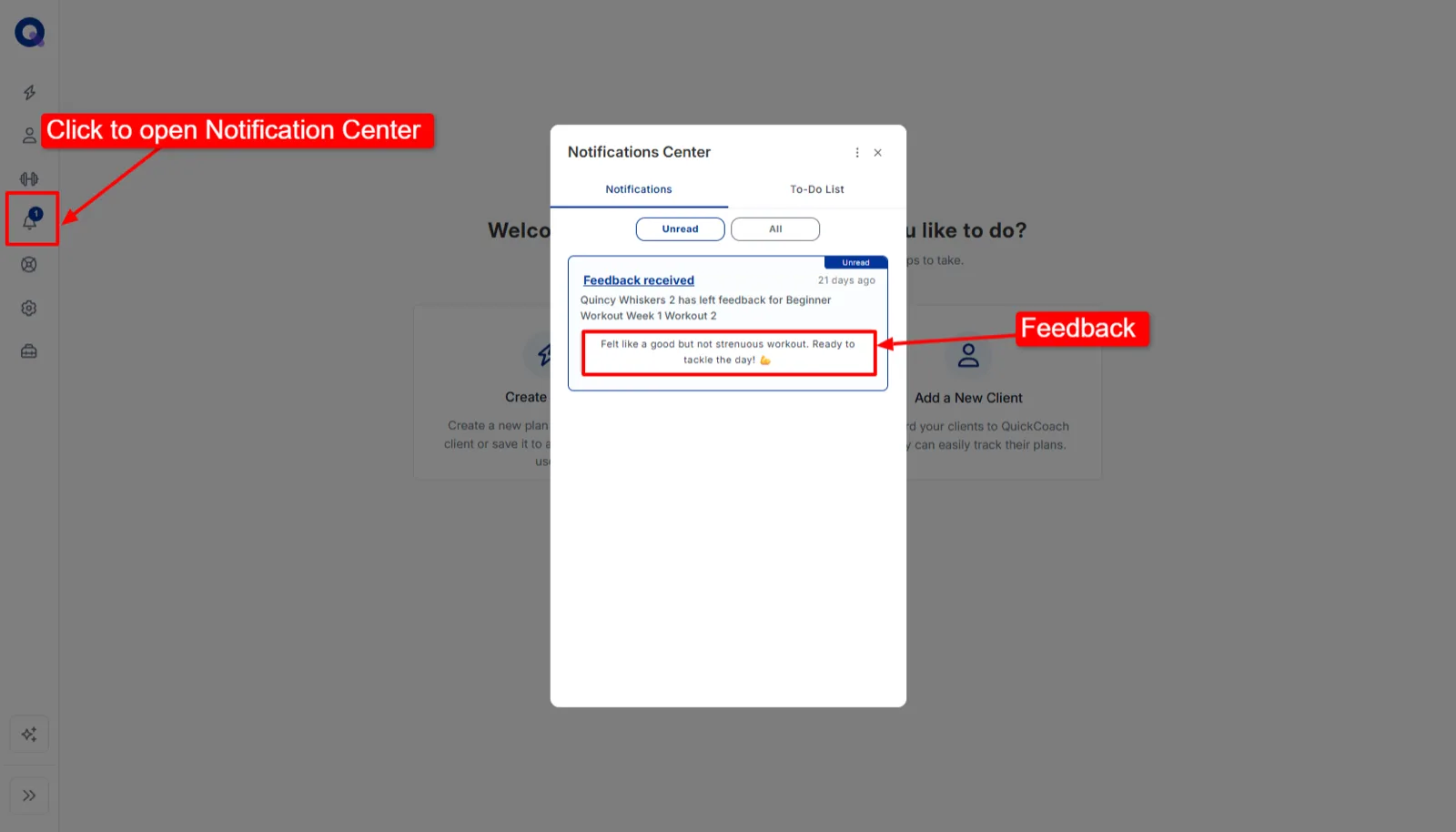
Note: Feedback only appears here if in-app feedback notifications are switched on. See how to get notified about client activity.
Completed plans
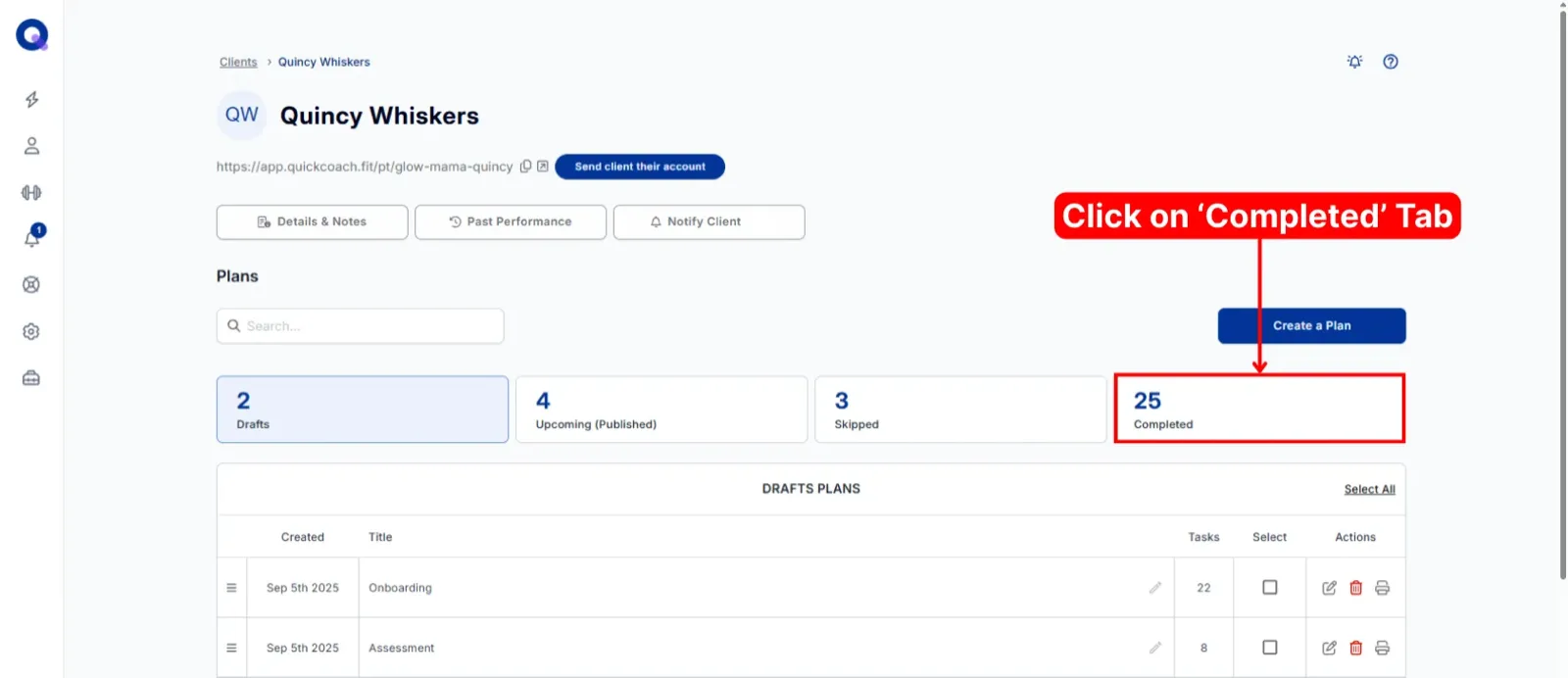
- Open your client's account and click the 'Completed' tab.
- Click the plan you want to check.
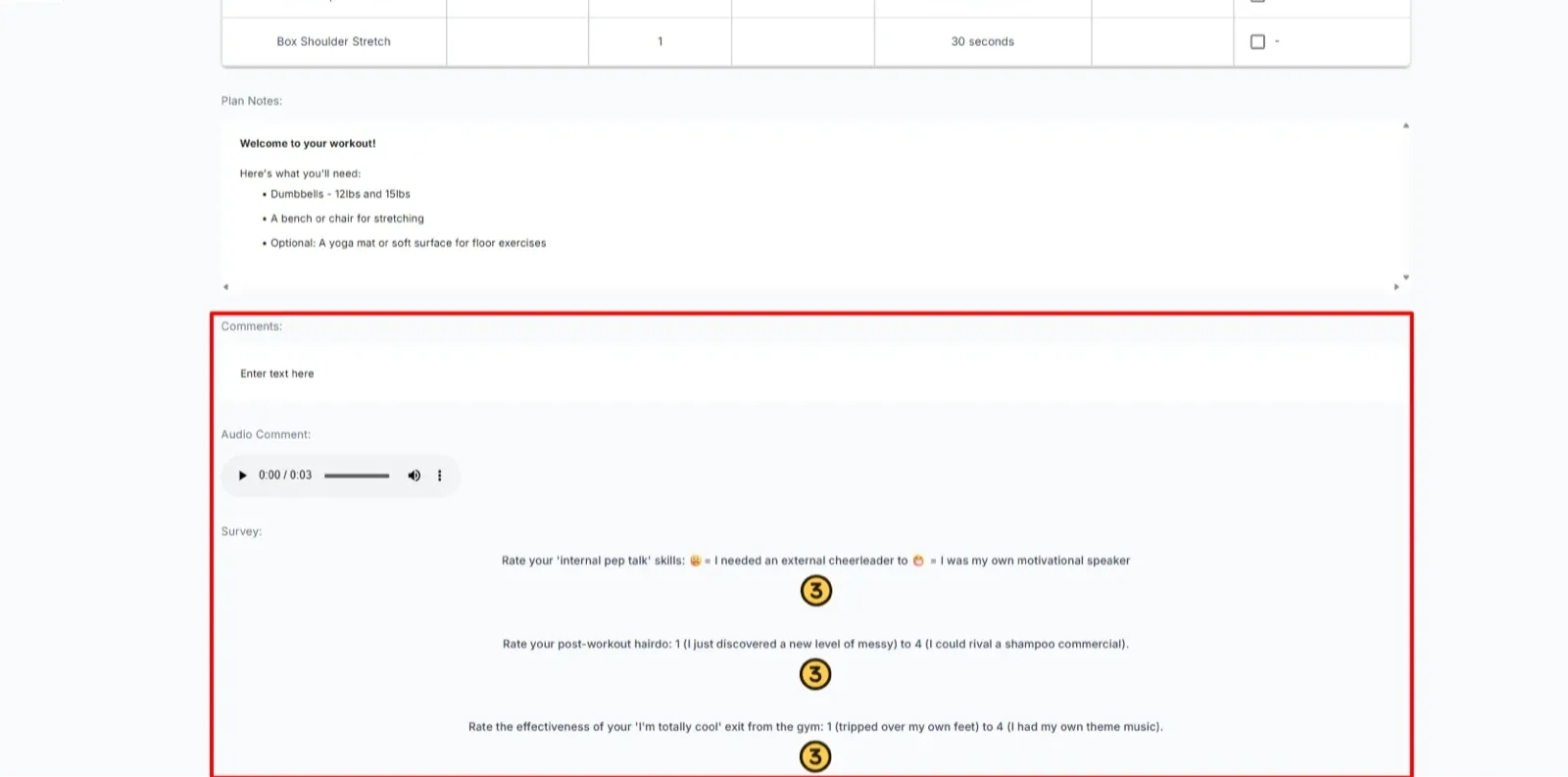
- Scroll to the bottom of the plan. If your client left feedback on it, it shows there.
I got a feedback notification but it isn't on the dashboard. Where did it go?
Open the completed plan itself. Feedback still shows at the bottom of the plan, so you can read it there while the dashboard catches up. If it's genuinely missing, tell us through live chat or email (see getting help) so we can look into it.
Why there's no message inbox
QuickCoach has no chat window or message inbox, and that's a deliberate design choice. You're almost certainly already reaching your clients somewhere else, whether that's text, email, Instagram or a Facebook group. A built-in messenger would fragment those conversations further and pull you back into the app every time a client typed something. Keeping messaging out means QuickCoach stays the place for programming and results, not another notification stream to manage.
The best ways to reply
Attach a personal audio note to a task when you deliver the next plan. It lands exactly where your client will see it, in context with the exercise or check-in it relates to, and it feels far warmer than a line of text. The full steps are in adding media to tasks, which also covers written notes if you'd rather answer in text.
You can also adjust the next block based on what a client told you, or send a quick one-way push notification when a short acknowledgement is all that's needed.
Watch the responding walkthrough (2:25).