
See a client's History and results
The Past Performance tile opens a client's History of every result they log. Read each task's trend, open the plan behind a result, and fix wrong entries.

History tells you whether a client is heading in the right direction. It gathers every result they've logged for a task so you can see the trend, not just the last number. This guide covers reading that history, reviewing everything a client submitted with a completed plan, and correcting a result when someone logs the wrong number.
Watch the History walkthrough (2:00).
Note: The tile on a client's page is labelled 'Past Performance', and the page it opens is titled 'History'. They're the same place. QuickCoach's features and screen layouts may change over time, but the core workflow stays the same.
What a task needs to be tracked
For a task's results to show up here, two things have to be true:
- The task was saved to your task library when it was built. In the plan builder, library tasks carry a book icon next to their name.
- The client has completed a plan that included the task and typed something in the results box. Empty results are filtered out.
If you're setting up trackable check-ins or measurements from scratch, check-ins, forms and measurements covers the build side.
Open History
From the client's page, click the 'Past Performance' tile.
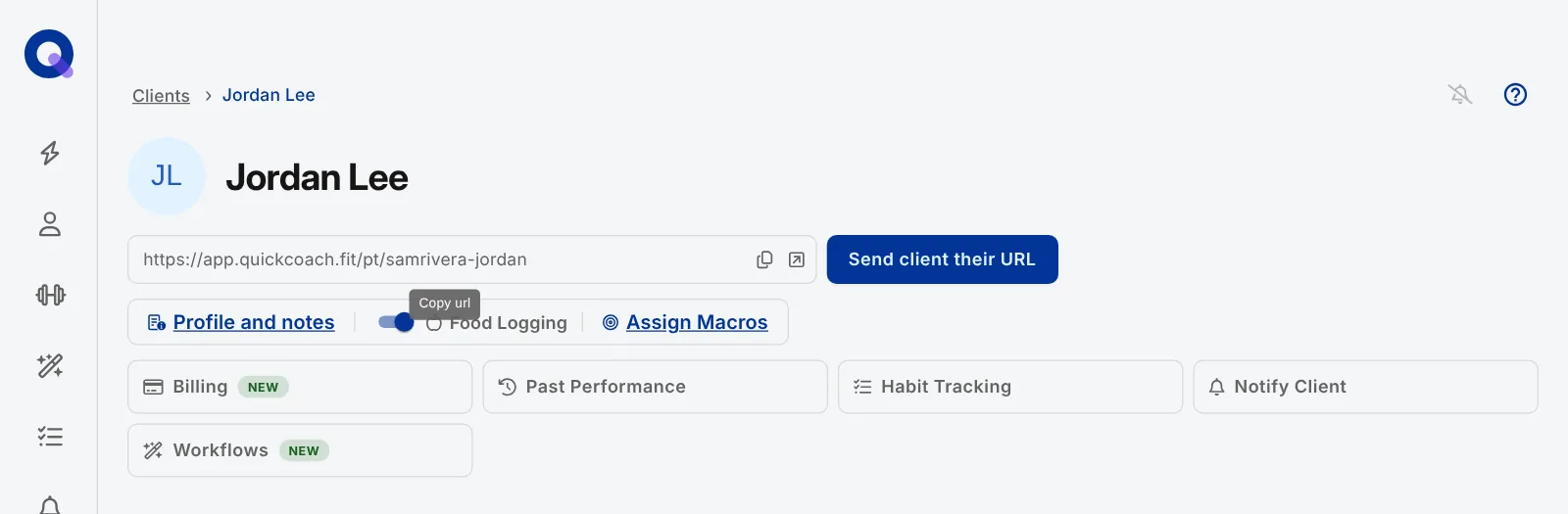
It opens the client's History page, with 'Workout History', 'Habit Tracking' and 'Food Logging' tabs (Food Logging is Pro). Task results live under Workout History, where you'll see every tracked task with the date it was last performed and the most recent result.
See the detail for one task
In the Actions column, click the graph icon for the task you want to dig into.
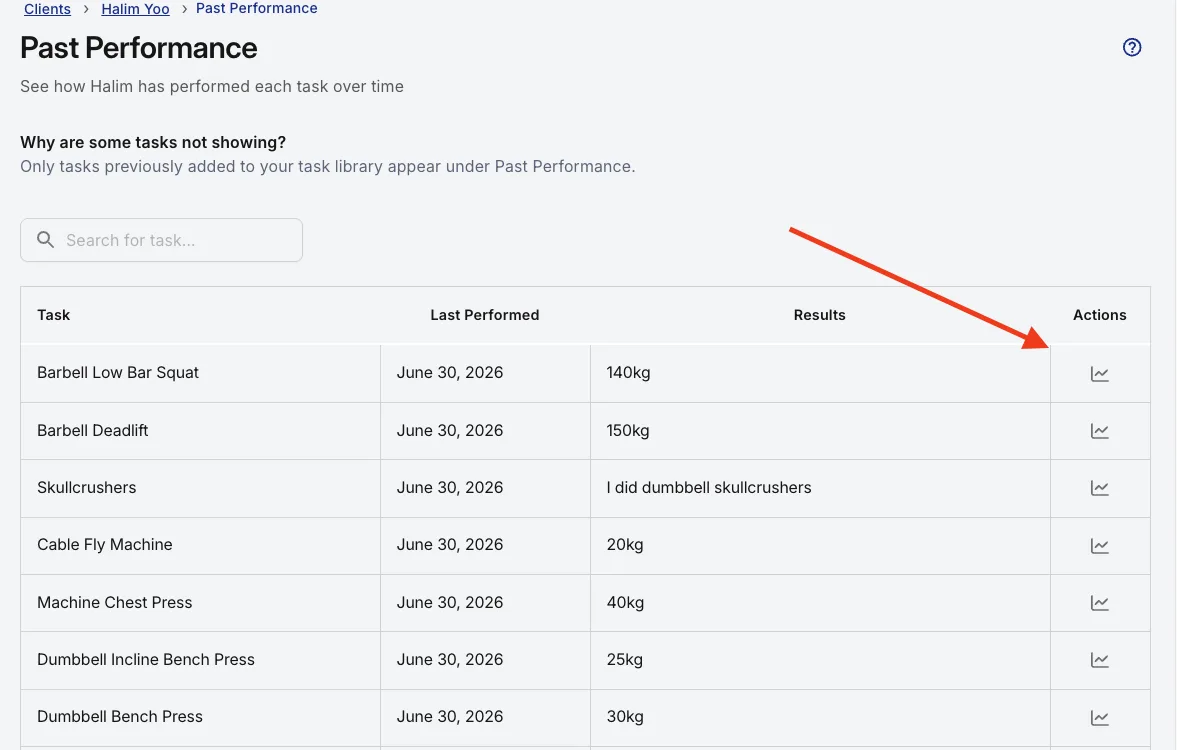
The task's history page (its breadcrumb reads Past Performance, then the task name) shows the first result the client logged, their most recent result, the date of each attempt, the result each time, and the plan each one came from.
Open the completed plan behind a result
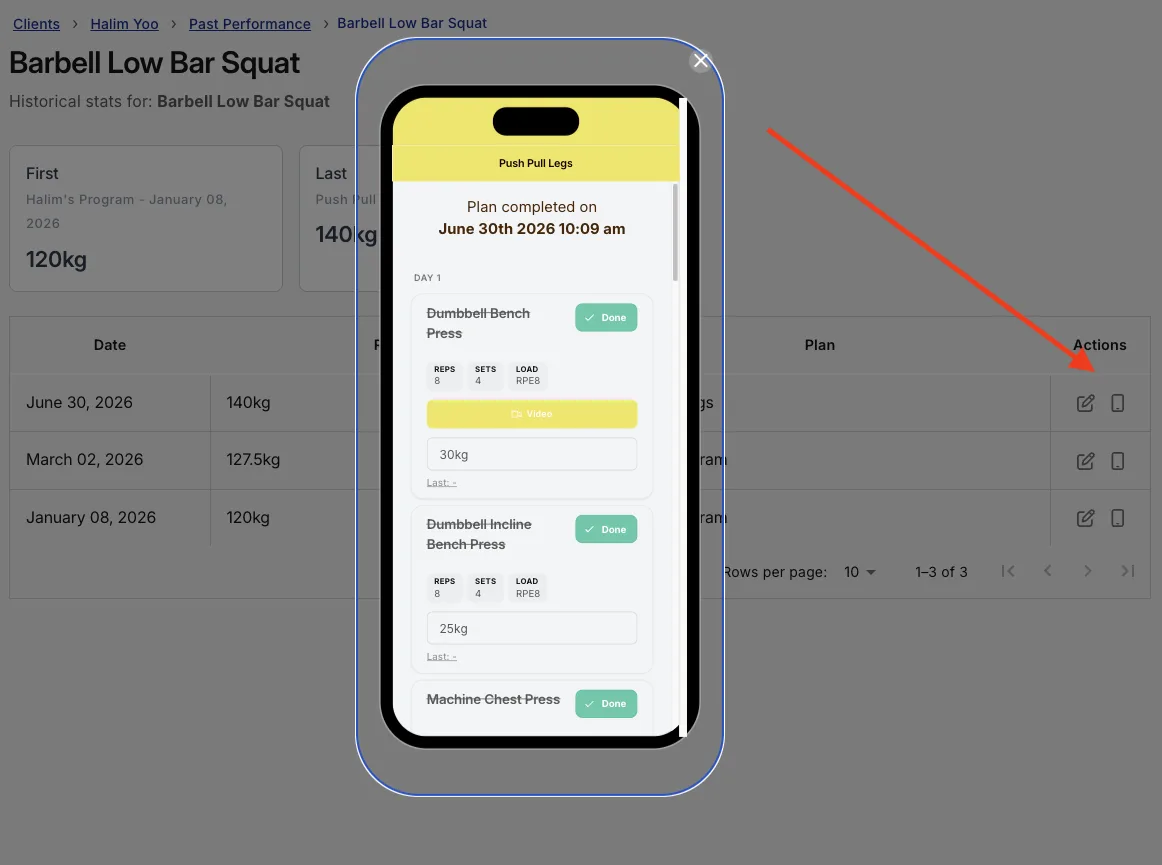
Results make more sense with their plan around them. On a task's history page, click the phone icon next to the result you want to open.
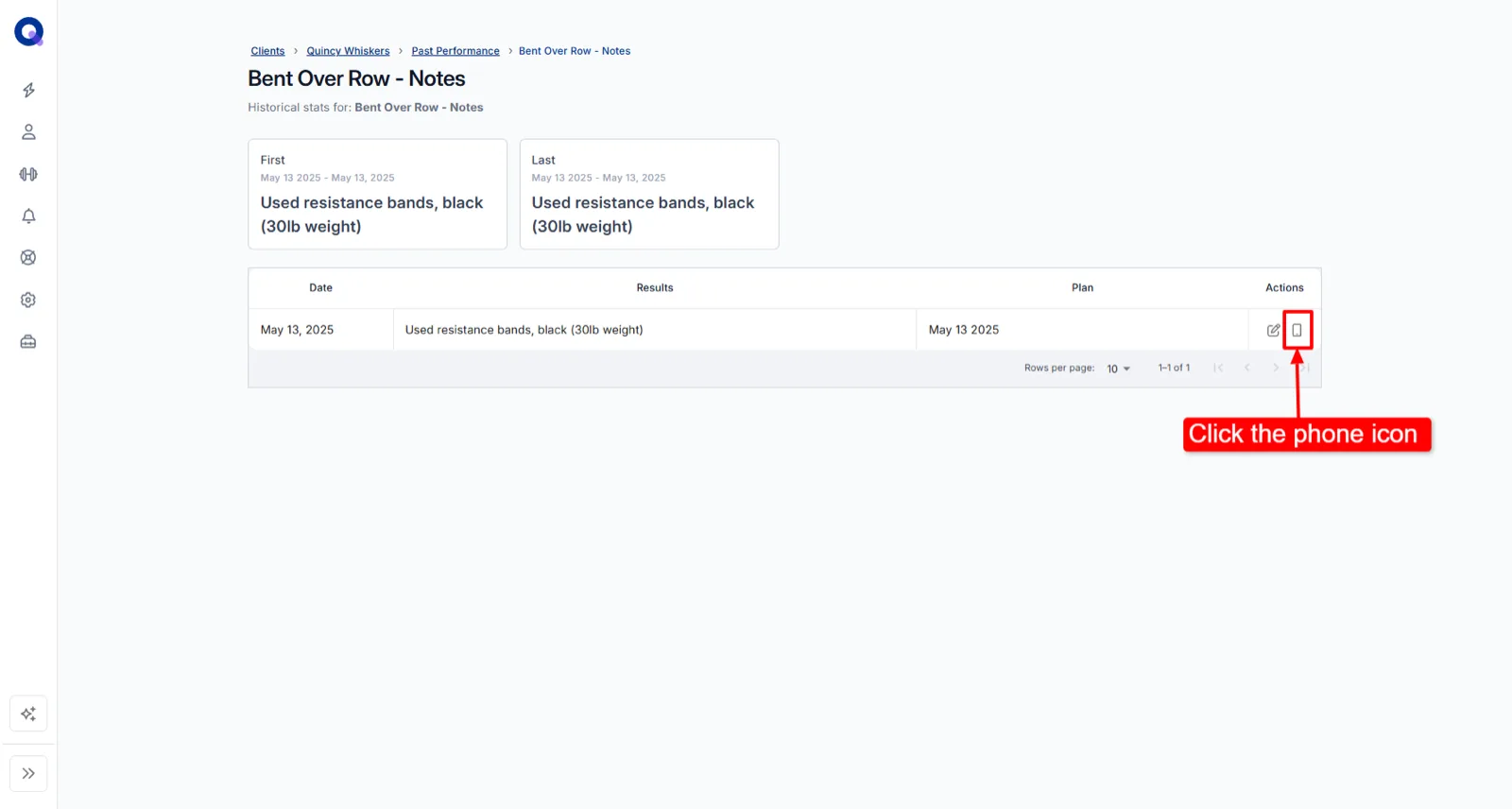
The client's view of the completed plan pops up. It shows every task in that plan, along with whatever the client typed into their result boxes.
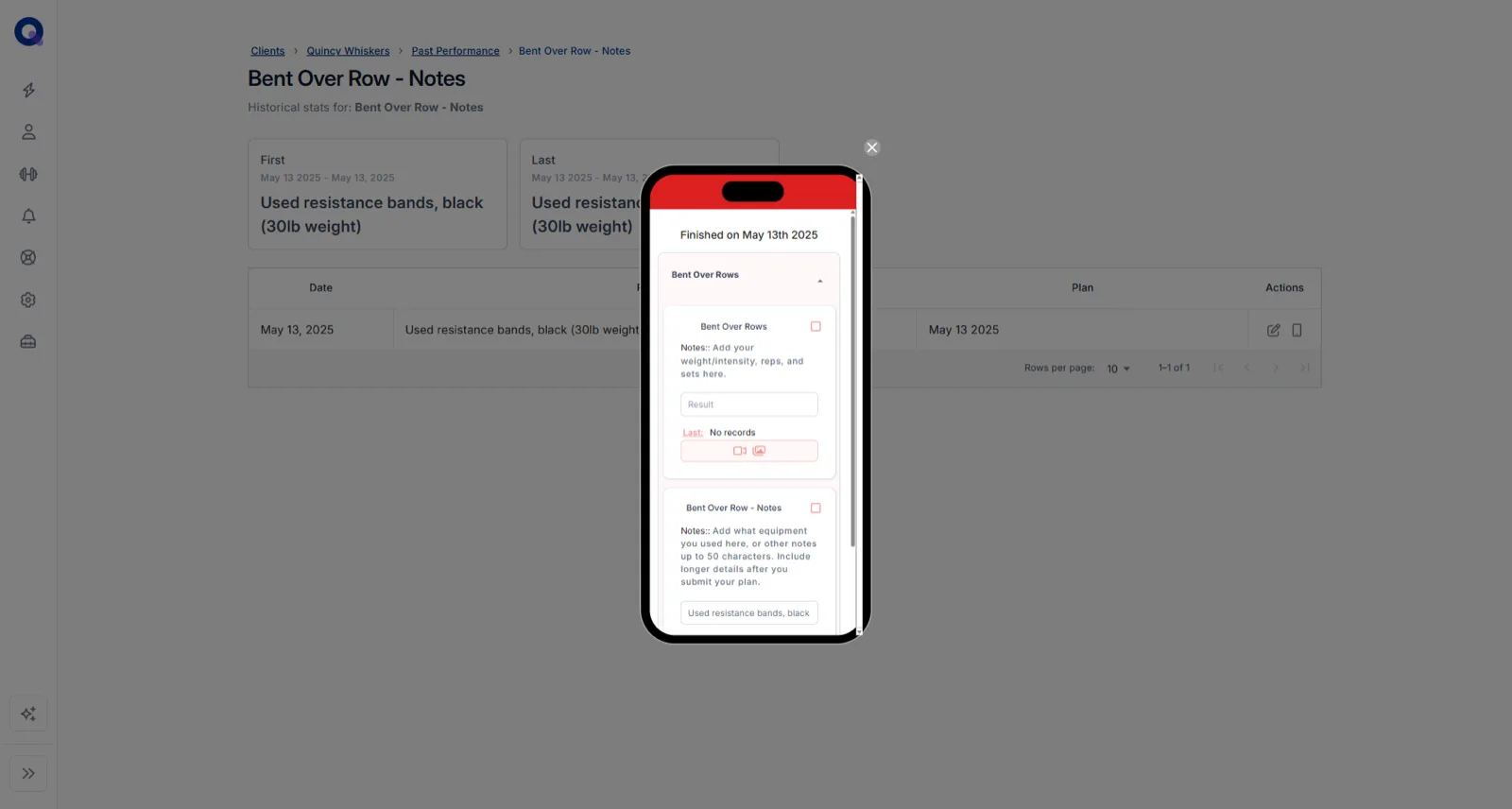
Watch the completed-plan results walkthrough (3:00).
Review results from the Completed tab
You can also open a finished plan directly, without going through History. On the client's page, click the Completed tab, then click the pencil icon on the plan you want to review. The plans by status guide explains what sits under each tab.
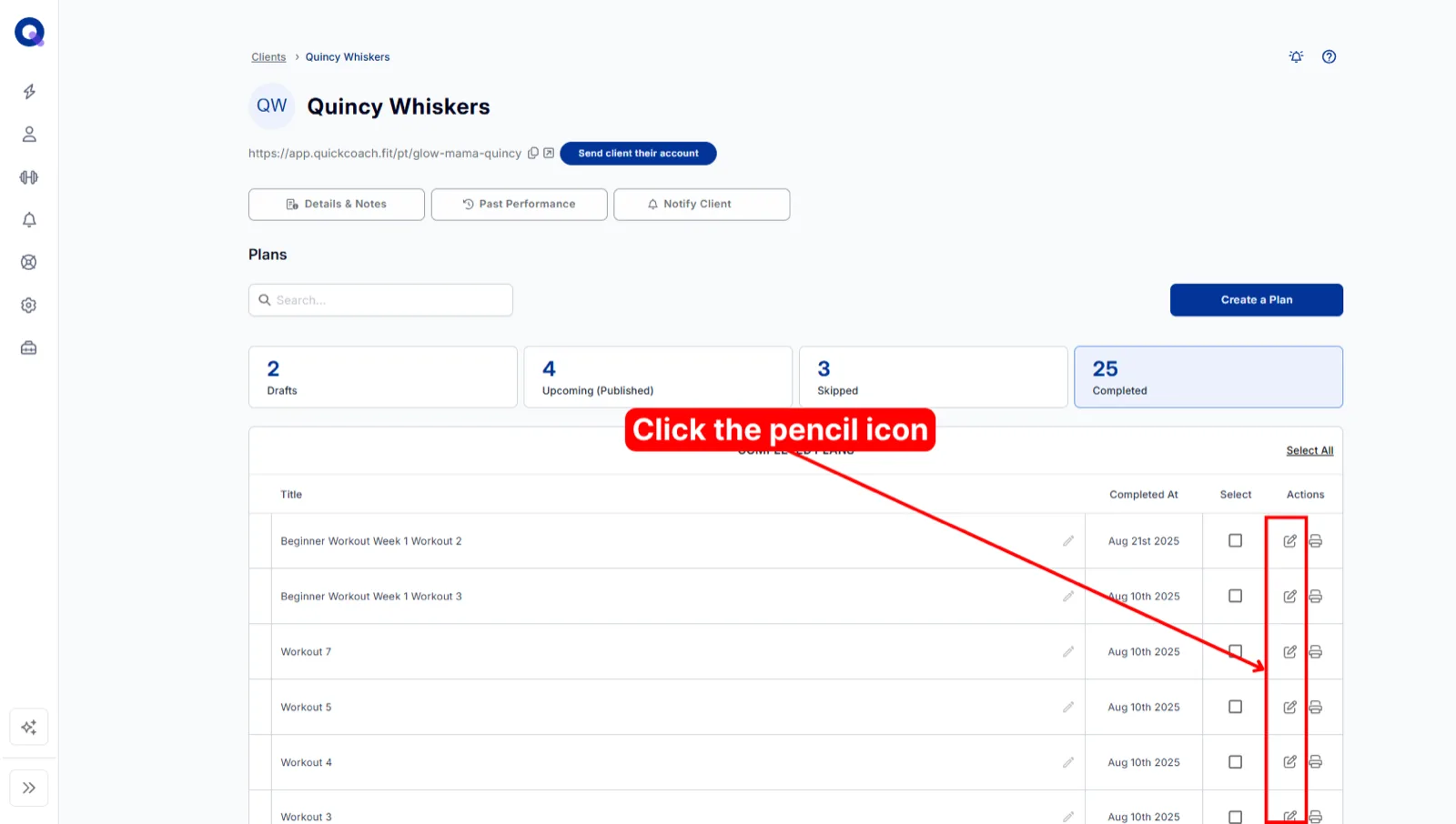
The completed plan opens. Anything the client entered in a result box, or any task they ticked off, appears in the Result column. If they left feedback or answered your survey, you'll find it under Plan Notes.
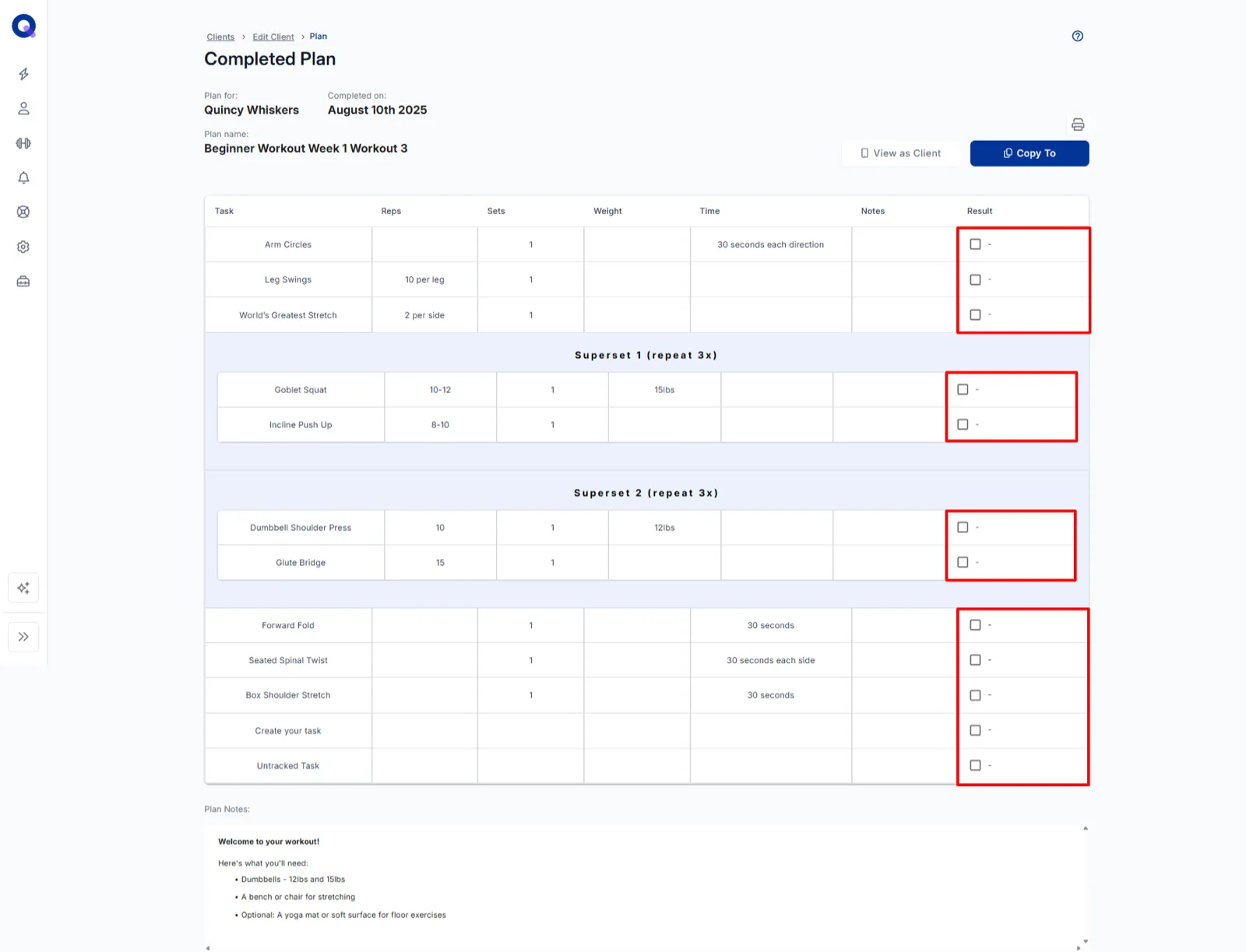
Fix a wrong result
Clients can't edit a plan once they submit it. If they logged the wrong number or made a typo, you can put it right for them as their coach.
Click 'Past Performance' on the client's page and click the task you need to edit. The task's history page lists every entry. Click the edit icon on the entry you want to correct.
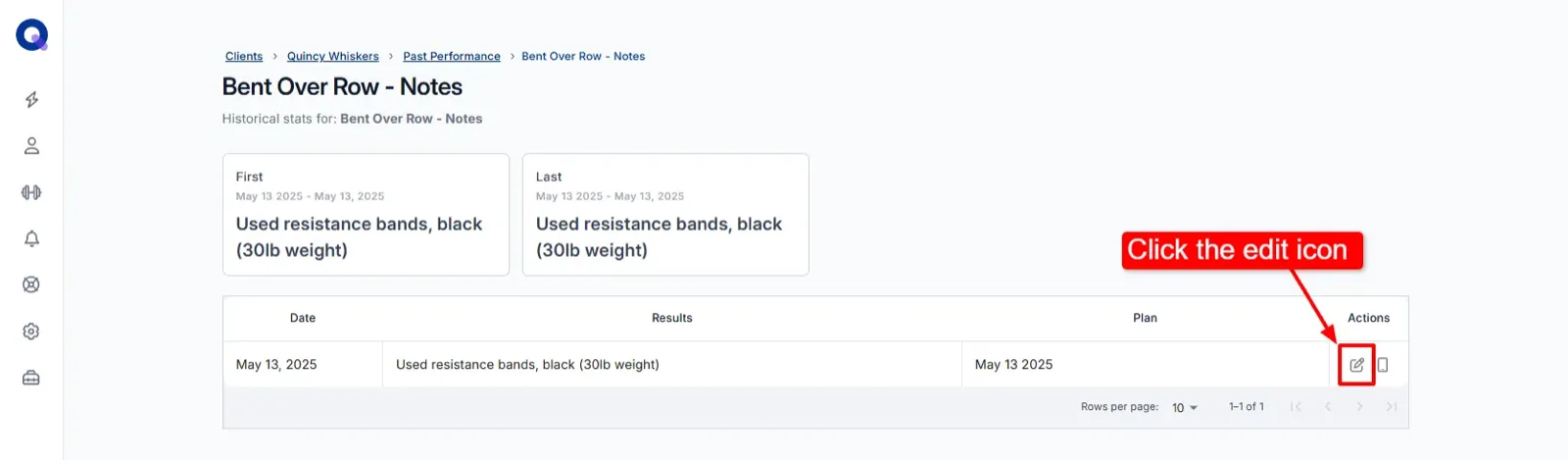
The 'Edit Past Performance' dialog opens, showing the plan and date. Type in the correct result, then click Save.
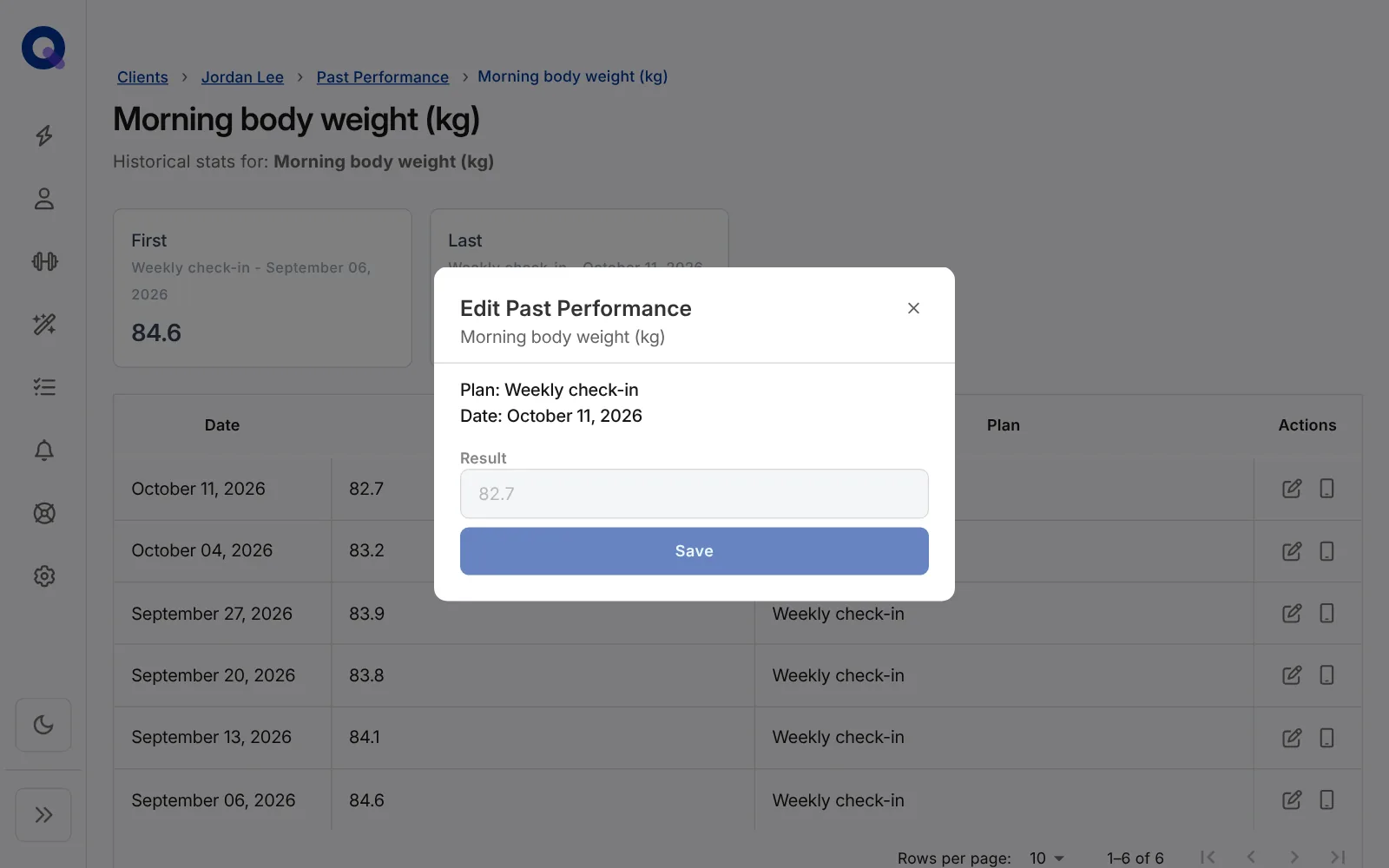
That's it. The updated result now shows everywhere it appears, including the task's history and the completed plan it came from.
How far back history goes on Free
On Pro, and on older Free accounts, History goes all the way back to the first result your client logged. Free accounts created under the current Free plan rules show the last 180 days only. Anything older is replaced by an "Older history requires Pro" card, which notes that the data is retained. Nothing is deleted, and upgrading brings it all back into view. Your client sees the same limit in their app, with a "Your full history is saved" card. See QuickCoach Free and Pro, explained.
What you can and can't change
Can I edit a client's results? Yes. Results are the one field you can fix, using the steps above.
Can I change the date of a completed plan? No, the completion date can't be edited.
Can I add or edit the tasks in a completed plan? No, a completed plan can't be reopened.
Can I edit the client's feedback or survey responses? No, neither you nor the client can change these once they're submitted. To review them, see your client's feedback.