
Copying, duplicating and repeating plans
Duplicate the plans you reuse most, copy a client's plan to a template or another client, and build repeating programs from copies instead of rebuilding.

As you build out programming, the same plan often earns a second life. Common reasons to copy one:
- Repeating workouts with small changes week to week
- Weekly or monthly check-in forms
- Repeating meal plans
- Sending reassessments
There are a few paths, depending on where the plan lives and where the copy should go.
Watch the video walkthrough (3:22).
Note: QuickCoach's features and screen layouts may change over time, but the core workflow stays the same.
Copy plans inside a Program Template
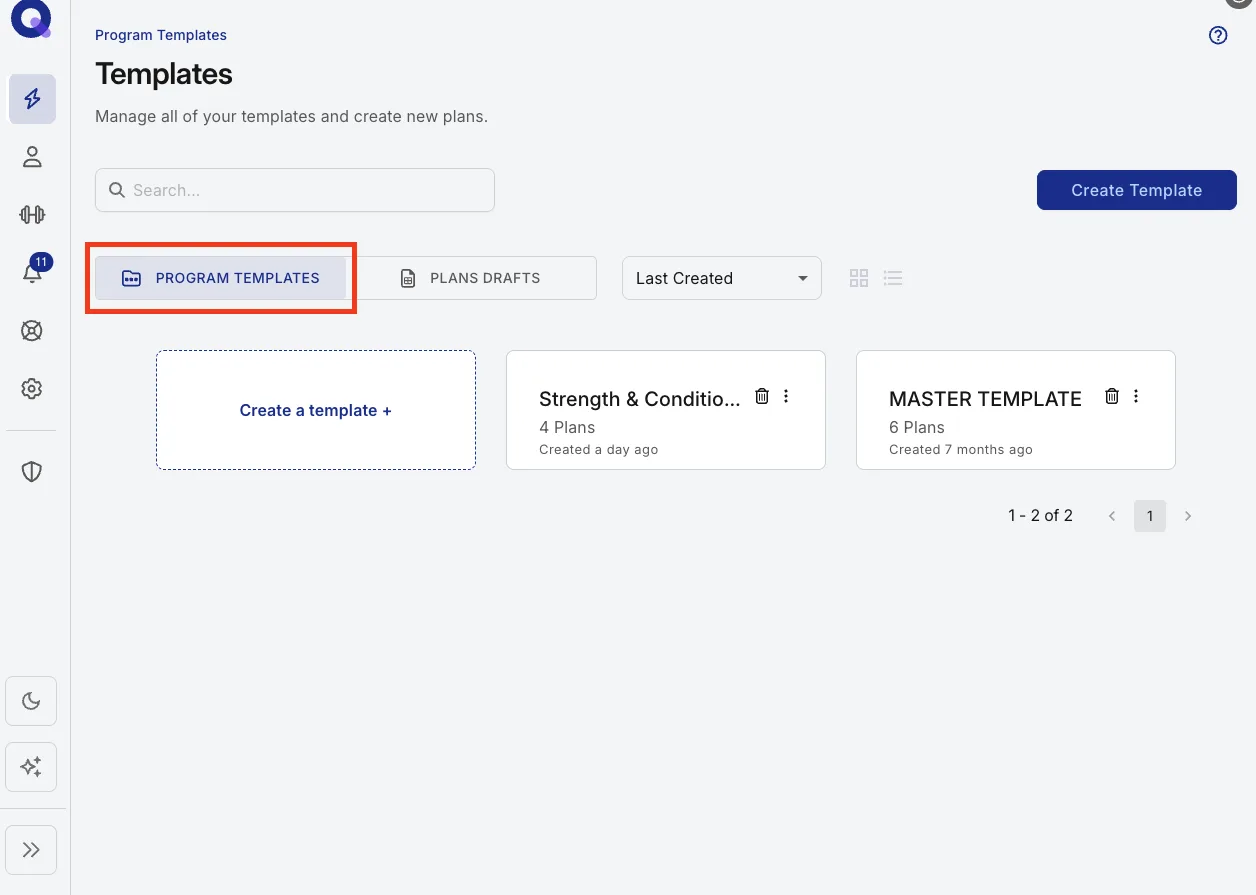
- Click the lightning bolt icon ('Plans') in the left navigation to open your Templates page.
- Click the Program Templates tab if you're not already on it.
- Open an existing template by clicking it, or start fresh with '+ Create Template'.
- Tick the boxes next to the plans you want to copy, then click the 'Copy Selection' icon at the top of the table. A message confirms how many plans were copied.
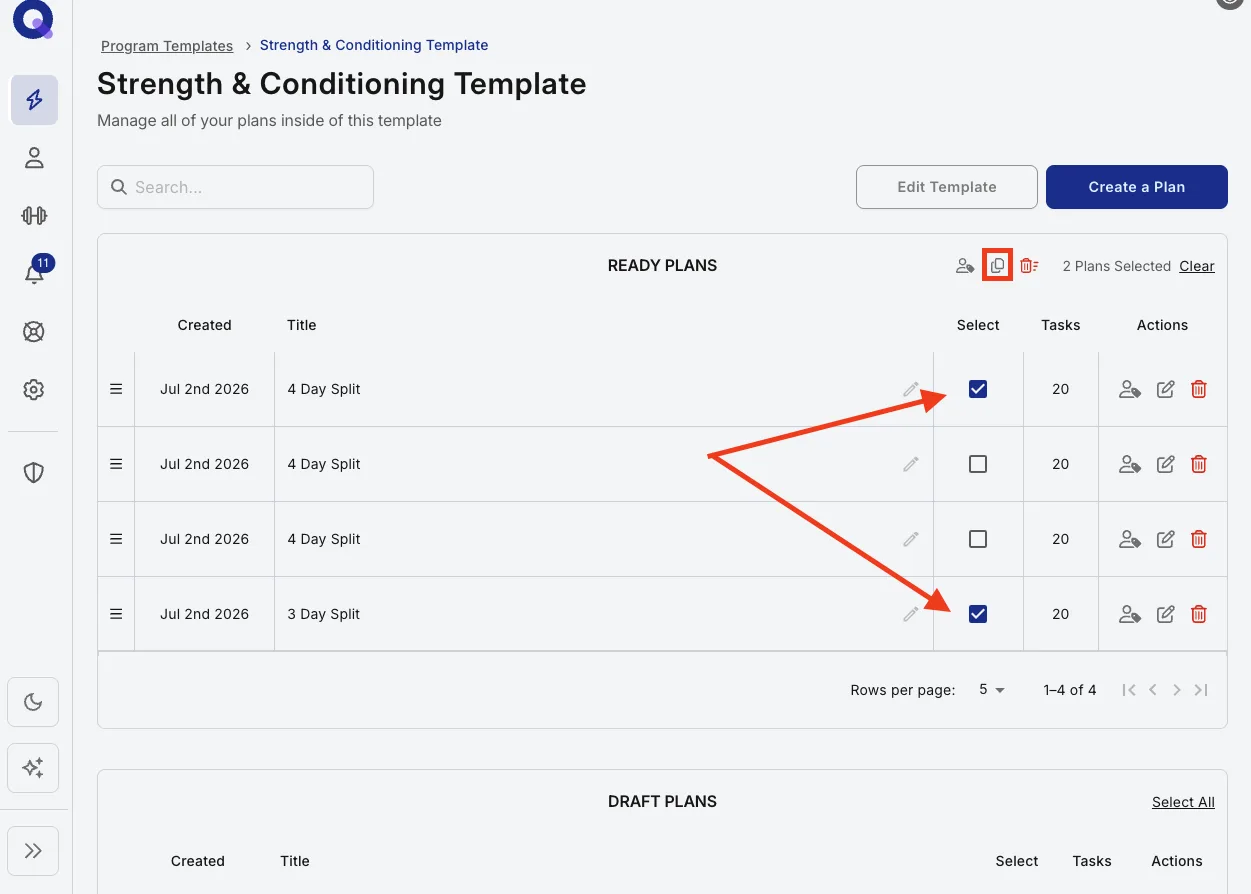
Tip: If you have a lot of plans, some may not show on the first page. Use 'Rows per page' under the table to show 5, 10, 20, 50 or 100 at once, then select any you like. 'Select All' ticks every plan on the current page.
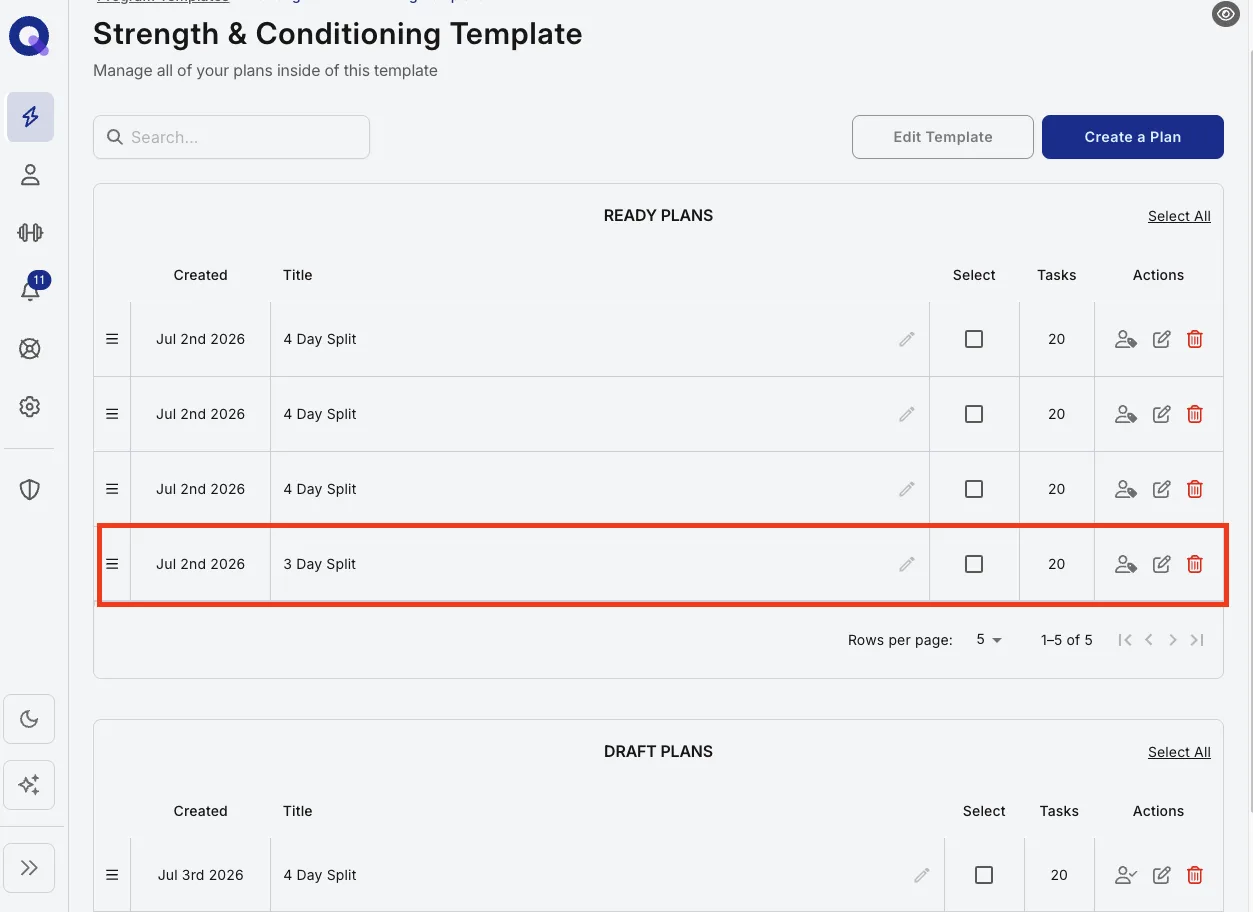
Your copies land in the Draft Plans section. Click a copy's edit icon to open it in the plan builder, make your changes, and click 'Publish plan'. The plan then moves to the bottom of your Ready Plans section.
Duplicate plans from a client's account
- Click the person icon in the navigation to open your Clients page.
- Click the client whose plans you'd like to duplicate.
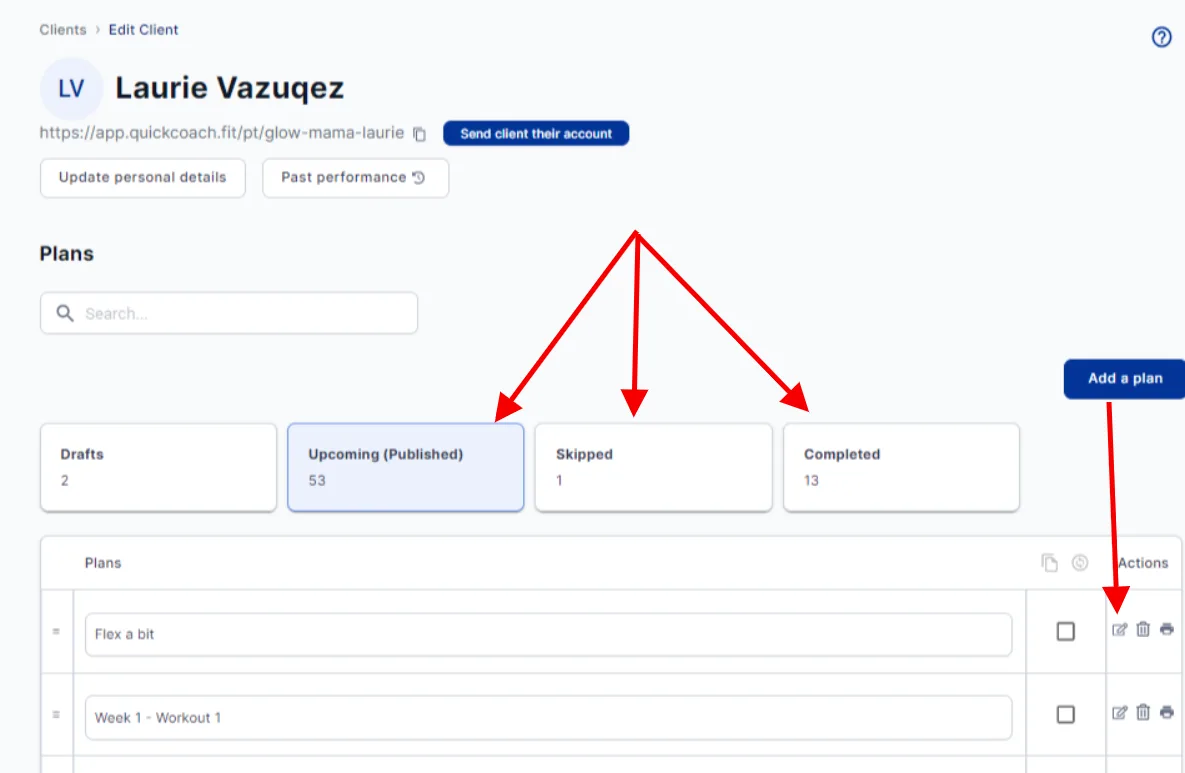
- Their plans are filed under four possible tabs: Drafts, Upcoming, Skipped, and Completed. Open the tab holding the plan you want.
- Tick the boxes next to the plans, then click the 'Copy Selection' icon at the top of the table.
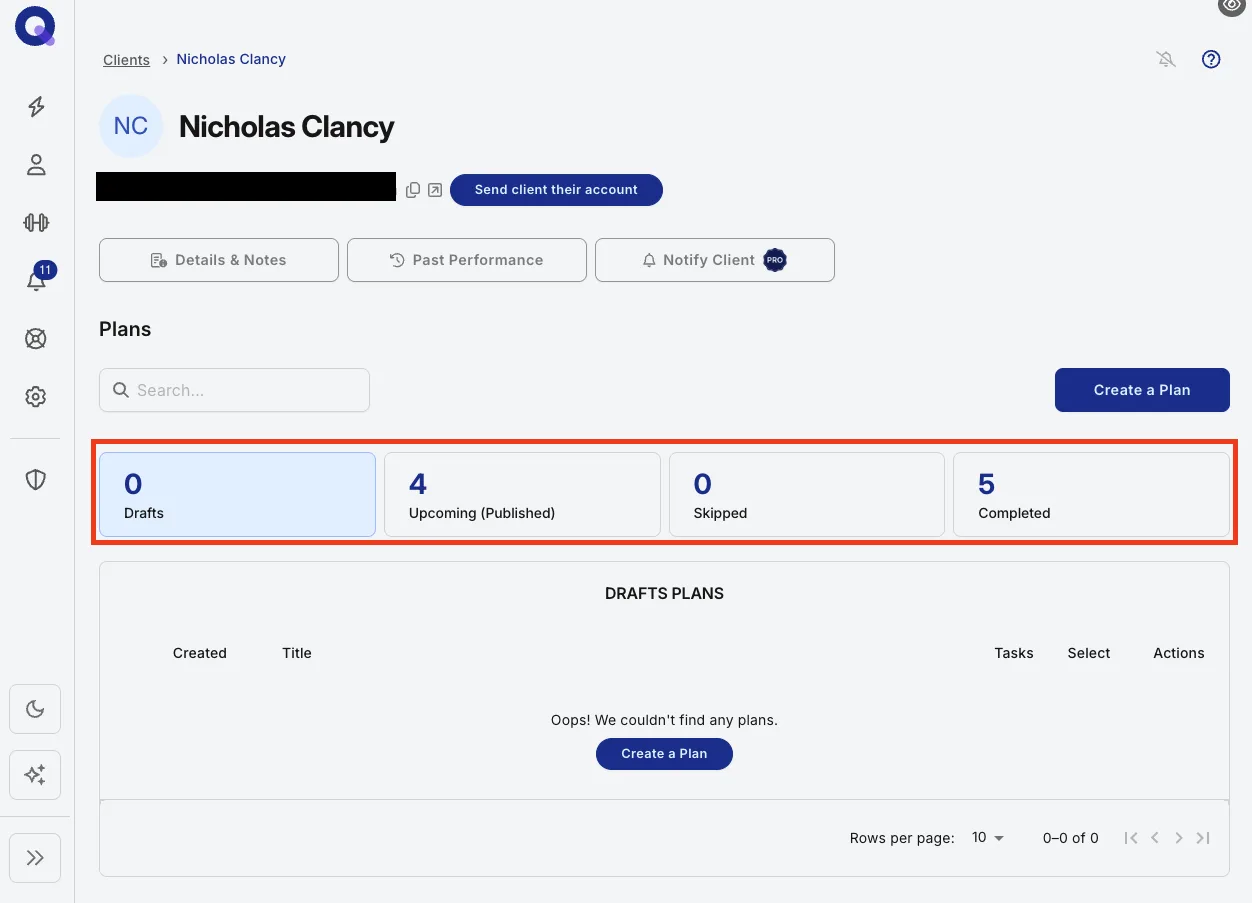
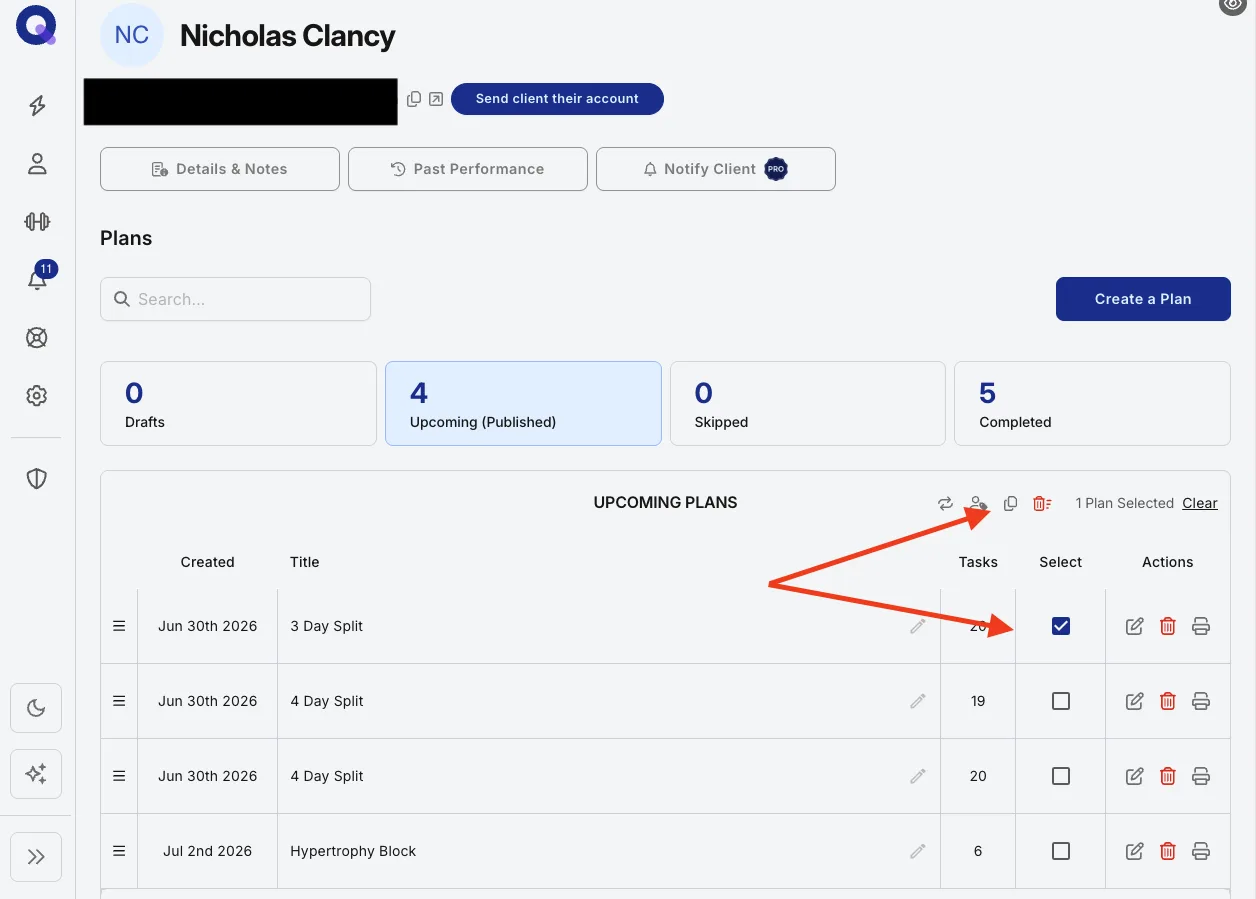
The copies land in the client's Drafts tab. If a copy needs changes, click its edit icon, make them, and click 'Publish plan' from the plan builder. The plan joins the bottom of the Upcoming list.
No changes needed? Publish several at once instead. On the Drafts tab, tick the boxes next to the drafts and click the 'Change Status' icon; they all move to the bottom of the Upcoming tab.
Copy a client's plan to a template or another client
Sometimes a plan you built for one client turns out to be exactly what several others need. Rather than rebuilding it, copy the existing plan over to your templates or to another client.
Watch the video walkthrough (2:31).
Find the plan and open Copy To
From your client's dashboard, open the tab where the plan lives, then click its edit icon.
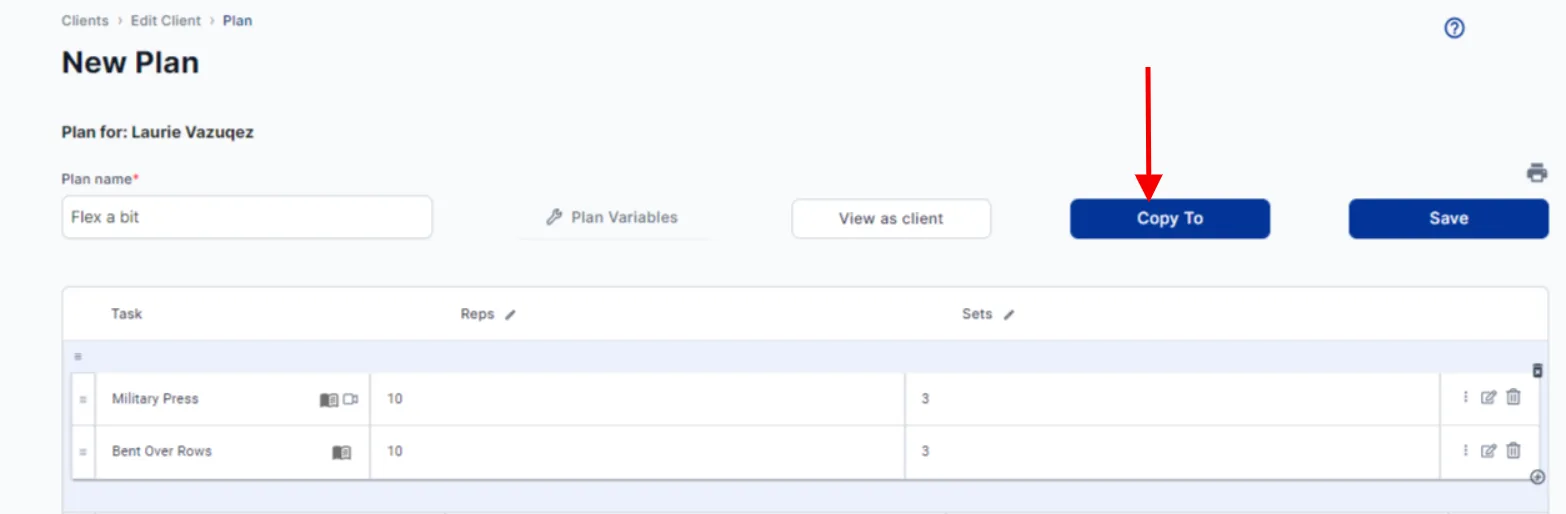
Inside the plan builder, click the Copy To button.
Choose where to send it
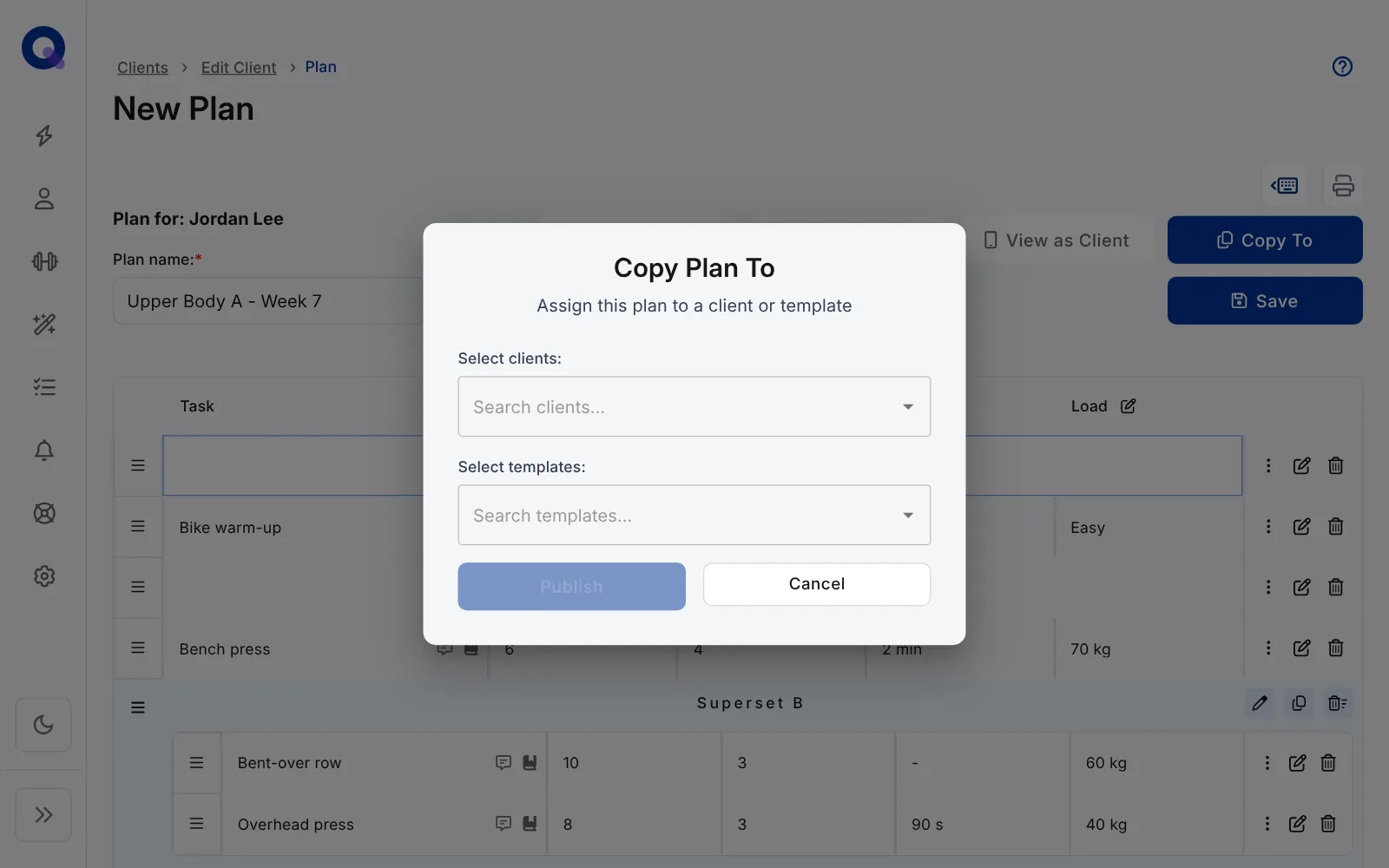
The 'Copy Plan To' window opens. Pick as many clients as you like under 'Select clients:' and any templates under 'Select templates:', then click 'Publish'. The button stays greyed out until you've picked at least one.
Where the copies land
Copy To publishes the copies straight away, so there's no extra publish step. A copy sent to a client goes into their 'Upcoming (Published)' tab, ready for them to see, and a copy sent to a Program Template goes into its Ready Plans section. The original plan stays where it was.
Want to tweak a copy before a client sees it? Copy it to a template first, edit it there, then assign it from the template. Or open the copy in the client's account and edit it; changes to a published plan show for the client straight away.
Tip: A newly published plan or copy joins the bottom of the published list, so you may need to move it. You can reorder your client's plans at any point, and program templates work the same way: just click and drag.
Build a repeating program from copies
Plenty of good coaching runs on cycles. A four-week block repeats with heavier loads, or a maintenance client runs the same week until their next review. Plans themselves are one-shot: once a client submits one, it's done. So repetition in QuickCoach means copies, and that's quicker than it sounds.
Many programs run a handful of workouts that repeat across the weeks with small changes, such as three sessions done twice a week for four weeks. You don't rebuild each one from scratch. Instead, clone an existing plan and adjust it.
Watch a full build (19:32) where a three-workout month, progressed each week, is put together from copies.
- Build your first workout in a Program Template. If you haven't built one before, follow the build-along guide to your first program template, which walks through exactly this.
- Copy that plan (using any method above) for each time the workout repeats.
- Open each copy and progress the volume or intensity while keeping the same exercises.
Tip: Save the general structure of a workout as a template, then use it as the starting point for each new plan. It's the fastest way to keep a program consistent. See Program Templates and Plan Drafts for how templates work.
Pair repeating blocks with regular check-ins so the plan keeps repeating but the coaching stays live. And once a program lives in a template, you can assign the whole folder at once the next time a similar client starts.
The two habits that save the most time here, cloning instead of rebuilding and starting every program from a template, are written up on the main site in build repeating workout programs faster.
To copy, publish or delete several of one client's plans at once, see managing a client's plans in bulk.