
Customise your client welcome email
Brand the welcome email clients receive on Pro with your logo, colours and your own wording for the body text, support line and sign-off.

On Pro, the welcome email that carries a client's account link can be branded to look like it came from your business. Your logo and business name are pulled in from your app branding, and here you choose the header, title and button colours. On the Free plan, clients receive the default QuickCoach-branded version instead.
Why the email is worth branding
Emails are part of the client experience whether you design them or not. A welcome email with your logo says you run a professional operation. A generic platform email says you rent one.
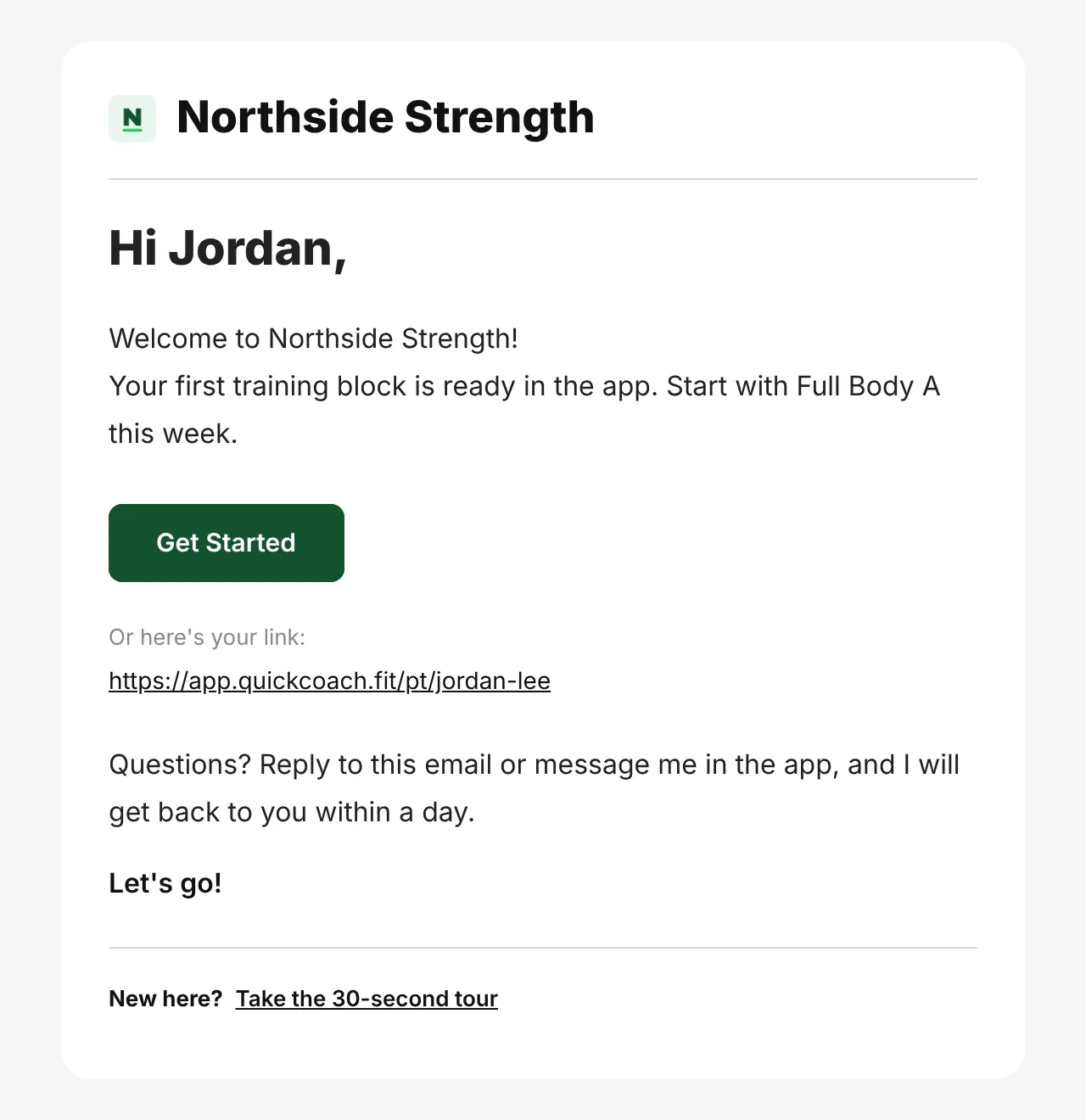
We made the longer case for this on the main site in why branded coaching emails matter.
Branded emails switch on with the rest of your branding: every email QuickCoach sends your clients carries it once your logo and colours are set in your branding settings. There's nothing separate to configure per email. The colour choices on this page are the one extra layer, and they apply to the welcome email specifically.
Tip: The email is optional. You can send a client their link any way you like, a plain email or a text. See sending clients their account for every delivery route.
Note: QuickCoach's features and screen layouts may change over time, but the core workflow stays the same.
Customise the email
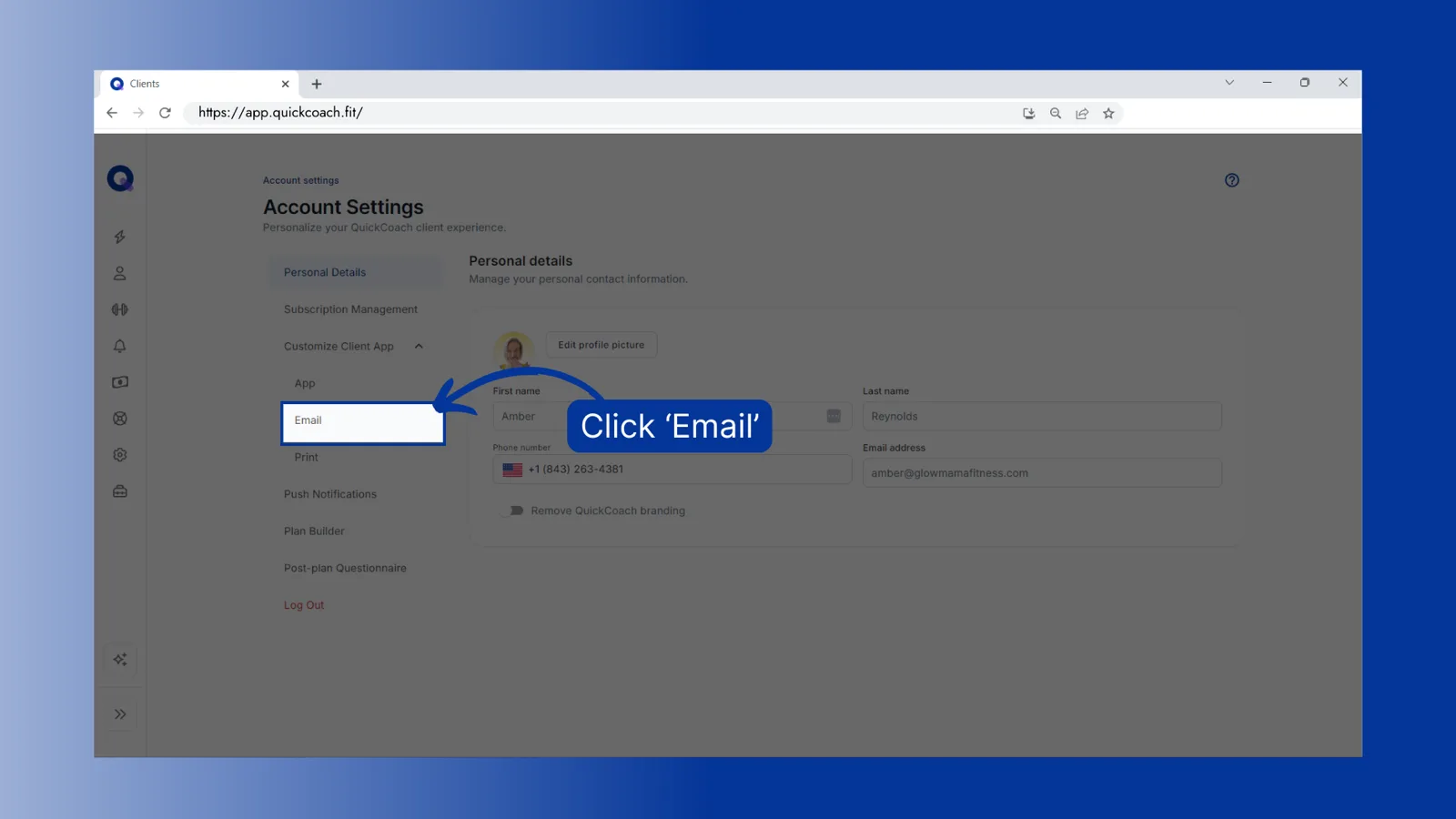
From the left navigation, click the settings icon. Click 'Customize Client App', then click 'Email'.
Your business name and logo already appear, carried over from your custom-branded client app setup. Use the dropdowns to set the three colour slots: header, title and button. Each can use your existing theme or background colour, or a custom colour.
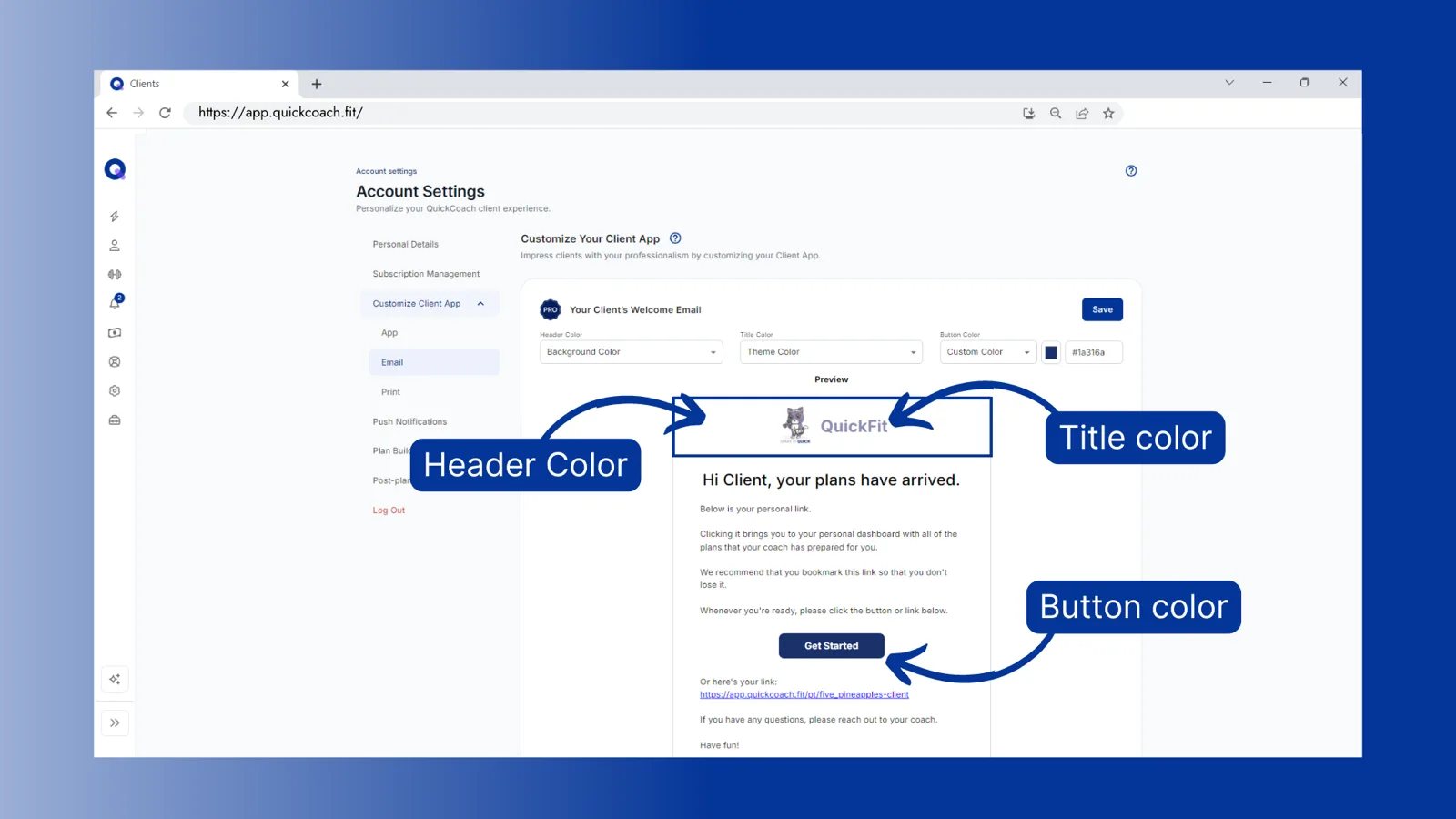
For a custom colour, type a hex code or click the colour box to use the sliders or the eyedropper to pick a colour from your screen. Check the preview, then click 'Save'.

Tip: Your logo always sits centred at a set size in the email. To make it look its best, upload an image that fills the available space rather than a small logo floating in a large canvas.
Can I edit the email text?
Yes, on Pro. On the same Email page there are three text boxes:
- Email body text: the main message, under "Hi [first name],".
- Support line: how clients can reach you.
- Sign-off: your closing line, such as "Have fun!" or "Let's go!".
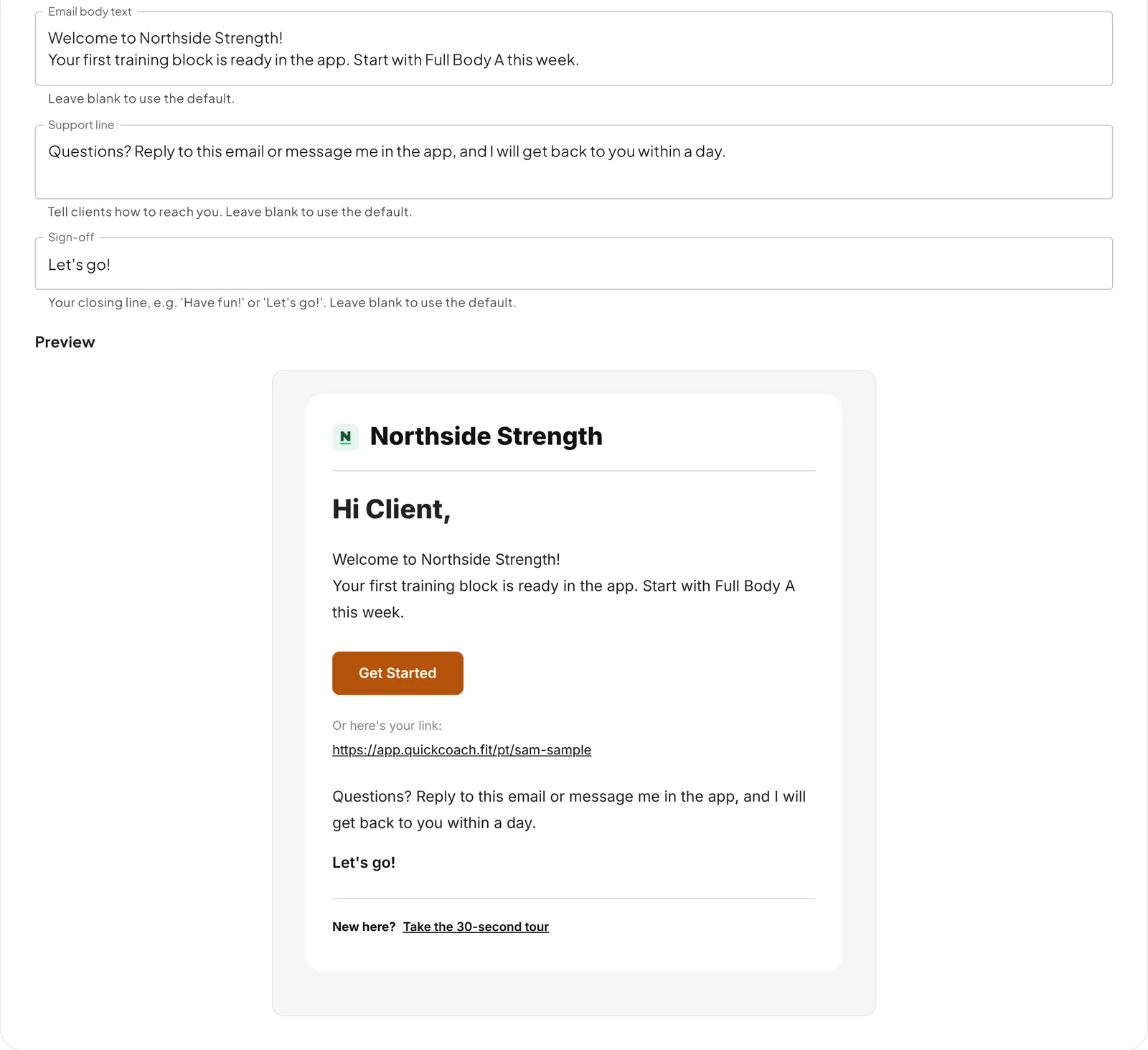
Leave any box blank to use the default wording. The greeting, the Get Started button and the link underneath it stay the same, so the email always does its job. On the Free plan these boxes are locked and clients get the default text. To see the finished email from a client's side, read the welcome email your clients get.