
Connect Stripe and get verified
Switch on Client Billing, connect your own Stripe account and finish Stripe's checks. What each account status means, and what to do when Stripe needs more.

Before you can charge a client, you need a Stripe account connected to QuickCoach and approved by Stripe. Setting it up takes a few minutes. Stripe's review usually takes less than a day.
Switch on Client Billing
- Open Account Settings and choose 'Client Billing'.
- Switch on 'Enable client billing'.

Connect your Stripe account
With Client Billing switched on, the 'Get paid by your clients' card appears. It shows your platform fee and asks for two things.
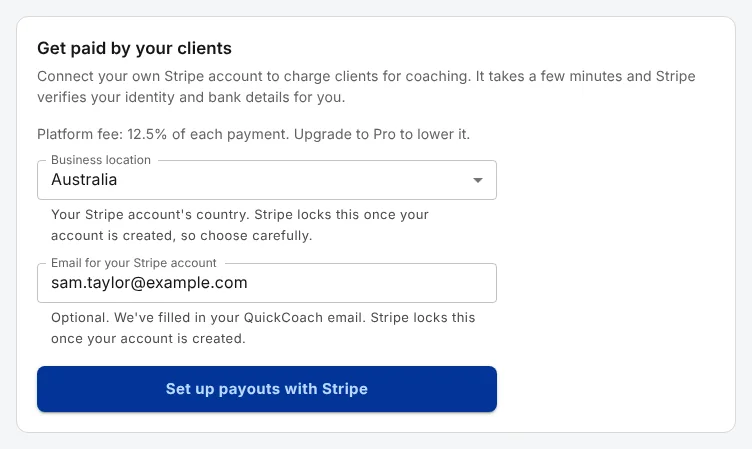
- 'Business location'. The country your Stripe account belongs to. QuickCoach suggests one from where you're signing in. Check it: Stripe locks it once your account is created, and it decides the currency you charge in.
- 'Email for your Stripe account'. Filled in with your QuickCoach email. Change it if you'd like Stripe's emails to go somewhere else. Stripe locks this too.
- Click 'Set up payouts with Stripe'. You move to Stripe's own sign-up pages.
On Stripe, you create your Stripe login and give Stripe what it needs to pay you: your details, your business and the bank account for your payouts. When you finish, Stripe sends you back to Client Billing, which checks your status with Stripe.
Note: Client Billing always sets up a new Stripe account for your coaching. It can't connect a Stripe account you already have.
Finish verifying with Stripe
Back in QuickCoach, the 'Stripe account' row shows where you're up to. Underneath, a checklist shows exactly what Stripe still needs.
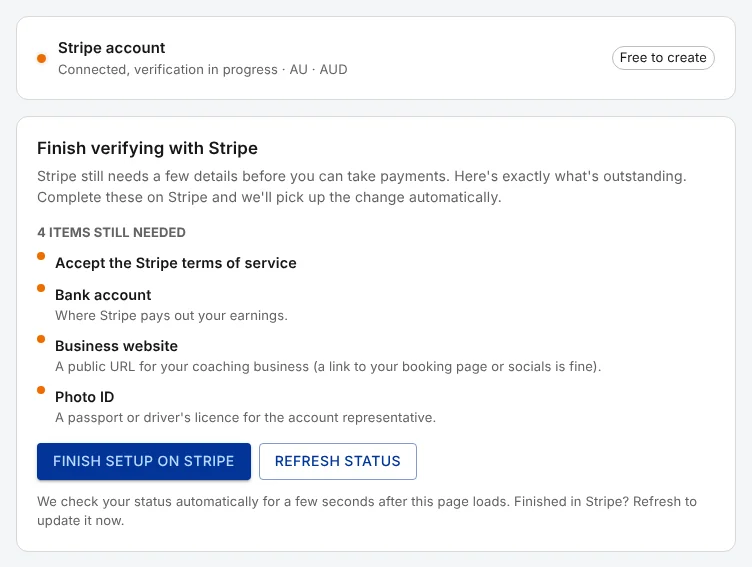
Click 'Finish setup on Stripe' to open your Stripe Dashboard and complete each item. QuickCoach picks up the change from Stripe by itself, and checks again for a few seconds whenever you open the page. 'Refresh status' checks straight away.
Left Stripe's sign-up halfway? 'Finish setup on Stripe' opens the Stripe Dashboard, which needs the Stripe login you create during sign-up. If you left before creating one, use 'Disconnect Stripe' (at the end of this article) and start again.
While Stripe reviews your details
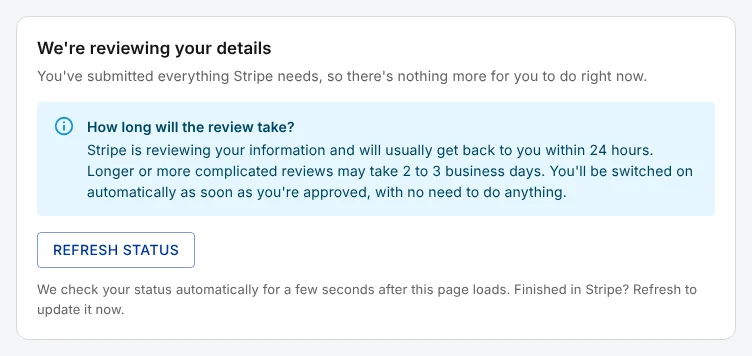
Once you've sent everything, Stripe reviews it. That usually takes less than 24 hours, and a more complicated review can take 2 to 3 business days. There's nothing for you to do: Client Billing switches on by itself when Stripe approves you.
When Stripe needs your attention
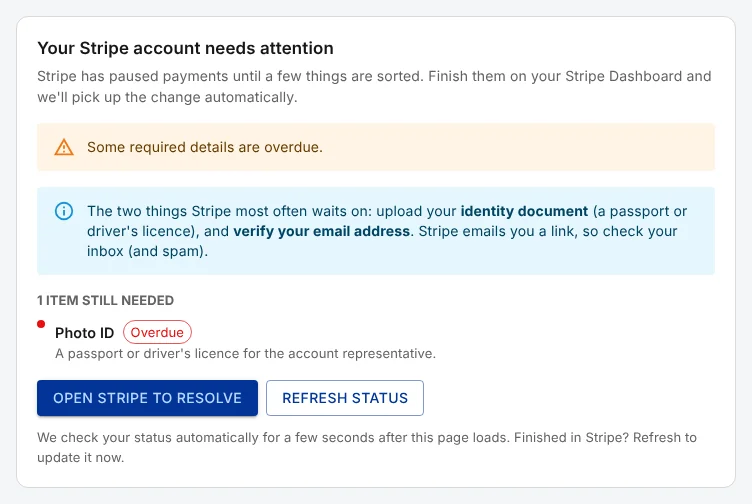
If Stripe pauses your account, the 'Stripe account' row reads 'Connected, needs attention in Stripe'. The yellow box says why, and anything late is marked 'Overdue'. Most of the time Stripe is waiting for a photo ID, or for you to confirm your email address with the link Stripe sent you (check your spam folder). Click 'Open Stripe to resolve' to fix it in your Stripe Dashboard.
If Stripe has closed the account, the yellow box says that instead. Only Stripe can reopen a closed account, so contact Stripe support.
Ready to charge clients
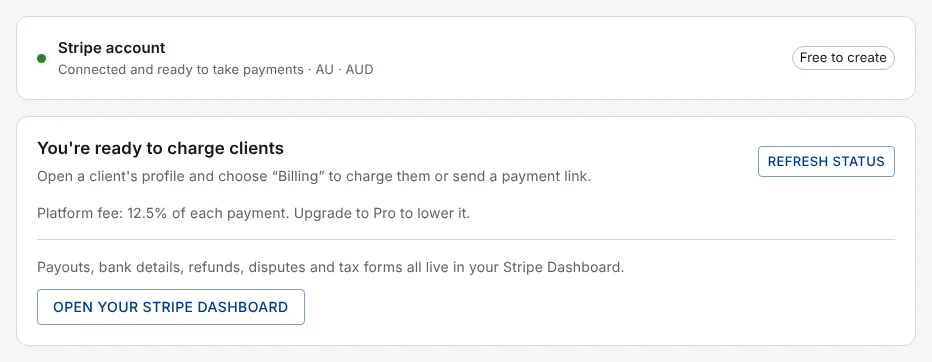
When Stripe approves you, the row turns green and reads 'Connected and ready to take payments'. Client Billing then has four tabs: 'Payments', 'Packages', 'Clients' and 'Setup'. The 'Setup' tab shows your platform fee and has 'Open your Stripe Dashboard', where your payouts, bank details and tax forms live.
Next, create your packages.
Every account status, and what to do
| The 'Stripe account' row says | What it means | What to do |
|---|---|---|
| 'No Stripe account yet' | You haven't connected Stripe. | Click 'Set up payouts with Stripe'. |
| 'Connected, verification in progress' | Stripe still needs details from you, or is reviewing them. | Work through the checklist, or wait for the review. |
| 'Connected, needs attention in Stripe' | Stripe has paused your payments. | Click 'Open Stripe to resolve'. |
| 'Connected and ready to take payments' | You can charge clients. | Create your packages. |
| 'Disconnected from Stripe' | QuickCoach was removed from your Stripe account, in Stripe. | Use 'Disconnect Stripe', then connect again. |
Disconnect Stripe to start over
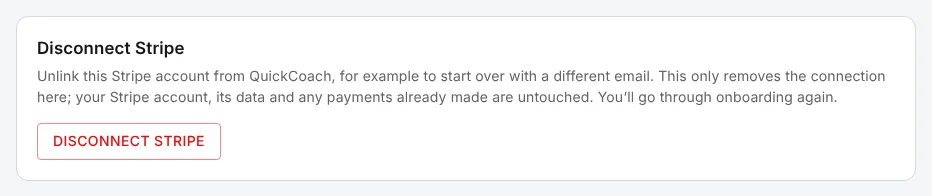
'Disconnect Stripe', at the bottom of the setup screen, unlinks your Stripe account from QuickCoach so you can start again, for example with a different email address or country. It doesn't touch your Stripe account, its data or any payments already made. After you confirm, you go through Stripe's sign-up again and get a new Stripe account.
Subscriptions on the old account keep billing in Stripe, but QuickCoach no longer shows them. Cancel any you don't want before you disconnect.