
Assigning plans to clients
Publish a finished plan straight to a client, into a Program Template, or from Plan Drafts, send a whole template folder at once, and choose exactly where each one lands.

Where a plan goes when you publish it depends on where you built it and how you assign it. This article covers every route, one plan at a time or a whole program in one go.
Watch the video walkthrough (0:35).
Note: QuickCoach's features and screen layouts may change over time, but the core workflow stays the same.
The one rule behind everything here: assigning creates a copy, and the copy is what the client receives. Edits to an assigned plan never touch the original template, and template edits are not retroactive. They change what gets assigned from then on, not versions already sitting in client accounts.
From a client's account
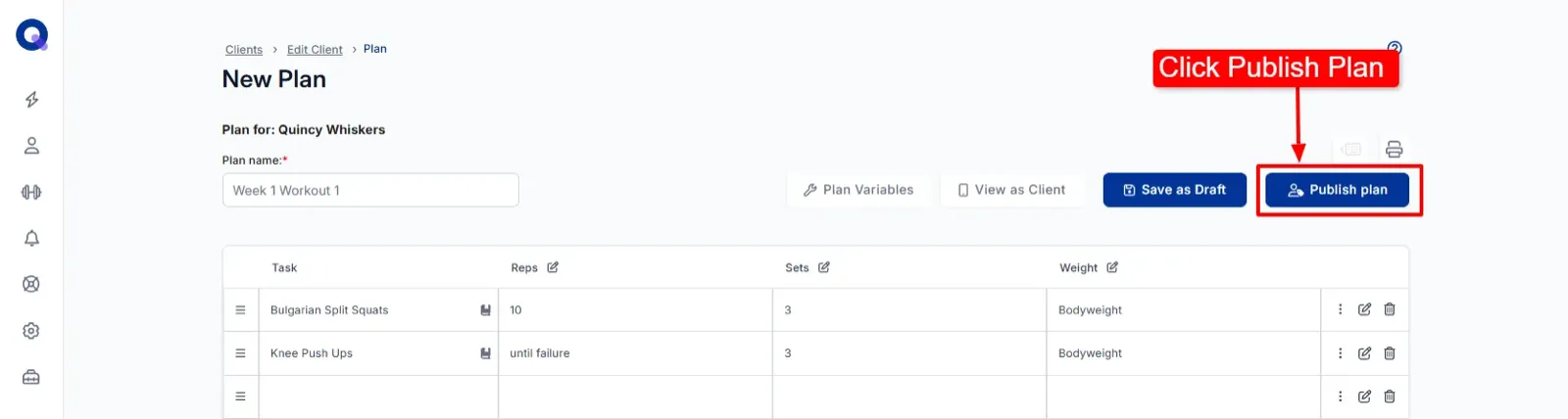
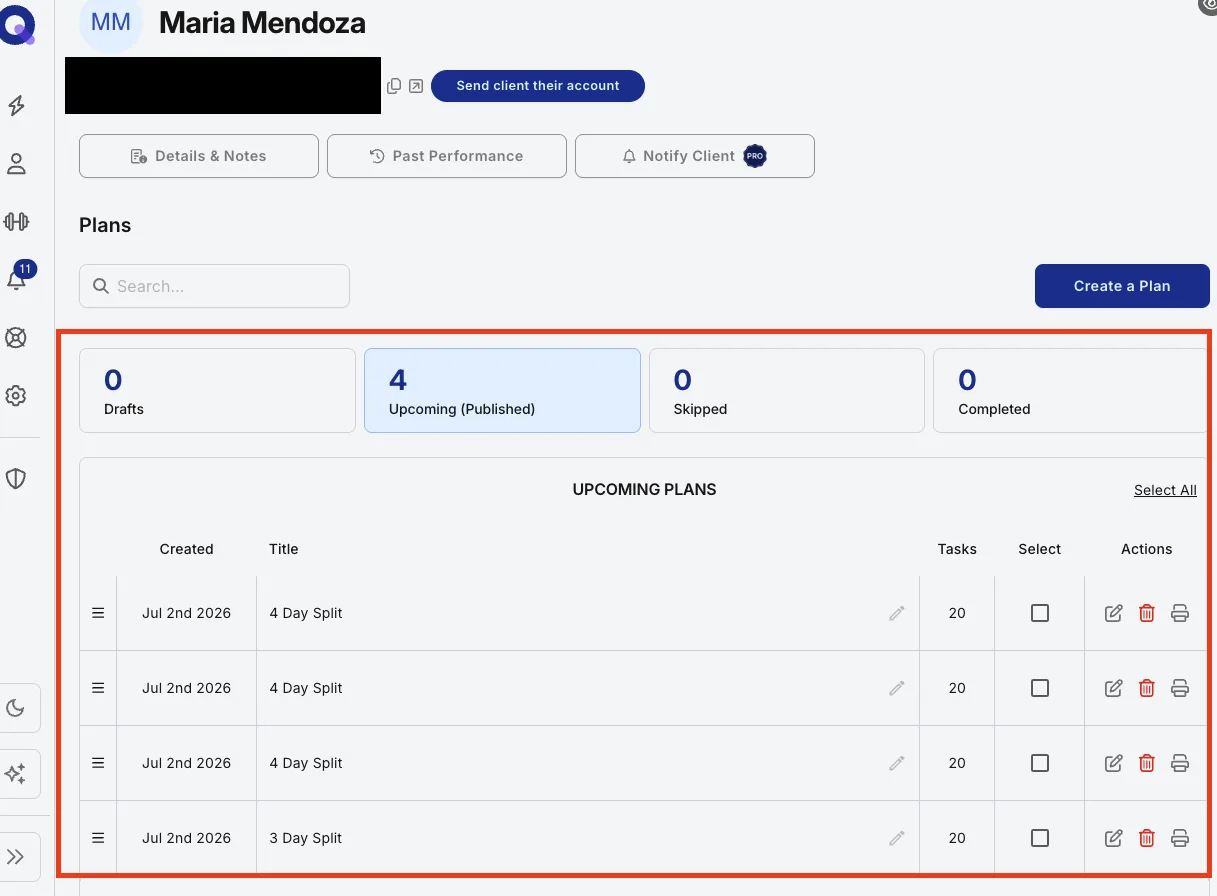
If you started the plan from your client's account, publishing is a single click. Click 'Publish Plan' and the plan goes straight to the client's 'Upcoming (Published)' tab, at the bottom of their plans list.
From a Program Template
Click 'Publish plan'. The plan drops to the bottom of the template's 'Ready Plans' list, ready to assign whenever a client needs it.
From Plan Drafts
Plans built inside Plan Drafts (or created loose inside a template) have one extra step: deciding where the plan goes.
- Click 'Publish plan'.
- Select which clients and / or program templates you want to publish the plan to.
- Tick 'Keep draft' if you want to hold a copy of the plan in Plan Drafts.
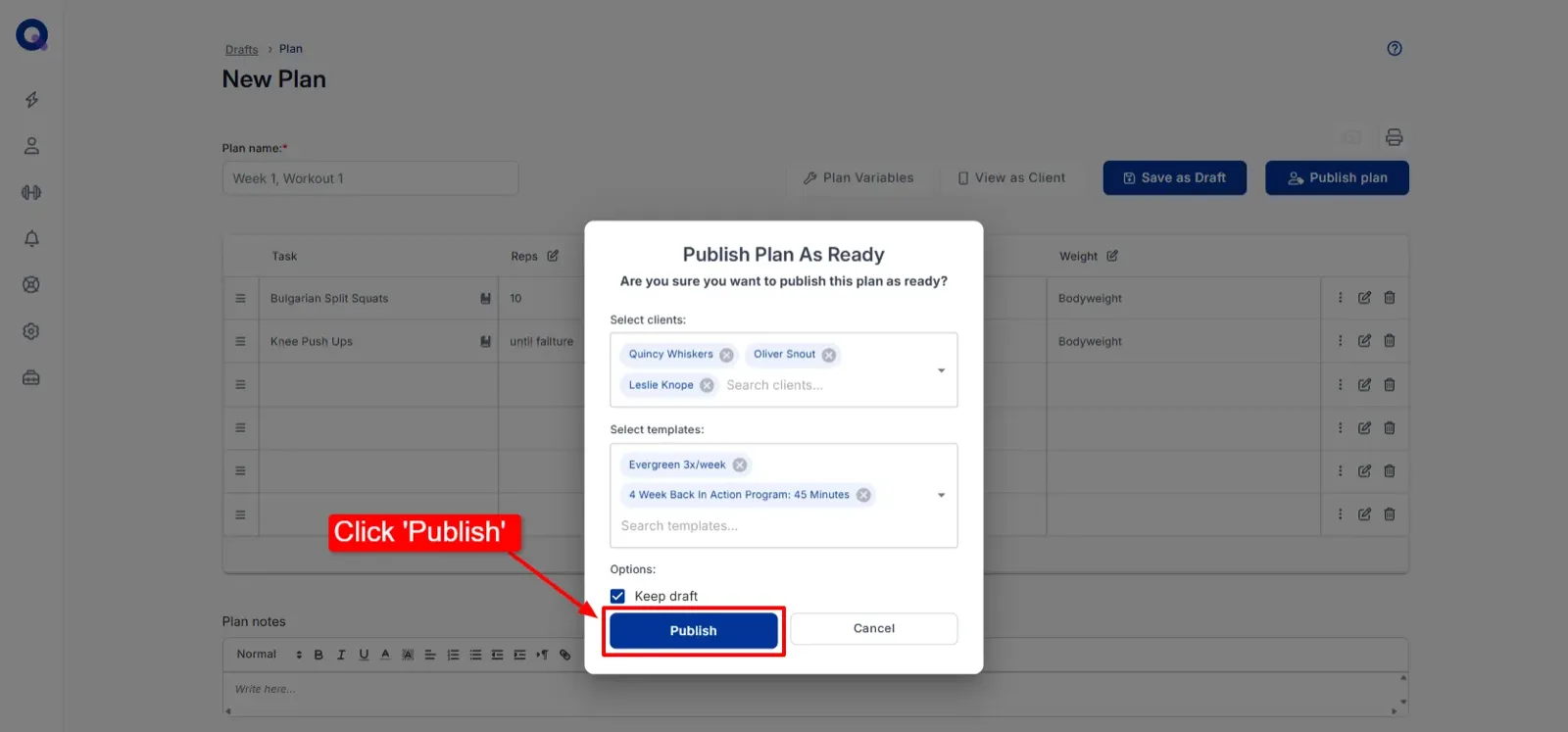
- Click 'Publish'.
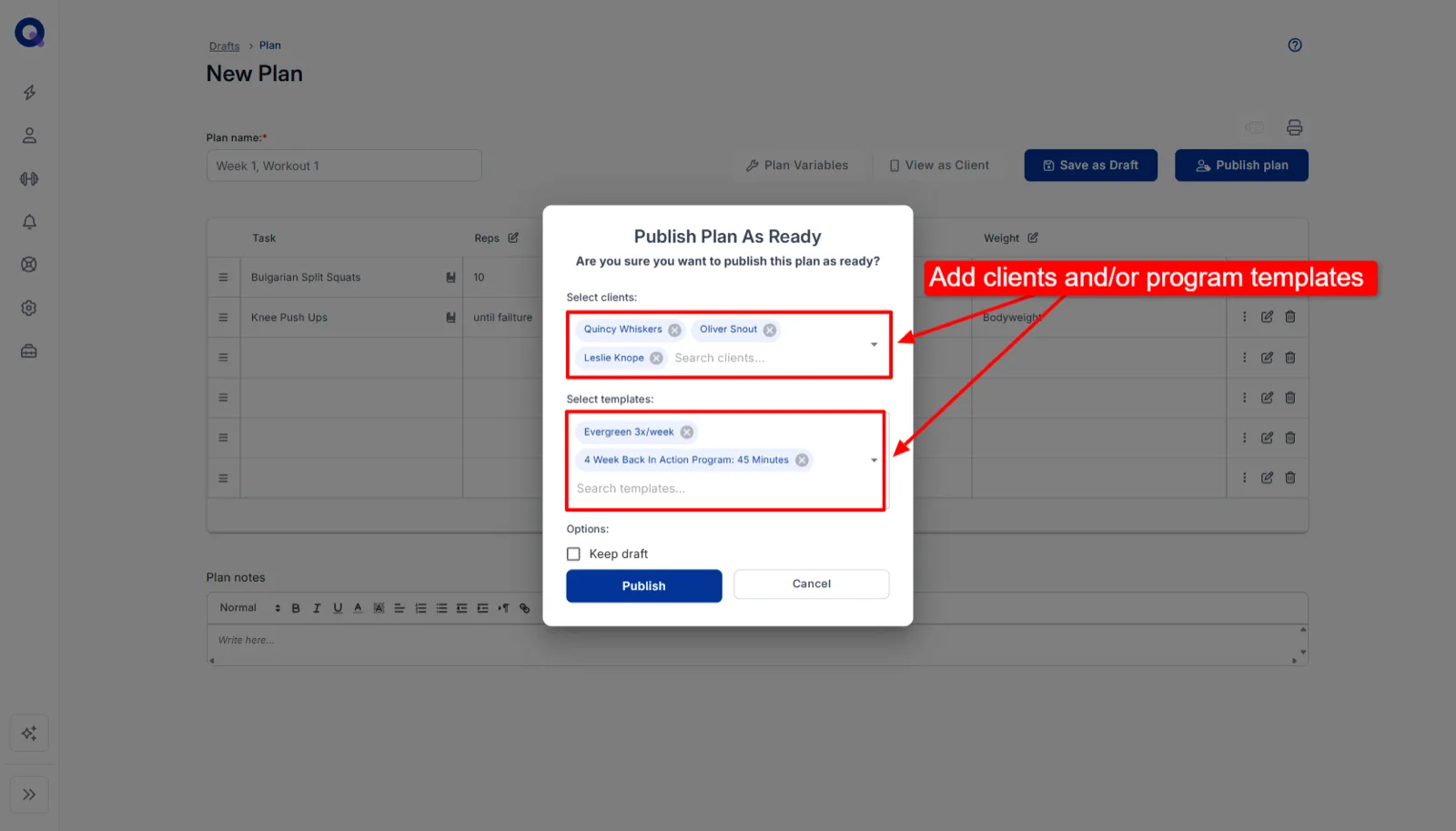
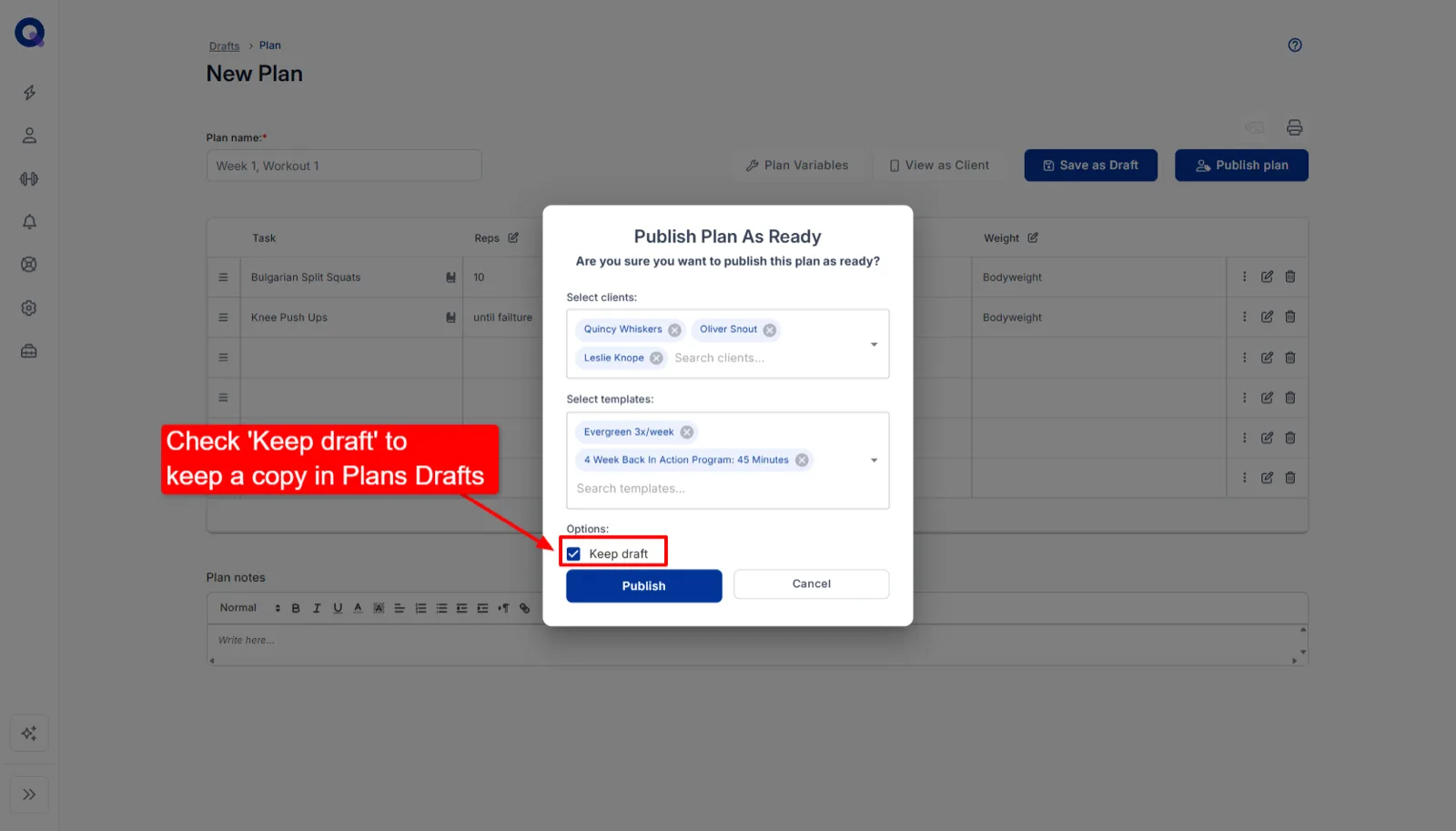
Plans assigned to a client land in their 'Upcoming (Published)' section. Plans assigned to a program template land in its 'Ready Plans' section.
Assign a whole template folder at once
Assigning an entire Program Template comes in handy more often than you'd think. A few common cases:
- You sell prepackaged programs, like an 8-week workout program.
- Several similar clients start at once and you want them all on the same base template, individualised later.
- You run a habit or nutrition program with multiple steps and want the whole thing in a client's account in one go.
Watch the video walkthrough (1:21).
- On the Program Templates page, switch to list view and find the template you want to assign.
- Click the three dots on its row and select 'Assign to Client'.
- In the 'Assign Template' window, pick the clients (or a client group) who should receive the program, then click 'Assign'. Once someone is picked, the button shows the count, such as 'Assign to 3 clients'.
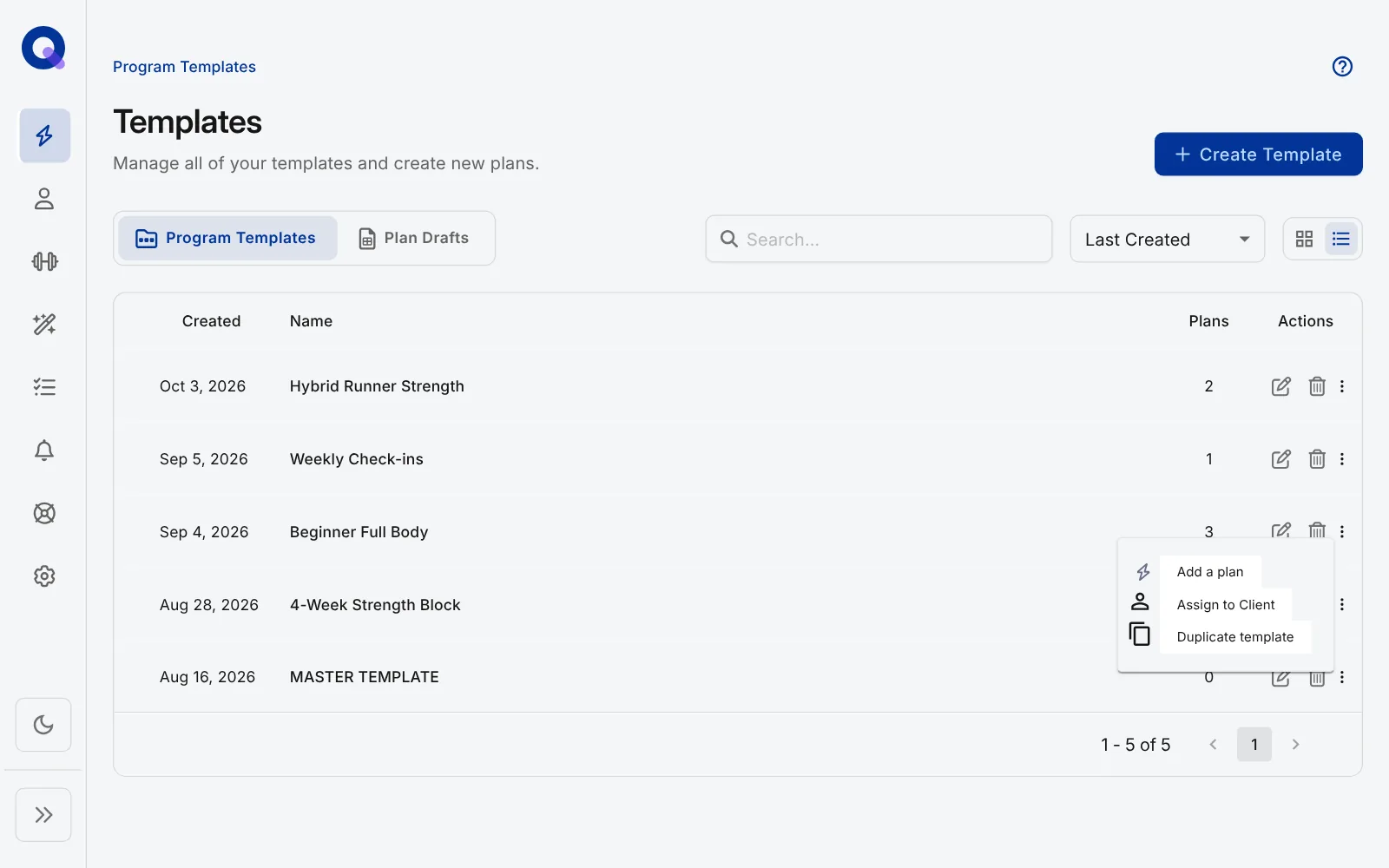
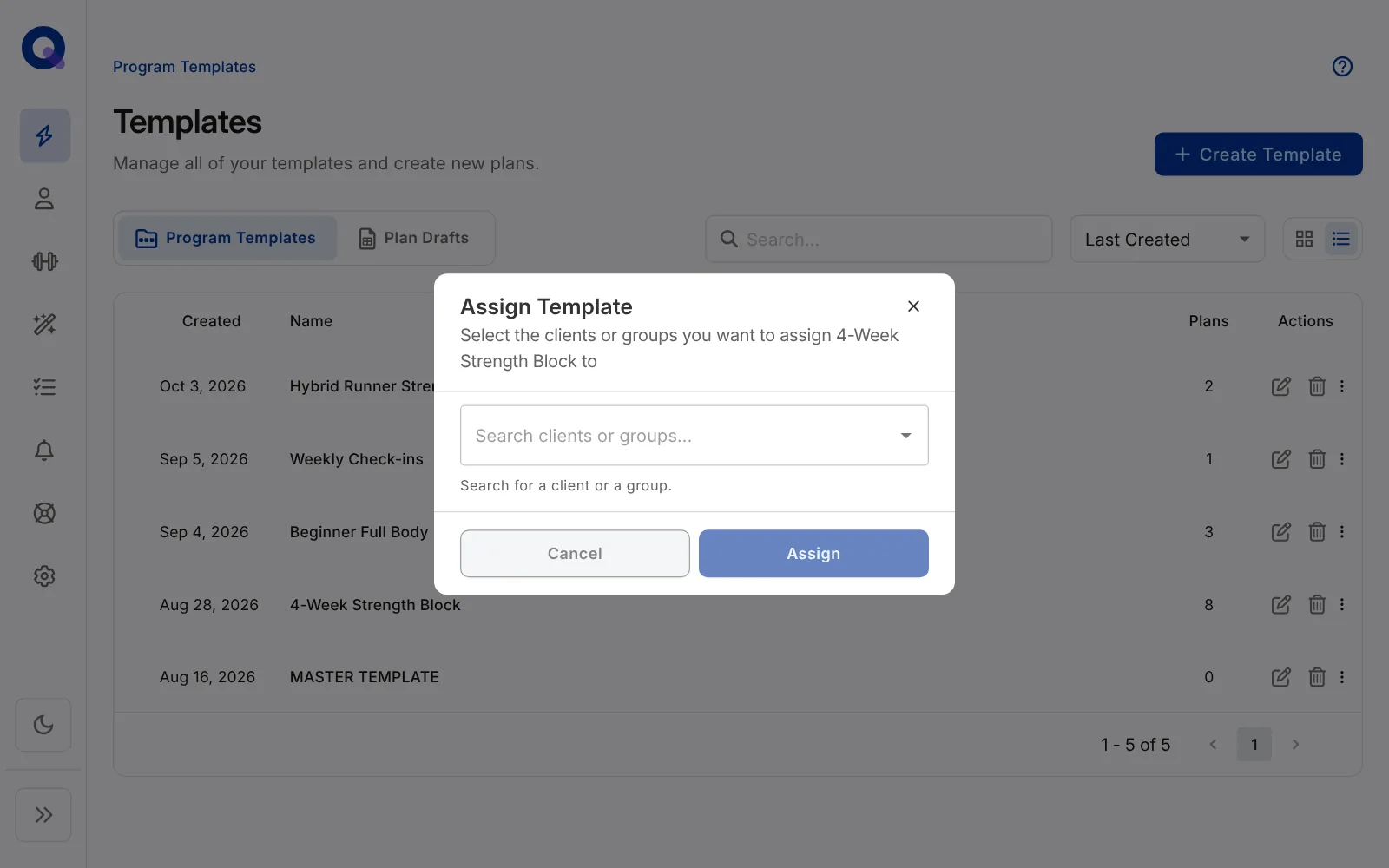
Every Ready plan in the folder goes straight to each selected client's 'Upcoming (Published)' tab, available to them immediately. There's no draft option for a whole template, and plans sitting in the template's Draft Plans section are not included. From there you're free to open any individual client's dashboard and rearrange or edit the plans however you like.
Assign single plans from inside a template
Open a template, click the 'Assign to client' icon on a plan in Ready Plans (or tick several and click 'Assign Selection'), and pick one or more clients. Before you click 'Assign', check the 'Plan status' choice in the window. It starts on Draft, so unless you change it the plans land in the client's Drafts tab rather than their Upcoming list.
Make your edits, then publish the drafts from the client's account and they move to 'Upcoming (Published)'. If nothing needs tailoring, choose Published, or assign the whole template instead and skip the drafts step entirely.
Assign as Draft or Published
When you assign single plans, from a template or from a client's page, the 'Assign Plan' window has a Plan status toggle:
- Draft (the default): the plan lands in the client's Drafts tab, which they can't see. Review and tailor it, then publish it with Change Status on the client's page.
- Published: the plan is live in the client's app straight away, with nothing left to do.
Published shines when you're sending one finished plan to a whole client group: a set group programme, an online challenge block, or a one-off session you're running for everyone.
- Start the assign action on the plan as usual.
- In the picker, select the client group (and any individual clients you want).
- Under Plan status, choose Published.
- Click Assign to <number> clients. The plan is live for everyone straight away.
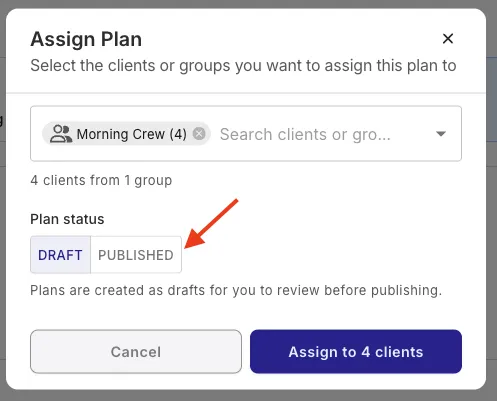
Keep Draft when you plan to tailor first. Published skips the review step, so use it only when the plan needs no per-client changes. Two routes have no toggle: a whole template always sends its Ready Plans as published, and assigning from Plan Drafts always creates drafts.
A tidy set of folders makes bulk assigning much faster, so it's worth a pass through organising your Program Templates before your next intake. New plans always join the bottom of the client's list, so you may want to rearrange the order of your client's plans after publishing. Coaching face to face? The same folders work for in-person training clients too.
Need to publish or move a batch of plans that are already on a client's page? Manage a client's plans in bulk shows the bulk actions.