
See a client's plans by status
Every client's plans sit under Drafts, Upcoming, Skipped, or Completed. Switch tabs to see exactly what's where, and drag the Upcoming queue into a new order.

Need to check what's still in drafts, what the client has coming up, or what they've skipped or finished? Each client's plans are grouped into tabs, and switching between them takes a click.
Watch the video walkthrough (1:00).
Note: QuickCoach's features and screen layouts may change over time, but the core workflow stays the same.
Open a client and switch tabs
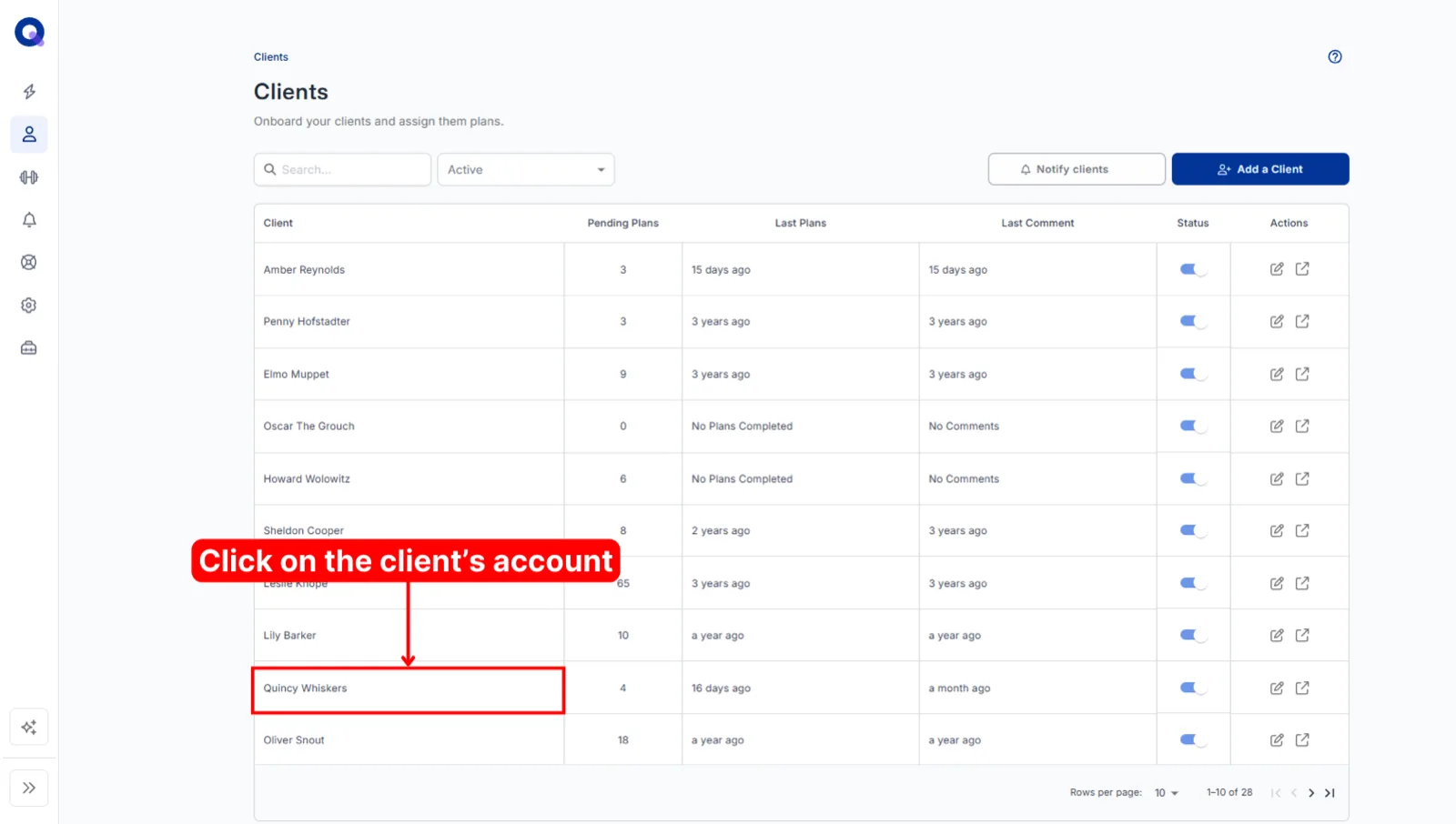
Click the Clients icon in the side menu, then open the client whose plans you want to see.
Scroll to the row of tabs above the plan list. You'll see Drafts, Upcoming (Published), Skipped, and Completed, each with a count. Click any tab to load the plans under it.
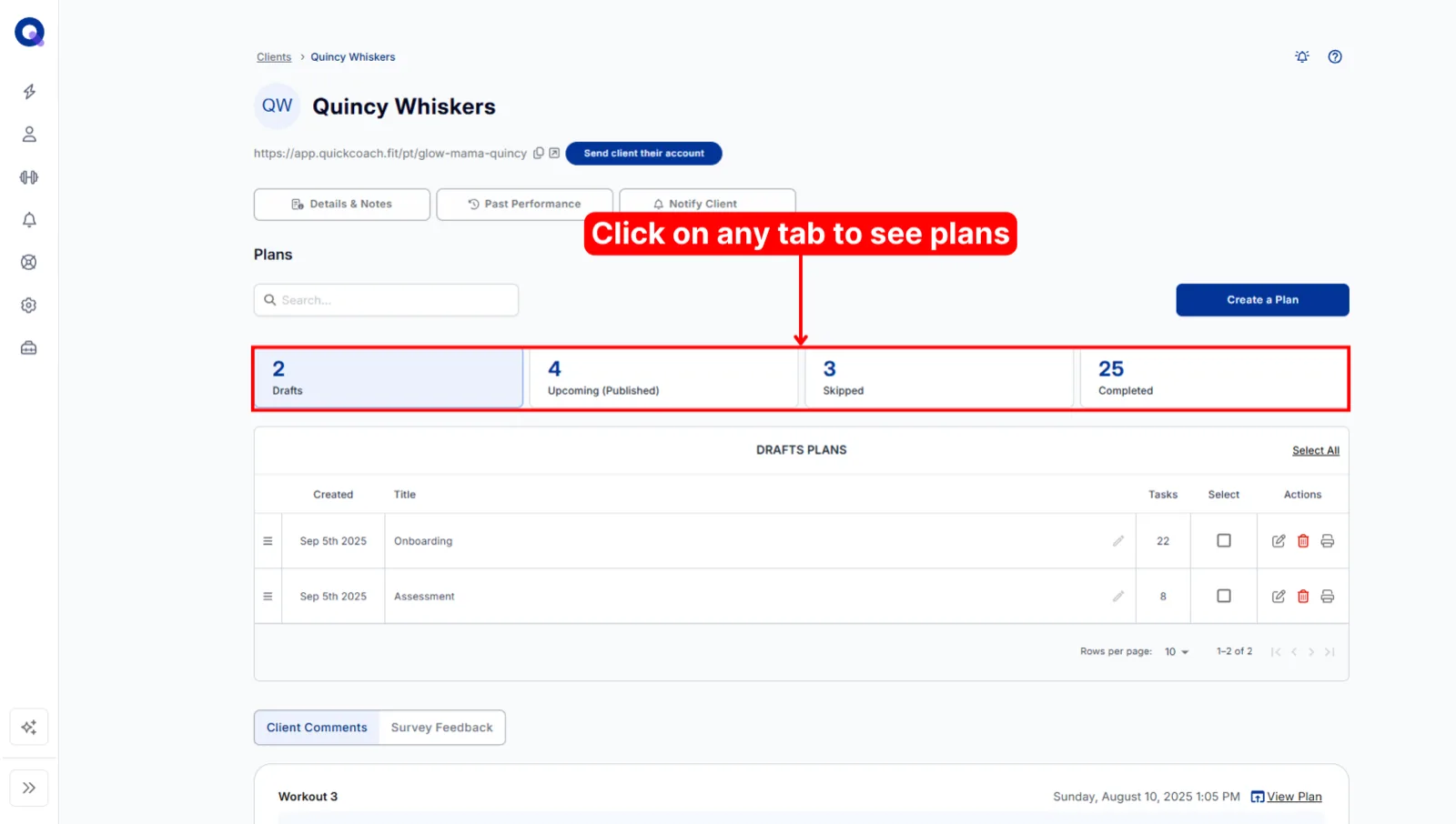
- Drafts are plans you're still preparing. The client can't see these yet.
- Upcoming (Published) are the plans queued for the client to work through next.
- Skipped holds plans the client chose to skip. A skipped plan disappears from the client's app and they can't reopen it, but it stays here on your side, and you can assign a copy if they change their mind.
- Completed holds the plans they've finished, along with any results they logged.
For how these tabs map to what the client sees on their home screen, read how clients see their plans.
Reorder the Upcoming queue
There's no calendar in QuickCoach. It works on a what-comes-next basis, so plans sit in a queue and the client works through them in order. You can rearrange that order any time, and every change updates on the client side in real time.
Watch the reordering walkthrough (0:44).
Make sure the Upcoming (Published) tab is selected, since that's where the client's queued plans live.
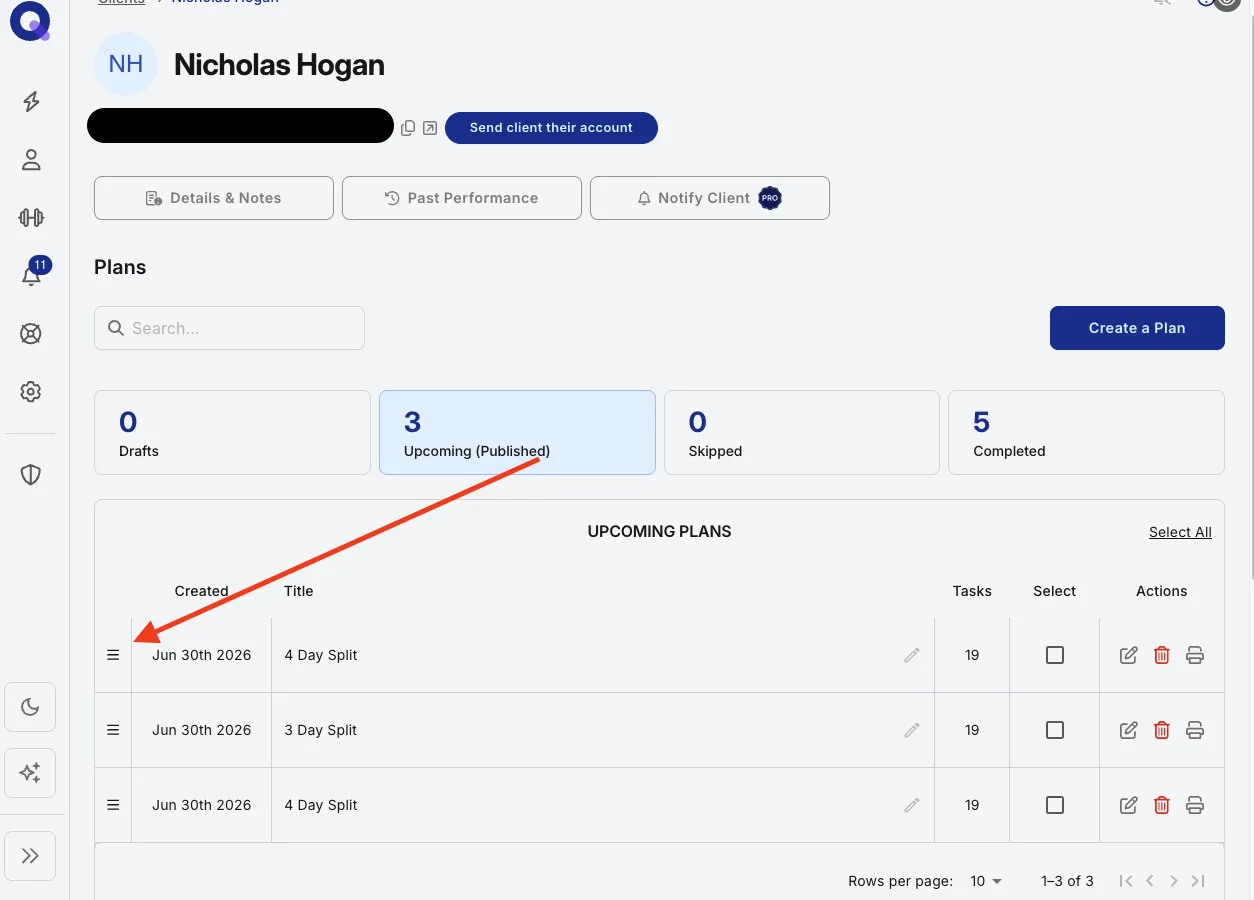
To move a plan, click the three horizontal lines to the left of its name and drag it to the position you want. On a phone or tablet, drag it with your finger.
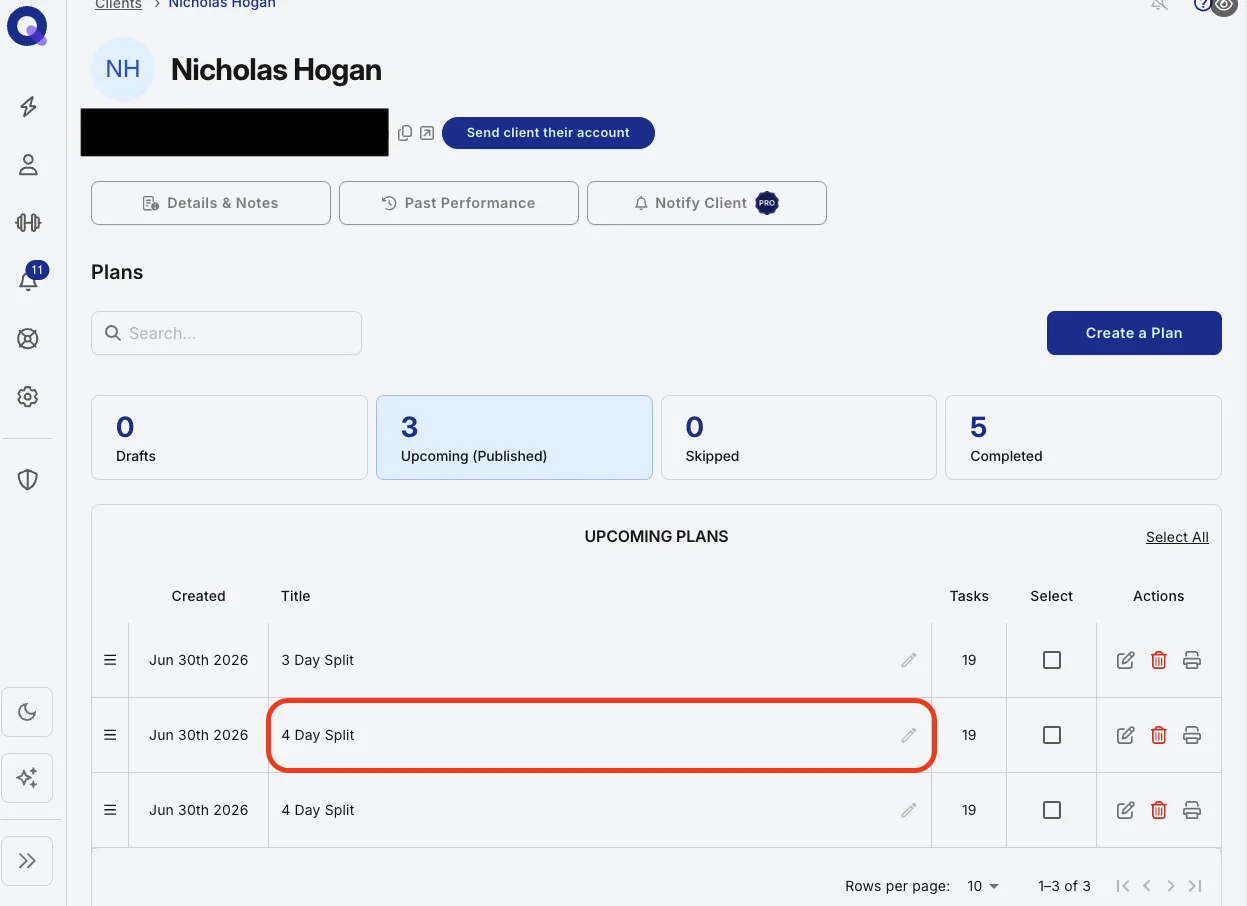
There's no save button to hit. QuickCoach stores the new order for you automatically.
Want to work on plans in bulk instead, moving several between Drafts and Upcoming at once? The individual client accounts tour covers the batch tools on the same page.