
Archive or delete a task
You can't delete a task in QuickCoach, but you can rename it to fix a mistake or mark it Inactive (archive it) when you're done with it.

You can't delete a task in QuickCoach, and that's on purpose. If a task was ever used in a plan, deleting it would wipe the data attached to it, including the history it feeds. Instead, you edit a task to fix a mistake, or mark it Inactive (QuickCoach's version of archiving) when you're no longer using it.
Watch the video walkthrough (1:53).
Note: QuickCoach's features and screen layouts may change over time, but the core workflow stays the same.
Fixing a mistake in a task
If you created a task incorrectly, there's no need to remove it. Open the task, change the name, and update its details. The Task Library tour covers quick edits from the list, and adding media to tasks covers changing its video, images or notes.
Archiving a task you no longer use
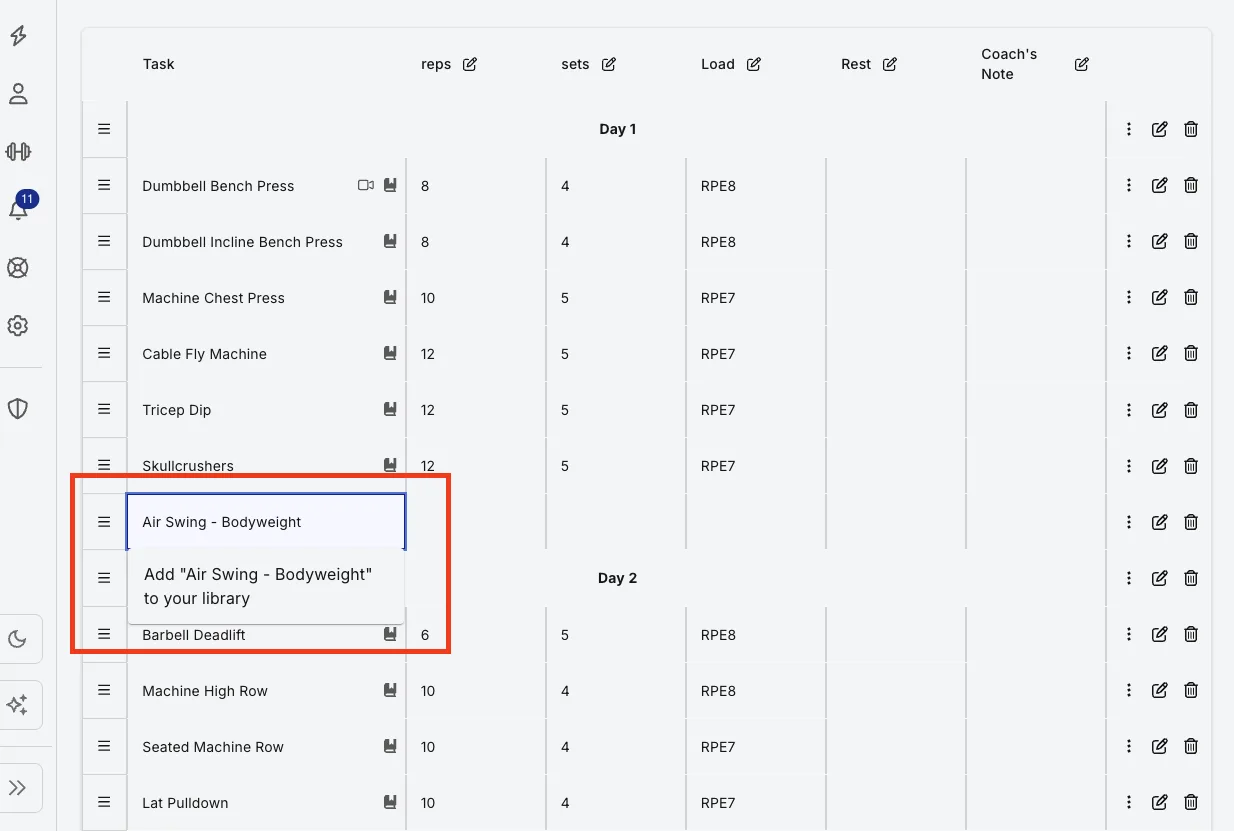
Marking a task Inactive keeps it in your library but stops it appearing in the dropdown when you build plans, so your search stays clean.
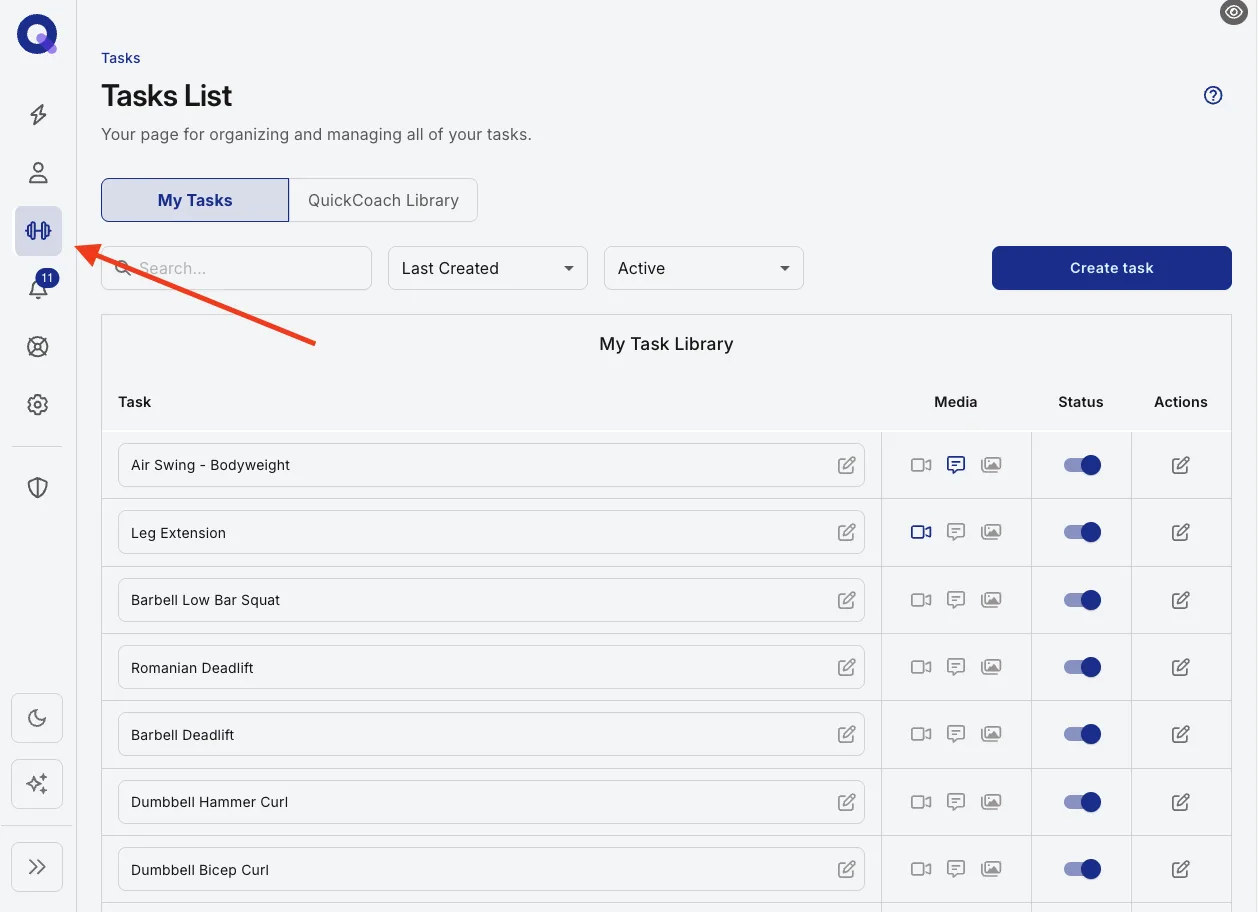
- Click the dumbbell icon in the left navigation to open your Task Library.
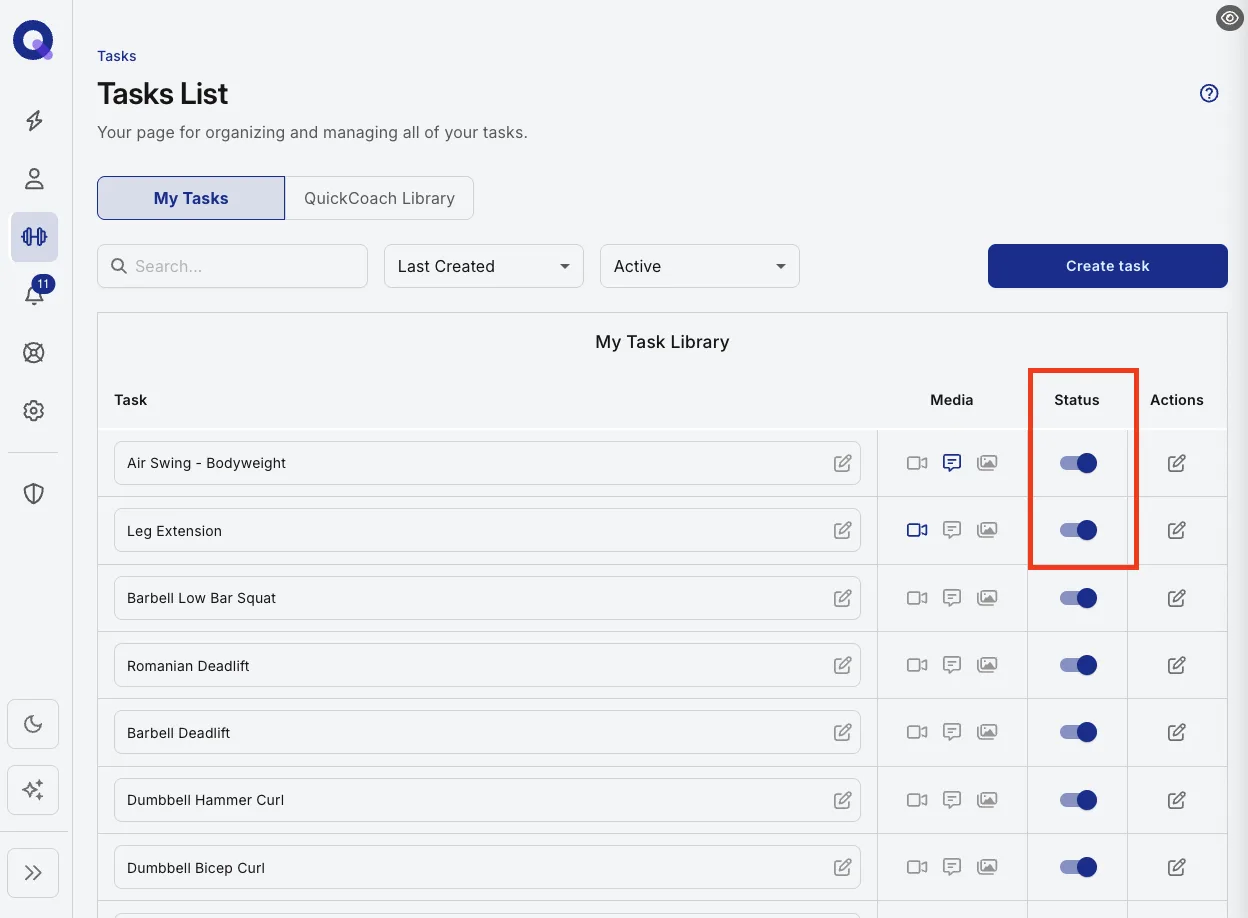
- Find the task you want to archive and click the toggle in the Status column.
- The toggle turns from blue (Active) to grey (Inactive).
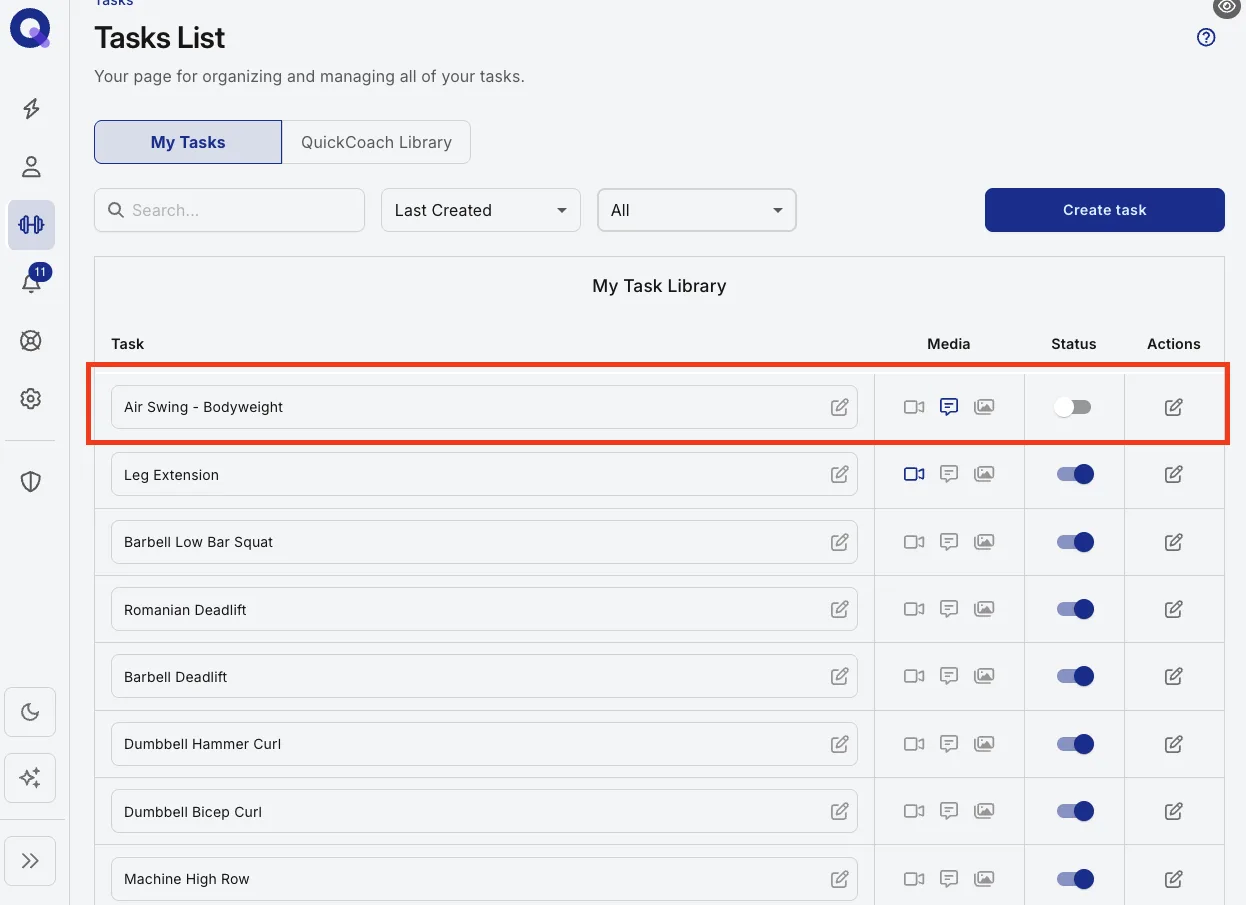
The task still shows in your Task Library, but it will no longer appear in the dropdown when you're building plans.
Bringing an archived task back
Changed your mind, or archived the wrong task? Un-archiving takes two clicks:
- Set the status filter above the list to Inactive (or All) so the task shows.
- Click the toggle on its row. It turns blue again and the task returns to your plan builder searches.
Tip: you can rename any task in your library at any time. Just click the task and type.