
Import exercises from the QuickCoach Library
Give your empty task library a head start by importing from almost 1,400 ready-made exercises, each with a video and description you can edit.

Your Task Library starts empty so you can build it with only what you'll use. To get a head start, QuickCoach has an optional exercise library you can import from, with almost 1,400 exercises to choose from. Each one comes with a name, a demo video and a description, and you can change any of it once it's in your own library. This is available to everyone, not just Pro.
Import exercises
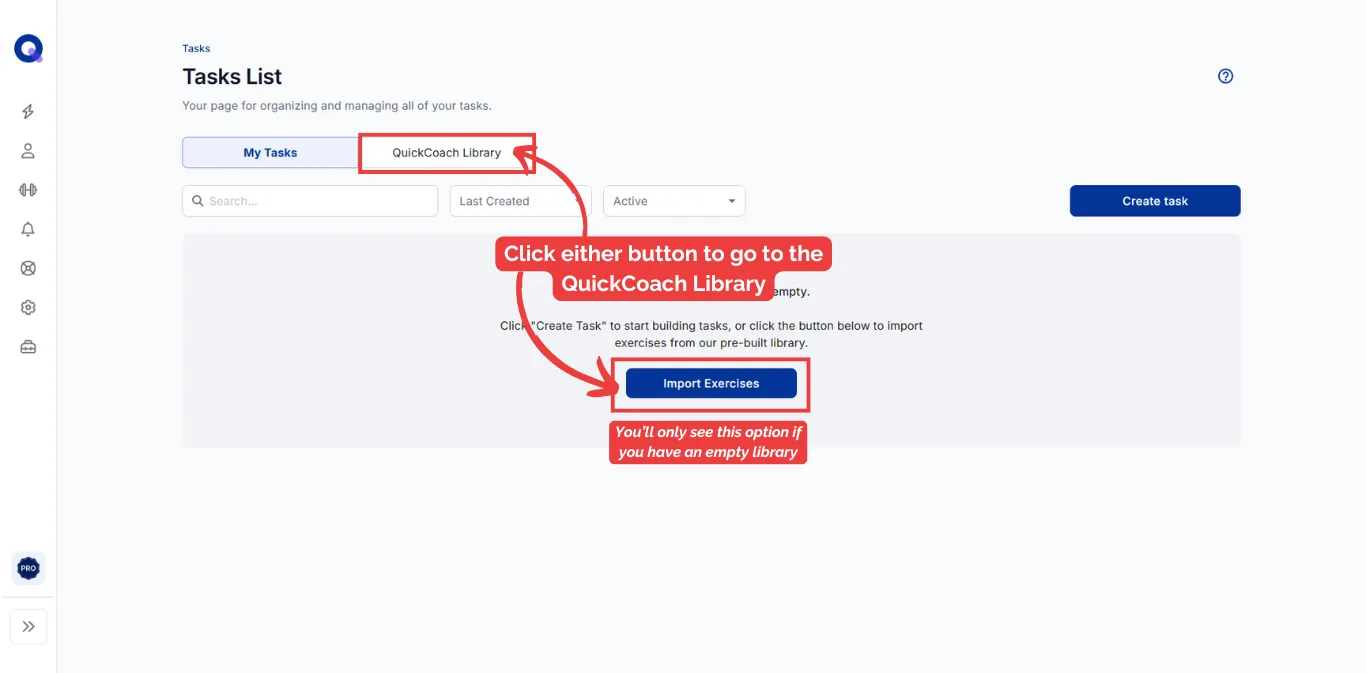
- Click the dumbbell icon to open your Task Library. If your library is empty, click Import Exercises or QuickCoach Library. If you already have tasks, click QuickCoach Library.
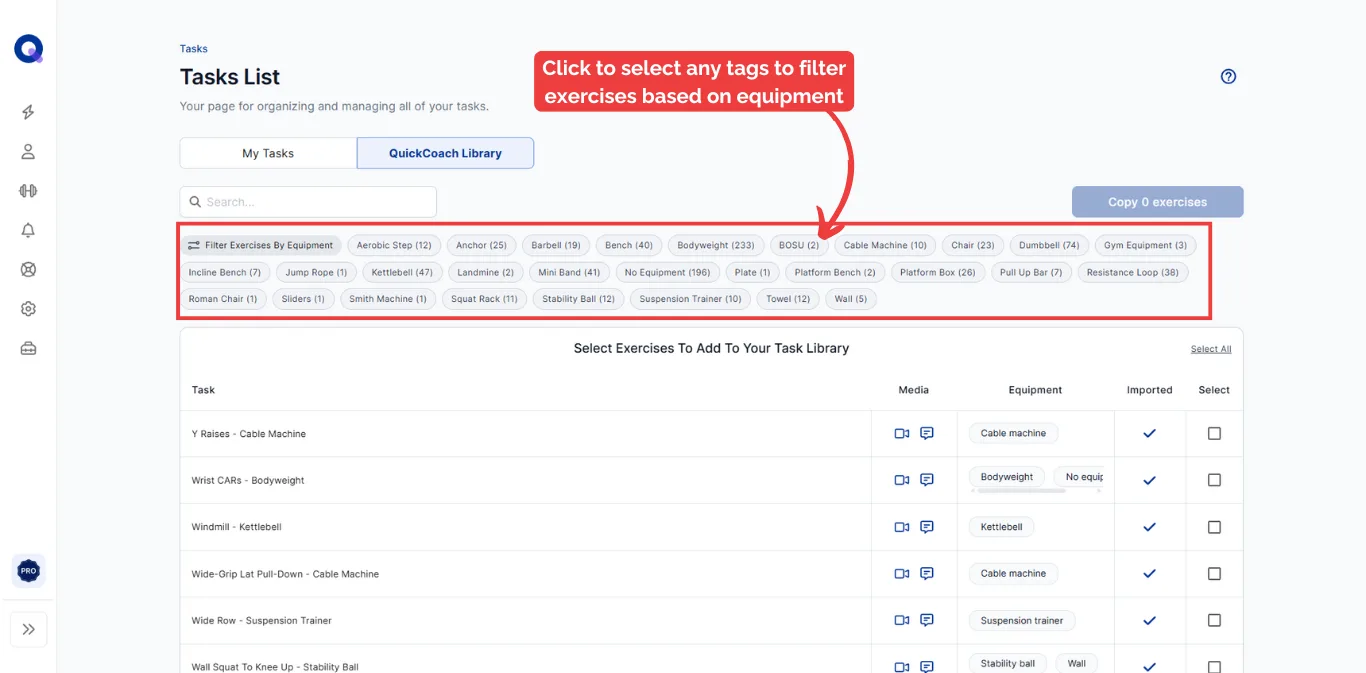
- Filter the list by clicking any equipment tag. Click a tag again to remove it.
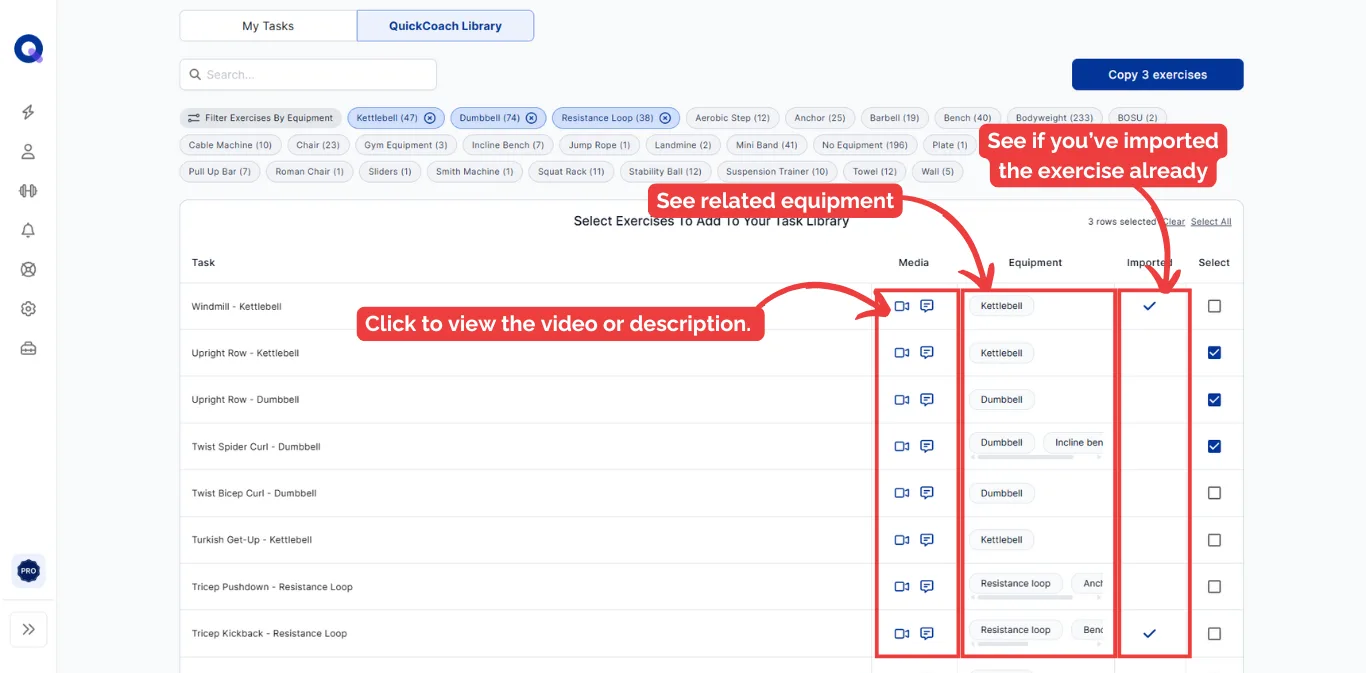
- Click the video icon to preview an exercise or the speech bubble to read its description. The Imported column shows a tick for anything you've already added.
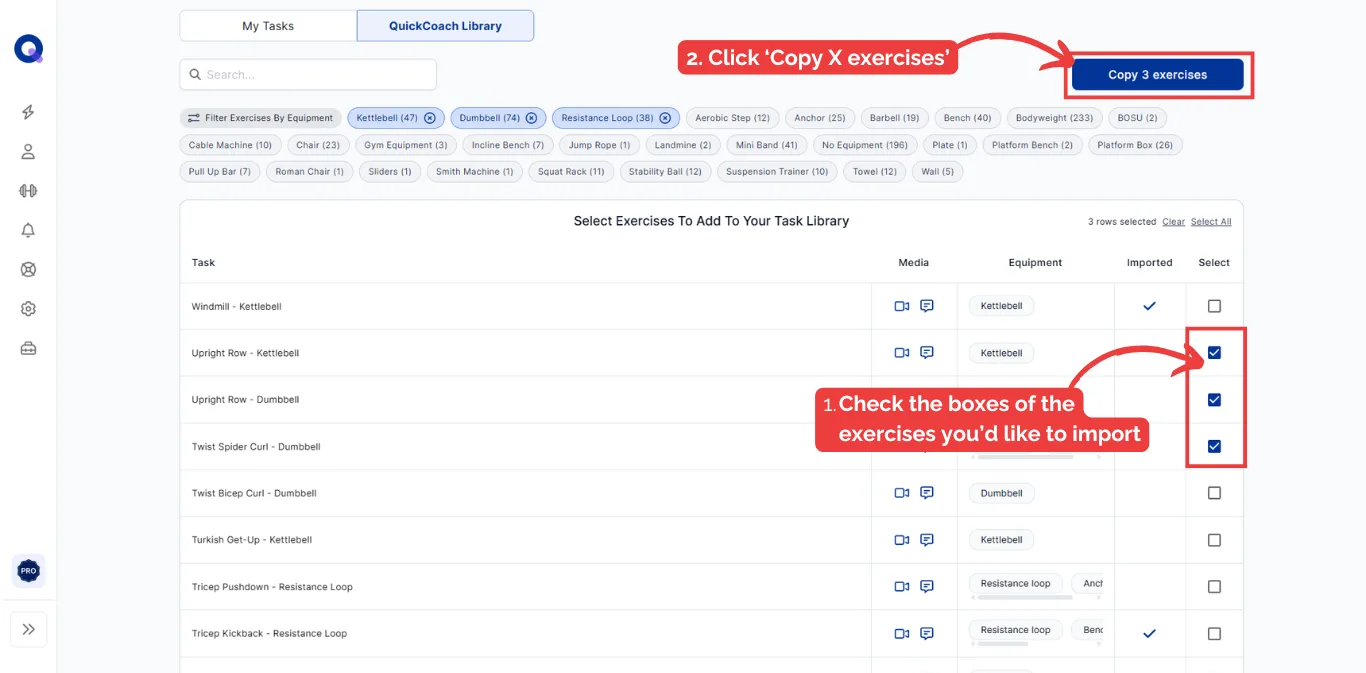
- Tick the exercises you want, then click Copy [number] exercises.
If any names clash
If none of your picks clash with existing tasks, a confirmation pops up. Click Add To My Task Library and they're added. If an exercise matches the name of a task you already have, you'll review each one and choose:
- Keep both: keeps your existing task and adds "Copy" to the end of the imported one.
- Rename: type a new name for the imported task by clicking inside the box under Template Task.
- Skip: don't add the imported task.
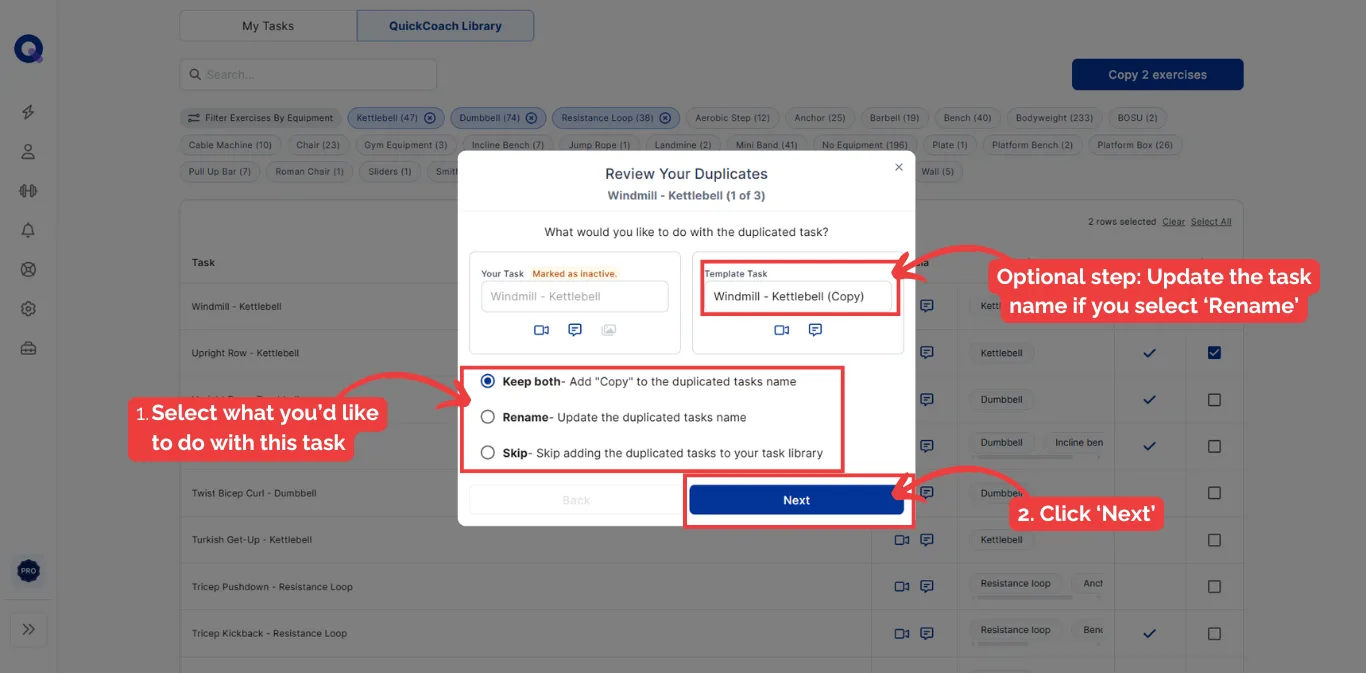
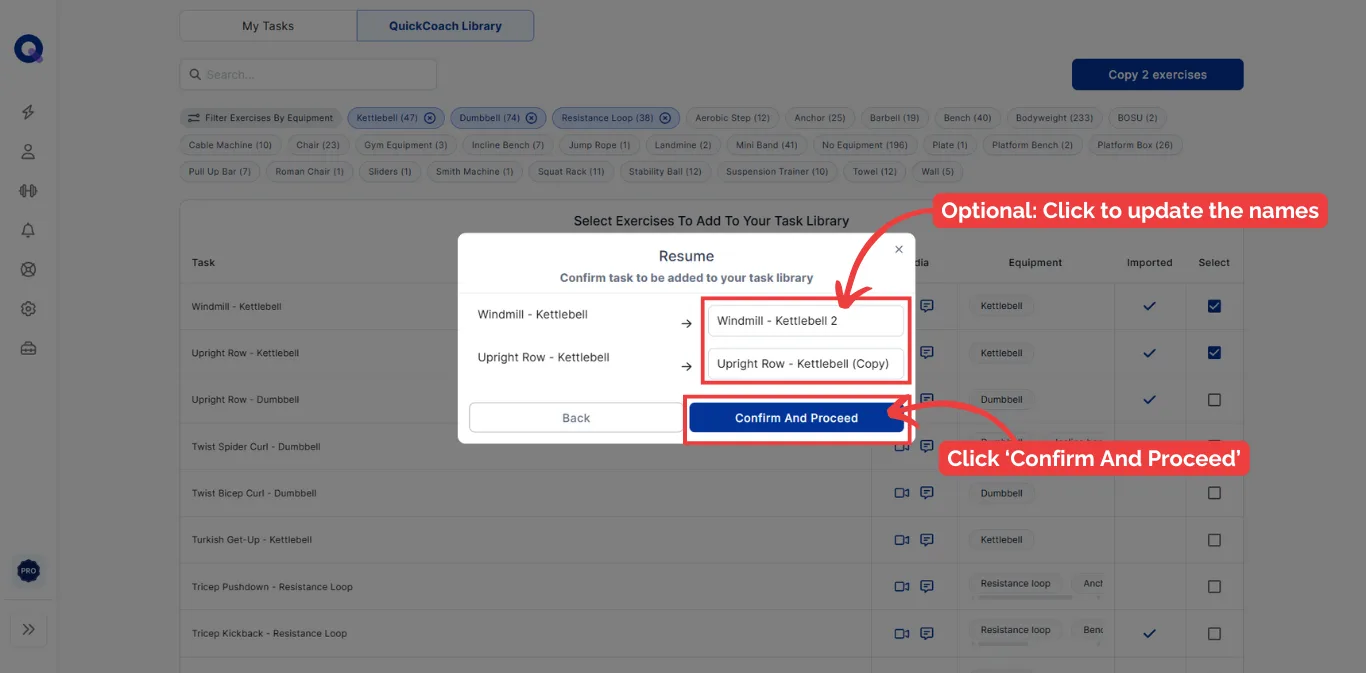
As you review, you can click the icons on each row to check the videos, descriptions and photos attached to both versions. Make your choices, click Next, then review the final names and click Confirm And Proceed. Click My Tasks to head back to your library.
Frequently asked questions
Can I change the name, video or description of an imported exercise?
Absolutely. Once imported, it behaves like any other task, so treat the library as a starting point rather than a fixed set. Rename it from the Tasks List, or swap its video, images and notes like any task you built yourself.
Who are the people in the videos?
They're coaches who use QuickCoach and helped us put the Exercise Library together.
Which exercises should I import first?
Start with what you program most. We counted the movements coaches actually assign across QuickCoach and published the top 15 in the most-programmed exercises in online coaching. It's a sane shortlist when 1,400 options is too many to face.