
Your Notification Center: client activity and your to-do list
Your Notification Center tracks client activity and holds your to-do list. Choose which events reach you in-app or by push, and manage it all from the bell icon.

Your Notification Center has two distinct parts: a notifications side that tracks what your clients are doing, and a to-dos side for your own action items. This guide covers both, plus how to decide which client activity actually pings you.
Note that this is the coach's side. Your clients have their own Notification Center inside their app, covered in client notifications.
Pro only: Client activity notifications are a Pro feature, and they also work during your free trial. On the Free plan QuickCoach doesn't send them, in-app or as push, and the notification settings show an upgrade prompt instead of the toggles. The to-do list works on every plan. See QuickCoach Free and Pro, explained.
Open your notifications
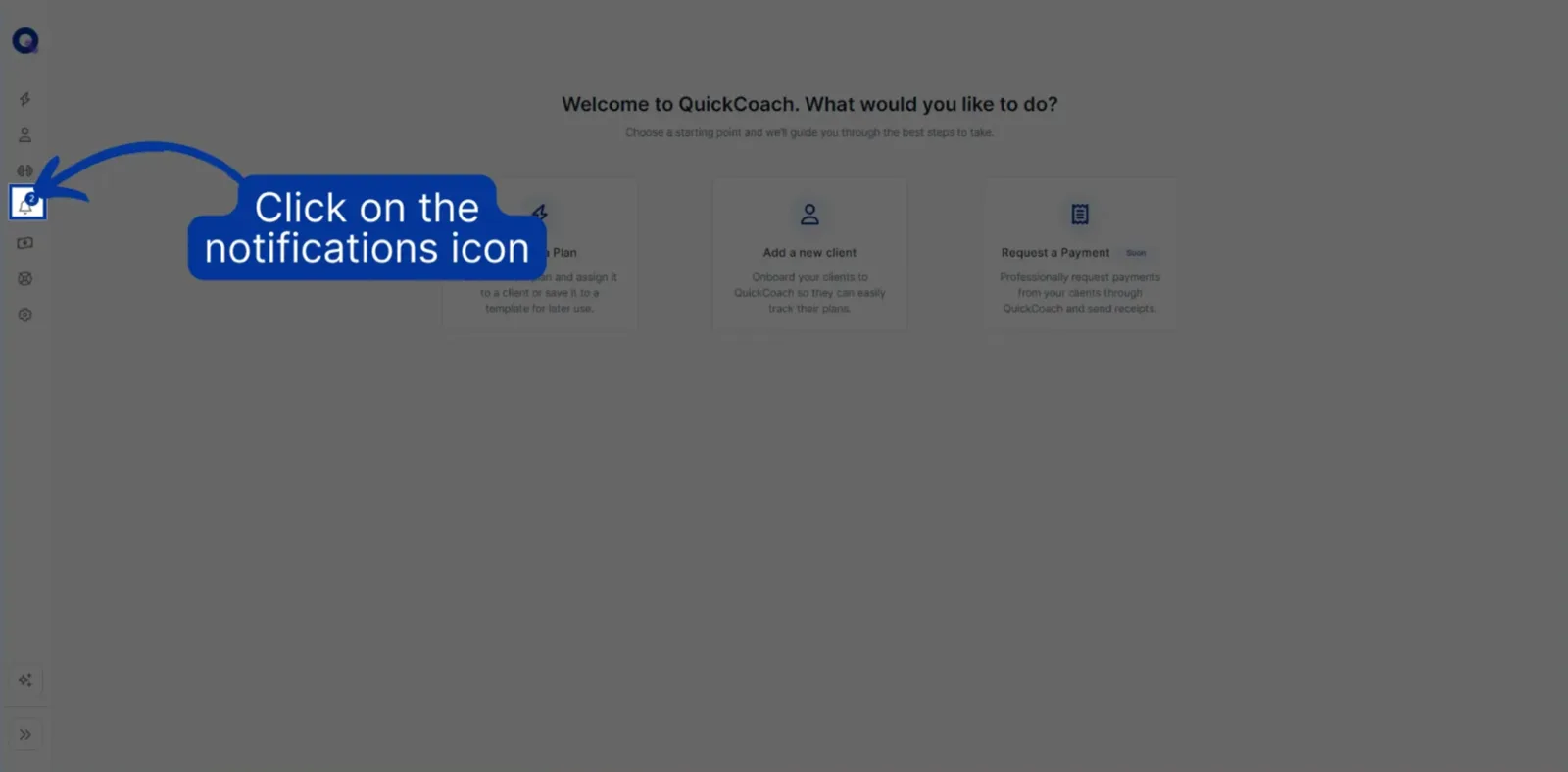
Click the bell icon in the sidebar. The badge on it shows how many unread notifications are waiting.
This opens your Notification Center on the Notifications tab.
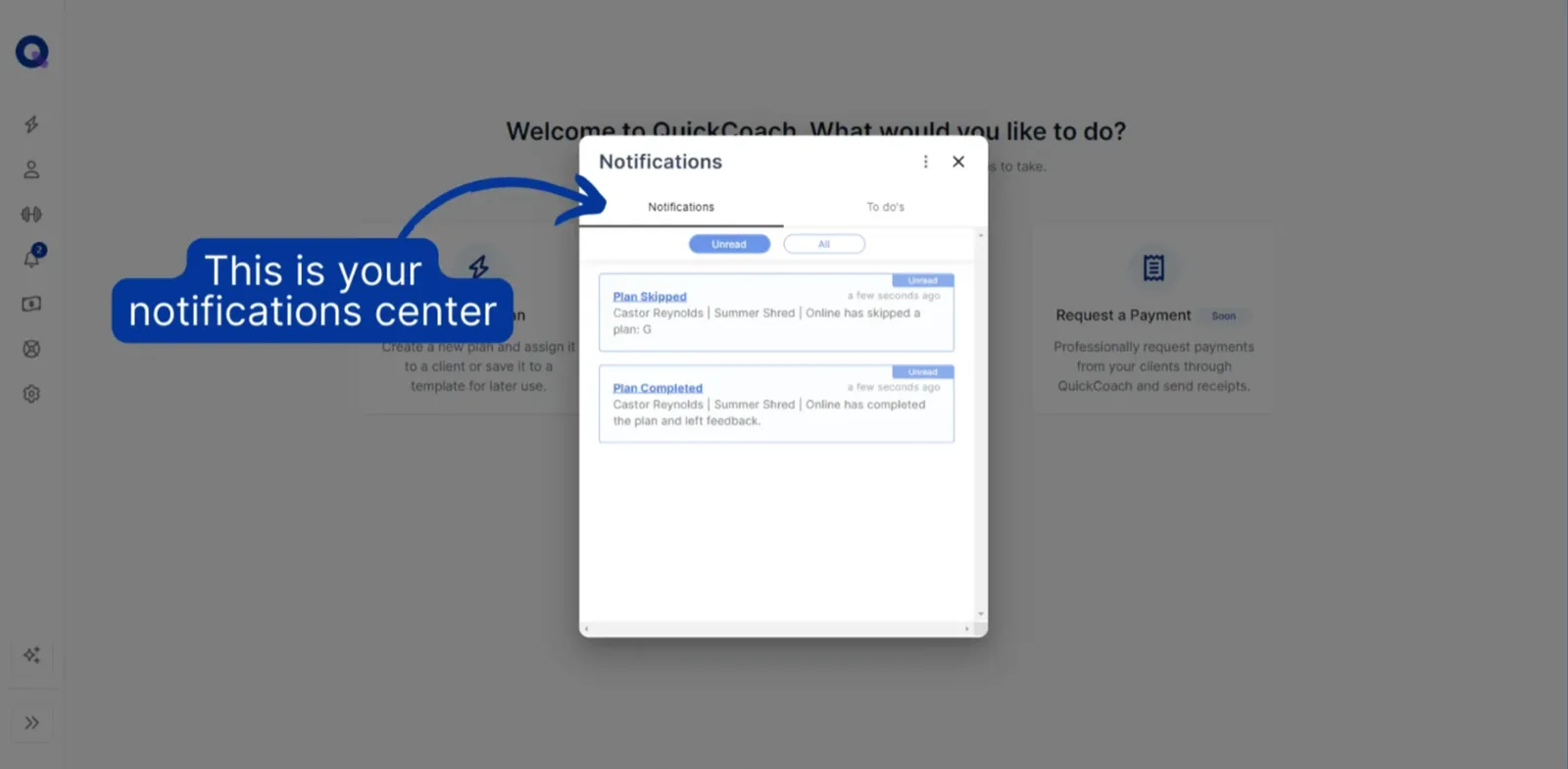
Unread, read and All
With the Unread filter highlighted, you see only notifications you haven't looked at yet. Clicking the Unread label on a notification marks it as read and moves it to All. Switch to the All tab to see read and unread together.
Changed your mind? Click Read on a notification to flip it back to unread; it returns to the Unread tab.
Each notification names the client and the plan. A completed plan, for example, arrives titled "Plan completed" with the message "[Client name] has completed a plan: [plan name]". Some notifications carry a hyperlink. Clicking it takes you straight to that client's account, opened on the matching plan tab, which is handy when a plan has just been completed or skipped.
The three-dot menu
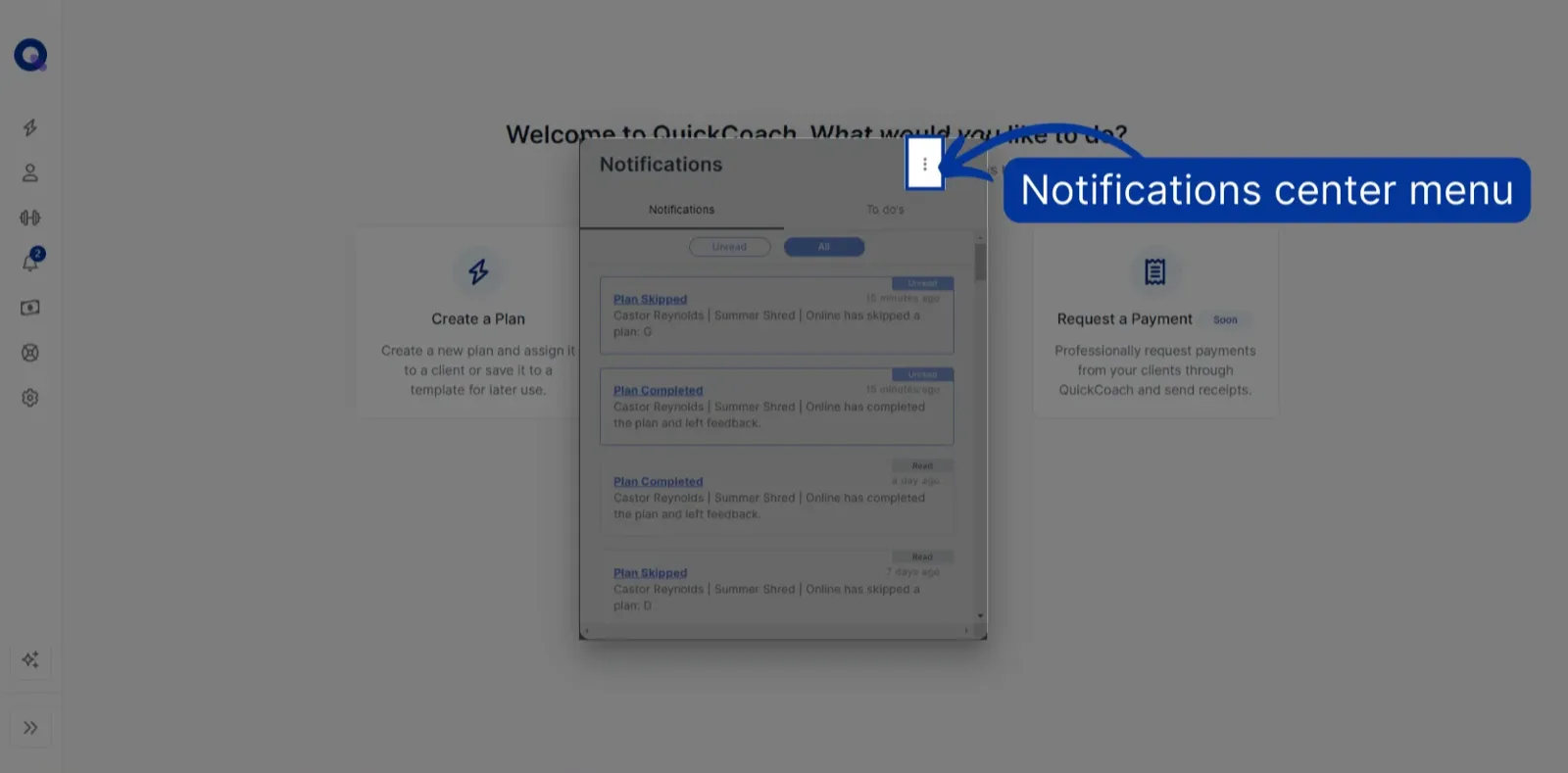
Click the three vertical dots in the top corner of the panel to open the Notification Center menu.
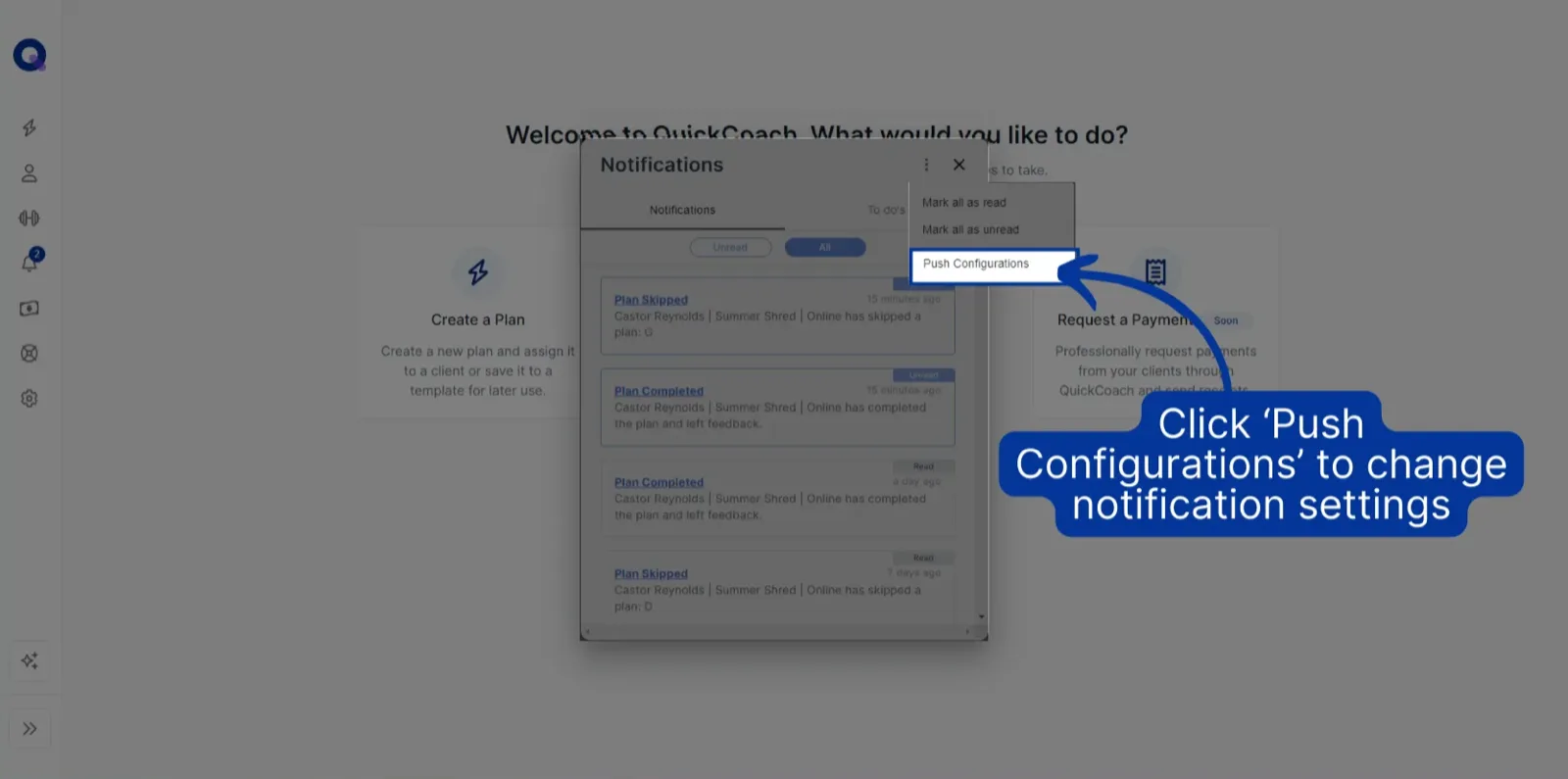
From here you can clear the decks in one go. Mark all as read turns every unread notification to read, and Mark all as unread does the reverse.
Notification Settings takes you to your notification settings, covered next. The same menu has a Push Notifications switch that turns push alerts on or off for the device you're using (it works in the installed coach app on Pro).
Choose what you're notified about
On the notification settings page you decide which events reach you, and where. There are five types of client activity you can be notified about:
- A client completes a plan
- A client skips a plan
- A client completes a survey
- A client sends feedback (text or audio notes)
- A client has fewer than a set number of plans left
And there are two places you can receive them: in-app, where they show up in your Notification Center, or as push notifications, the banner-style alerts that appear outside your apps. Click the toggles to turn each activity on or off in each place; your selections save automatically. There's also a single 'Unsubscribe me from all notifications' toggle if you'd rather have silence.
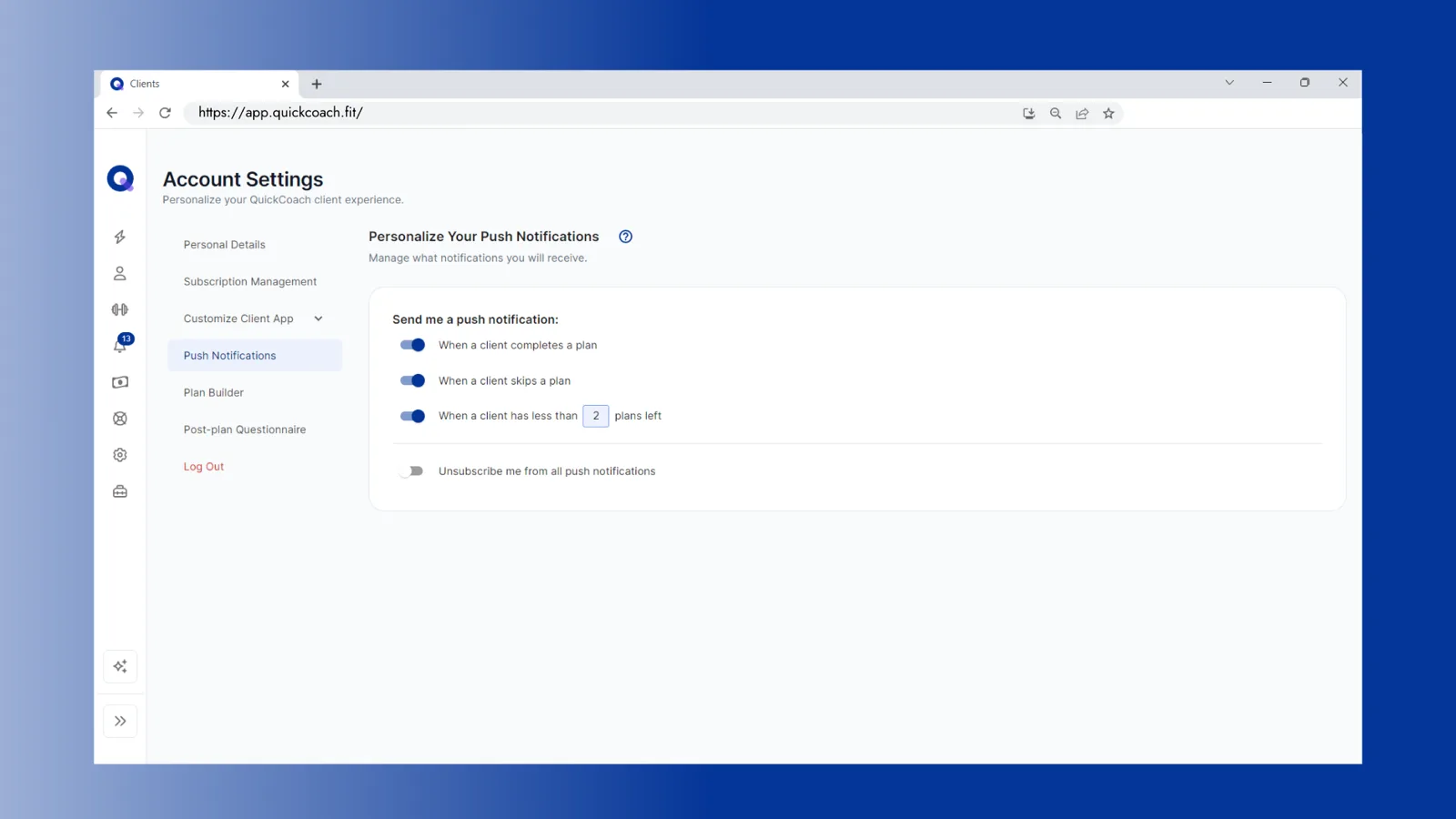
For the plans-left notification, enter a number between 1 and 5. If you type 3, you'll be notified when a client has three plans left, two, one, and none, so nobody runs out without you knowing.
Important: The Push toggles only control the banner alerts on your device. What lands in your Notification Center is governed by the In-app toggles, so switching a push off doesn't stop that update appearing in the panel.
Watch how to configure your notifications (1:38).
Note: QuickCoach's features and screen layouts may change over time, but the core workflow stays the same.
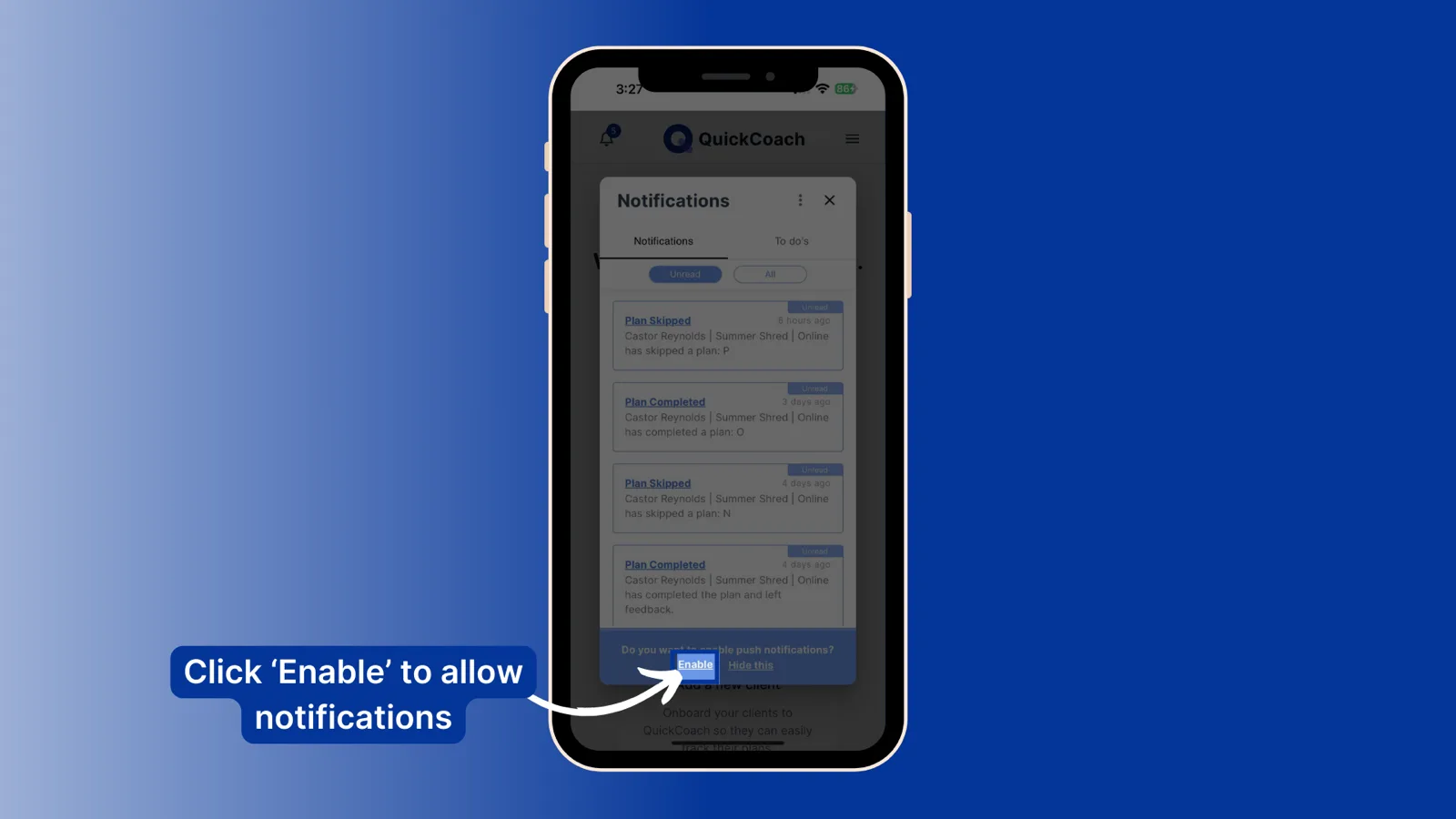
Enable push notifications on your device
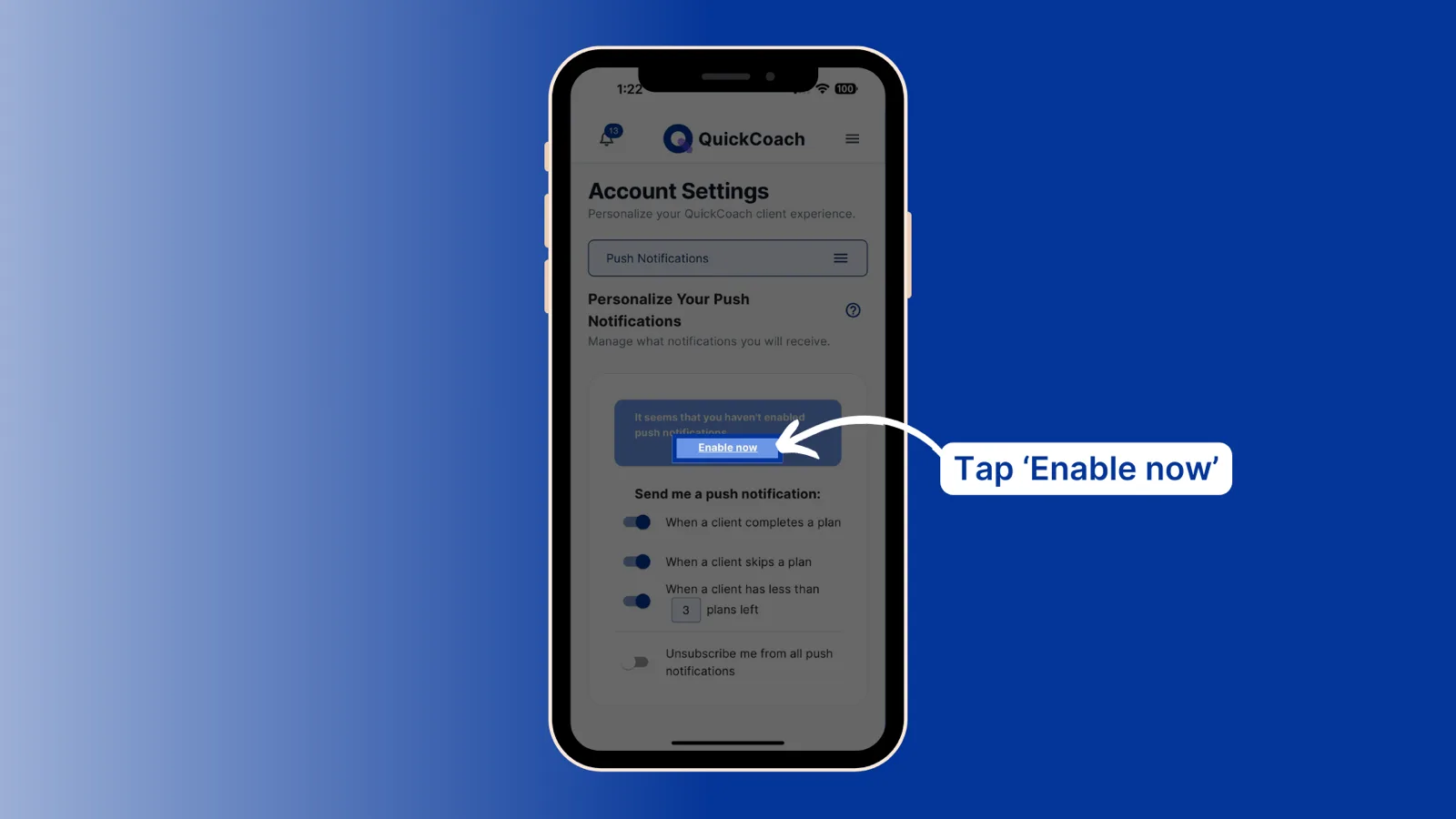
Push notifications need switching on once per device. You can do it from two places.
From the bell icon, open your Notification Center and click 'Enable' on the banner at the bottom, then allow notifications when your device asks.
Or open your account settings, go to the app set-up section, choose 'Push Notifications', and tap 'Enable now' on the banner.
Watch how to enable notifications (1:20).
Not receiving pushes after enabling them? The troubleshooting guide has the full checklist.
Your to-do list
The second tab of the same panel is a simple to-do list, separate from anything your clients see. It's a private running list for your own coaching admin.
Watch the to-do list video walkthrough.
- Click the bell icon to open your Notification Center.
- Click the To-Do List tab.
- Type your task in the box that says Title.
- Click the plus button, or press Enter, to add it to the list.
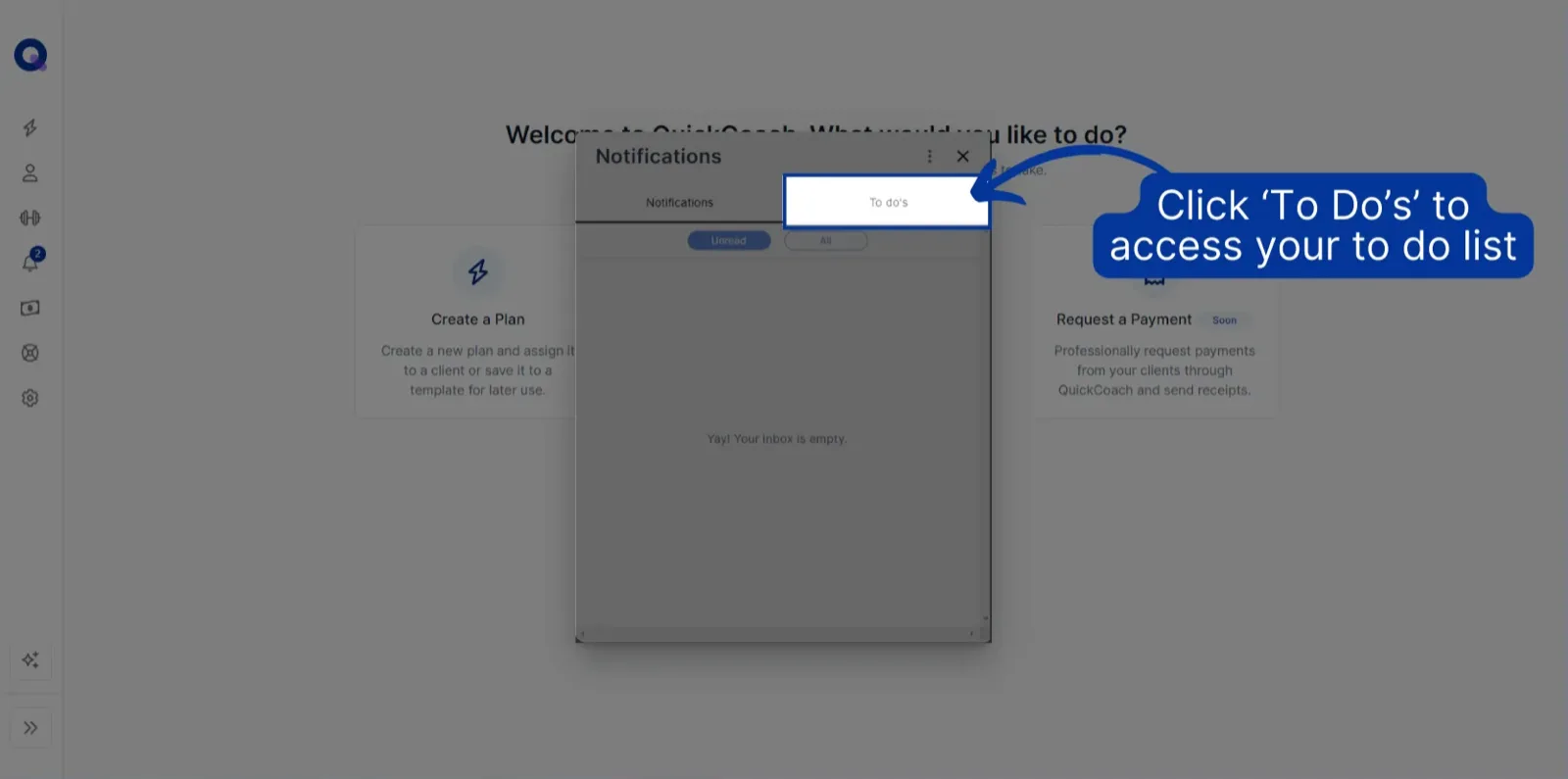
When you've finished a task, tick its checkbox and it moves to the Completed section. Ticked something by mistake? Untick it and it returns to your to-do section.
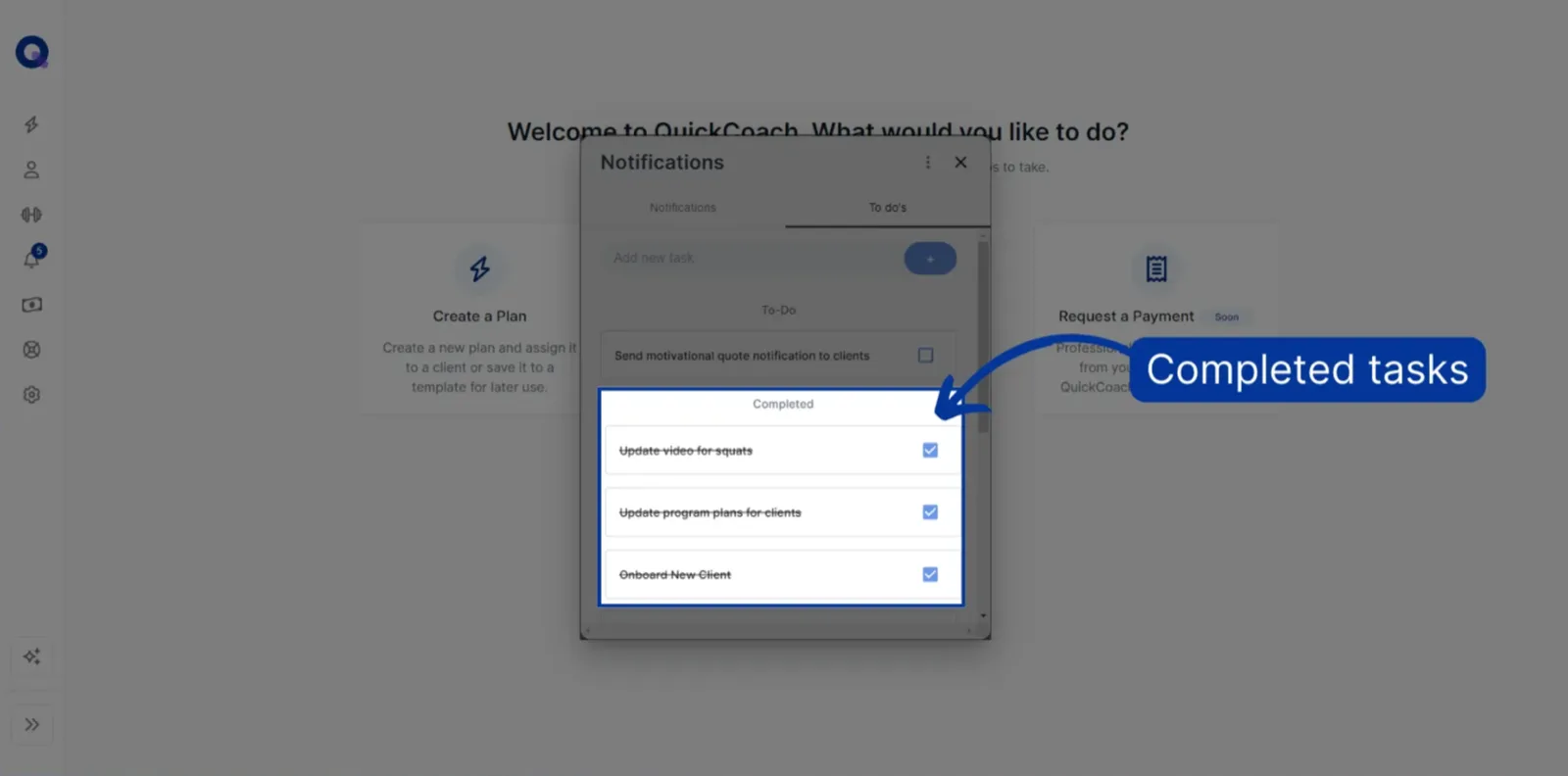
Note: The to-do list doesn't support reminders. It's a simple running list to keep your own tasks in one place.
Frequently asked questions
I'm overwhelmed by how many notifications I have. How do I fix that?
Open the notification settings via Notification Settings in the three-dot menu (or through 'Push Notifications' in your account settings) and switch off the In-app toggles for the activity you don't need. From there you control which client notifications, if any, show up in your Notification Center.
Can I get notifications both in-app and as a push notification?
Absolutely. In your settings, toggle each client activity notification for 'In-app', 'Push', both, or neither.
Plan completions and feedback tie into seeing your client's feedback. Want to send notifications to clients rather than receive them? That's covered in push notifications.