
See a client's account from their side
Preview a client's account exactly as they see it, so you can plan how you present their plans, tasks and feedback before it reaches them.

Understanding what your clients actually see helps you plan how you present their programming. There are three ways to view an account from the client's side, and you can even fill in a plan on their behalf while you're there.
Watch the video walkthrough (1:22).
Note: QuickCoach's features and screen layouts may change over time, but the core workflow stays the same.
Open your client's link
From the Clients page, open the client you want, then click the open icon inside their link box (its tooltip reads 'Open Client App').
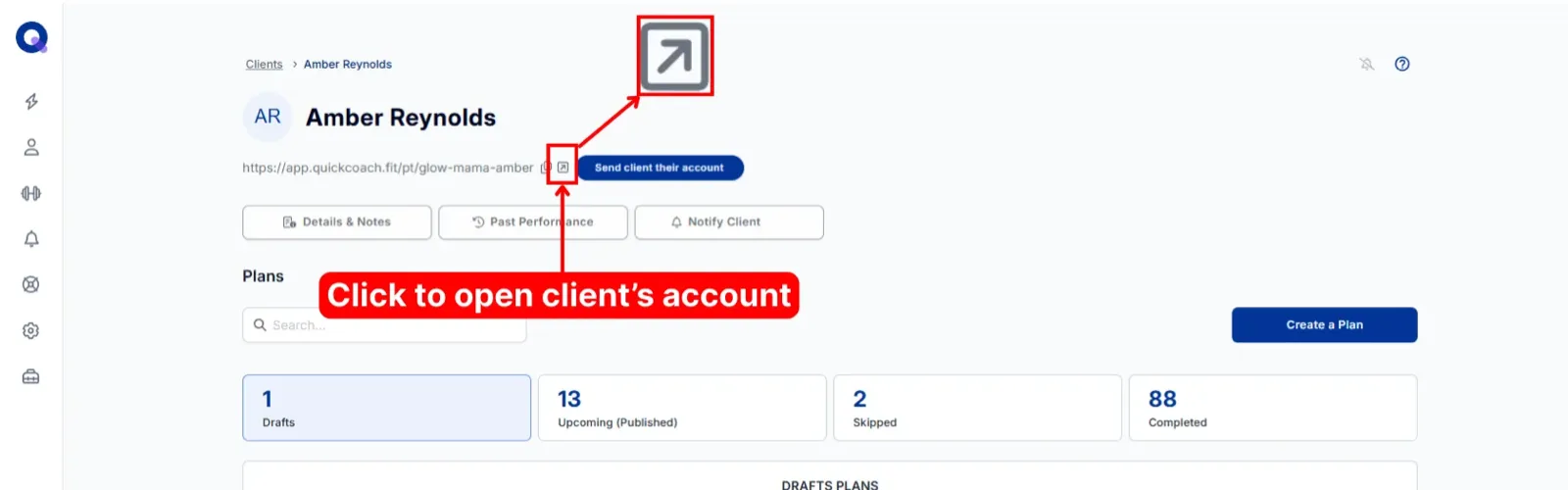
Their account loads exactly as they see it. Pick whichever plan you want to view.
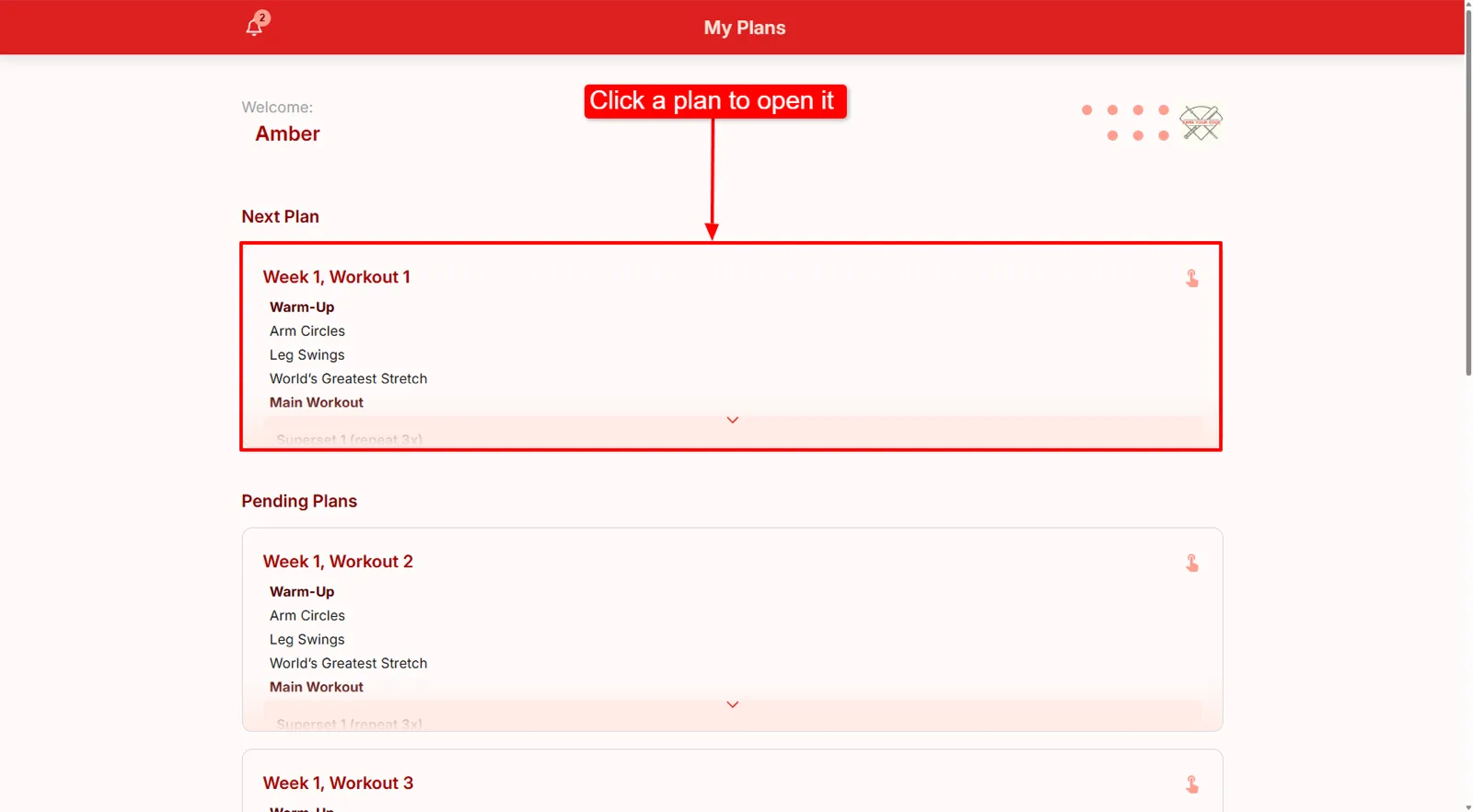
Tip: You can fill in a plan on the client's behalf this way, which is handy when you train them in person.
Preview from the plan builder
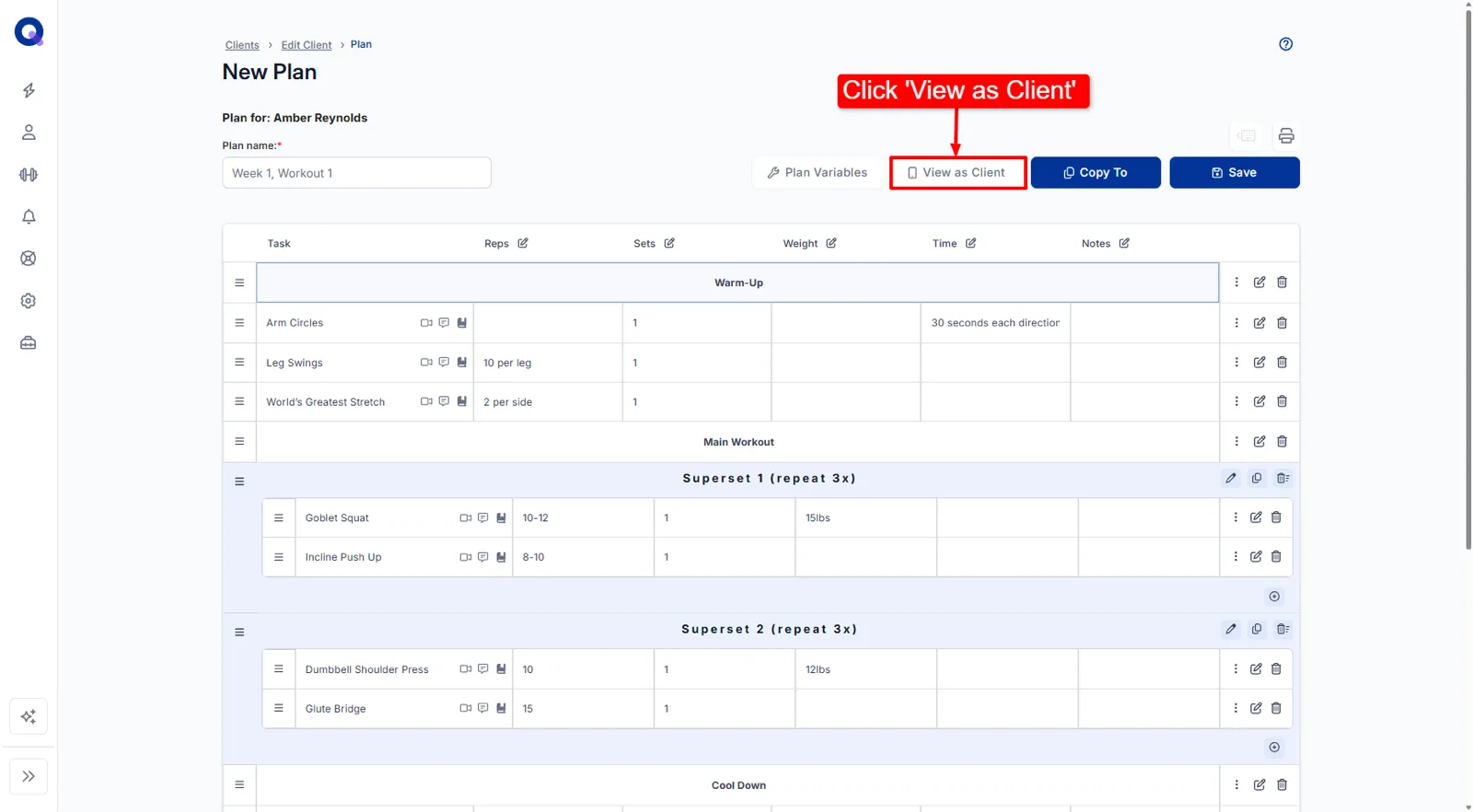
Inside the client's account, open any plan and click 'View as Client'.
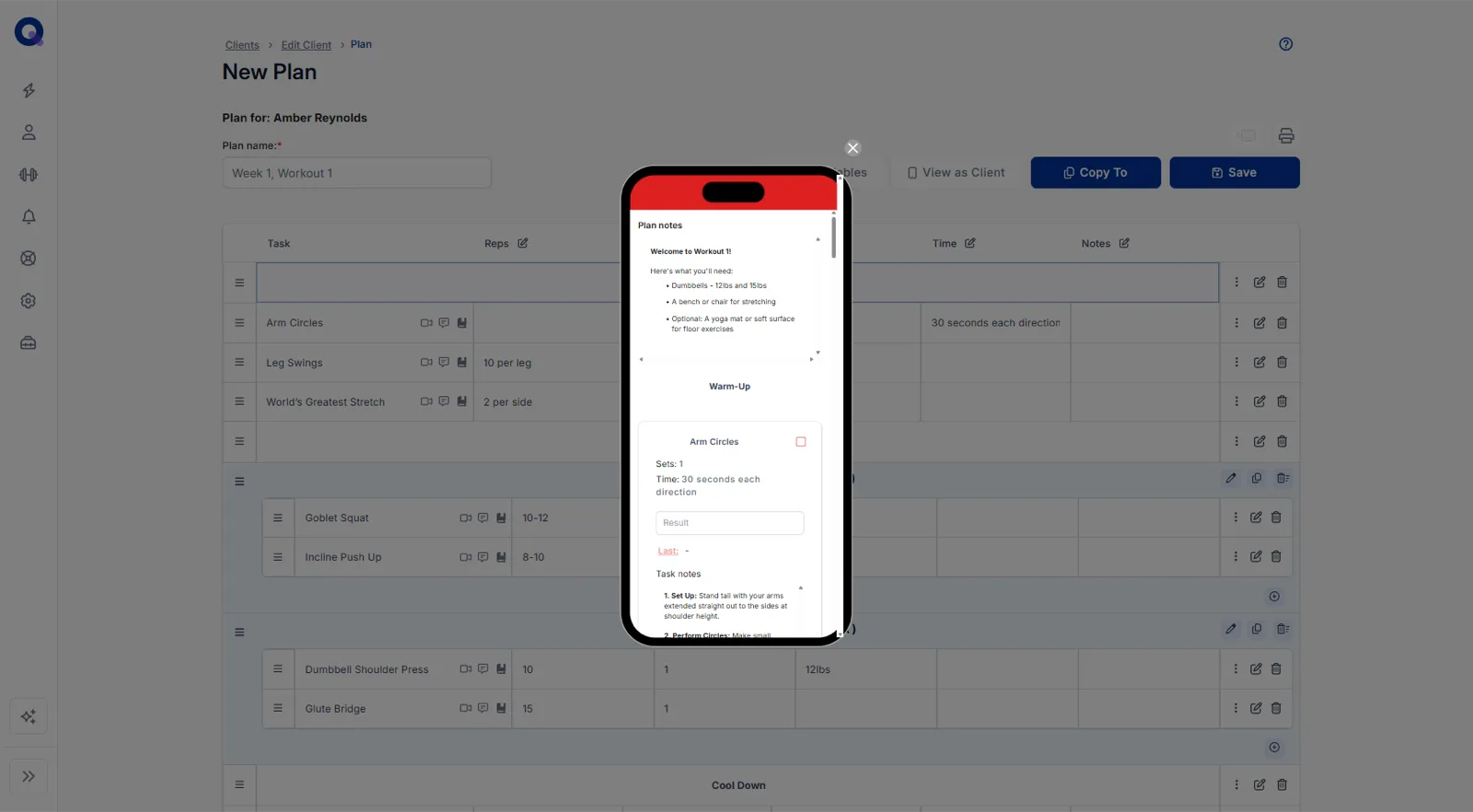
You'll see a phone-style preview of the plan, with the plan notes, tasks and result boxes just as the client gets them.
Check a result from history
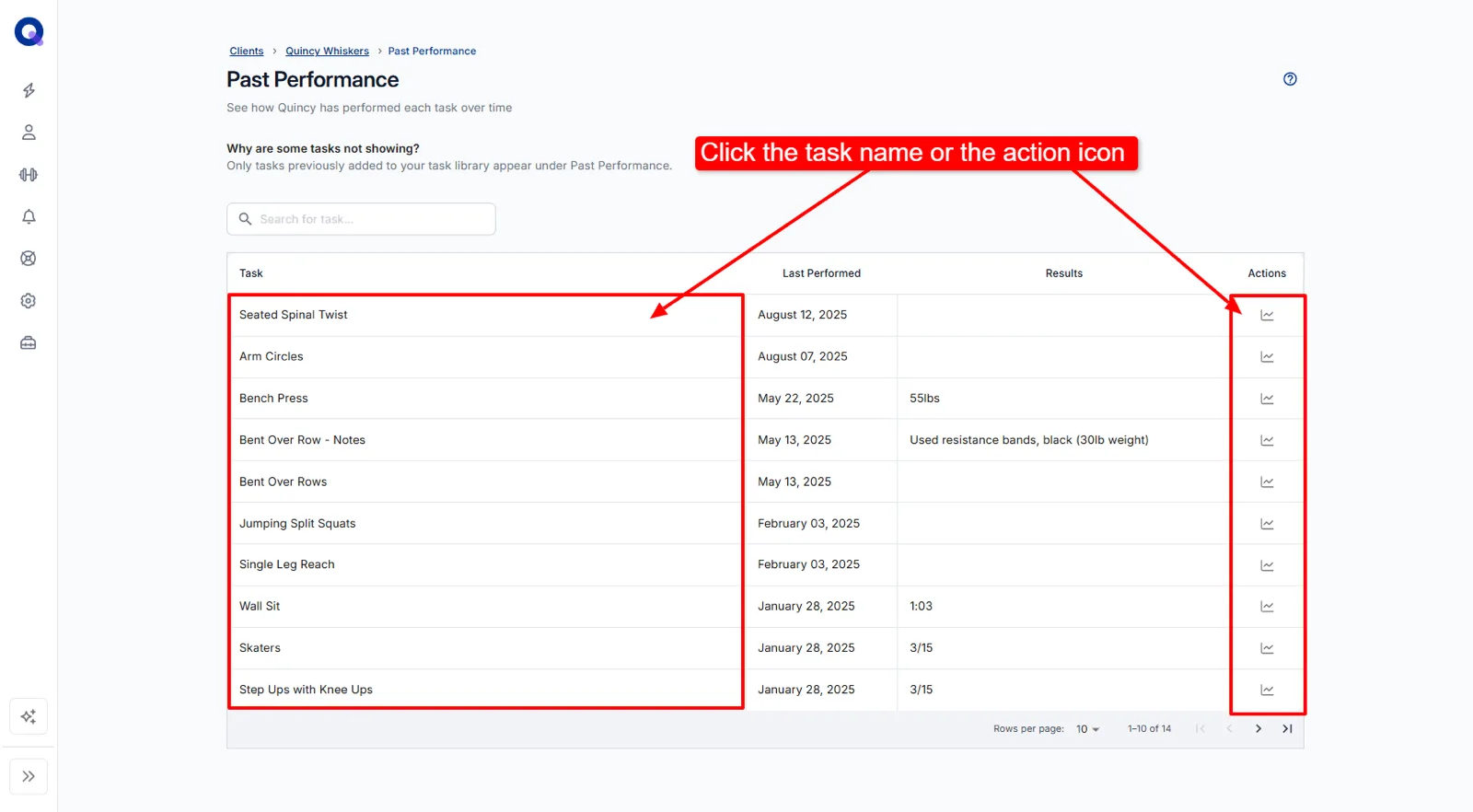
Inside the client's account, click 'Past Performance', then click a task name or its action icon.
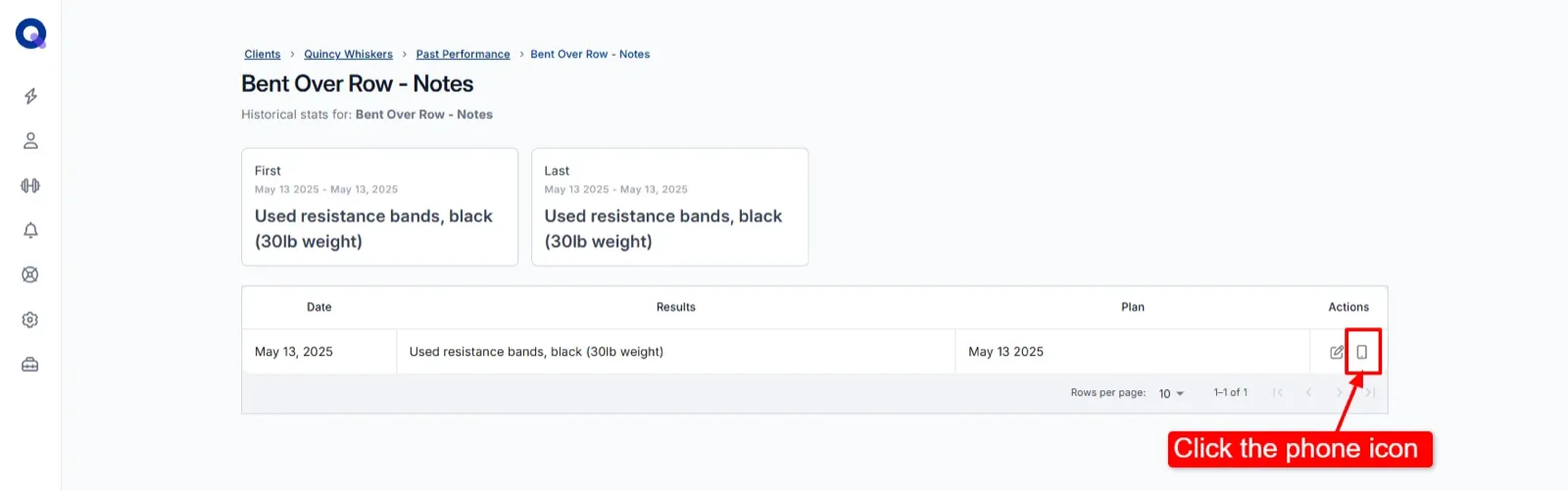
Click the phone icon next to a result to open the plan that result came from, viewed from the client's side.
Viewing results this way pairs well with reviewing history, which also covers fixing a result when a client logs the wrong number.