
Setting up the post-plan survey
Customise the questions clients answer after finishing a plan, switch any of them off, and on Pro write the message clients see when they complete a workout.

When a client completes a plan, they're offered the chance to send feedback and answer a short survey. Both are optional for the client, and the survey questions are entirely yours to edit or switch off.
Watch the video walkthrough (2:42).
Note: QuickCoach's features and screen layouts may change over time, but the core workflow stays the same.
Find the survey settings
Click 'Account & App Set Up' in the navigation to open Account Settings, then choose Post-plan Questionnaire from the menu on the left. This is where every question your clients see after finishing a plan lives.
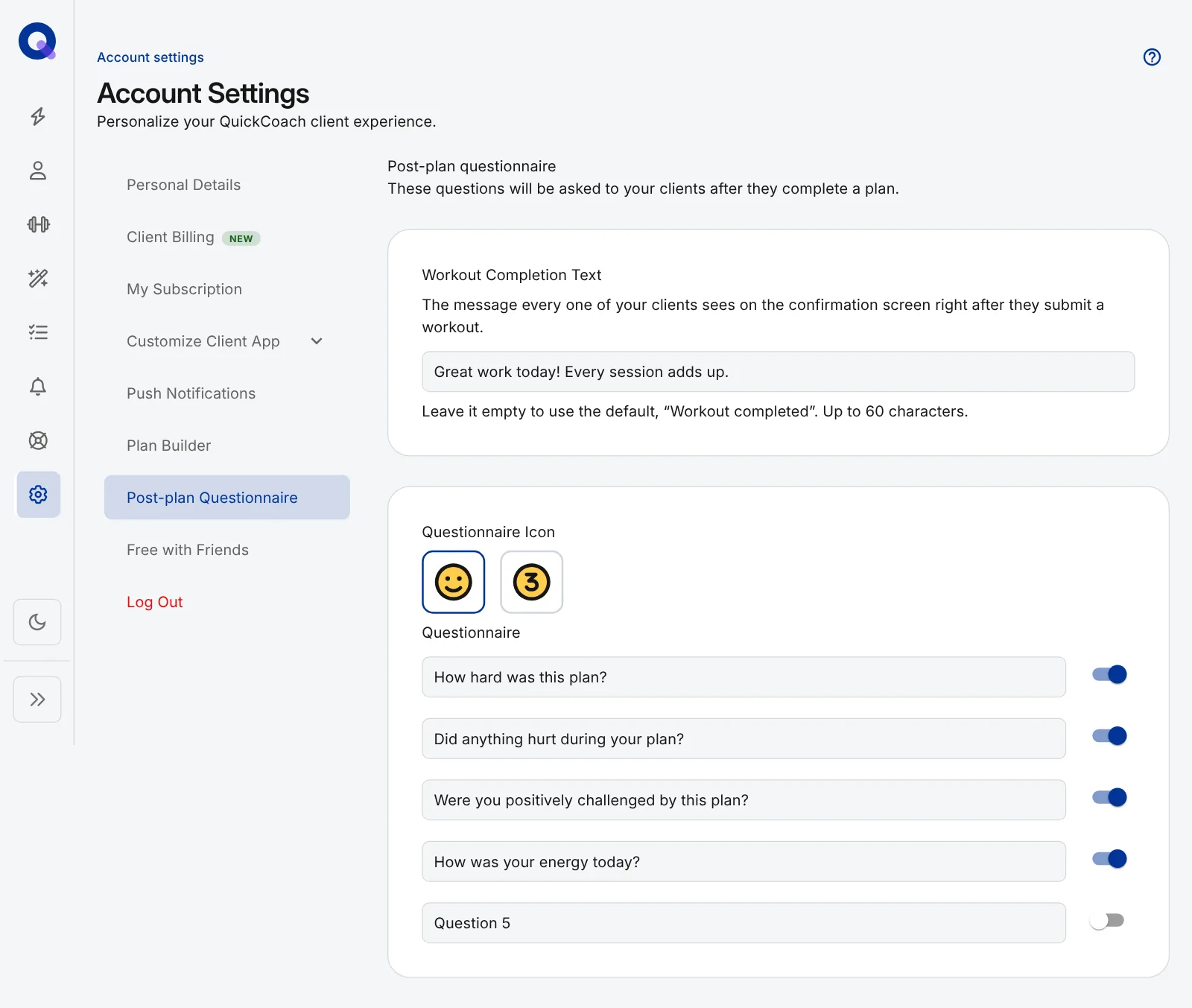
The page has three parts: Workout Completion Text (covered below), Questionnaire Icon and the Questionnaire itself.
Edit or switch off questions
- Type over any question box in the Questionnaire list to change what it asks.
- Click out of the box. The question saves on its own; there's no Save button.
- Use the toggle beside each question to turn it on or off. A toggle change saves straight away.
Note: A toggle switched off hides that question from clients without deleting your wording, so you can switch it back on later.
Choose faces or numbers
Under Questionnaire Icon, pick the face to have clients answer each question with emoji faces, or the number to have them answer with numbers. Click either one and it saves straight away. The faces and numbers themselves can't be changed, so if a scale needs explaining, put it in the question text.
Write your own completion message
The completion message is the heading a client sees the moment they submit a workout, just above the prompt to leave feedback. On Pro you can replace the default, "Workout completed", with a line that sounds like you.
- In Post-plan Questionnaire, find the Workout Completion Text field.
- Type your message, up to 60 characters.
- Click out of the field. It saves on its own.
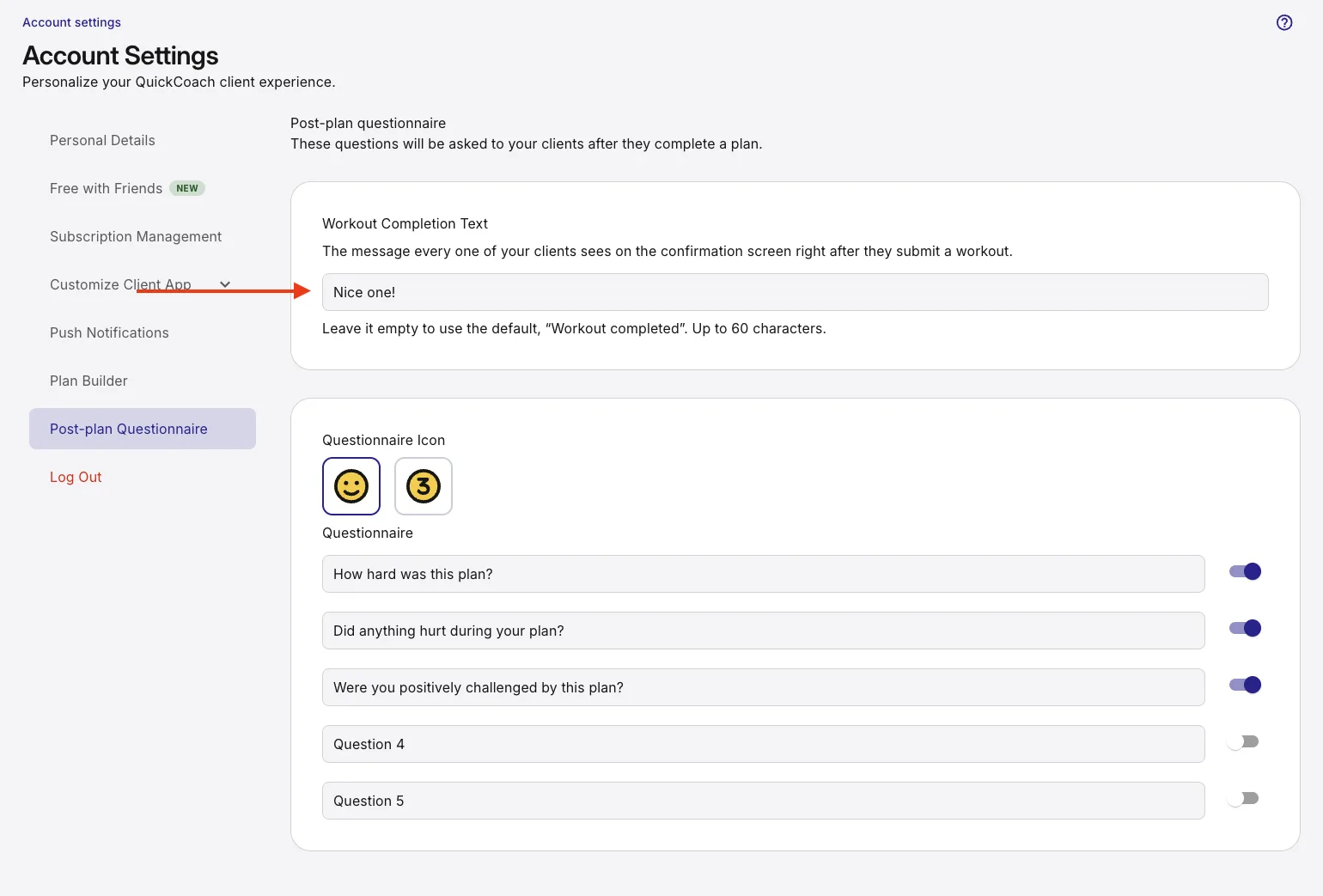
Every client sees it on the confirmation screen right after they submit a workout.
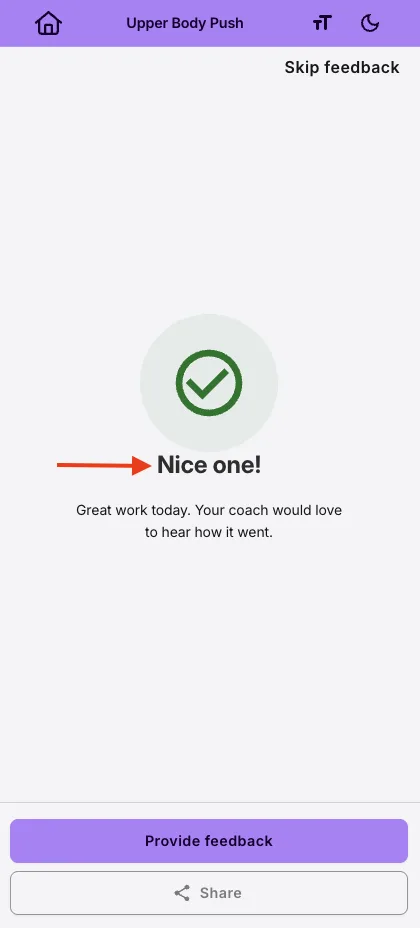
Clear the field to go back to "Workout completed", which is also what clients see on the free plan. The message is a single heading on a phone screen, so anything longer than 60 characters is trimmed.
Once clients start answering, head to seeing your client's feedback to read what comes back and for the tidiest ways to reply. Survey answers also appear alongside each completed plan's results, under Plan Notes.