
Billing your clients
Bill your clients by card through your own Stripe account with Client Billing: connect Stripe, create packages, send a payment link and get paid to your bank.

Client Billing lets you charge your clients by card from inside QuickCoach. The money goes through your own Stripe account and lands in your bank, and QuickCoach keeps track of who has paid. It works on the Free and Pro plans. Setting it up takes a few minutes, plus Stripe's review of your details.
What it costs
Setting it up is free and there's no monthly charge. Each payment carries a QuickCoach platform fee of 10% on Free or 3.5% on Pro, plus Stripe's own processing fee at Stripe's rate for your country. Client Billing is optional, and the platform fee only applies when you get paid through it. The full breakdown is in what Client Billing is and what it costs.
Set up Client Billing, step by step
- Turn it on. Go to Account & App Set Up, open Client Billing and switch on Enable client billing.
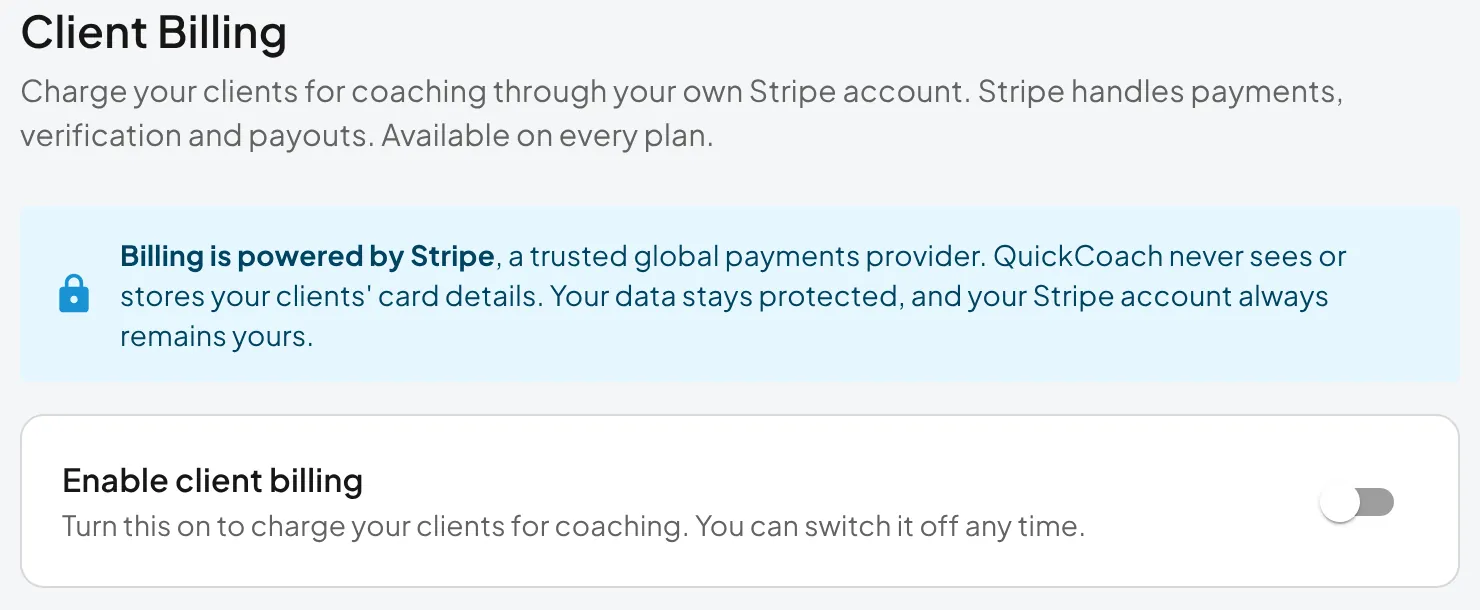
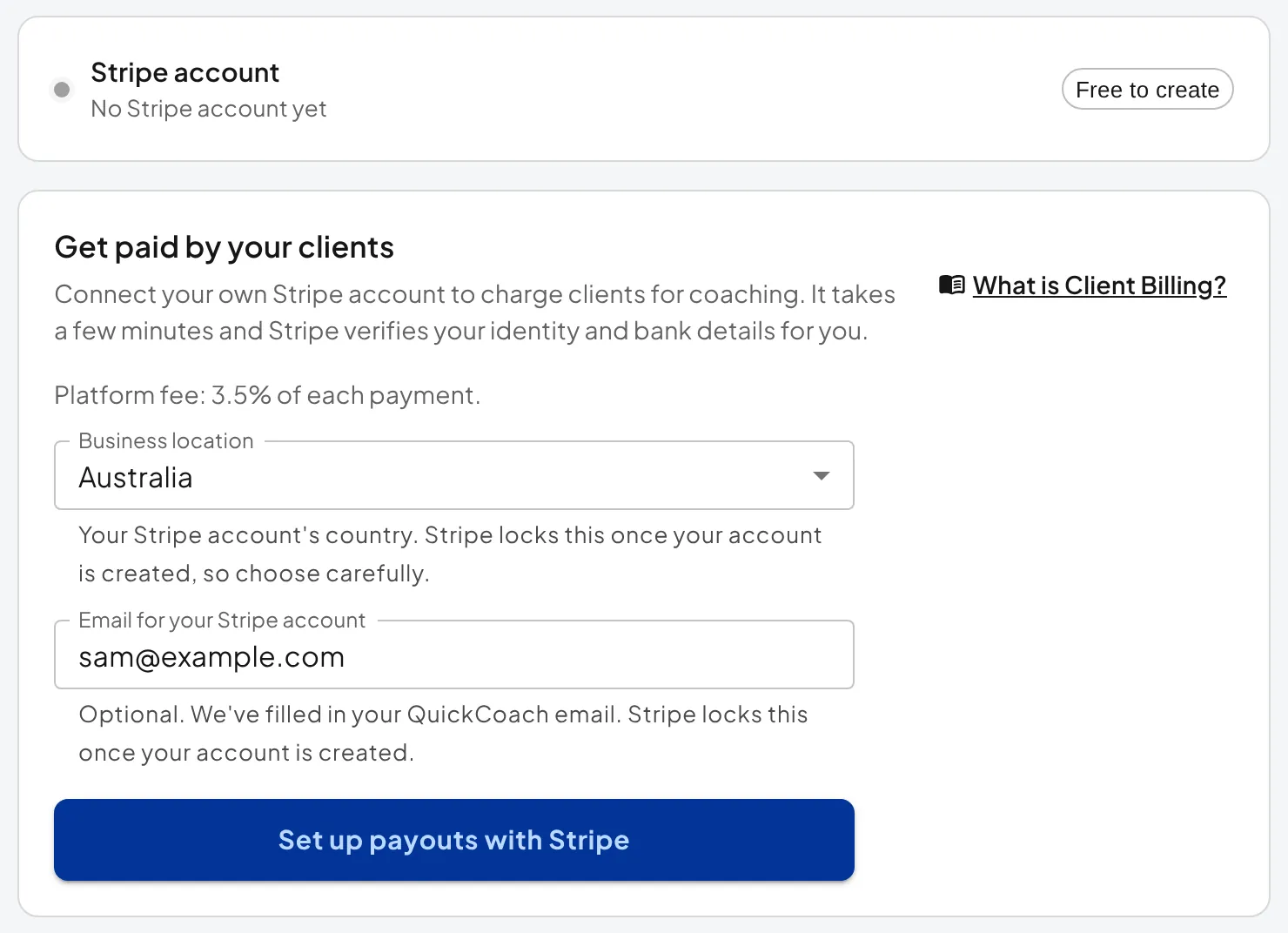
- Connect Stripe. Choose your business location, enter the email for your Stripe account and follow Set up payouts with Stripe. If you don't have a Stripe account yet, you create one along the way. Connect Stripe and get verified walks through every screen.
- Wait for verification. Stripe reviews your details, usually in under 24 hours and occasionally 2 to 3 business days. There's nothing to do while you wait: the status in QuickCoach changes to Connected and ready to take payments once Stripe approves you.
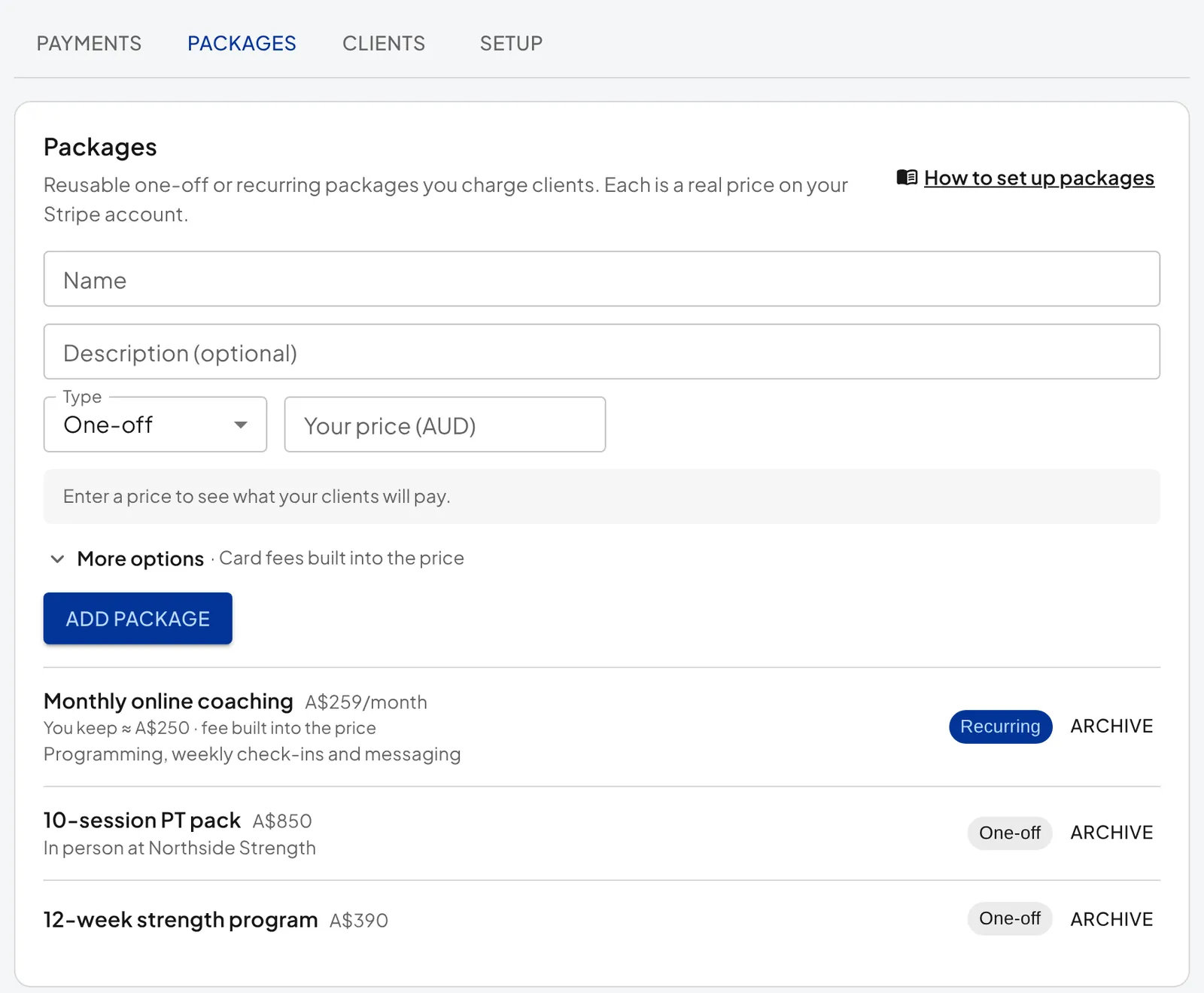
- Create your packages. On the Packages tab, add what you sell: a one-off package (a 10-session pack, a program) or a recurring one billed weekly, fortnightly, monthly, quarterly or yearly. You can build the card fees into the price or take them from your payout. See create your packages.
- Charge a client. Open the client's profile, tap Billing, choose a package and create a payment or subscription link. Email it straight to the client or copy it into a message. See charge a client.
What happens next
Your client opens the link, pays by card on a secure Stripe page and gets a receipt. A payments icon then appears in their app, where they can see their receipts and update their card. What your client sees shows each screen.
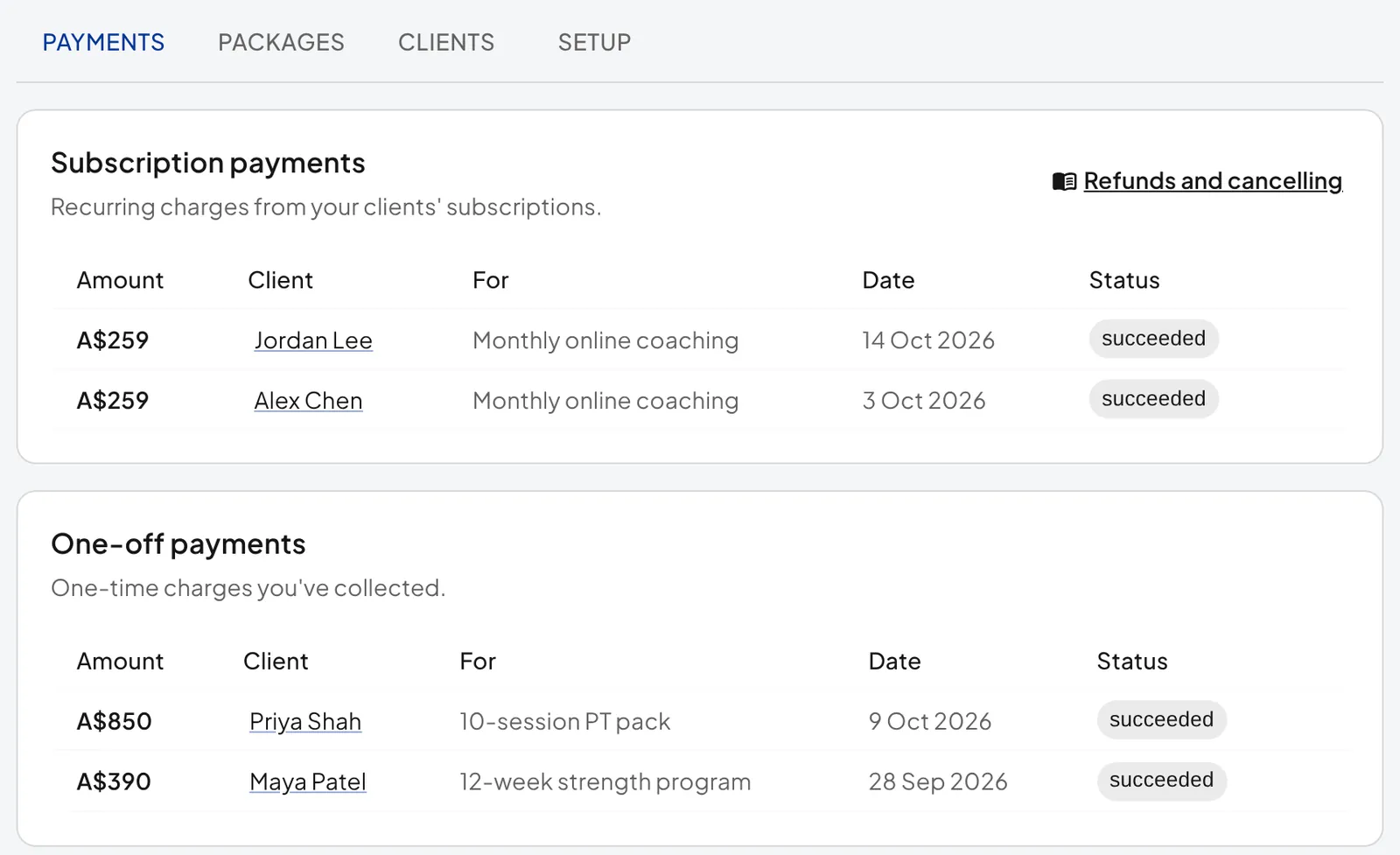
On your side, the Payments and Clients tabs show every payment, who is subscribed and how much each client has paid in total. You can refund a payment or cancel a subscription from there or from the client's profile. See payments, refunds and cancelling.
Tip: Pro lowers the platform fee from 10% to 3.5% of each payment. That 6.5-point saving covers the $39 a month Pro subscription by itself once you bill about $600 a month through Client Billing. Compare in QuickCoach Free and Pro, explained.
Stuck on a step? The Client Billing FAQ covers the common questions, and questions about your own QuickCoach subscription go to support@quickcoach.fit.