
How clients submit a plan and leave feedback
When a client finishes a plan they submit it, then choose whether to leave feedback. Here's the whole flow, from Submit Plan through the post-plan survey.

When a client finishes a plan, they submit it and then decide whether to leave you feedback. That feedback can be typed, spoken, or a quick survey, and it's a rich source of what's working. Here's the full flow from their side.
Submitting a plan
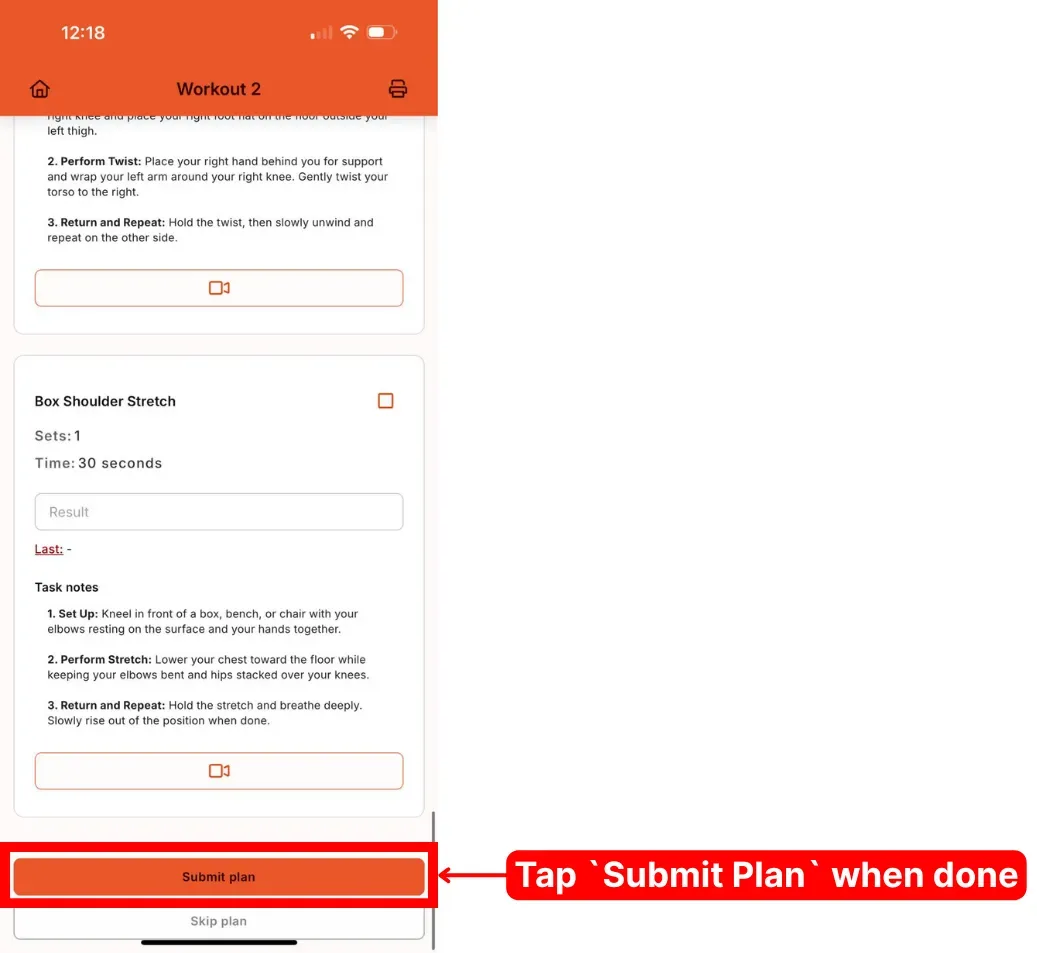
Once a client has worked through a plan, they scroll to the bottom and tap Submit plan.
Leaving feedback or skipping it
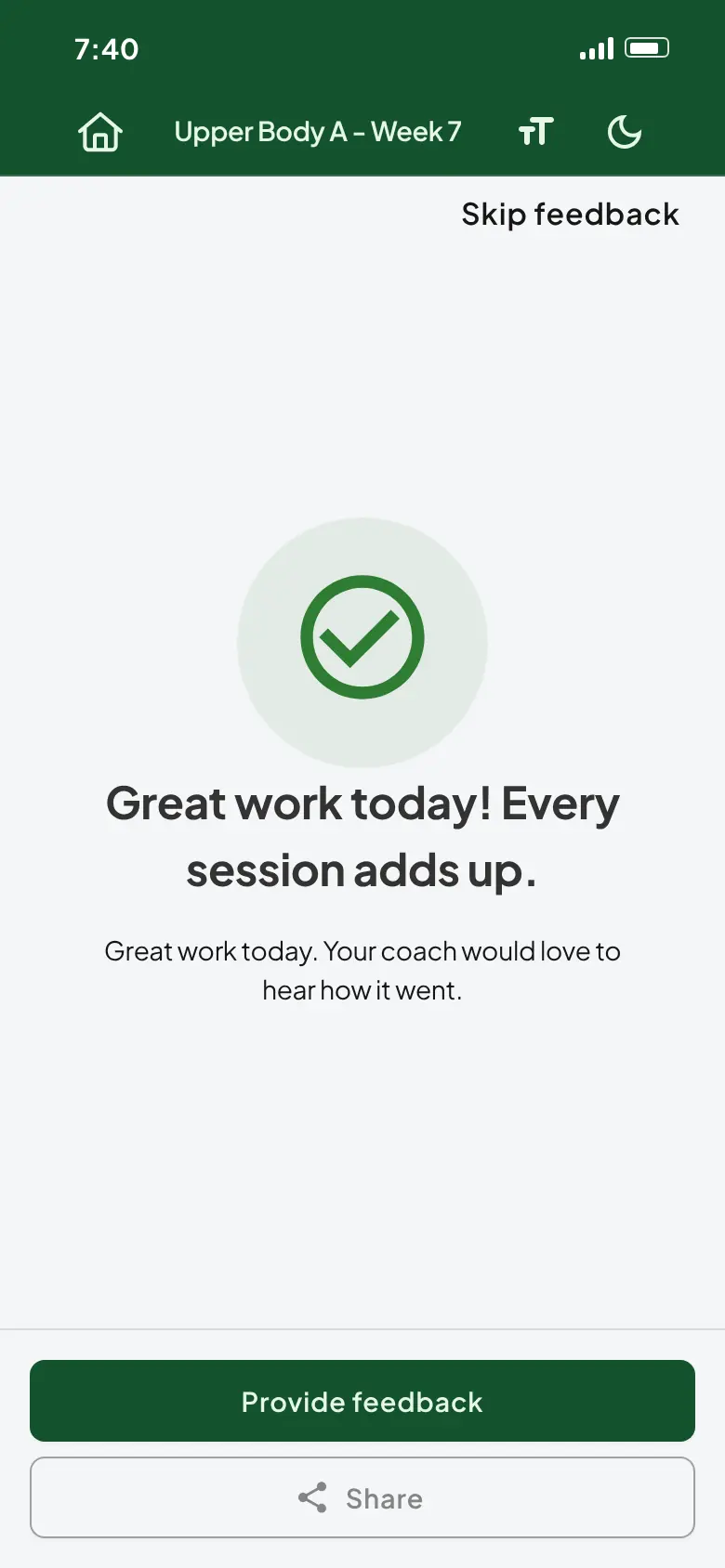
After submitting, the client sees a completion screen. The headline is your workout completion message on Pro (for example, "Great work today! Every session adds up.") or "Workout completed" by default. From there they have three choices:
- Provide feedback opens the comments screen described below.
- Share turns the session into an image card they can post or send. See sharing workouts with branded templates.
- Skip feedback, in the top corner, asks them to confirm, then takes them straight back to their home page.
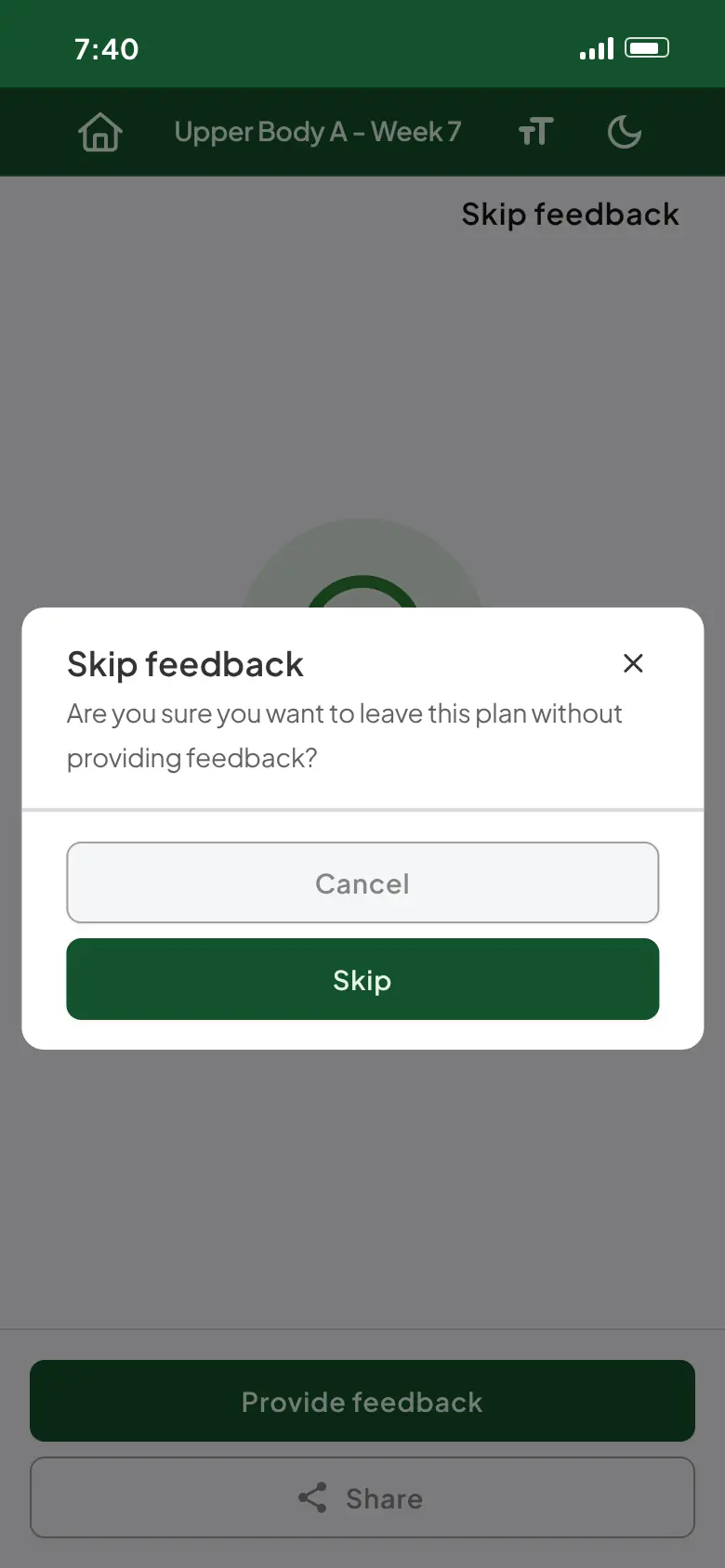
Note: Skipping feedback here also skips the post-plan survey, so no comment or survey answers are recorded for that plan. The plan itself still counts as completed.
Text feedback
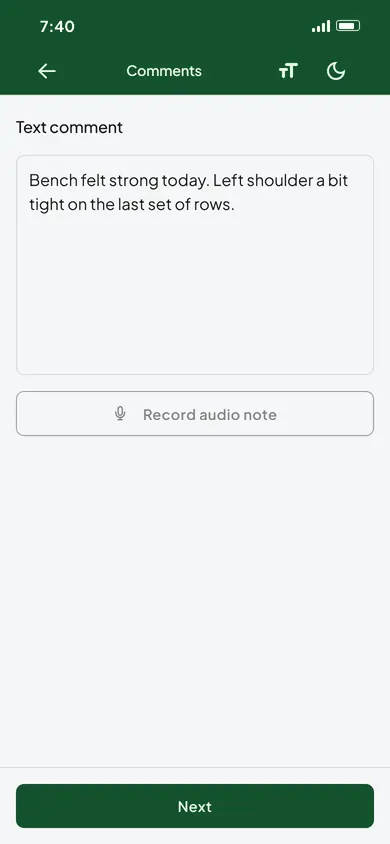
If they choose to provide feedback, the first option is a text comment. There's no length limit, so it's a good place for anything a client couldn't fit into the result boxes on the individual tasks.
Audio feedback
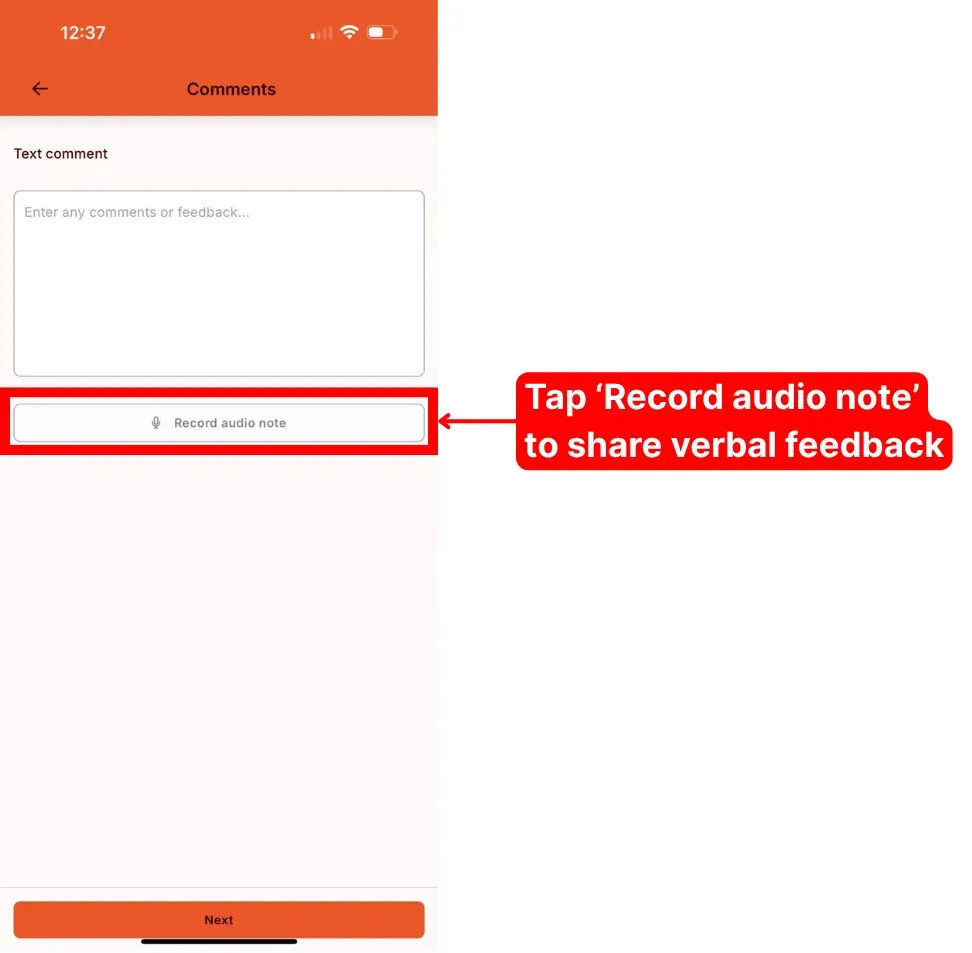
They can also record a voice note by tapping Record audio note. Each note can run for up to 60 seconds, with a countdown on screen, and recording stops by itself when the time is up.
Newer Free accounts: if you're on the Free plan under the current Free plan rules, the 'Record audio note' button is greyed out for your clients, so they can leave text feedback only. On Pro, or on an older Free account, voice notes work as described here.
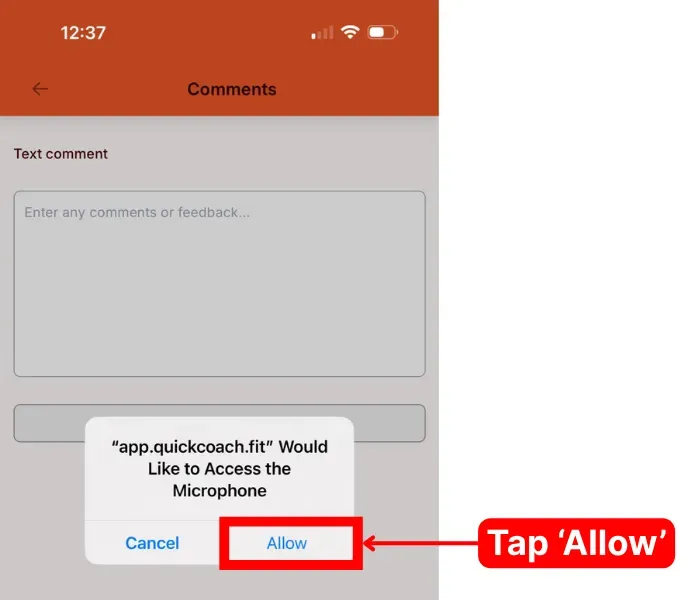
The first time a client records, the app asks for microphone access. They tap Allow.
While recording, the button reads "Recording... Click again to finish", and tapping it again finishes the note. Once recorded, they can tap Play audio note to hear it back or Remove audio note to start over. Tapping Next moves them on.
The post-plan survey
If you've set up a survey, it comes next. Clients answer each question by tapping an emoji or a number, then tap Submit to send it, or Skip to pass.
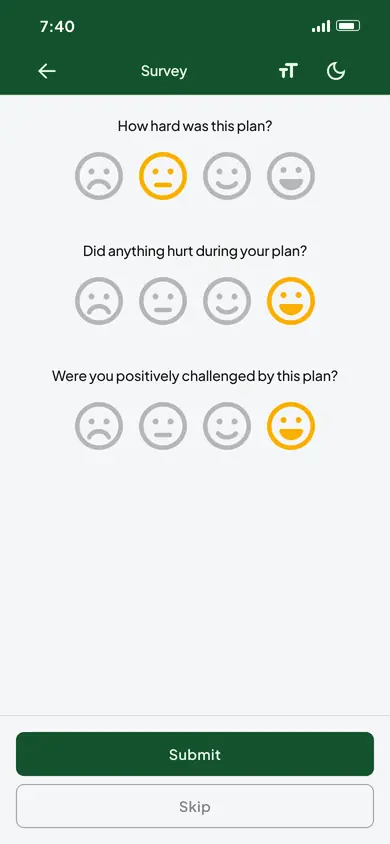
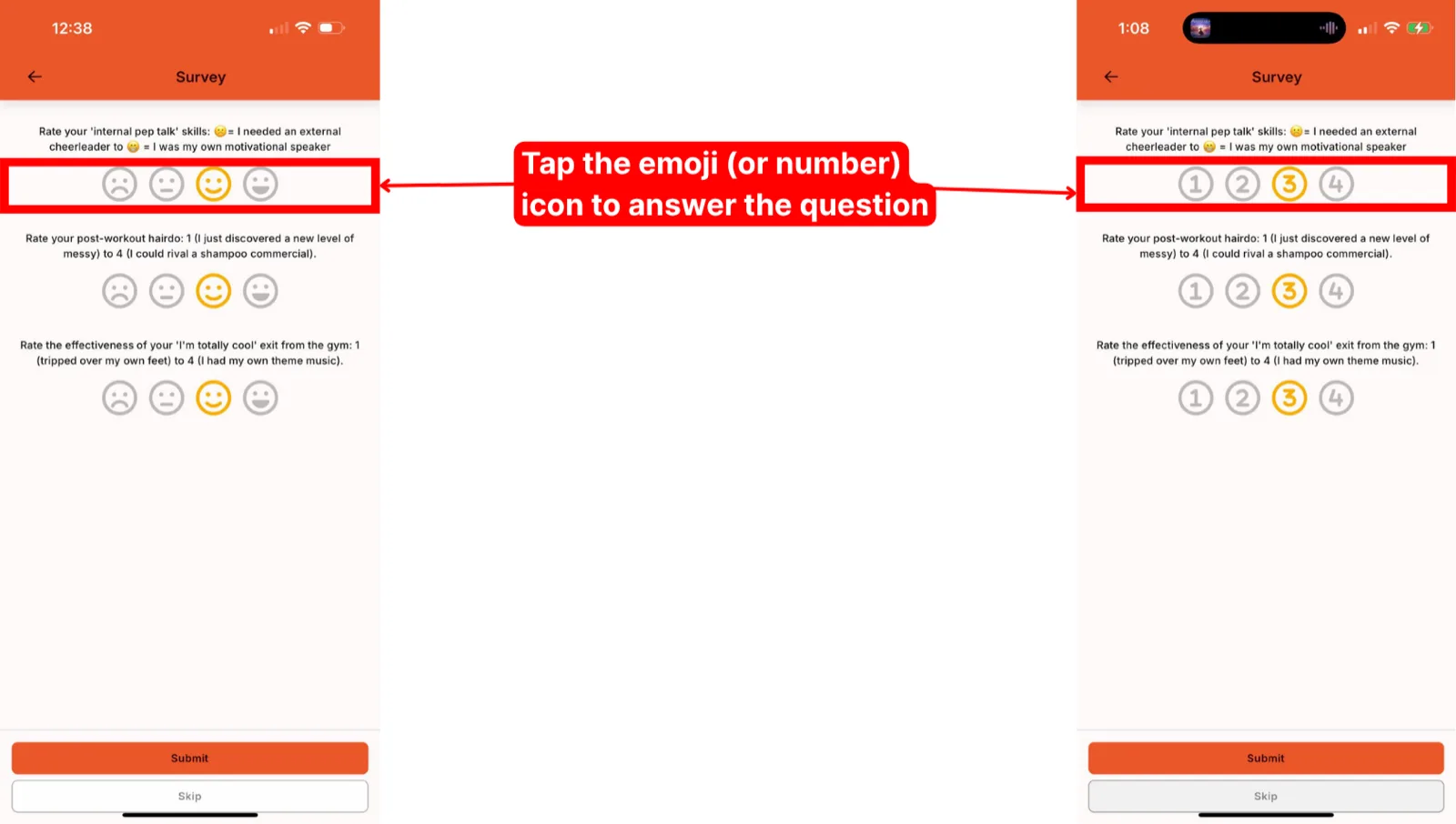
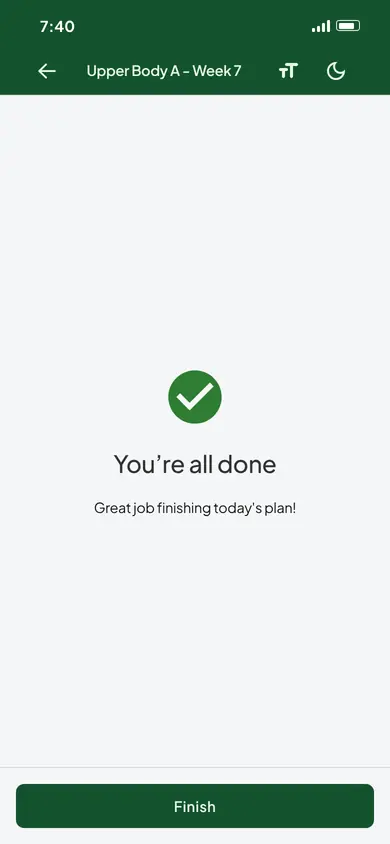
Either way, a final "You're all done" screen follows, and Finish takes them back to their home page. You build these questions in your post-plan survey, and the answers land alongside the rest of your client's feedback.
Frequently asked questions
A client submitted a plan too early. Can they reopen it?
No. Once a plan is submitted it's closed. To capture anything they missed, create a new plan with just those tasks and have them record the results there. See the fixing-results section of seeing history.
How much room is there for feedback?
Text comments have no set length limit. A voice note can be up to 60 seconds long.