
Push notifications to clients
Send push notifications to client phones when a plan lands or a nudge is due. Notify your whole roster or one client at a time. Included with QuickCoach Pro.

Push notifications, included with Pro, let your coaching reach a client's lock screen. A new plan landing, a reminder, a nudge on the day it matters.
Where they help most
- New program delivered: the client knows the moment their next block is ready
- Accountability: gentle reminders beat chasing people over text from your personal number
- Time-sensitive coaching: the right prompt on the right day
Notifications go through the client app, so you're not juggling WhatsApp threads or hoping an email gets opened. And because the app is branded on Pro, the notification reads as coming from your business.
Use them sparingly. A notification that always matters gets read; one that fires daily gets swiped away. Pair pushes with a steady check-in rhythm rather than replacing it.
Notify your whole roster or a group
From the Clients page, click 'Notify clients' to open the 'Send Notification' dialog. On mobile, open the menu first, then tap 'Clients'. On the Free plan the button opens the Pro upgrade instead.
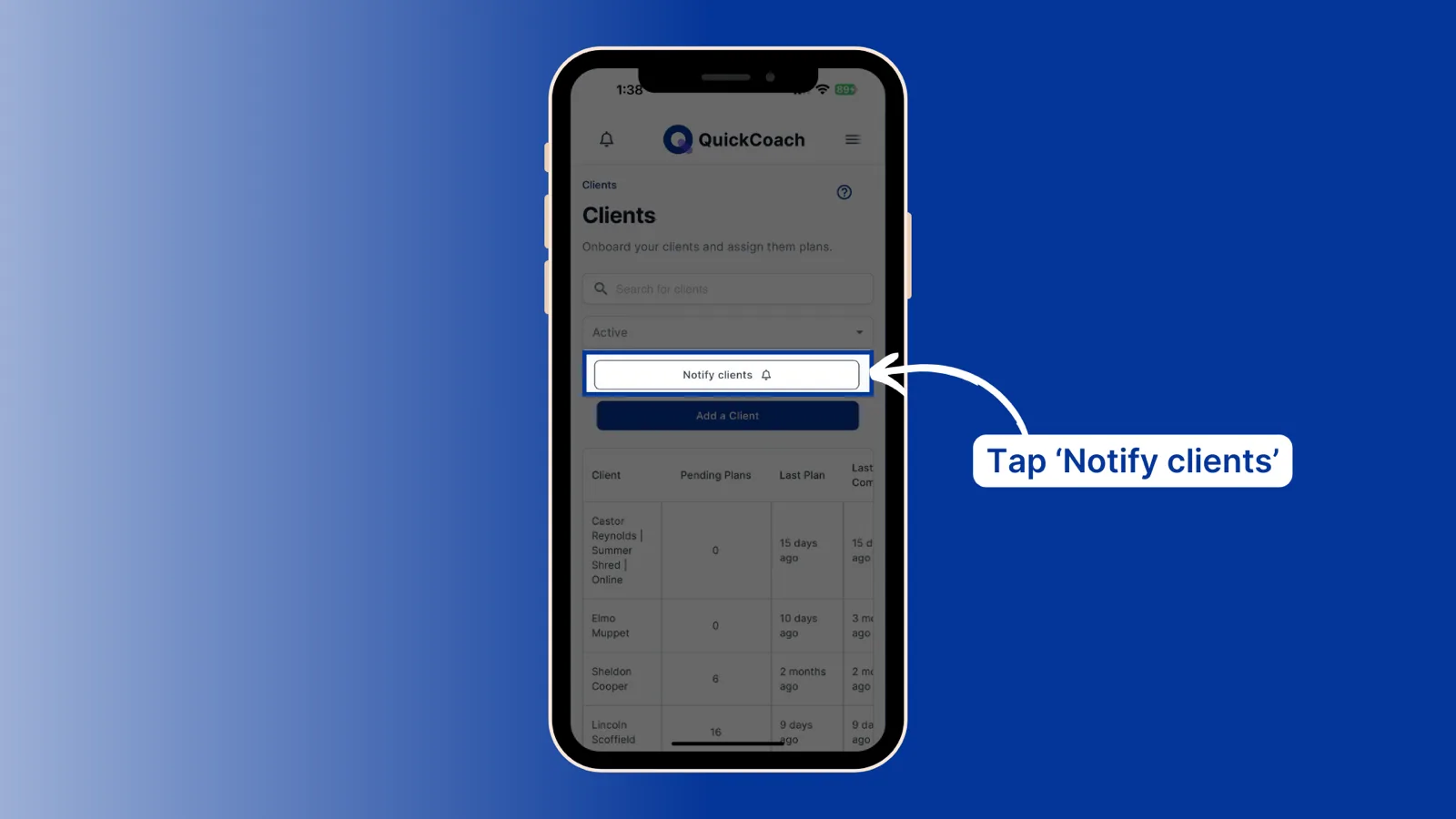
Choose who it goes to with the two tabs at the top. 'Send to...' is selected first: use the 'Target clients' box to search for and pick as many clients as you want. Switch to 'All' to notify every active client instead.
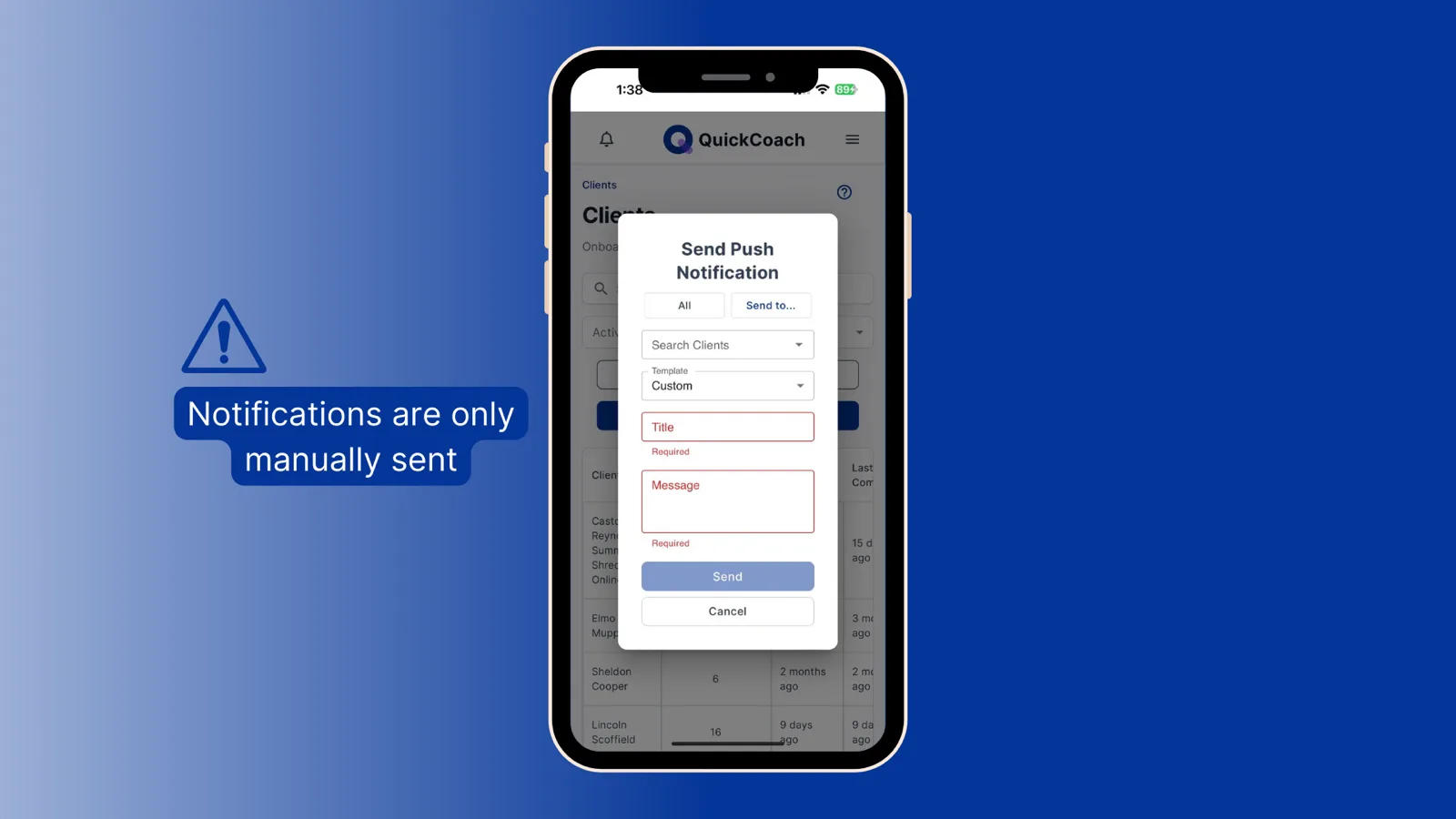
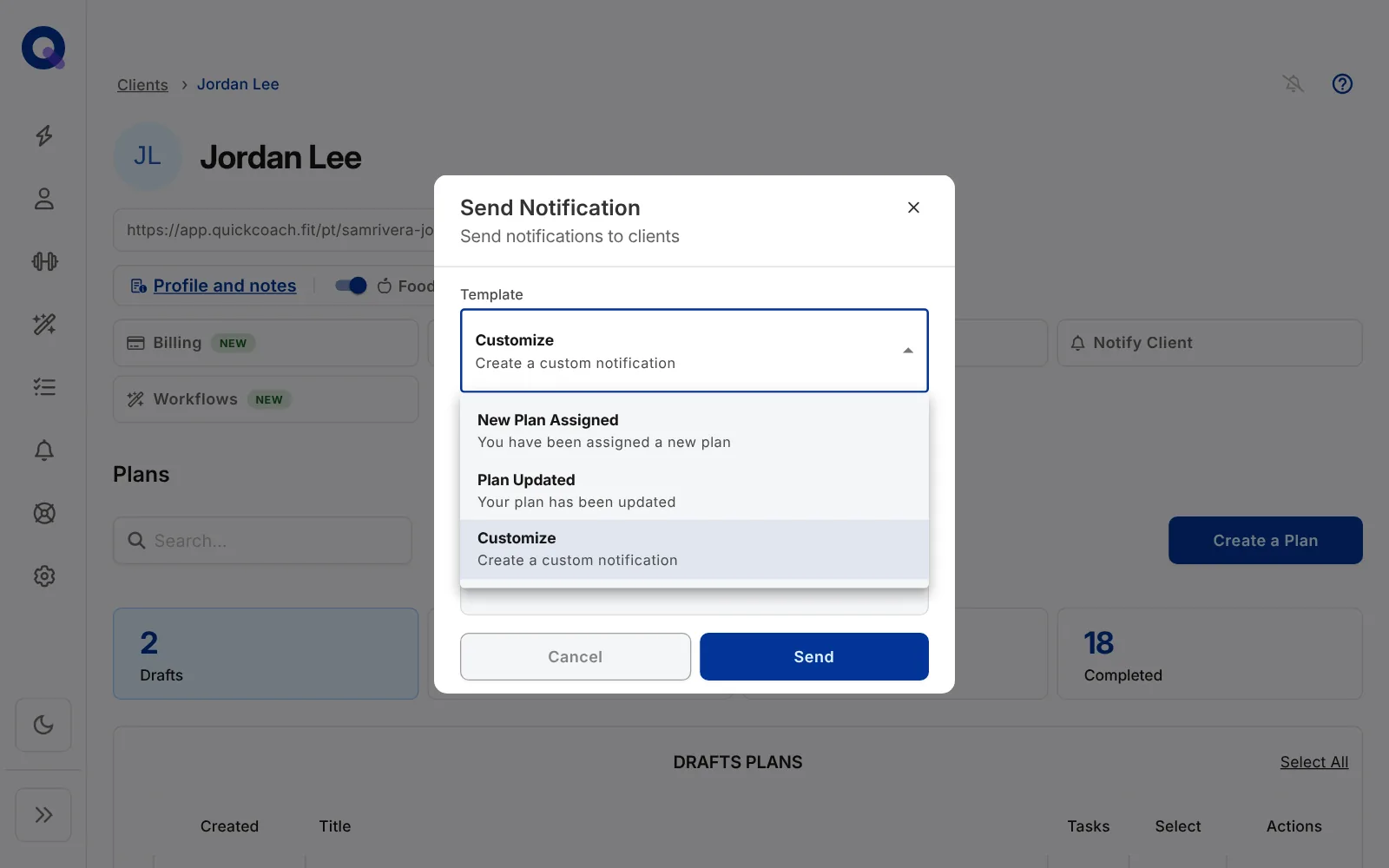
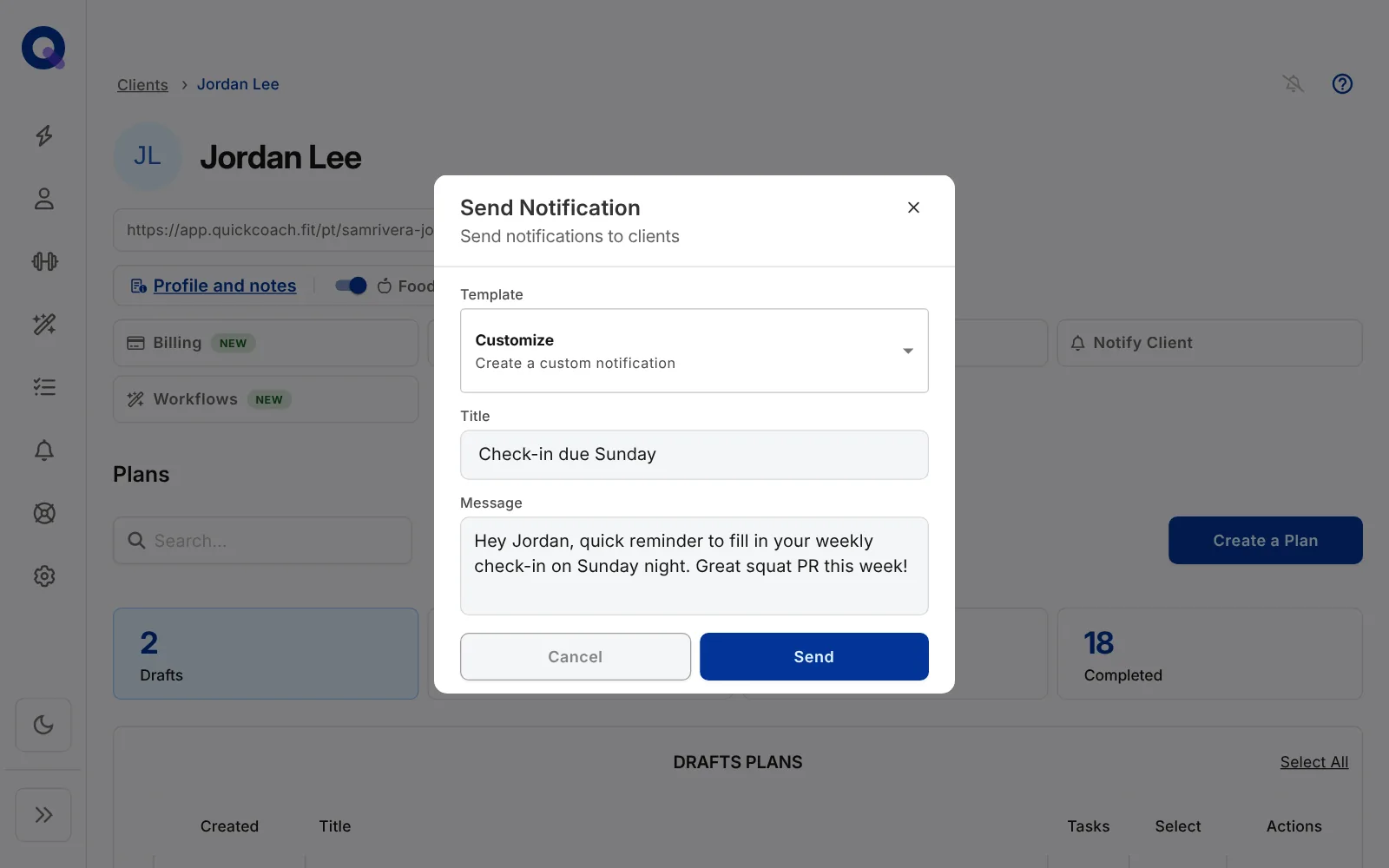
Under 'Template', choose 'Customize' for a blank message, or 'New Plan Assigned' or 'Plan Updated' for a pre-written title and message. You can edit the pre-written text; as soon as you do, the template switches to 'Customize'.
Fill in the 'Title' and 'Message' boxes (both are needed before 'Send' works), review it, then click 'Send'. Keep it short: long messages may be truncated on the device lock screen, though the full text is always available in the client's Notification Center.
Notify a single client
Open a client's page and click the 'Notify Client' tile. The notification goes only to that client, so there's no client picker; to reach several at once, use the roster method above.
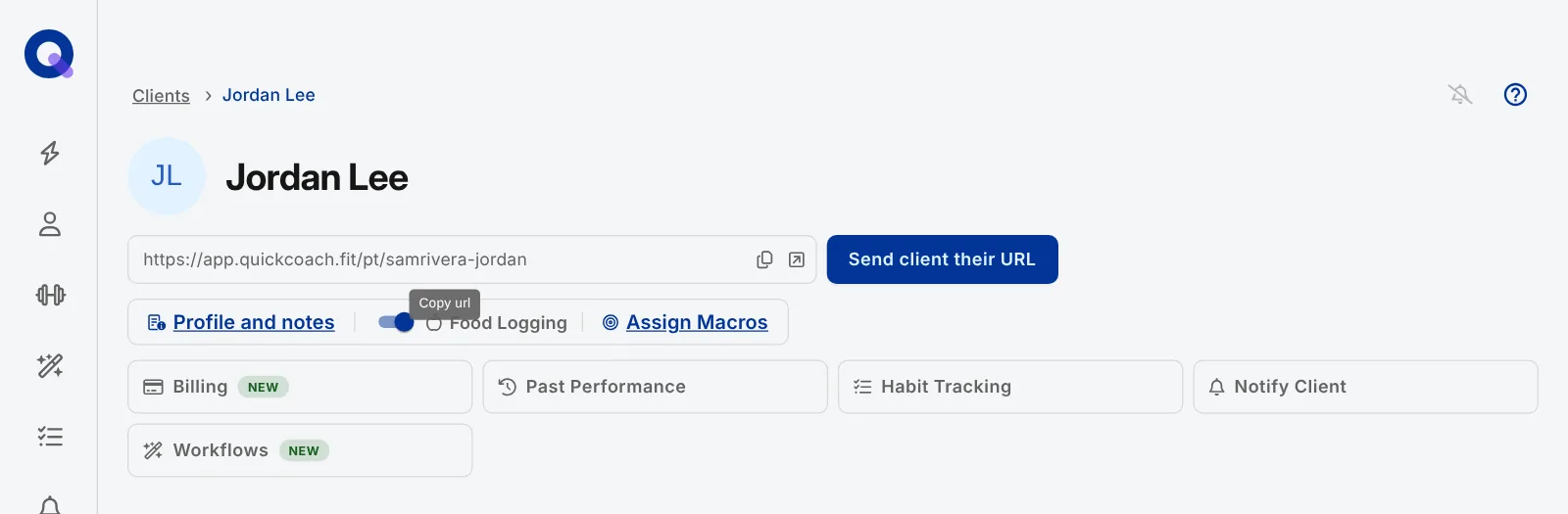
Pick a template, add your title and message, review, and click 'Send'.
Important: Notifications are only sent manually. They can't be scheduled. (Running the Client Check-in workflow from Workflows also sends your client a push, as part of that check-in.)
If a client isn't receiving pushes
Clients need push turned on in the app, and on iPhone that requires iOS 16.4 or later (the app itself installs on iOS 11.3 or later). The client notifications guide covers enabling push and the quick fixes when notifications go quiet.