
A tour of your Task Library
Your guide to the Tasks List page: what a task holds, search, sorting, filters, task statuses, quick edits and answers to common Task Library questions.

Your Task Library holds everything you need to build your clients' programming. Before you start filling it, it helps to know what tasks are and what they do behind the scenes.
The library matters for tracking too. Only tasks saved in your Task Library count toward a client's history, which is what powers a client's performance history.
What a task is
A task is anything you want your client to do, learn or track. Exercises are the obvious example, but coaches also use tasks for habits, lessons, questions, data collection (body measurements, for instance) and recipes.
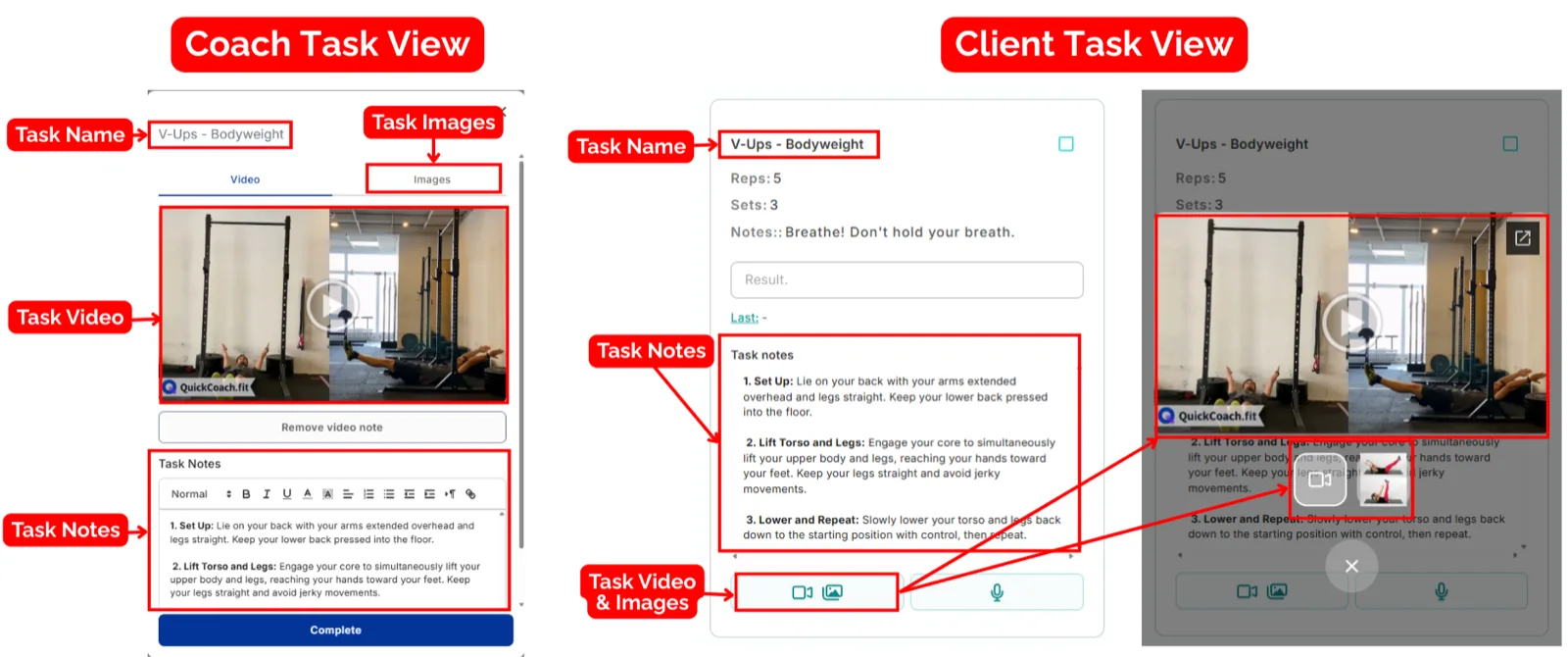
Every task can hold five things:
- A task name
- A video
- Up to three images
- Task notes
- An audio note
The audio note behaves differently from the rest. Video, images and notes on a library task come with it whenever you add the task to a plan. An audio note recorded in the library stays on the library task and isn't copied into plans, so to send a client a voice message, record it on the task inside their plan.
Here's how a task looks from your side and how it translates to what your client sees.
Important: Build your tasks completely before you add them to plans. A task that's already in a plan won't pick up later edits. The updated version only applies when you assign the task after editing it. The full rules are in editing a plan.
Create a task
- Click Create task.
- Type in your task name and click Continue.
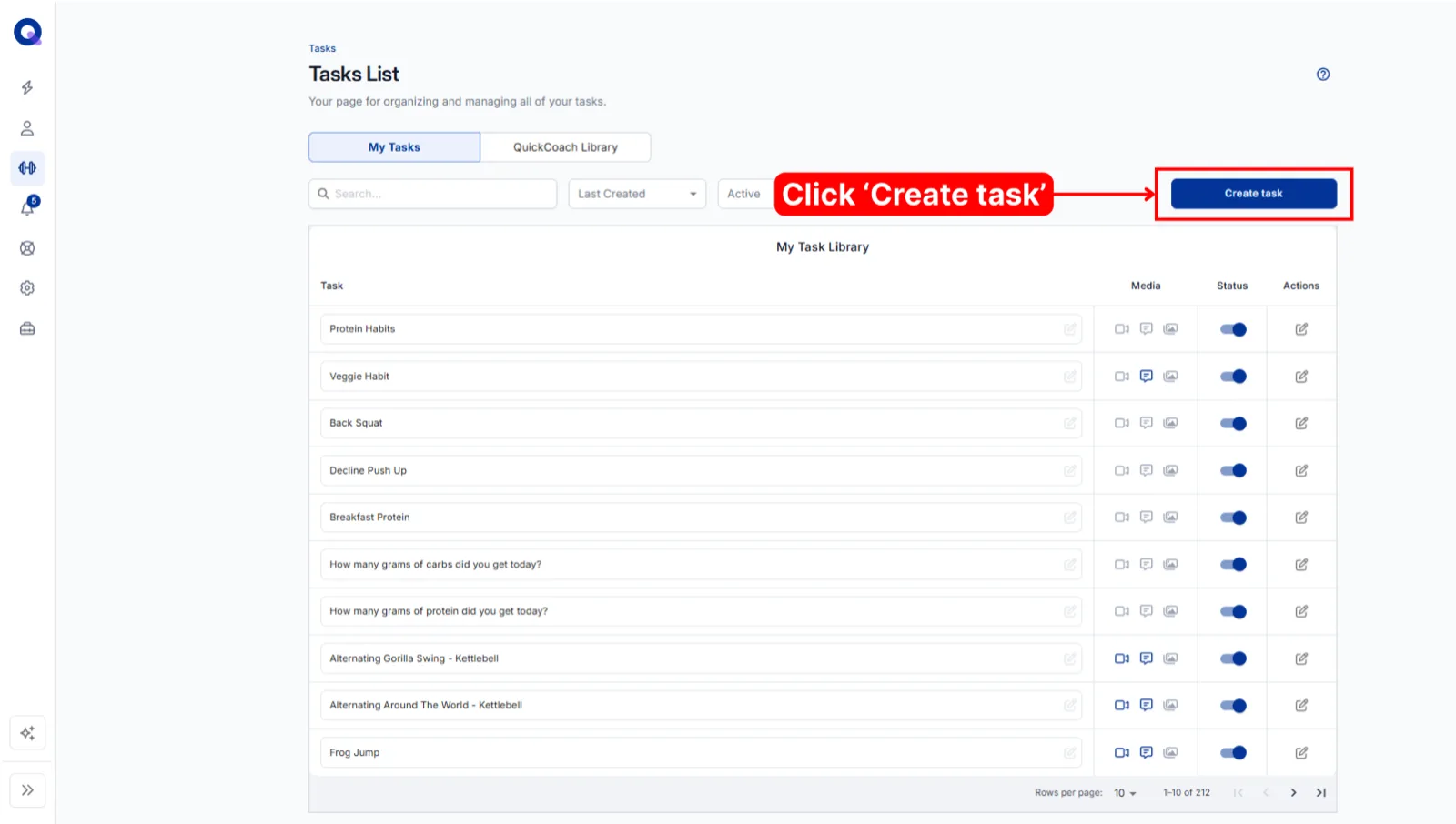
From the editor that opens you can attach a video, written notes, up to three images and an audio note. The steps for each medium, plus fixes for videos that won't embed, are in adding videos, images, audio and notes to tasks.
There's no PDF upload, but you can point clients at a PDF by adding a link in the task notes. The text editor guide covers sharing links.
Tip: not every task needs to live in your library. When you add a task to a plan in the plan builder, leave the "Add (name of task) to the task library" option unticked and it stays a one-off for that plan.
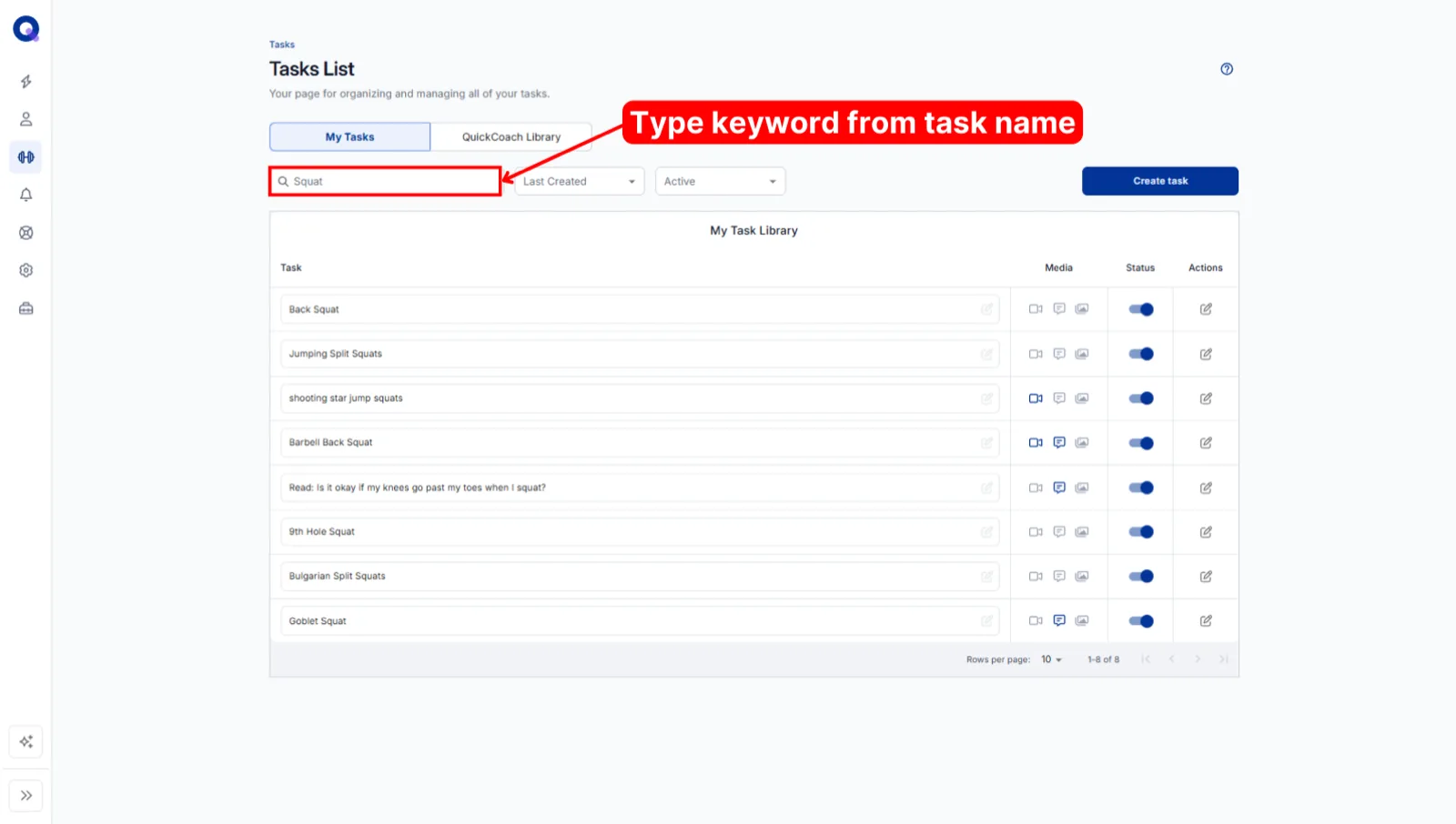
Search for a task
Looking for something specific? Type a keyword from the task name into the search box above the list.
Sort and filter your tasks
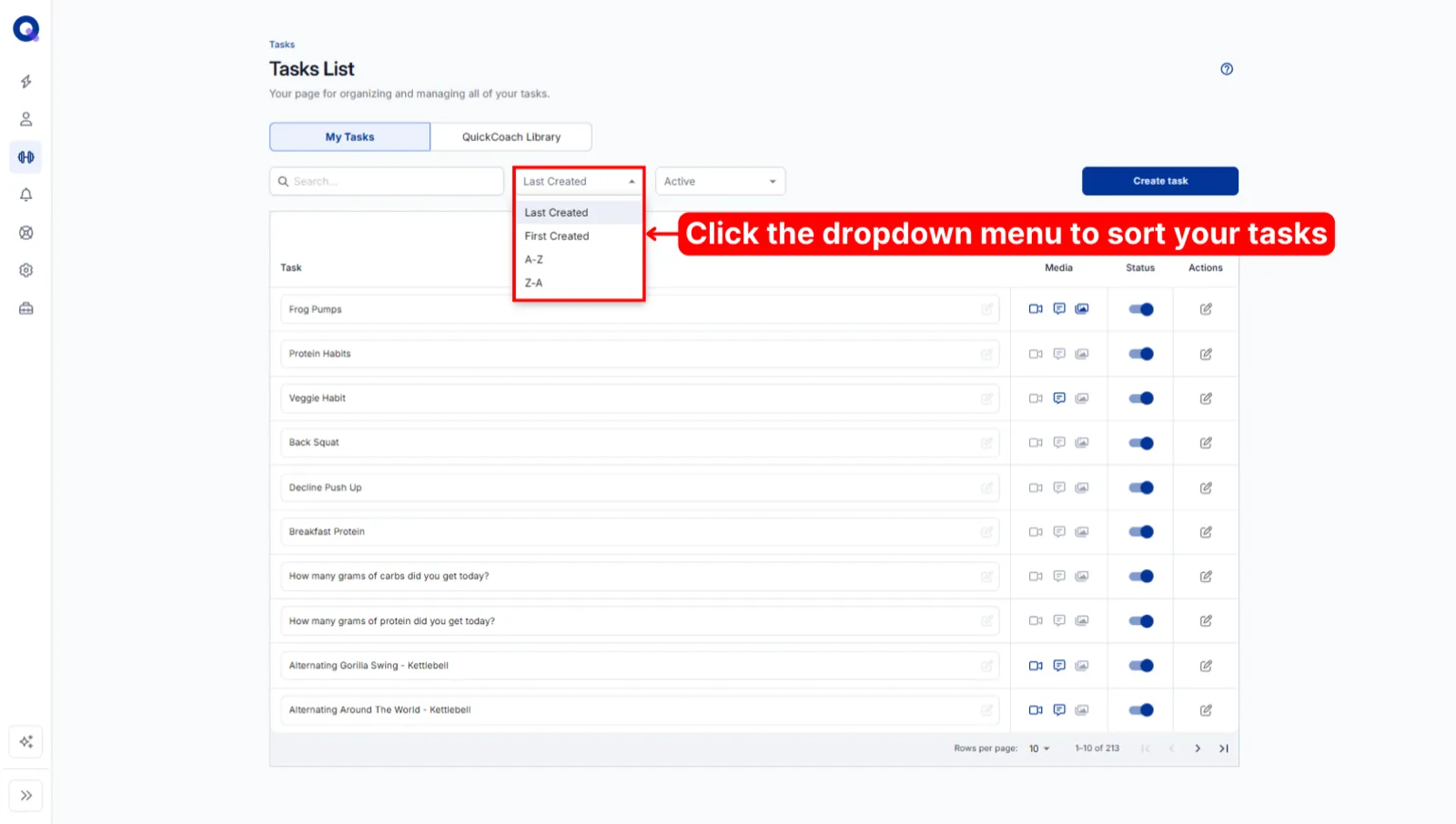
The first dropdown menu sorts your tasks. You can sort by Last Created (newest first), First Created (oldest first), A-Z or Z-A.
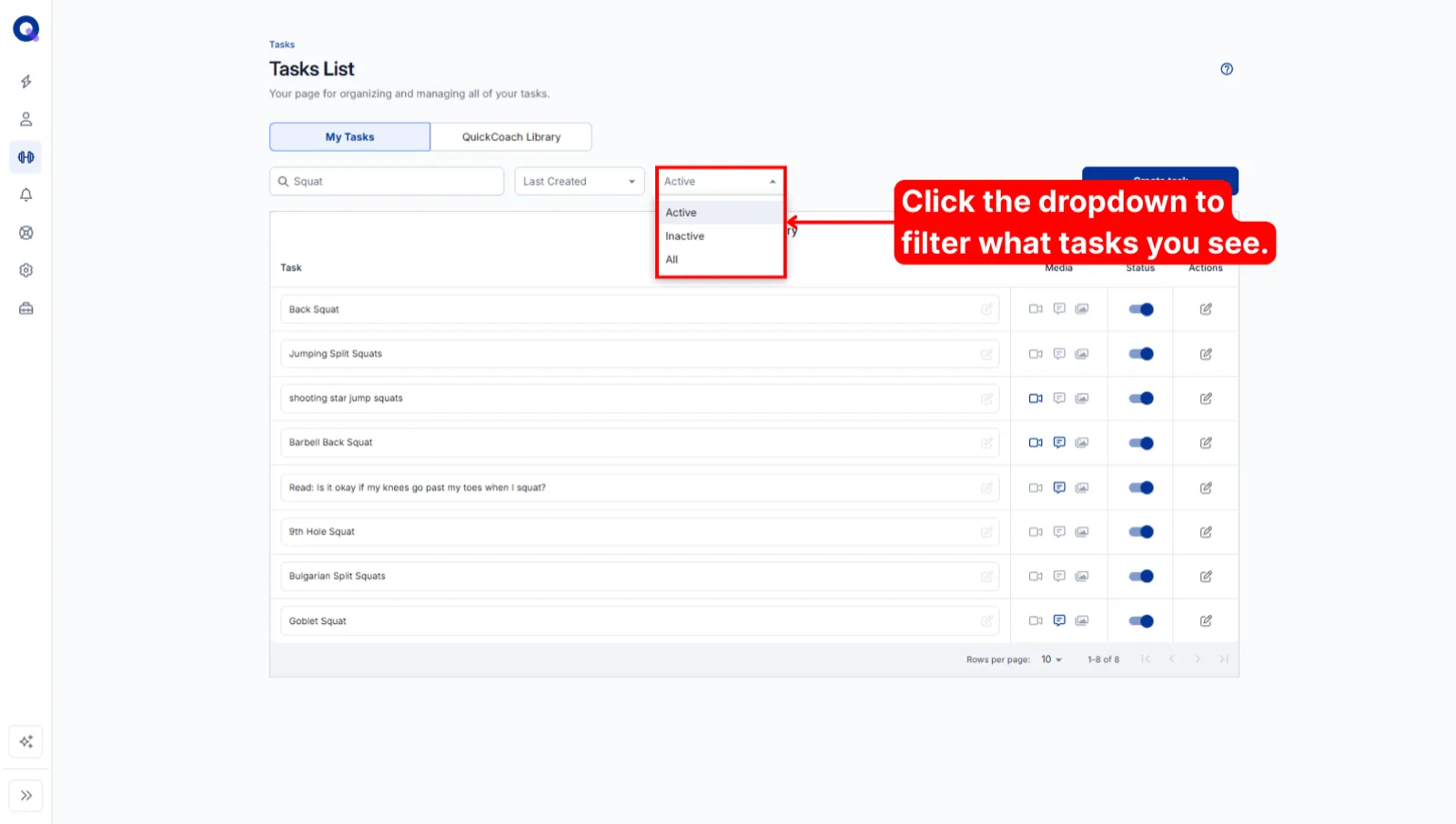
The second dropdown filters by status: Active, Inactive, or All to show both together.
Quick edits from the list
You don't need to open the full editor for small changes.
To rename a task, click inside the box of the task name, update it, then click the save icon.
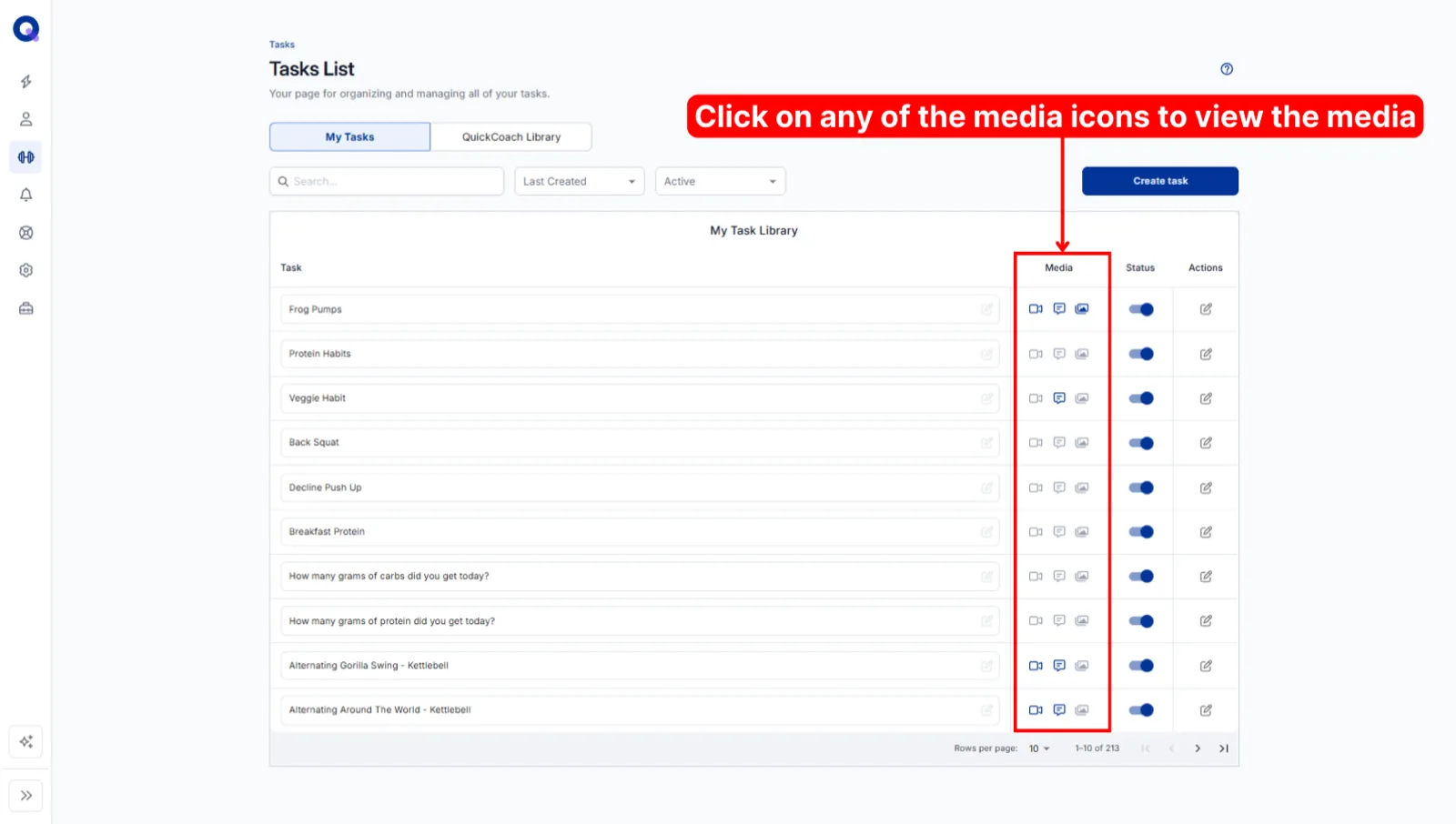
To view or change a task's media, click any of the icons in the Media column. A panel pops up where you can make changes exactly as you did when you built the task. See adding media to tasks for what each medium does.
Change a task's status
Tasks have two statuses. Active tasks are the ones you're using; they show up when you search for a task in the plan builder. Inactive tasks are the ones you've retired, which is QuickCoach's version of archiving. A task can't be deleted, so marking it Inactive is what you do instead. It disappears from plan builder searches but keeps all the data attached to it.
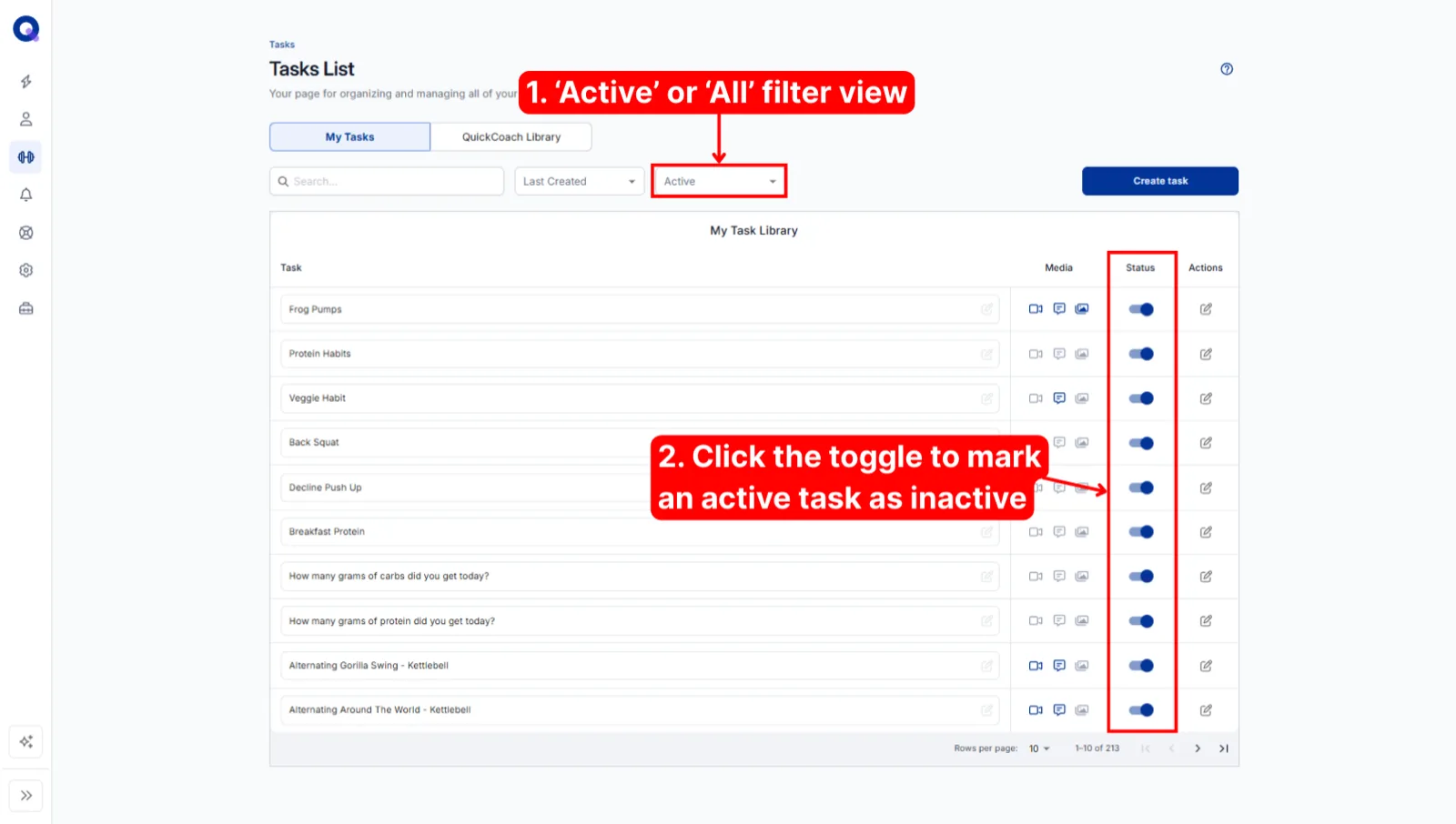
To mark an active task as Inactive:
- Set your filter view to Active or All.
- Click the toggle on that task's row.
Marked something Inactive by accident? Set the filter to Inactive or All, then click the toggle again to make it active. There's more on retiring tasks in archiving or deleting a task.
Move between pages of tasks
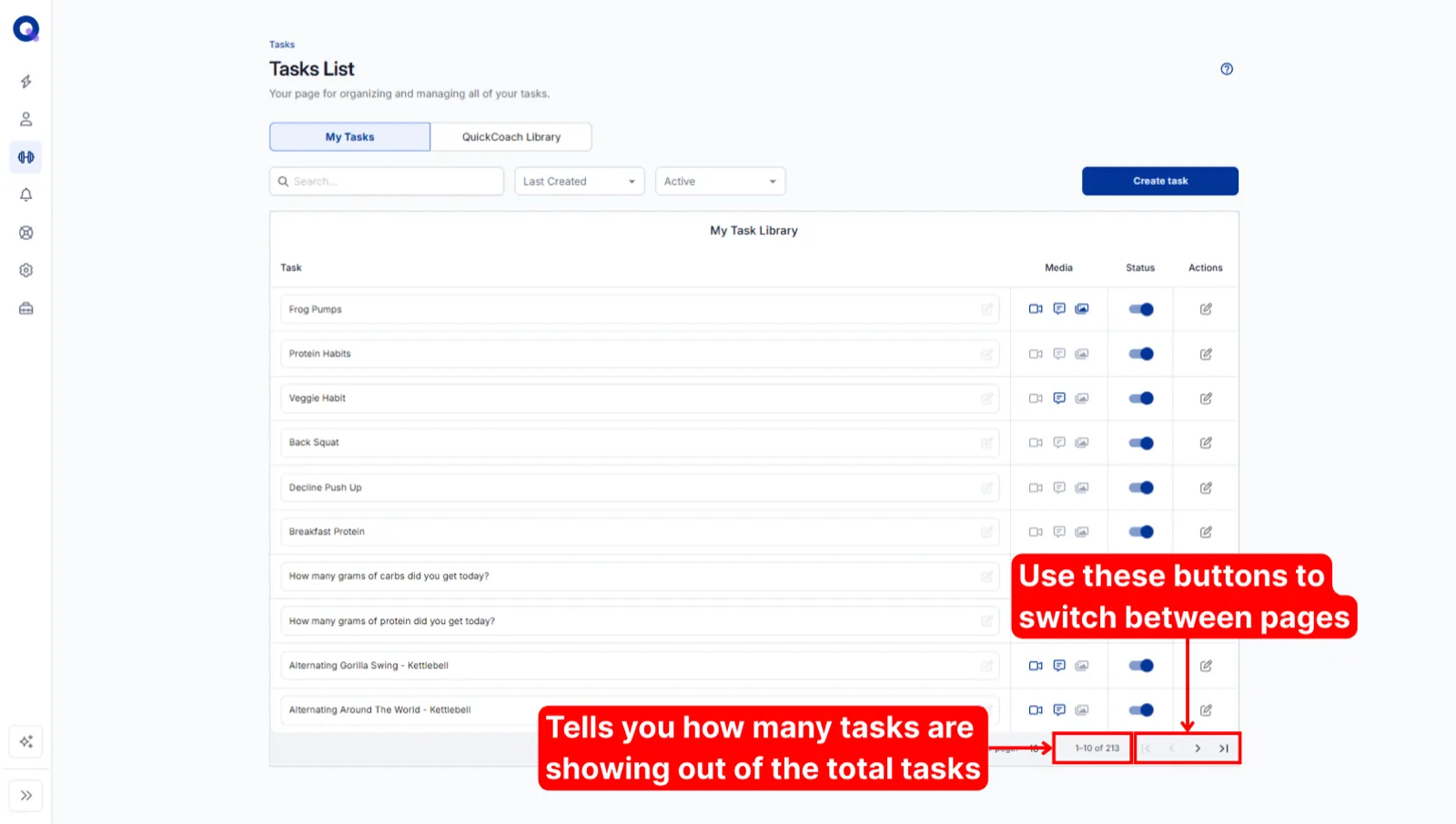
Click the Rows per page dropdown to show more tasks per page. Your choice should save as the default going forward.
Next to it you'll see how many tasks you're viewing out of your total (1-10 of 413, for example) and the buttons for moving between pages.
Frequently asked questions
Can I use YouTube or Vimeo videos that aren't mine?
Yes. Any public video on YouTube or Vimeo is fine to link to a task. You don't need to worry about copyright infringement when linking a video this way.
Can I add an audio note to tasks in the Task Library?
Yes. Open the task with its edit icon (or the microphone icon in the Media column) and use the 'Audio note' section; it saves as soon as you finish recording. It stays on the library task, though, and isn't copied into plans when you add the task to one. For a voice note your client will hear, record it on the task in the plan builder. If you want to reuse one, build a plan in your Program Templates with the audio note included and use that plan as a starting point. Audio notes are part of Pro; Free accounts created under the current Free plan rules see them locked. See recording audio notes on tasks.
Can I add tags to my tasks?
There isn't a tagging system, but you can build your own tags into task names. For example: Squats | LB | BW, where LB means lower body and BW means bodyweight. Keep in mind that clients see whatever is in the task name.
Where can I find exercise demo videos?
Start with the QuickCoach Exercise Library, which has ready-made exercises with videos you can import straight into your Task Library. Otherwise, this Google Sheet lists a range of channels. Filming your own demos is rarely worth the hours it takes; clients care far less than coaches expect.
Can I use YouTube Shorts as a task video?
Yes. If a Short won't display, replace shorts with watch in the URL; the other video embed fixes apply to Shorts too.
Can I import or export tasks?
There's no native import or export feature. The fastest way to fill an empty library is to import from the QuickCoach Library, then rename or edit anything to suit you.