
How clients use Snap & Log Nutrition
A client guide to Snap & Log: photograph a meal, review the estimated calories and macros, pick the meal it belongs to and save it to the Food Diary.

Snap & Log lets your clients log a meal by photographing it, which removes the tedium that kills food tracking. This guide is written for your clients, so feel free to copy it straight into a message.
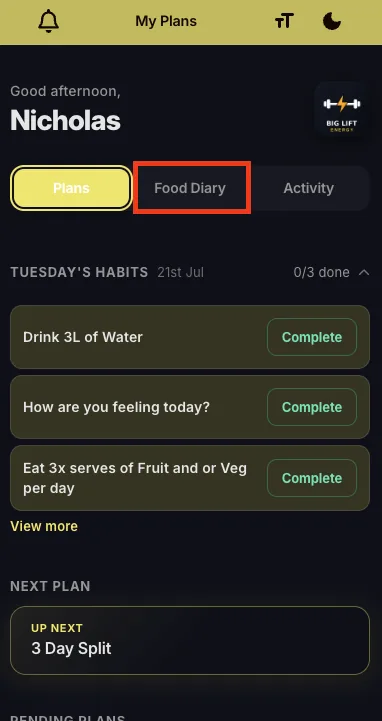
- Open your QuickCoach app and go to the Food Diary tab.
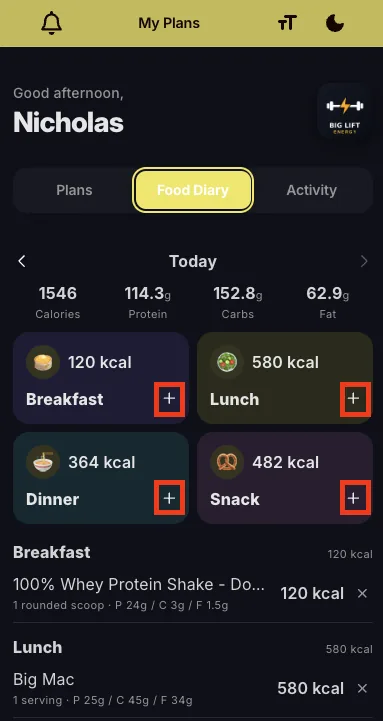
- Tap the + button to log a meal or snack.
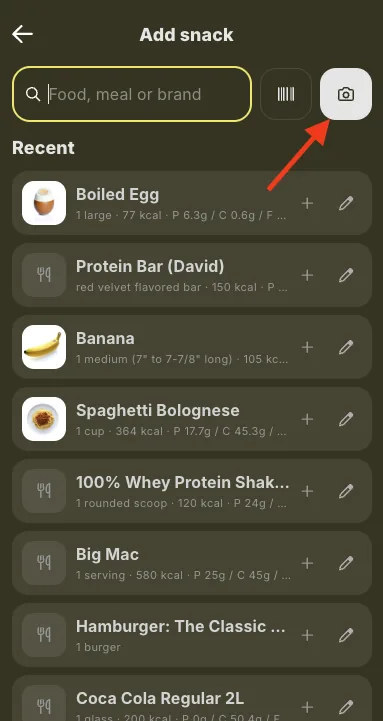
- Tap the camera icon. You can take a picture or upload an existing photo.
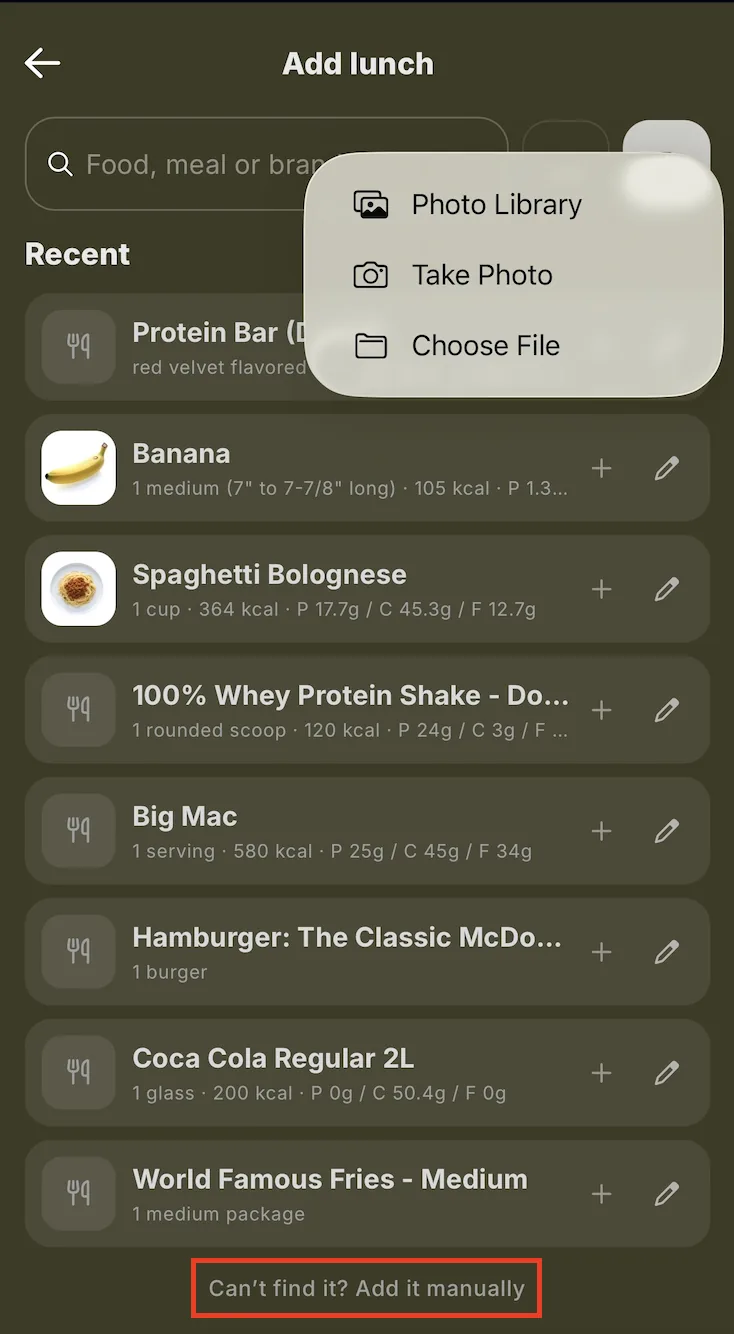
Tip: can't find what you're looking for? You can add any food manually instead.
- Review the food and the estimated calories and macros, and adjust anything that isn't right.
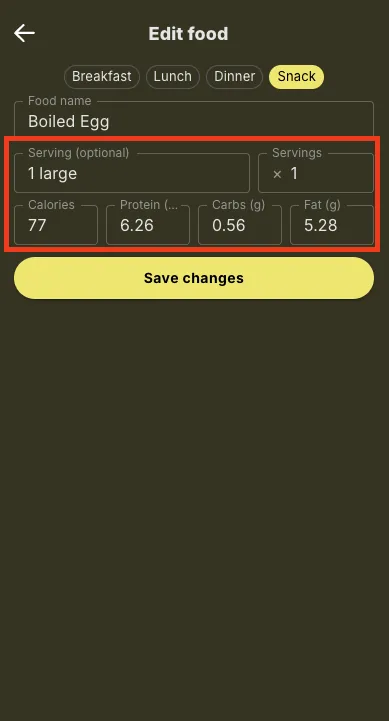
- Choose which meal it belongs to and tap save.
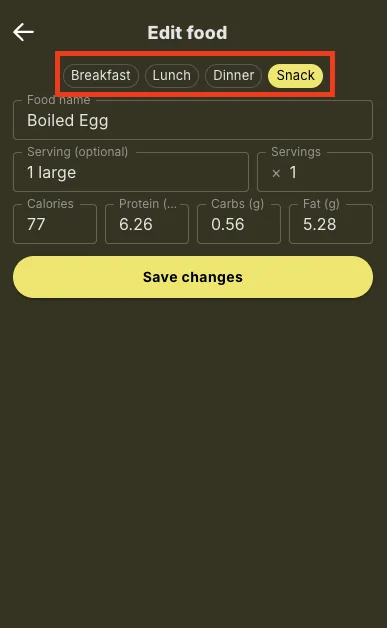
Your meal is now in your Food Diary and your coach can see it, calories and macros included.
Note: photo logging gives you an estimate rather than a label reading. It is accurate enough to show whether you are eating roughly what you and your coach agreed. If you need exact numbers on a packaged food, search for it instead.
Photo scanning is one of four ways to log. The client guide to the Food Diary covers the others.