
Manage a client's plans in bulk
Publish, copy, assign or delete several of a client's plans at once with the bulk actions on their page, plus what each plan tab and row action does.

A client's page holds every plan you've given them, sorted into tabs. When you need to publish next week, copy a block or tidy up old drafts, you don't have to open plans one at a time. Tick them and act on all of them at once.
Where a client's plans live
Open the client from your Clients page. Their plans sit in four tabs, each showing a count:
- Drafts: plans only you can see.
- Upcoming (Published): published plans waiting for your client, in the order they'll do them.
- Skipped: plans your client chose to skip.
- Completed: plans they've finished, with the date.
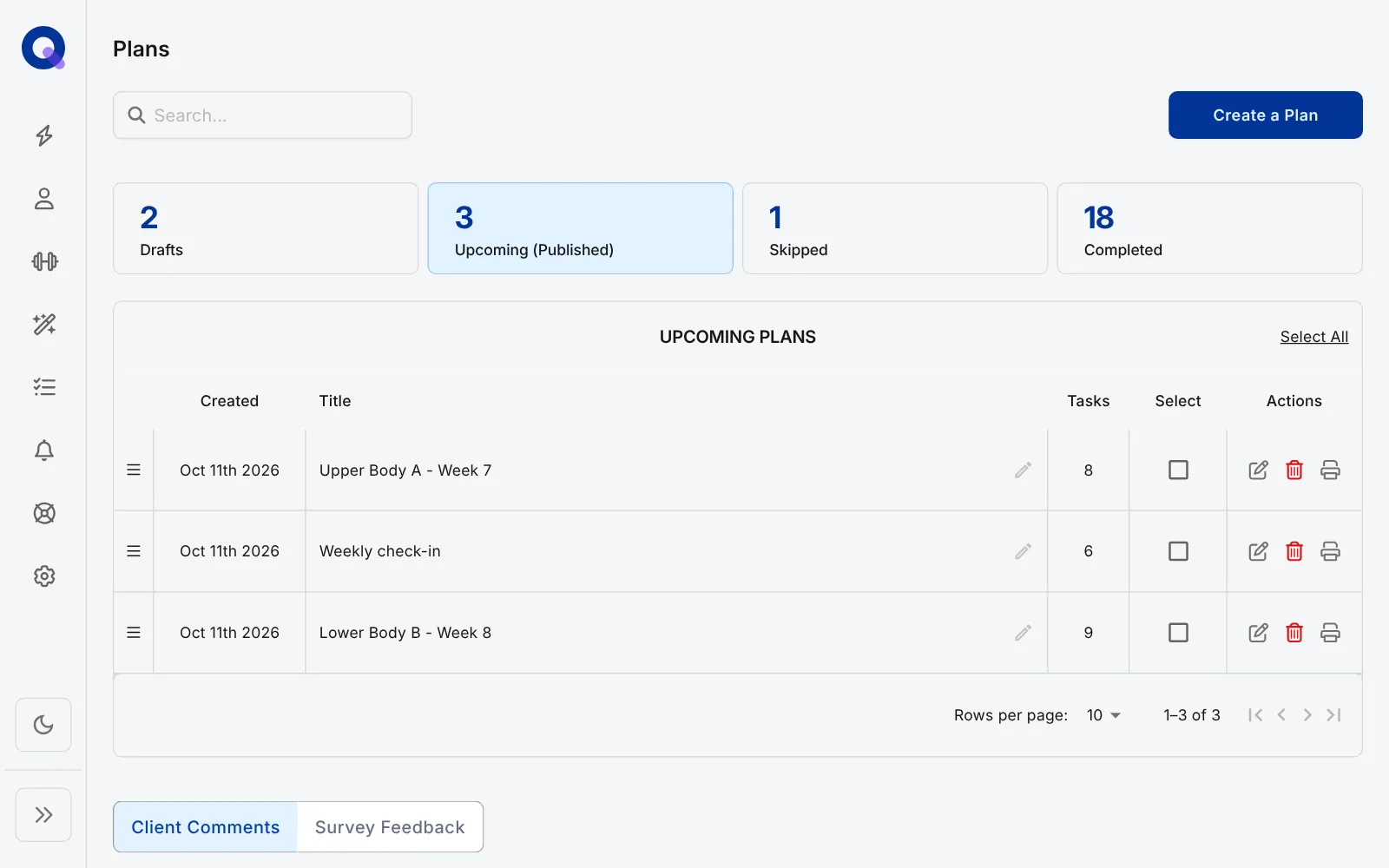
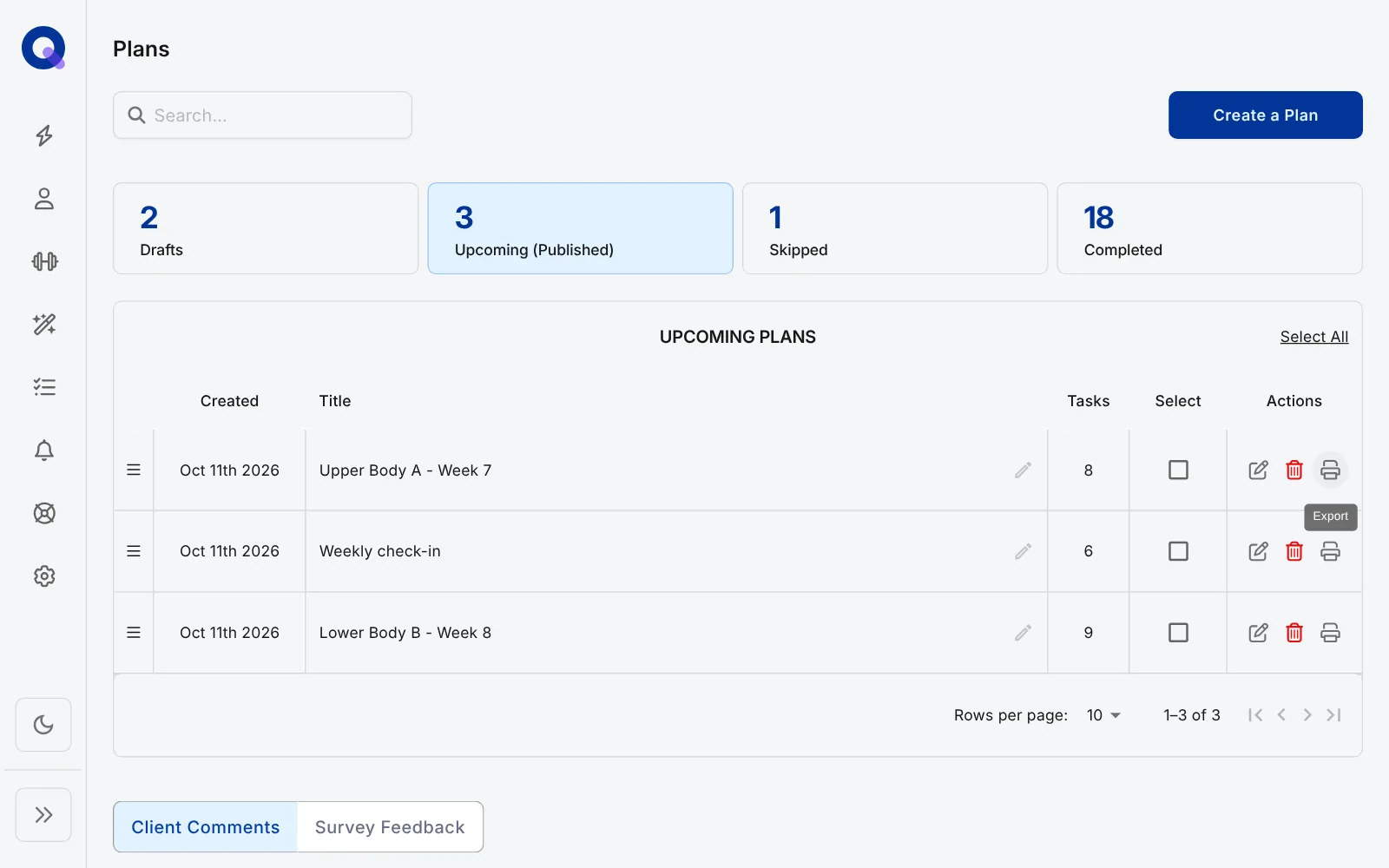
Each row has its own action icons, not a menu. Hover over one to see its name. Edit (the pencil) opens the plan, Delete (the red bin) removes it, and Export (the printer) gives you a printable PDF. Delete only shows on drafts and upcoming plans, so skipped and completed rows have just Edit and Export.
Select plans and act on them together
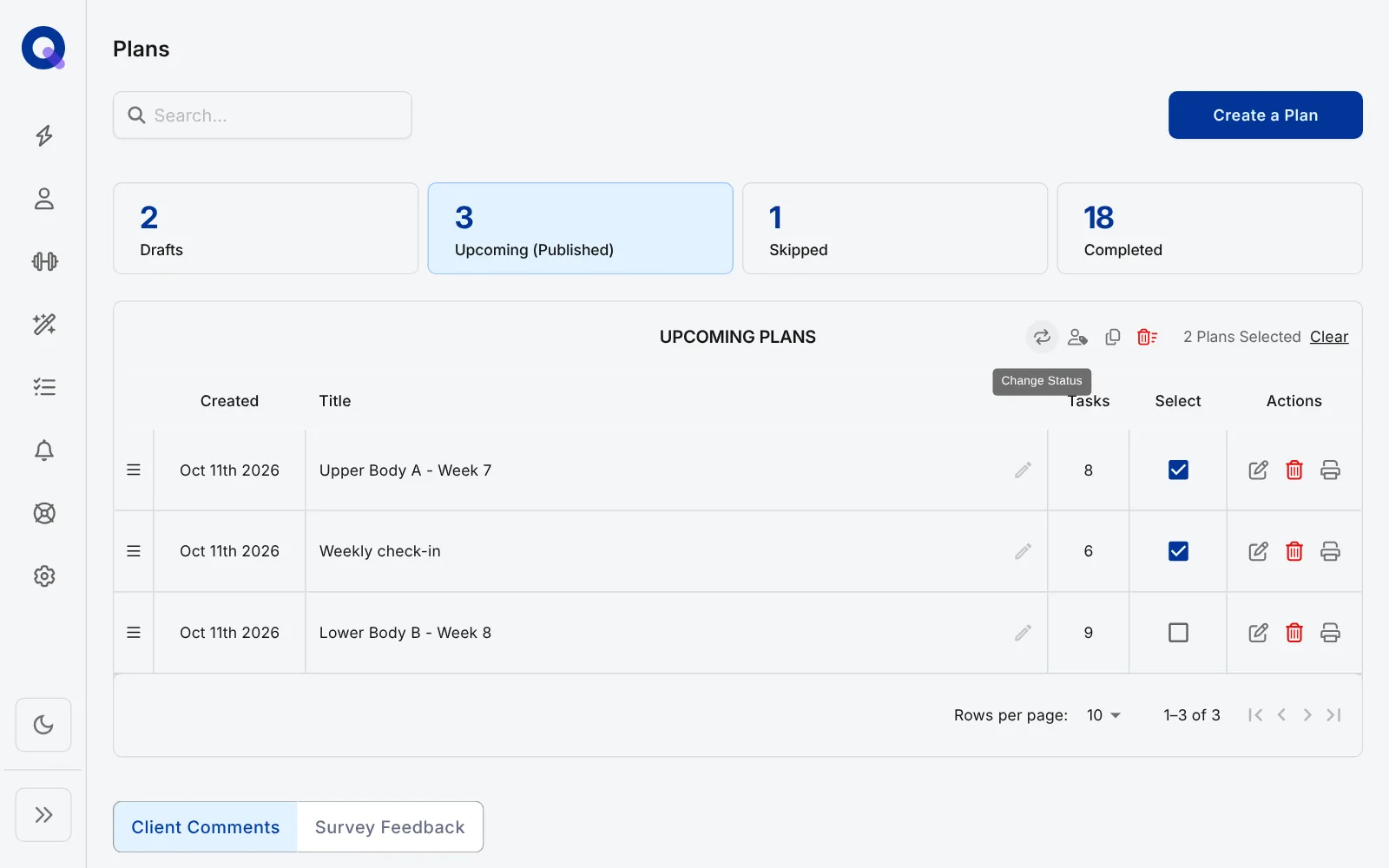
Tick the box in the Select column on each plan you want, or click Select All. A row of icons appears in the table's header bar, next to a count such as "2 Plans Selected" and a Clear link. Hover over an icon to see its name.
| Action | What it does | Use it to |
|---|---|---|
| Change Status | Moves the plans between Drafts and Upcoming | Publish a week of drafts in one go, or pull plans back to draft |
| Assign Selection | Opens Assign Plan, where you pick other clients or Client Groups (Pro) and choose Draft or Published. Each client gets their own copies | Give a block that worked for one client to three more |
| Copy Selection | Makes copies in this client's Drafts | Repeat a week with small changes |
| Delete Selection | Deletes the selected plans, after you confirm | Clear out old drafts |
Not every action shows on every tab. Change Status appears on Drafts and Upcoming only. On the Completed tab you get just Assign Selection and Copy Selection.
Tip: Copy Selection plus Change Status is the fastest way to run the same week again. Copy last week's plans, tweak the weights in the drafts, then publish them all together.
Repeating a whole program
If you'll reuse a block with more than one client, build it as a Program Template instead. Ordering and publishing plans inside a template covers that, and copying, duplicating and repeating plans compares every way of reusing plans.