
Frequently asked questions
Quick answers to the questions coaches ask most about the apps, clients, plans, tasks, notifications, billing and troubleshooting in QuickCoach.

This page collects the questions we answer most often, grouped by topic. The fastest way to find yours is your browser's find function (Ctrl+F on Windows, Cmd+F on Mac). Type a few words from your question and jump straight to the answer.
Where a topic has its own full article, the answer here is short and links you to it. Still stuck after reading? Email support@quickcoach.fit and a human will help.
Apps and installation
Why can't I find QuickCoach in the App Store or Play Store?
QuickCoach installs from the browser as a web app, on purpose. The full reasoning, and every install walkthrough, is in installing the coach app.
What do I need to install the app and get push notifications?
A compatible browser and operating system; the requirements and step-by-step installs for every device are in install the coach app and how clients install their app.
How can I show clients how to install the app?
We've made a customisable install guide you can send to clients. You'll find it, along with other onboarding materials, in our client onboarding tips.
Another option is recording yourself installing the app with your phone's built-in screen recorder. Apple explains it for iPhone and Google for Android.
Why is "Add to Home Screen" missing, or the wrong app opening?
Both have quick fixes covered in the install article's FAQ: a hidden share-menu option on iPhone, different wording on Android, install order when coach and client apps share a device, extra text after the app name, and why Amazon devices aren't supported.
The custom branded client app
Branding the client app is a Pro feature. For the full setup, see the custom branded client app.
How quickly do my branding changes go live?
Immediately. Once you save the app settings there's no waiting period, and you can change them as often as you like. Clients should uninstall and reinstall their app to pick up every change.
How do I find my brand's colour code?
Upload your logo to a free tool like imagecolorpicker.com. It identifies each colour in the image and gives you the code for whichever one you select.
Why is there a square or black box around my logo?
A visible square on the splash screen means your logo's background colour doesn't match the background colour you chose in QuickCoach. A black app icon background usually means you uploaded a logo with a transparent background, which some devices render as black.
The fix for both is the same: give your logo a background that matches your chosen QuickCoach background colour. A tool like Canva makes this easy.
- Open a new 512x512 pixel canvas.
- Add your logo.
- Use the background remover to strip the logo's existing background, even a white one.
- Set the canvas colour to match the background colour you chose in QuickCoach.
- Download the image and upload it to QuickCoach again.
Why isn't my logo showing as the app icon?
On iPhone, custom app icons only work on iOS 15 and later. Anyone on iOS 14 or earlier sees a screenshot of the app instead. Updating the phone's operating system fixes it.
Why doesn't my own coach app show my branding?
Branding applies to the client app only. Your coach app always uses the standard QuickCoach look.
Clients and your roster
Can I tag or group my clients?
Yes, on Pro, with Client Groups. Open the 'All clients' filter in the Clients page toolbar and choose 'Create group' to save a named set of clients, like "Morning Crew". You can then filter your roster to that group or assign a plan to everyone in it at once. A client can belong to several groups. See Client Groups. On Free there are no groups, but clients never see their own last name field, so some coaches add their own labels there, for example: Whiskers | Muscle Gain | Back Injury | Online Only.
Why can't I filter my clients?
The status filter on the Clients page is a Pro feature, so on the Free plan it isn't on the page. A Free roster shows the search bar, 'Notify clients' and 'Add a Client', with no dropdown for Active, Inactive and All. Nothing is broken on your account. Free is capped at 20 clients and doesn't keep inactive client history, so there's no second view for the filter to open. Search by name still works on every plan, and Pro adds the dropdown, the Inactive view and your full client history. See the Clients page guide and QuickCoach Free and Pro, explained.
Can I sort my clients alphabetically?
Not at this time, but it's on our roadmap.
How many clients can I have?
On the Free plan you can have up to 20 active clients, with no time limit. Inactive clients don't count toward the limit, so deactivating a client opens a slot while you still have access to your roster. Once you reach 20 active, though, QuickCoach locks the workspace and upgrading to Pro is the only way back in, so there's no self-service way to stay on Free past the cap. Pro removes the cap entirely, so you can take on as many clients as you can handle. See active and inactive clients, and the plan limits and the plans and pricing overview for details.
Where did my missing client go?
Data doesn't disappear, so they're there somewhere. Most likely they've been marked inactive; see deactivating or deleting a client. On Pro, switch the roster's status filter to 'All' to check. On Free there's no status filter, so an inactive client's record stays preserved but out of view until you upgrade. With a bigger roster, also check they aren't sitting on another page. If you still can't find them, email support with the client's name and we'll dig in.
Are my client notes private?
Yes. Everything under "Profile and notes" is for your eyes only. Clients never see it.
Do I have to give clients access to their accounts?
No. If you're using QuickCoach to track in-person sessions, your clients never need to log in at all. There are more ideas in training in-person clients.
Do I need to resend my client's link when I add new plans?
No. Sending a client their account is a one-time step. As long as they have their link, every new plan appears in their account in real time, waiting for them.
Clients aren't notified automatically when you add a plan. Notifications stay under your control, so if you want them to know, send a push notification.
Why hasn't my client received their welcome email?
Email deliverability can be tough. Work through these checks first.
- Make sure the email address you entered is spelled correctly.
- Ask your client to check their spam and trash folders.
- Have them search their inbox for support@quickcoach.fit.
Some providers block the email entirely, and Hotmail and Outlook are the usual culprits. You can swap in a different email address and try again, or skip email altogether: copy the link from their account page and send it however you normally message them.

Can I change what the welcome email says?
On Pro, yes. In Account Settings, open 'Customize Client App', then 'Email', and fill in 'Email body text', 'Support line' and 'Sign-off'. Leave any of them blank to keep the default. On Free the text is fixed, which is why the email is optional: you always get the client's link, so you can send it in your own words instead. See customising the client welcome email.
How can I stop an inactive client from seeing new plans?
Nothing to do. Marking a client Inactive revokes their access on Free and on Pro, so they see an "Account inactive" screen rather than any plans, and the client link they've been using stops working too. If you want a softer option, one where the client keeps their account but has no new work to open, leave them Active and move any plans in their "Upcoming" section to their "Drafts": tick the plans, then click the Change Status icon (the circling arrows). Full detail is in active and inactive clients, and the plan limits.
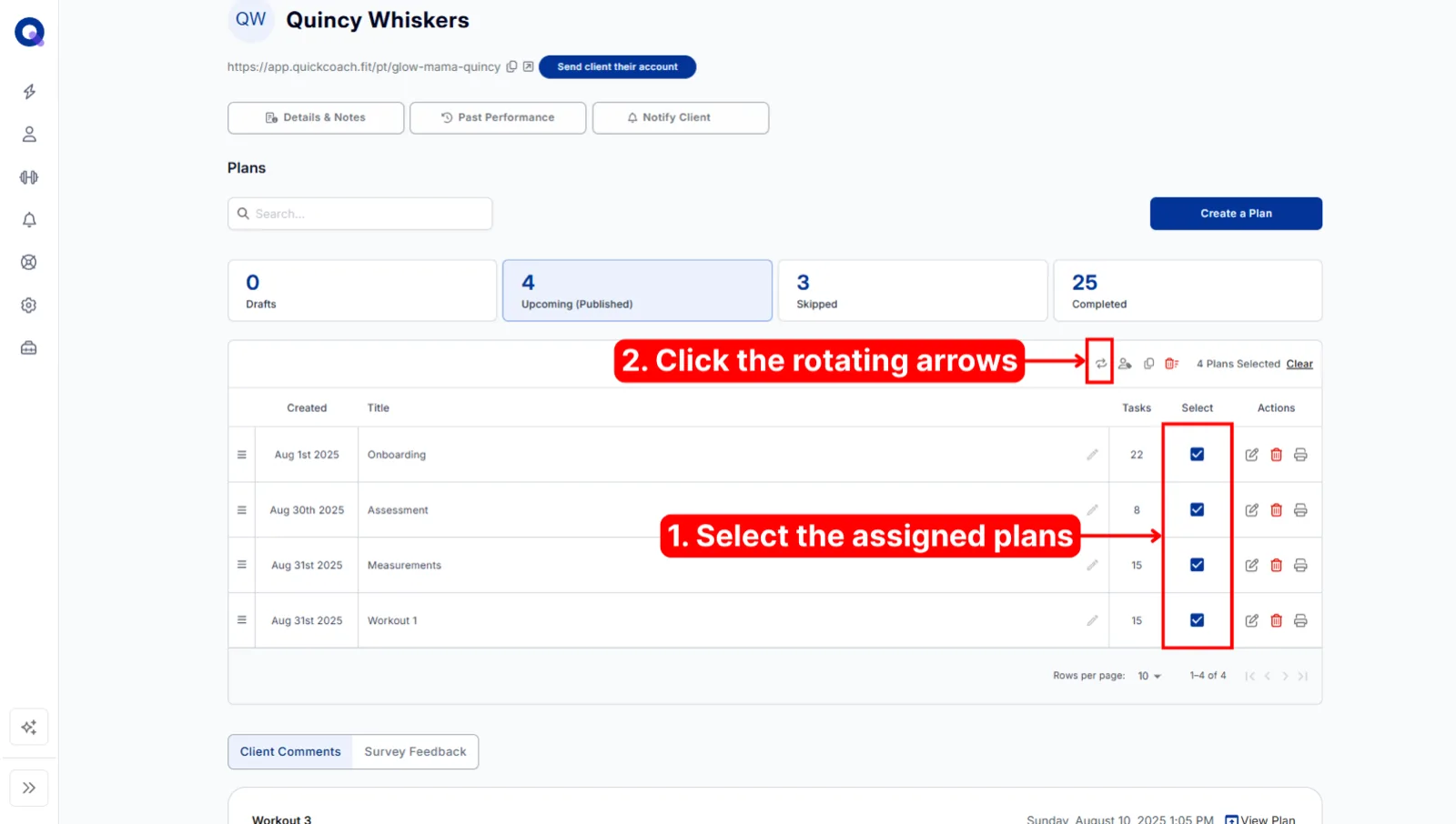
How can I reply to my client's comments?
There's no direct reply, but you have a few roundabout options. Send them a one-way push notification, add a note to a plan, or, for anything longer, create a task with text, a voice note, or a video link. More on this in seeing and responding to client feedback.
Plans and the plan builder
Should a plan be a day, a week, or something else?
Whatever suits your coaching. Most coaches make a plan a single daily workout, or a day's worth of whatever they want the client to do. Some run weekly plans, which means fewer plans to manage on both sides.
The trade-off with longer plans: if a client accidentally submits one, it can't be reopened. You'd need to copy the completed plan, strip out what they'd already done, and assign the copy so they can finish.
Can I reuse a plan?
No. A plan is done once it's submitted, so make copies for however many repeats you want. Making copies of plans covers the basics, the repeating-program workflow, and copying a client's plan to a Program Template for reuse with other clients.
How do I schedule plans on a calendar?
You don't, because there isn't one. QuickCoach works on a "what comes next" basis: clients open their account and do the plan at the top of their list, shown as "Next Plan". Nobody has to reschedule anything when life gets busy.
That means the order you arrange plans in is the schedule. Name plans to add structure, for example Week 1 Day 1, Week 1 Day 2, and so on. See ordering your client's plans.
I can't find a plan. Where did it go?
Don't panic, nothing ever gets deleted. QuickCoach saves automatically as you work, so the plan is somewhere. Three places to check:
- Assigned from inside a program template: look in the client's Drafts folder. Plans assigned that way land there.
- Looking at the client's side of their account: every published plan shows under "Next Plan" and "Pending Plans". Finished plans sit under "Completed Plans", six to a page, so older ones are on the next page.
- Assigned from Plans Drafts: an assigned draft moves to the client's account rather than leaving a copy behind.
Can I see a client's history while building their plan?
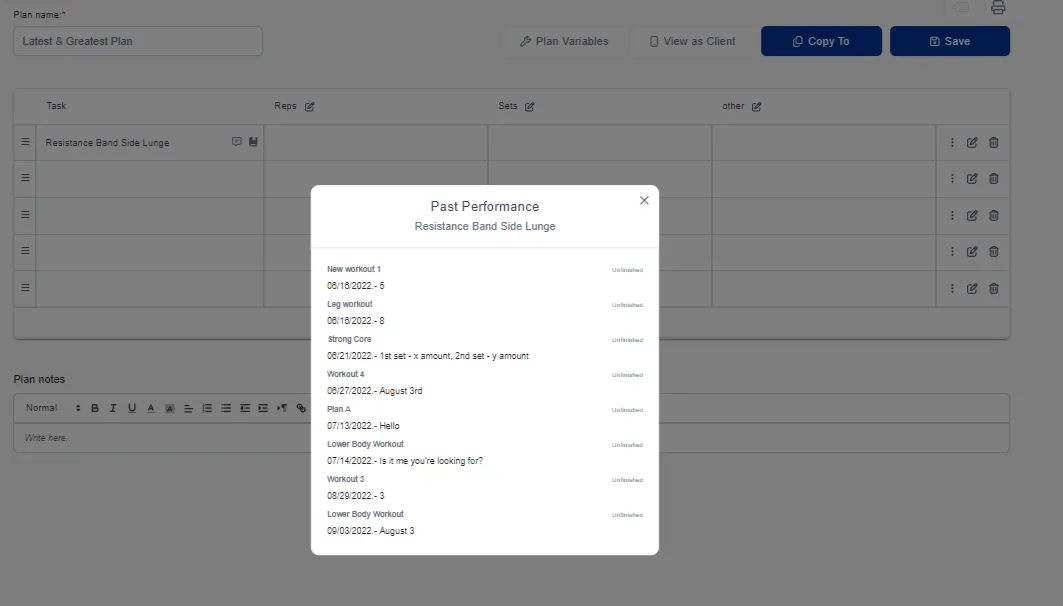
Yes. Build the plan inside the client's account, then click the book icon on the task you want to check. A "Past Performance" pop-up shows that client's history for the task.
How else can I use supersets?
Supersets are simply a way to group tasks, so they're good for more than paired exercises. Give clients a choice by naming a superset "Squat" and adding three squat variations to pick from, or offer progression and regression options. You can also group by theme, like "Habits For Today" or "Breakfast Macros". Setup is covered in headings and supersets.
Can I use plans to create forms?
Yes. Add each question as a task. If you want to track the answers over time, save the question to your task library first; if not, add it straight to the plan. The full walkthrough is in check-ins, forms and measurements.
Can I see a plan the way my client sees it?
Yes. See viewing a client's account from their perspective.
Program templates and drafts
What's the difference between a plan and a program template?
A plan is individual. It's most commonly a single workout, meal plan, recipe, or habit tracker. A program template is a reusable set of plans you can assign to any client at any time, either as the whole set or plan by plan.
For a run-down of every term, check the QuickCoach glossary or six things QuickCoach does differently.
How many templates and plans can I have?
Up to 99 program templates. Within a template we recommend no more than 100 plans: you can technically add more, but only 100 show per page and you can't move a plan across pages.
Why do plans land in my client's drafts when I assign a template?
It depends on how you assign. Selecting plans from inside a program template sends them to the client's Drafts, because the system assumes you'll want to make edits first. Assigning the entire folder from the folder view sends every plan straight to the client's Upcoming plans.
What can I use program templates for?
However you'd like, but these are the most common uses:
- Workout programs, like a 12-Week At Home Muscle Builder
- Organising individual plans by topic, duration, or contraindications
- Collecting recipes or meal plans
- Keeping an inspiration gallery
See Program Templates and drafts for folder tips.
Results, feedback and the post-plan survey
Can my client edit their results after submitting a plan?
No. Once a plan is submitted, clients can no longer access it. You can edit their results for them though; see fixing a client's results.
What can't be changed on a completed plan?
A completed plan can't be reopened, and skipped or completed plans can't be deleted. The completion date can't be edited, tasks can't be added or changed, and client feedback and survey responses can't be edited by you or the client. Results are the exception, which you can fix as above.
How much can clients type in the results box?
Up to 50 characters. The results box is only for the result itself. Anything longer belongs in the comment box, which clients can use after they submit their plan.
Why can my client only see six plans?
They can see every plan you've published. Upcoming plans have no limit: the first shows as "Next Plan" and the rest list under "Pending Plans". The six-at-a-time view applies only to "Completed Plans", which pages through finished plans six at a time. If a published plan is missing, check it isn't still in the client's Drafts.
Why is my client's "Next Plan" empty when a plan is assigned?
Check that the plan is published. Plans in the client's Drafts tab aren't visible to them, so tick the plan and use Change Status to move it to Upcoming (Published). A published plan with no tasks still shows up; when the client opens it they see "No exercises yet" and "Your coach will add exercises to this plan. Check back soon."
Why isn't a task showing in history?
Two things must both be true. The task must have been in your task library when you added it to the plan, shown by the book icon next to the task in the plan builder. And the client must have typed something in the results box, because empty results are filtered out.

The same applies to the "last result" your client sees, with one extra wrinkle: if their last result was empty, they may need to untick the "Hide empty" checkbox. More detail in seeing your client's history.
Do I have to use the post-plan survey?
No. Turn off every question by switching all the toggles off. Setup options are in setting up your post-plan survey.
Can I change the survey emojis or numbers?
You can choose between them. In Account Settings, open 'Post-plan Questionnaire' and pick the face or the number under 'Questionnaire Icon'. The individual faces and numbers can't be changed, so if you want clients to know what each one means, explain the scale in the question text itself or in your onboarding materials.
My client left feedback but it isn't on their dashboard. Where is it?
Open the completed plan and check whether the feedback shows there. If it does, you can read it for now, but please still tell us through live chat or by emailing support so we can fix the dashboard view.
Tasks, videos and the libraries
Can I use YouTube or Vimeo videos that aren't mine?
Yes. Any public video on YouTube or Vimeo is fine to link to a task, and you don't need to worry about copyright infringement by doing so. YouTube Shorts work too, with exactly the same process. Just make sure the video is set to public or unlisted, or it won't display. See adding media to tasks.
Do I need to film my own exercise videos?
Probably not. Coaches tend to overestimate the return on filming their own demos. Is it preferable for the video to feature you? Sure. Do clients really care? No. Recording a full library takes serious time that's usually better spent coaching.
Where can I find good exercise demo videos?
Start with the QuickCoach exercise library; you can import exercises with videos straight into your task library. Beyond that, this Google Sheet lists a bunch of channels coaches use for demo videos.
Why is a task showing old information in a plan?
Task edits only apply going forward. They don't update places the task was already used, so a plan you built earlier keeps the old details. Edit the plan and reselect the task to pull in the updated version. Best practice is to finish a task's details before you start assigning it.
Can I add audio notes in the task library?
Yes. Open the task in your Task Library and use 'Record audio note' under 'Audio note'. You can also record a client-specific audio note on a task inside a plan in the plan builder. On newer Free accounts, audio notes are a Pro feature, so the button carries a Pro badge. More in adding media to tasks.
Do I have to save every task to the task library?
No. When adding a task to a plan, skip the "Add to the task library" option to create a one-off without cluttering your library.
Saving to the library earns its keep in two situations: when you want to build something well once and reuse it from the plan builder, and when you want the client's history tracked, which only works for library tasks.
Can I tag my tasks?
There's no tagging system, but you can build tags into the task name, for example "Squats | LB | BW" for lower body and bodyweight. Keep in mind clients see the full task name.
Can I upload a PDF?
No, but you can share a link to one in the task notes. The text editor guide covers adding links.
What else can tasks be used for?
You're only limited by your imagination, but the most common uses beyond exercises are:
- Habits
- Nutrition tracking
- Sharing recipes
- Sharing education and lessons
Can I import or export tasks?
There's no native import or export. The quickest way to fill a new library is to import from the QuickCoach Library, then rename or edit each exercise to match how you coach.
Push notifications
Can I schedule push notifications or save templates?
Notifications send as soon as you hit send; there's no scheduling. Saved templates aren't available yet either, but they're on our roadmap.
Why aren't push notifications arriving?
Work through the full push notification checklist in the troubleshooting guide. It covers the settings toggles, the automatic repair trigger, focus modes, permission alerts, reinstalling and the debug screen. If none of that helps, report the bug and the tech team will investigate.
Can I get notifications both in-app and as push?
Yes, on Pro or during your free trial; client activity notifications aren't part of the Free plan. In your settings, each client activity type has toggles for "In-app" and "Push". Choose one, both, or neither per activity. The same screen is the fix if you're overwhelmed by notifications: go to Account Settings, click "Push Notifications", and switch off whatever you don't want in your Notification Center.
How long can a push notification be?
The title takes up to 30 characters and the message up to 120. Long messages may still truncate on the device lock screen, but clients can read the full text in their Notification Center. Send limits and steps are in sending push notifications.
Your account and billing
How do I update my billing details?
Open your account settings and choose Manage Subscription. You can update your billing address, card, and email address from there. More in managing your subscription.
Can I switch between monthly and annual billing?
Yes, with one caveat: changes take effect at the end of your current billing period, and an annual subscription can't be swapped mid-term. The steps are in managing your subscription.
Is QuickCoach shutting down?
No. QuickCoach was on a path to closure under its previous owner, which is where the shutdown posts came from, but Hale Health acquired it in December 2025 and the platform is staying open. Your account, plans and client data are all intact, and the free tier is staying free. Nick, CEO of Hale Health, wrote up the full story of the acquisition on the main site.
Why does my card statement say FitFocus IO PTY LTD?
The charge is for QuickCoach, not FitFocus. FitFocus IO PTY LTD acquired QuickCoach in December 2025, and as the legal entity that now owns QuickCoach, its name is what appears on your statement. More on this in managing your subscription.
Can I add another coach to my account?
There's no multi-coach feature. Some coaches share a login by sharing the email verification code, but be cautious: if you part ways, you can't force the other person out of the account.
Can I change the username in my client links?
No. The name in your client's link is your username, and it's permanent. You could create a new account for a different username, but clients only ever see that name inside the link itself, nowhere else.
Can I log out of all my devices at once?
No. Log out from your settings on each device individually, or clear that browser's cookies.
I'm not getting the verification email. What do I do?
Check your spam and trash folders first, then search your inbox for support@quickcoach.fit. Some providers block the email entirely, with Hotmail and Outlook the most common offenders.
If you're still signed in on another device, change your account's email address there and try again. No access anywhere? Email support and we'll update your account to a new address.
Can I delete my account?
Yes, yourself. In Account Settings, open 'Personal Details', scroll to the bottom, expand 'Delete Account' and click 'Delete My Account', then type your email address to confirm. It's permanent, and it doesn't cancel a Pro subscription, so cancel that first. See how to delete your account.
Troubleshooting and getting help
Something isn't working. What should I try first?
Run through the troubleshooting guide before reaching out. It fixes the most common issues in a few minutes. The same applies if data seems to be missing: take a breath, because data doesn't get lost, it's just hiding. If the guide doesn't sort it, get in touch and we'll dig into where it went.
How do I get help or report a problem?
Work down this list, covered fully in the troubleshooting guide:
- Use live chat: click the chat button in the bottom corner of the QuickCoach coach app.
- Search the Help Center for a few words about the problem.
- Email support@quickcoach.fit if you've tried both. Emails can take 3 to 5 business days to answer, so live chat is quicker.
What should I include when I contact support?
Your QuickCoach account email, a clear description of the problem, screenshots or a short screen recording, any example links, your device and browser, and what you've already tried.
Is there a chat or messaging feature for clients?
No. (The live chat in the coach app is for reaching QuickCoach support, not your clients.) Coaches almost always message clients outside their training software already, and we didn't want to give you yet another inbox to check. If you'd like a dedicated channel that's separate from your personal messages, WhatsApp works well.
Can I set reminders on to-do list items?
No, that's not an available feature. Client to-do lists are covered in giving clients a to-do list; your own to-do list lives in your Notification Center, covered in client activity and your to-do list.
What's the difference between a task, a plan, a draft, and a template?
The short version: tasks are the building blocks, plans are what clients complete, drafts are unassigned plans, and program templates are reusable sets of plans. For proper definitions of every term, read the QuickCoach glossary, or watch QuickCoach in 2 minutes for a guided run through the whole app.