
Group sign-up links: let new clients join a group themselves
Every client group can carry its own invite link, sometimes called a group onboarding link. Copy it, share it, and anyone who opens it fills in their own details and lands in your workspace already inside that group, ready for you to bulk assign their plans. Group sign-up is a QuickCoach Pro feature.

Adding new clients one at a time is slow work when a whole intake arrives at once, on top of sending the workout to each person individually. A group sign-up link hands the typing to the client, so clients onboard themselves. It works on top of Client Groups, so a group you already made can start taking sign-ups in a couple of clicks. It suits online challenges (a 4, 8 or 12 week block), bootcamps, sports teams and group packages. This article covers copying the link, what the client sees, what happens after they join, and how to turn a link off or reset it.
Note: QuickCoach's features and screen layouts may change over time, but the core workflow stays the same.
Copy a group's invite link
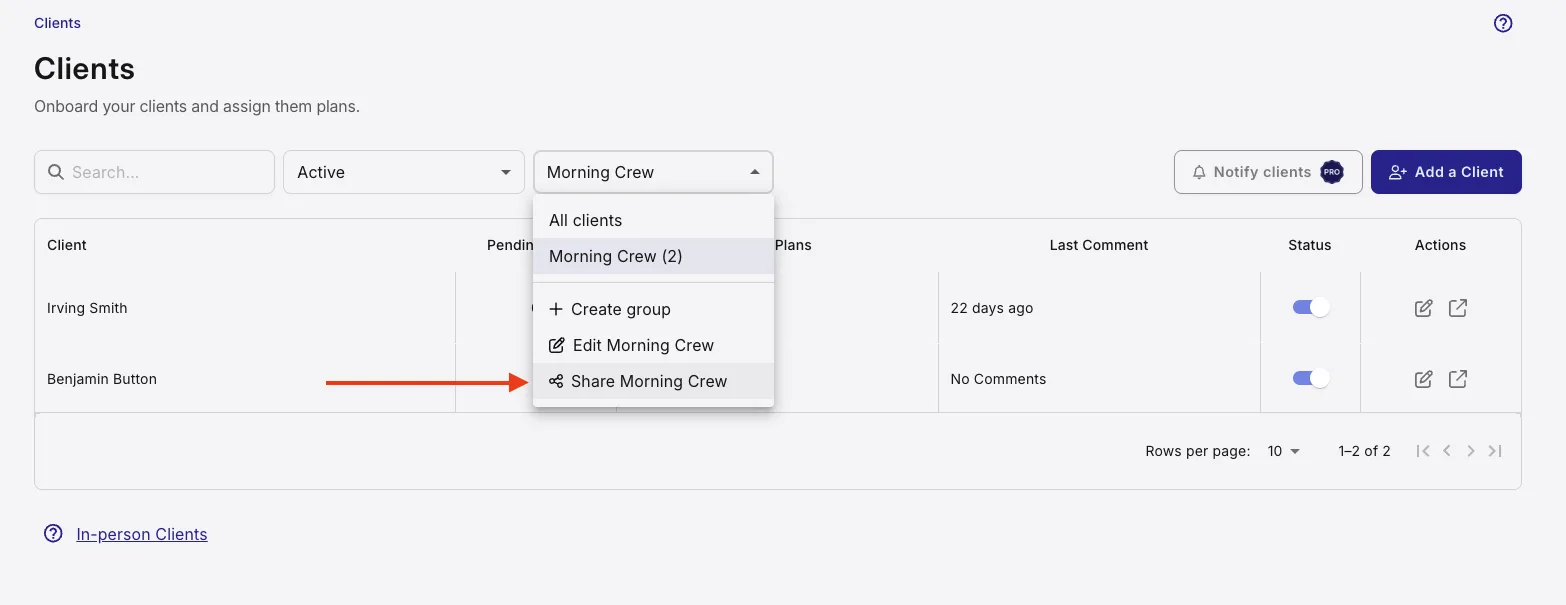
The link lives inside the group, reached from the same Client Groups filter you use to create and filter groups. Make a group, then share it.
- Open Clients and open the Client Groups filter in the toolbar.
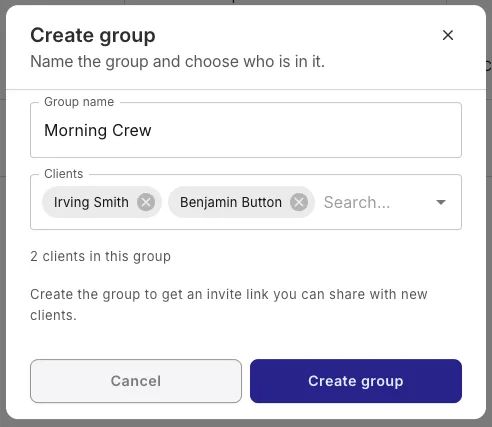
- Choose Create group, give it a name and pick who is in it (or open a group you already have).
- Open the filter again and choose Share <group name>.
- Choose Copy invite link.
- Paste it wherever your new clients will see it, such as a message, an email or a social post. For people in the room, use the group's QR code instead.
Nothing private is in the link. It identifies you and the specific group with a random token, not your account details or the group's internal ID. The coach part reuses your Free with Friends referral code, so a group sign-up never counts as a referral.
Share the link as a QR code
Reading a URL out loud doesn't work in a room. A QR code does. Use it at a taster class, an open day, a gym-floor sign-up, on a flyer, or with a team you're onboarding in person. It's generated from the group's invite link, so it points wherever the link does.
- Open the group's Share screen (Client Groups filter, then Share <group name>).
- Under Invite QR code, choose Download QR code.
- Print it, add it to a poster or slide, or show it on your phone.
A client scans it with their phone camera, fills in the same short form, and lands in the group, exactly as if they'd opened the link.
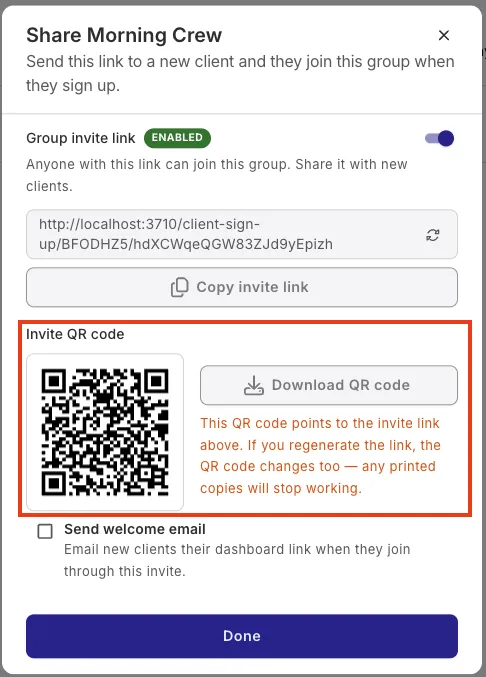
The QR code follows the link. While the link is switched off, the QR code doesn't work either. If you regenerate the link, the QR code changes too, and any printed copies stop working. That makes regenerating the way to retire a code that has been shared. Download a fresh one afterwards.
What the client sees
Opening the link shows a simple, mobile-friendly page with your name on it and the group they are joining. There is no app to download first. The form asks for four things, and only three are required:
- First name
- Last name
- Email address
- Phone number (optional)
These use the same checks as adding a client yourself, so the details land clean. The client taps Join group, then sees a short confirmation: "You're all set! Your details have been sent to your coach. They'll be in touch with what comes next." They never see your dashboard, your other clients, or anyone else in the group.
If someone opens a link that has been switched off, or signs up with an email that already has an account, they get one plain message asking them to contact you, and nothing more.
What happens after they join
The moment the form is submitted, three things happen together. The client is created in your workspace, added to the group the link belongs to, and you get an email letting you know. The email subject reads "A new client joined <group name>" and has a View client button that opens their profile.
No plan is assigned automatically. The link's only job is to get the right person into the right group. Sending plans stays a separate, deliberate step you control.
Because everyone who signs up lands in the same group, giving them their plans is the one-action job groups were built for. When your intake window closes, open the group and use the normal assign flow to send a plan or Program Template to the whole group at once. See Client Groups for the full assign steps. If the program is finished and the same for everyone, choose Published under Plan status when you assign, so it goes live for the whole group at once. Draft or Published explains the choice.
Send new clients a welcome email automatically
By default, only you hear about a sign-up. Switch on the welcome email and QuickCoach also emails the new client their dashboard link the moment they join, so they can open the app while they're still keen instead of waiting to hear from you.
- Open the group's Share screen.
- Tick Send welcome email, below the invite link and QR code.
- Choose Done.
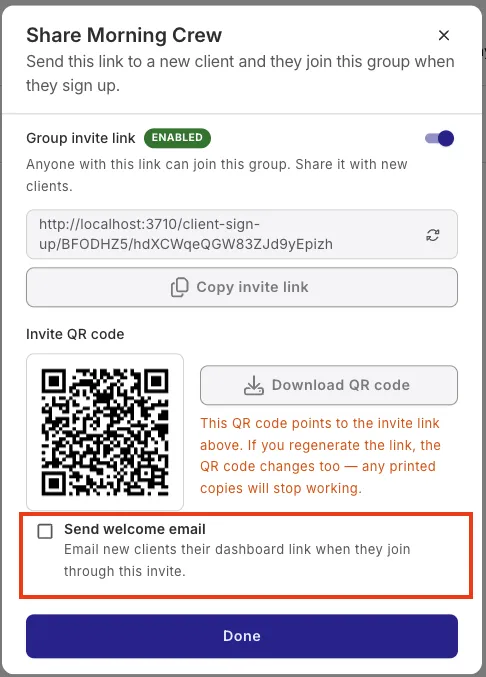
Off by default, and set per link. The box starts unticked, and you turn it on separately for each group. Leave it off if you'd rather send your own first message.
The email is the standard client welcome email. To change what it says, see customising the client welcome email, or read the client's welcome email for what your client receives.
Turn a link on, off or reset it
From the same Share screen you can manage the link:
- Renaming the group does not change the link. Anything already shared keeps working.
- Disable the link when an intake window closes, then switch it back on for the next round.
- Regenerate the link to get a fresh one. The old link stops working the instant you do, which is the way to retire a link that has been floating around.
- Deleting the group switches its link off for good.
Pro access
Group sign-up, including the QR code and the welcome email, is a QuickCoach Pro feature, and your Pro status is checked both when the link is opened and again when someone submits it. If your Pro access lapses, every link you have shared stops accepting new clients on its own, with nothing for you to delete. Sign-ups resume as soon as Pro is active again. To see everything Pro includes, browse the branded and Pro tools section, or manage your Pro plan from your subscription settings.
Sign-up links pair naturally with a tidy set of Program Templates: let a group fill up through its link, then send the program to everyone in a single action.