
Adding images to meal plans
Attach an image to any meal task from your Task Library so clients see exactly what each meal should look like, right alongside the plan in their app.

Adding images to your meal plans shows clients exactly what a meal should look like, which removes guesswork and makes a plan far easier to follow. Here's how.
Note: task images are a QuickCoach Pro feature and aren't available on the Free plan. See what Pro includes.
- Open the Task Library.
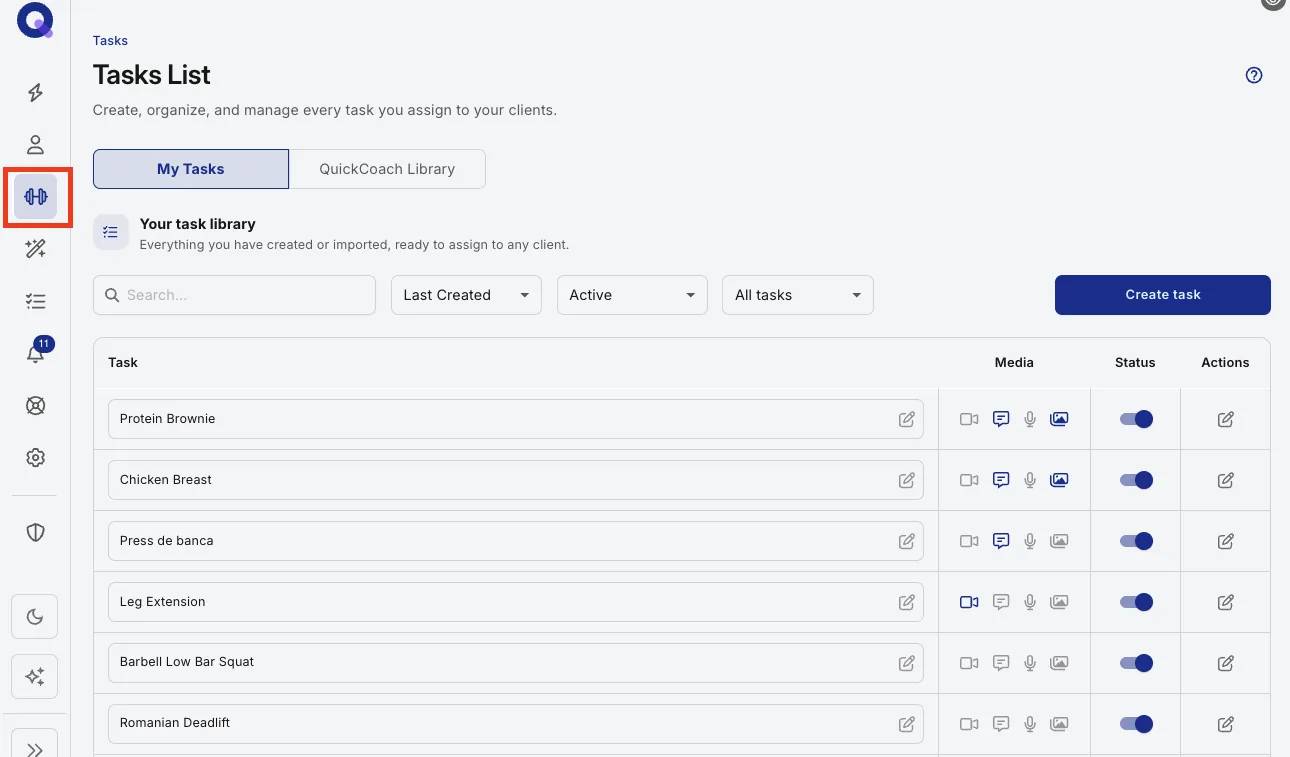
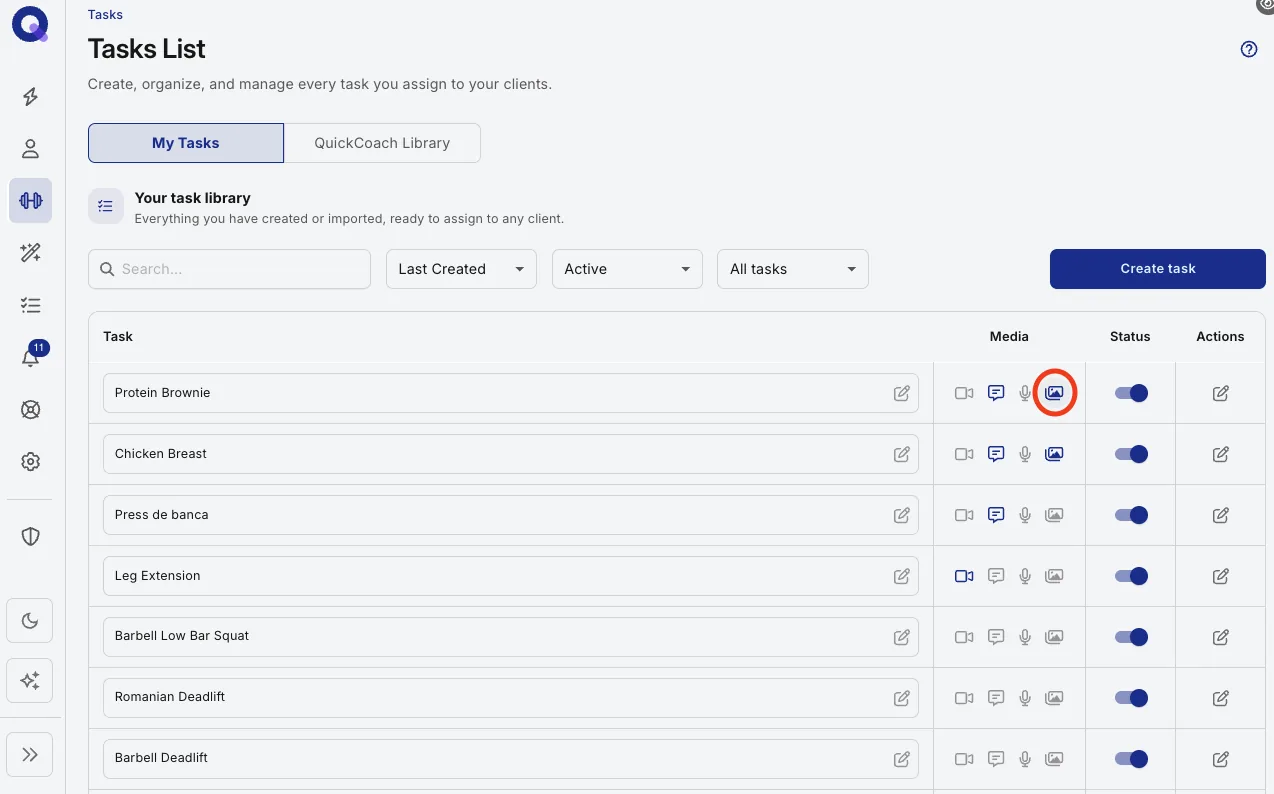
- Click the media file icon of the task or meal you'd like to add an image to.
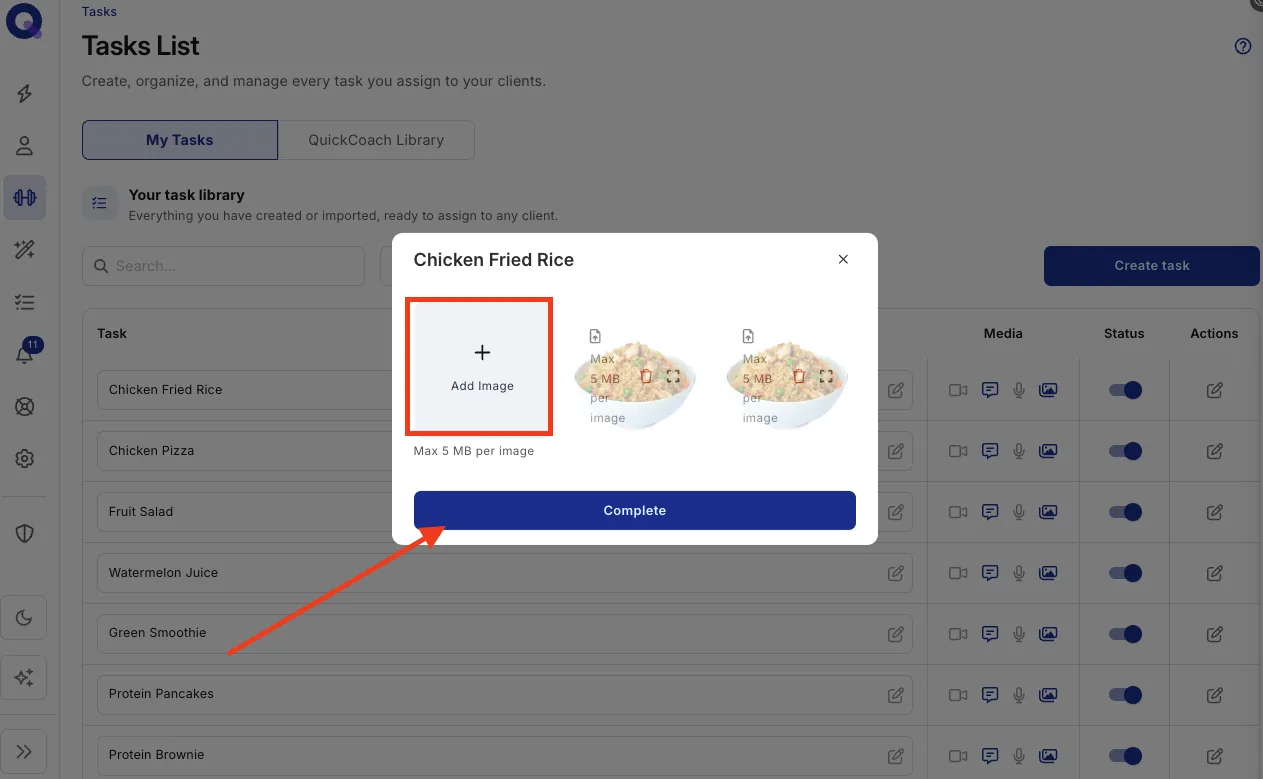
- Click Add Image and hit Complete after choosing your photo.
Your client will now see the image alongside the meal in their app.
Note: a clear photo of the actual meal outperforms stock imagery every time, because the client is matching what is on their plate to what is on their screen.
For the rest of the picture, see nutrition in client plans and recipes and grocery lists. Tasks can carry video, audio and notes too; adding media to tasks covers the lot.