
Customise the workout completion message
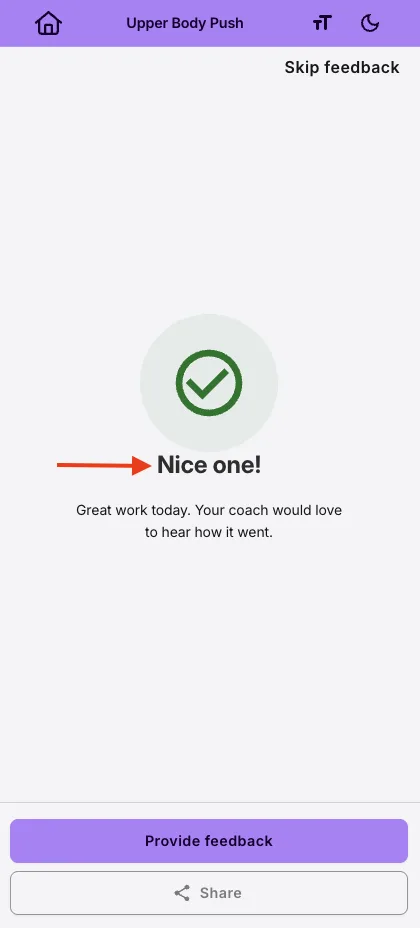
When a client finishes a workout, they see a short message on the completion screen. It used to be a stock line like "Crushed it!". On QuickCoach Pro you can now write that message yourself, up to 60 characters, so it fits the people you coach instead of sounding like software.

The completion message is the heading a client sees the instant they submit a workout, just above the prompt to leave feedback. If a stock line like "Crushed it!" felt too casual or off-brand for the adults you coach, this is where you change it. This article covers where to set it, the character limit, and what happens when you leave it blank.
Note: QuickCoach's features and screen layouts may change over time, but the core workflow stays the same.
Set your completion message
- Open Account Settings.
- Choose Post-plan Questionnaire in the settings menu.
- In the Workout Completion Text field, type the message you want, up to 60 characters.
- Click out of the field. It saves on its own.
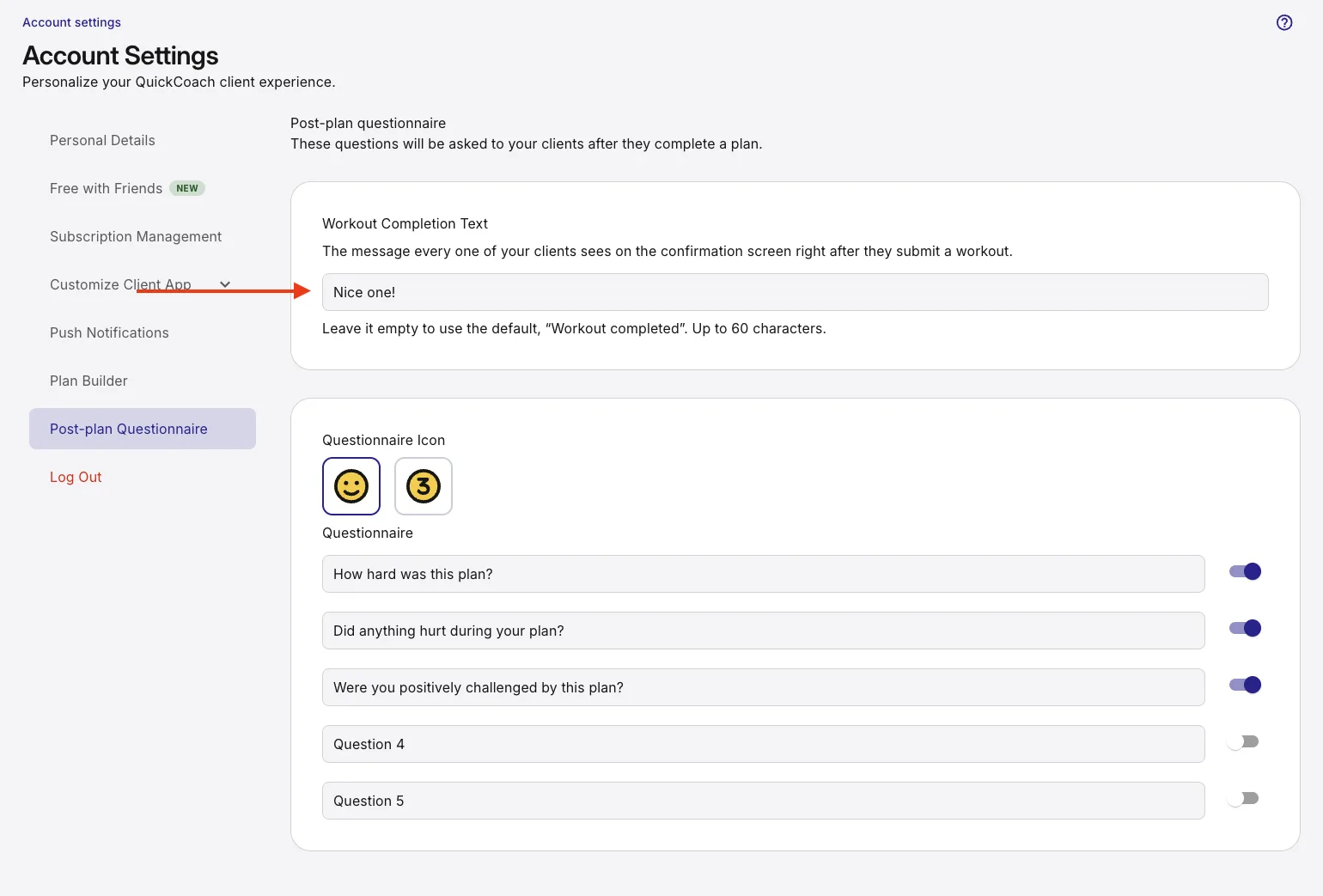
The message shows for every one of your clients on the confirmation screen right after they submit a workout.
Leave it blank for the default
Leave the field empty and clients see the default message, "Workout completed". You can go back to the default at any time by clearing the field and clicking out of it.
Keep it short. The message is a single heading on a phone screen, so it is capped at 60 characters. Anything longer is trimmed to fit.
Pro access
Writing your own completion message requires QuickCoach Pro. On the Free plan, and for any Pro coach who has not set a message, clients see the default "Workout completed". To see everything Pro unlocks, browse the branded and Pro tools section, or manage your plan from your billing settings.
The completion message is part of the same screen where clients answer your post-plan questions and leave feedback. For how that flow works from the client's side, see submitting a plan and leaving feedback.