
The New User Nitro Guide
The small tips and deliberate differences that make QuickCoach click, from lingo to programming speed to the client side.

QuickCoach is simple, but if you are coming from heavier software you might overthink it at first. This guide covers the small nuances that make setup easier, plus a few things we do differently on purpose. Take what is useful and skip the rest.
QuickCoach in plain terms
A few words you'll see everywhere:
- Tasks are single items, like a squat, a habit or a lesson.
- Plans are made up of tasks. Think of a plan as one workout or one file.
- Plans Drafts is where you build plans that aren't yet assigned to a client or a template.
- Program Templates hold a group of plans, like a folder on your computer.
- Variables are the labels for the information you share, such as Reps, Sets, Rest or Notes.
Plans move through a few statuses: Draft (in progress, hidden from clients), Upcoming (published and visible), Completed (submitted), Skipped, and Ready (sitting in a template, ready to assign). For the full list, see the QuickCoach glossary.
Six things that work differently here (and why we think they're better)
Our motto is do less, but better. A few constraints make for cleaner coaching.
1. Clients work on a "what comes next" basis, not a calendar
There is no calendar. Clients simply complete the plan at the top of their list, so nobody has to reschedule a missed day.
2. No usernames or passwords for clients
You send each client a unique account link instead of login details. It is easier for them and means far less tech support for you.
3. You build your own task library
Your personal task library starts empty. Create tasks from scratch so your cues, names and demos are exactly how you coach, with no clutter you'll never use, or import ready-made exercises (about 1,400) from the QuickCoach Exercise Library and edit them to suit.
4. Apps install from the browser, not the app store
You install QuickCoach through your browser. On Pro this is what lets you spin up a custom client app without app-store fees or delays. See what Pro includes.
5. Progress is tracked as a list, not a graph
Because you can track almost anything (exercises, nutrition, habits, mood, lessons), not all of it is numerical. Progress shows as a list with the first and last entries highlighted, which stays useful for data a graph can't show.
6. There is no chat feature
You share information inside plans, and clients share back when they submit. Keeping general chat in email or text keeps the programming focused.
Seven tips to make programming faster
Tip 2 is the one that helps everyone.
- Set your plan builder defaults. Choose which variables appear, their order, and how many rows each plan starts with, so you're not rebuilding that every time. The account settings guide shows where.
- Build tasks in full as you go. Add the video and notes when you first create a task. If you add them later, they won't appear in plans you already assigned, only in future uses.
- Know how to copy plans. Copy a plan to reuse it elsewhere, and remember plans are one and done. If a client should repeat the same workout four times, you need four copies. See making copies of plans.
- Create program and base templates. Build outcome-specific templates, plus base templates with your usual warm-ups, cool-downs and plan notes. Build it well once and reuse it forever.
- Check your client's view before assigning. Your spreadsheet-style view is not what clients see. Preview the plan so it reads the way you intend.
- Create your own "tags" through naming. There is no tag feature, but thoughtful names work like one. The client last-name field is hidden from clients, so it's handy for tags like "Online | Summer Shred 2025".
- Assign templates based on your next step. Assigning from the template overview sends all Ready plans straight to a client's Upcoming list. Assigning selected plans from inside a template sends them to drafts first, so you can edit before the client sees them.
Six things to know about the client side
Every account includes a starter client. Assign a few plans to it and use it like a real client account so you understand the experience and can explain it with confidence.
1. Clients see up to six plans at a time
As they submit plans, more appear if they have plans waiting.
2. The results box has a 50-character limit
Each task gives the client a results box capped at 50 characters, spaces included. Tell clients the format you want if space is tight.
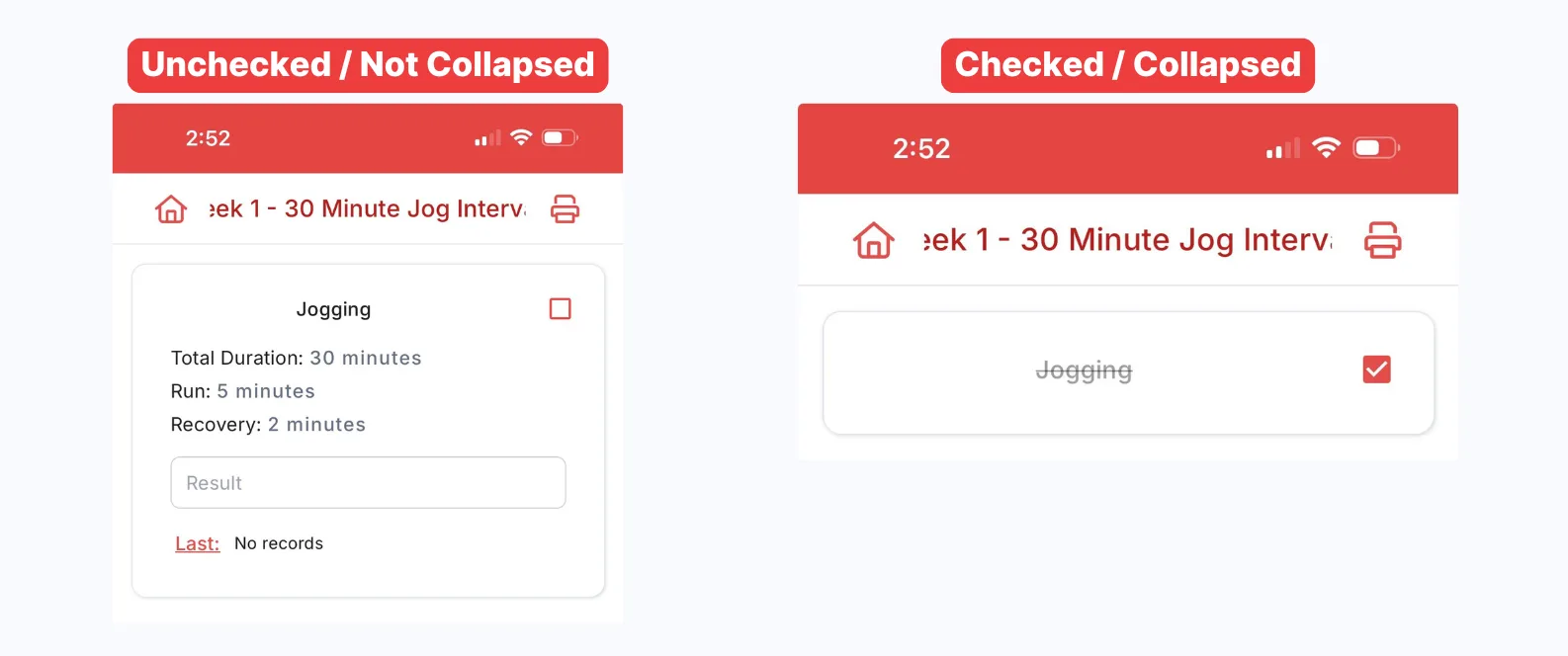
3. Checkboxes tidy the view, they don't track
Ticking a task collapses it to clean up the plan. Whether a box is checked isn't recorded in history, though you can see it on a completed plan.
4. Fill in the results box to track performance
For a result to be tracked, the task must be in your task library and the client must type something in the box.
5. Clients can't edit submitted or skipped plans
Once a plan is submitted or skipped, clients can view it but not change it. You can still fix a client's results from history.
6. There are two more ways for clients to share
After submitting a plan, a client can add a text or audio note. They can also answer your post-plan questionnaire if you have set one up in your settings.